InLoox Self-Hosted Installer Configuration Mode
The configuration mode of the InLoox Self-Hosted Server setup allows you to view and modify the current server configuration, such as SSL certificates or SMTP server settings, after the initial installation.
You must have local administrator permissions on the server to use configuration mode.
Open Configuration Mode
- On the server, open Control Panel.
- Go to Programs → Programs and Features.
- In the list of programs, select InLoox Self-Hosted Server.
- Click Uninstall.
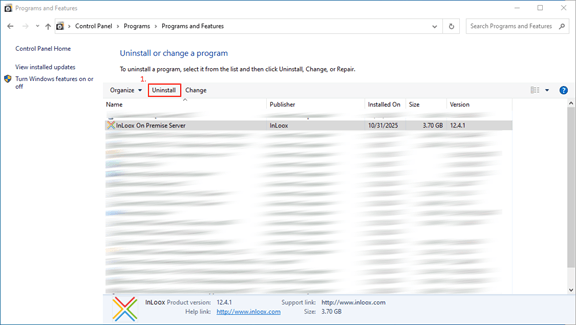
No uninstallation will be performed. This step only launches the setup with elevated administrator privileges, which is required for configuration mode.
- In the setup window, select Update configuration.

Review and Adjust Settings
You can now navigate through each step of the settings and review or adjust values as needed.
All values except the SSL encryption certificate are pre-filled with existing settings.
-
Click through the configuration pages one by one until you reach the section you want to modify. Existing values are already pre-filled.
-
In the SMTP server configuration section, send a test email to continue. Enter a recipient address for the test.
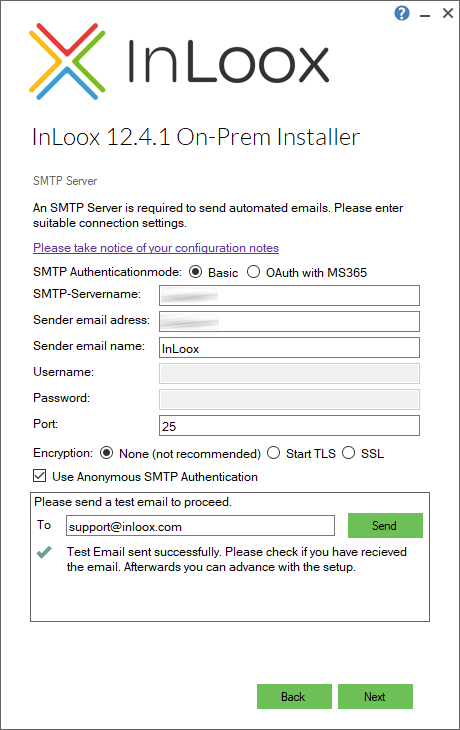
- Confirm all steps to complete the configuration mode.

Restart Web Services
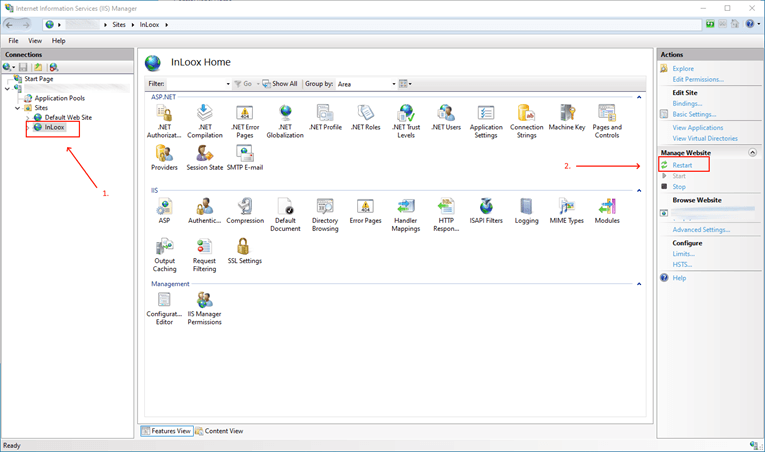
After completing the configuration, restart the InLoox site in IIS:
- Open Internet Information Services (IIS) Manager.
- Select the InLoox site in the left panel.
- Click Restart in the Actions panel on the right.
Use configuration mode whenever you need to update server settings such as database connections, SSL certificates, SMTP servers, or Azure App registrations without reinstalling InLoox.