My Board
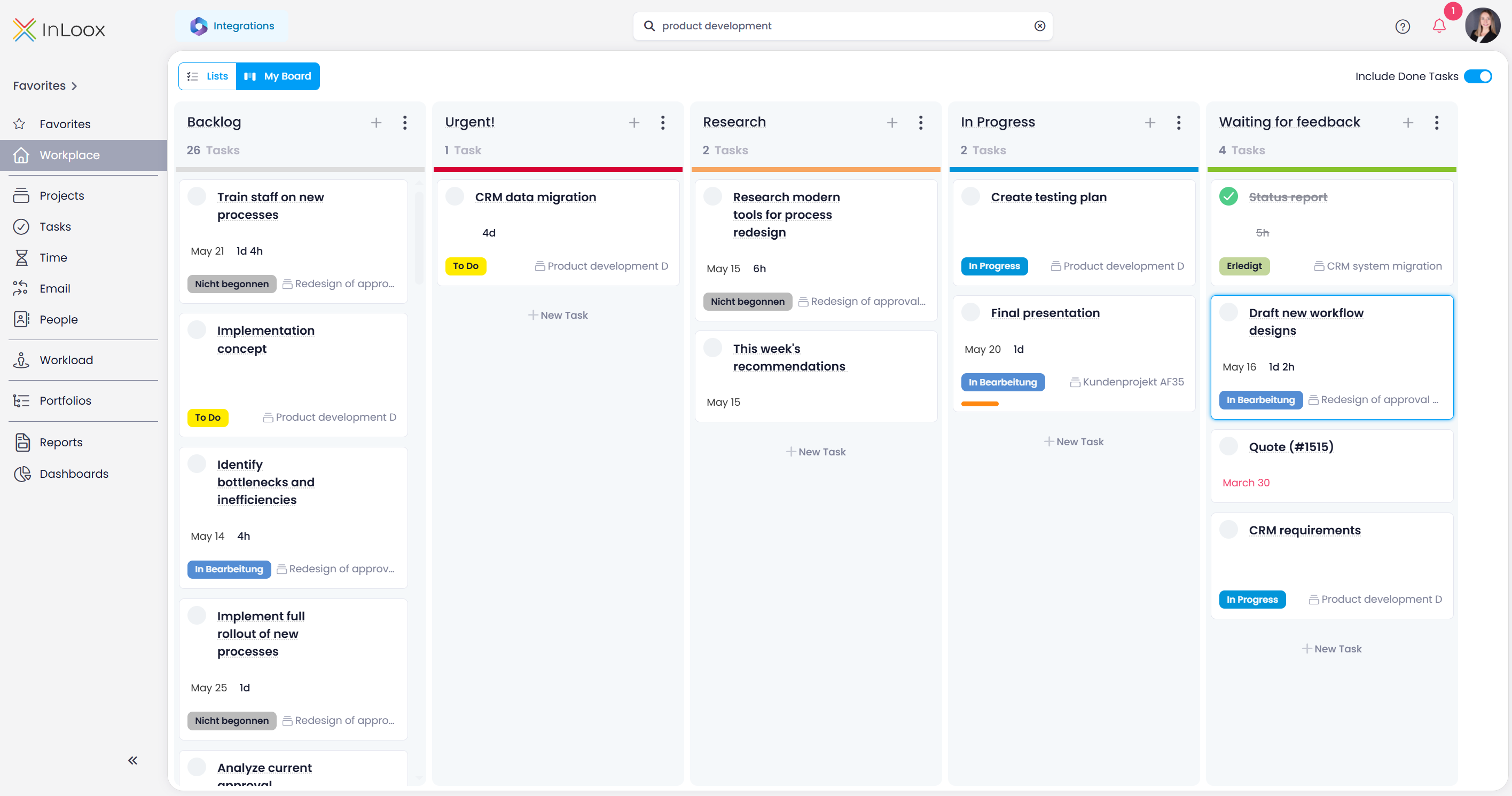
My Board is a personal Kanban board (task board) in InLoox that displays your tasks from all active projects on a customizable board. Click Workplace in the left-hand menu and then select My Board from the view toggle at the top to open it.
Unlike the project Kanban board, which is shared within a project team, My Board is entirely personal — each user has their own columns and card arrangement that is not visible to other team members.
Tasks from archived projects or projects in the Project Bin are not displayed on My Board. My Board also displays a maximum of 500 tasks. If this limit is reached, InLoox shows a hint above the board.
Switch Between Board and List View
Use the toggle buttons in the top-left corner of the Workplace to switch between the two available views:
- My Board — Displays your tasks on a personal Kanban board.
- Lists — Displays your tasks in the standard list view (My Tasks and Delegated Tasks).
Board Columns (Statuses)
The board is organized into columns, each representing a personal status. Each column shows the total number of tasks it contains. You can customize the columns to match your individual workflow:
- Add a column — Click next to an existing column header to insert a new status column.
- Rename a column — Click on the column header and select the rename option, or click the column name directly.
- Delete a column — Click on the column header and select Delete status. A column can only be deleted when it is empty.
- Reorder columns — Drag and drop a column header to a new position.
- Change column color — Click the color bar on the column header and choose a color from the palette.
Board columns are personal statuses that exist independently of the task status within a project. Moving a card to a different column on My Board does not change the task's status in the project.
Task Cards
Each task appears as a card in the column it has been assigned to on your board. A card displays the following information:
- Task name
- Due date (shown in red if overdue)
- Estimated effort
- Project name
- Task status
Moving Tasks Between Columns
Drag a task card from one column to another to update its position on your board. This changes only the card's column on your personal board — it does not affect the task's project status or any other team member's view.
Creating Tasks
You can create new tasks directly within a column. Click + New Task at the bottom of a column, or click at the top of the column next to .
Marking Tasks as Done
To mark a task as done, click the checkbox on the task card. The task status is synchronized between the board and the project — marking a task as done on My Board will also mark it as done in the project, and vice versa.
When a task is marked as done, it moves to the bottom of the column. It stays visible for the rest of the day, then disappears automatically — just like in the Workplace list view.