Essential Settings for the Workload
To get a workload overview that reflects your working reality, you need to make the following InLoox Account Settings. You need administrator rights for this.
- Define working hours and calendars
- Link person to a calendar
- Connect Outlook calendar
- Read and write permissions
Define Working Hours and Calendars
In Account Settings under Organization > Working hours > Working hours, you must first define the number of working hours per day, e.g. specify the working day as 8 hours.
In Account Settings under Organization > Working hours > Calendars, you need to add the standard calendars 24/7 and Standard with additional, individual calendars, if you need to map e.g. part-time employees or shift work.

In addition, you should store non-working days in each calendar, e.g. days off that differ from general holidays.

General holidays can be imported via the InLoox API.
Read the help article on how to define working hours and calendars for more details.
Link Person to a Calendar
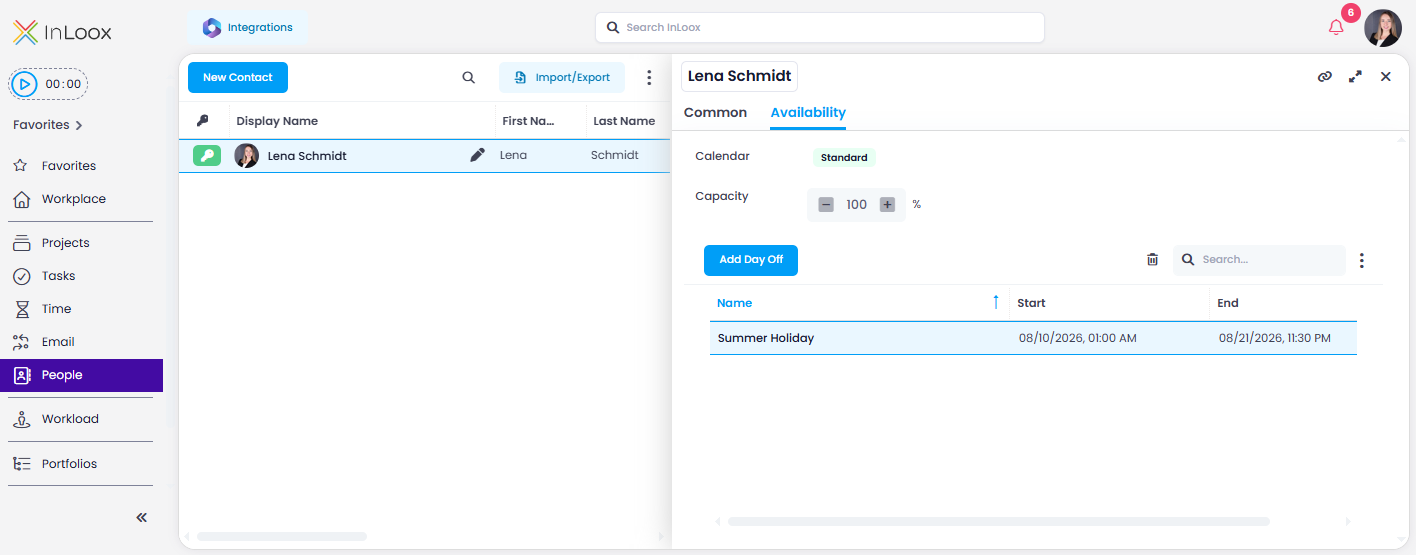
In order for InLoox to know which working time calendar it should use to calculate the workload, each person must select the calendar that is appropriate for them. To do this, proceed as follows:
- Open InLoox and click People in the menu on the left.
- Select your own contact entry and click Attendances and Absences on the right.
- From the Calendar drop-down menu, select the calendar that suits you. If you cannot find it in the list, contact your InLoox administrator.
- Under Days off you can enter your vacation days. To do so, click New and enter the corresponding data.
- You can also set the person's capacity in % for project work (e.g. 80%). This percentage is used to calculate the available working hours in the workload. Read more in the article Define availability of a person.
Connect Outlook Calendar
InLoox offers an extended integration with personal Outlook accounts for the workload. With the Microsoft 365 calendar synchronization, appointments from the personal Outlook calendar are taken into account for resource allocation and allow a realistic assessment of availability and utilization.
This feature requires linking the Microsoft 365 account to InLoox. You must have InLoox administrator permissions.
- Open InLoox, click on your profile picture and then on Account Settings.
- Click on Integrations on the left.
- For Microsoft 365 - Calendars, click the Connect button on the right and follow Microsoft's instructions.
Read and Write Permissions
The permission Read workloads gives the person reading rights for the workload. This means that the person can see the workload, but can only see the task names if they also have at least read rights in the associated project.
In order for the workload to be calculated by InLoox, the tasks must contain planned efforts and a resource allocation. Therefore, it is important that persons responsible for effort estimation have the following rights either as Global permission, Role permission, or Department permission:
- Edit Project
- Edit tasks
If the effort estimation is done through the activity assignment of the task, then the person must be given the following permissions:
- Edit Project
- Edit planning
See the help article on InLoox permissions for more details.