7 posts tagged with "platform:outlook"

InLoox for Outlook

View All Tags

The New InLoox Help Center Is Now Live

The InLoox Help Center has been completely redesigned and is now available at docs.inloox.com. It is the central hub for all InLoox documentation, bringing together everything from InLoox Web App and InLoox for Outlook Add-in to Microsoft Teams integration, InLoox Mobile Apps, the InLoox API, and InLoox Self-Hosted installation.

You can access the InLoox documentation directly from InLoox Web App: simply click the question mark icon. The new Help Center offers a significantly improved user experience with clearer navigation, faster access to information, enhanced search capabilities, and integrated AI assistance.
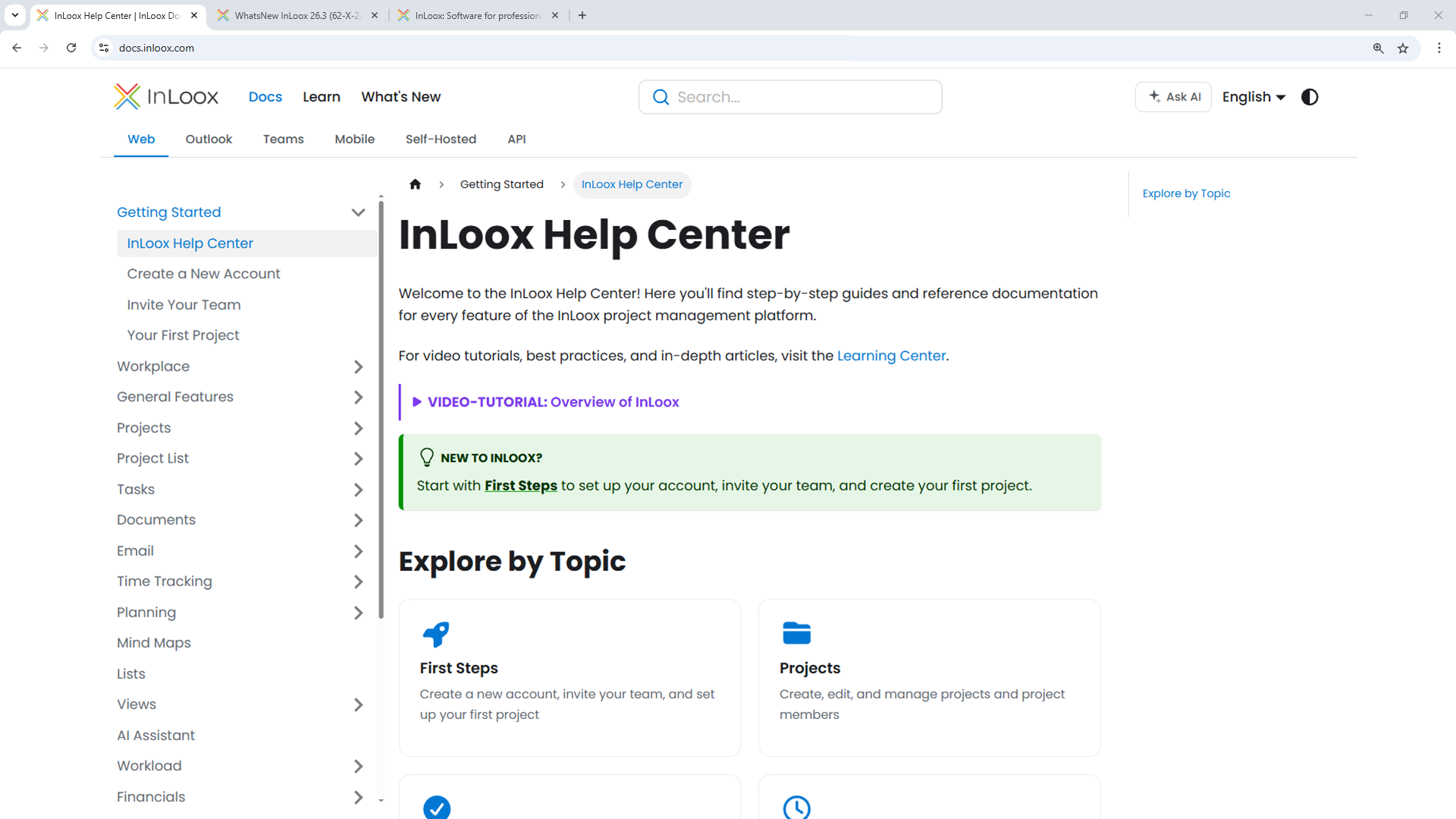
The new InLoox Help Center

What You'll Find

  • Comprehensive product documentation: Step-by-step guidance for all InLoox features in InLoox Web App and the Outlook and Teams Add-ins.
  • Getting started guides: Quick introductions to help new users set up their InLoox Account and successfully launch their first projects.
  • Video tutorials and learning content: A dedicated Learning Center with short video walkthroughs for the most important workflows and use cases.
  • InLoox API reference documentation: Detailed technical documentation for developers integrating InLoox through the OData REST API.
  • InLoox for Outlook and InLoox for Teams integration guides: Dedicated sections covering the InLoox Outlook Add-in and Microsoft Teams integration.
  • Self-Hosted installation documentation: Setup and configuration guides for on-premise deployments.

Faster Search and AI-Powered Assistance

The new full-text search helps you quickly find relevant articles, tutorials, and API endpoints across all documentation sections. In addition, the integrated InLoox AI Assistant can answer questions directly based on the official InLoox documentation. Simply describe your issue or ask a question to receive contextual guidance instantly.

The InLoox Help Center is available in English and German:
Time: Outlook Calendar Time Tracking for Exchange Server

InLoox for Outlook now supports time tracking from calendar appointments for both Microsoft Exchange Online and Microsoft Exchange Server (Self-Hosted).

With Exchange Online, browse and track appointments directly from the Time tab in the add-in. With Exchange Server, open a calendar appointment in Microsoft Outlook, launch the InLoox add-in, and track the appointment from there.

Set Category on Processed Emails

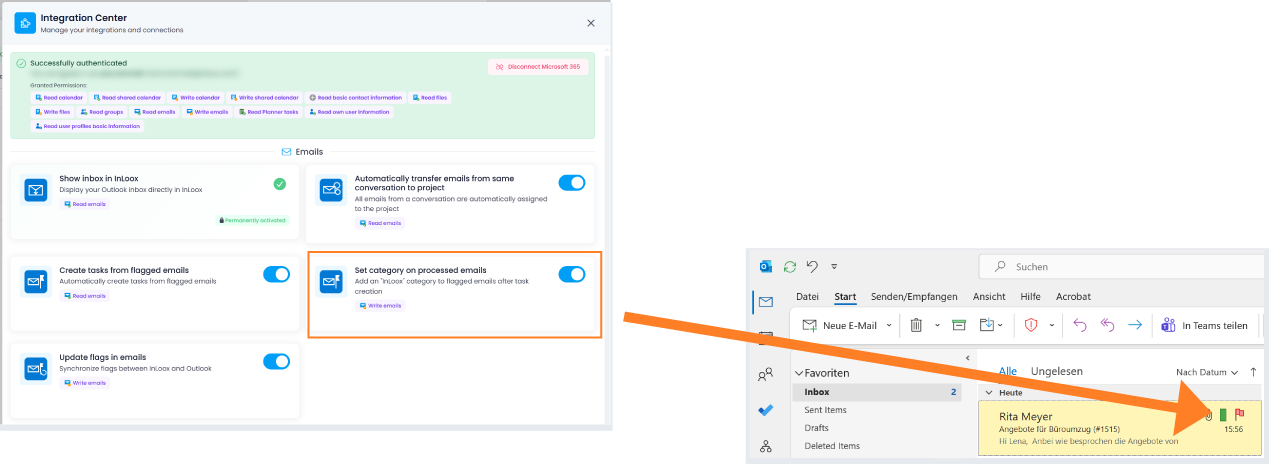
In the email integration, you can now automatically assign the category "InLoox" to emails that have been processed — such as when a task is created from an email (e.g., via flagging). This allows you to easily identify which emails have already been turned into tasks in InLoox directly within your inbox.

Prerequisite: The toggle Set category on processed emails must be enabled in the Integration Center.

InLoox category on flagged mails

Help article: Integrations: Emails

Create Tasks from Emails Using Outlook Flags

InLoox users are already familiar with creating tasks directly from emails — for example via the InLoox for Outlook side panel, where tasks can be generated from an email with just one click.

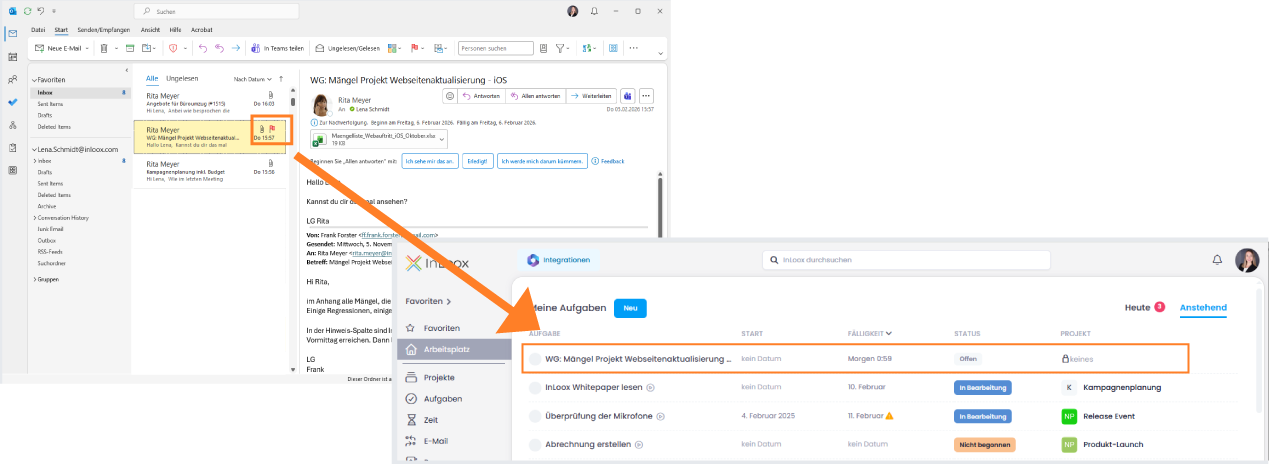
New in InLoox 26.1 is an additional, convenient option: after activating the feature Create tasks from flagged emails in the Integration Center, emails flagged in Outlook (e.g., Today, Tomorrow, Next Week) automatically generate corresponding InLoox tasks.

Optionally, synchronization can also be enabled here: if Update flags in emails is activated, completing the task in InLoox will automatically update Outlook and mark the email flag as completed as well. This new flag-based logic complements the existing side panel and provides another flexible way to quickly turn emails into structured tasks.

Flagged Outlook mail creates InLoox task

Redesigned Email Tracking

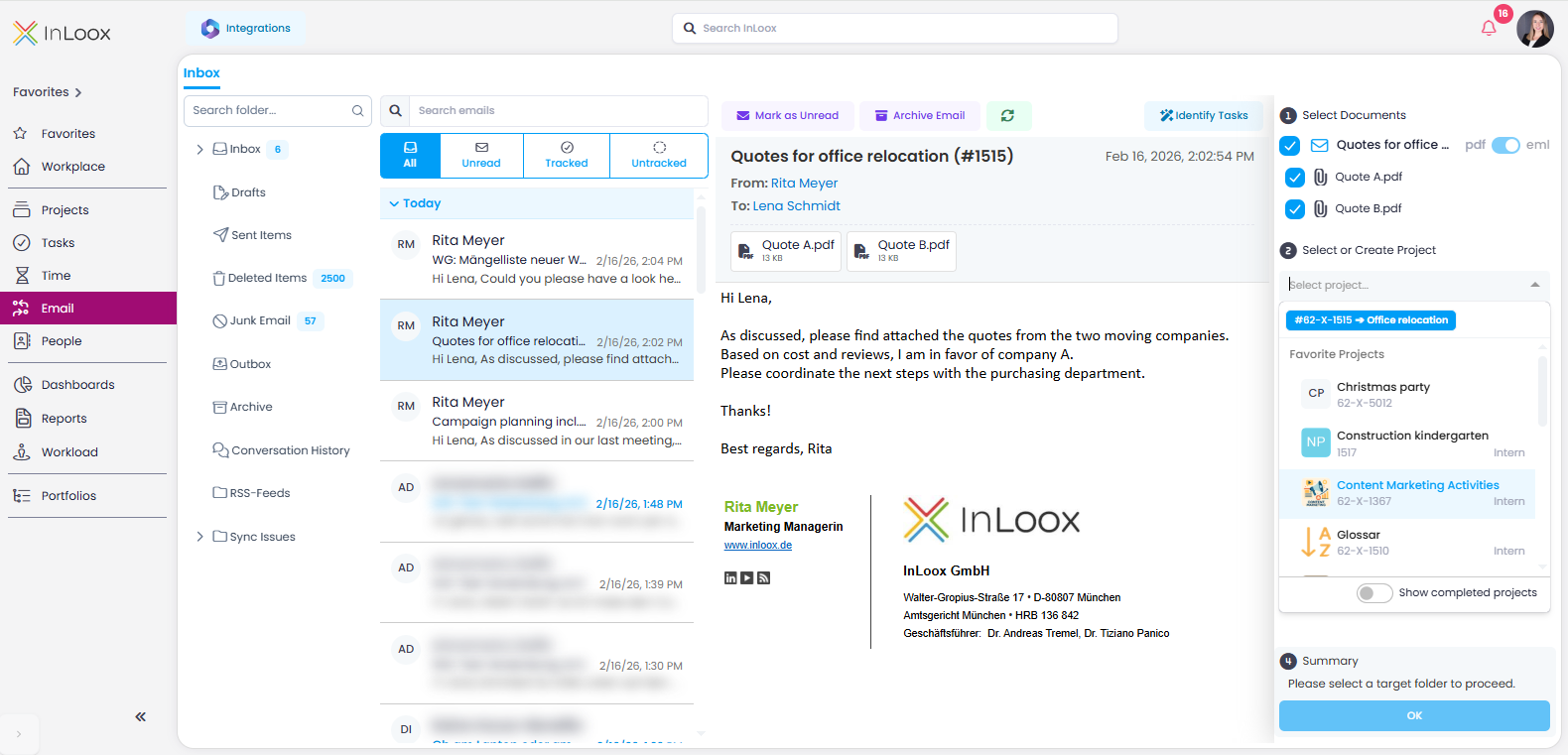
With version 26.1, the inbox in the "Track" section has been fundamentally redesigned and is now called Emails. The core idea remains the same: emails and attachments can be assigned to projects, and tasks can be created using the AI Assistant.

Email section overview

The redesign brings numerous improvements and new features:

  • Unified tracking process: Emails and attachments can now be tracked just as easily as in the Outlook add-in: select, choose project and project folder, save — done.
  • Automatic project suggestions: If the email subject contains an InLoox project number (starting with #), matching projects are automatically suggested when filing.
  • Duplicate check: You can instantly see if emails or attachments have already been tracked, including their project assignment.
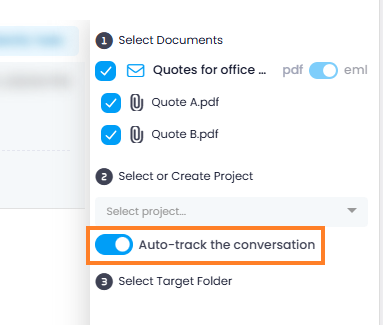
  • Automatic email tracking: When emails are filed in a project folder, all subsequent replies within the same conversation can be automatically stored in the same project folder. This requires enabling "Automatically transfer emails from the same conversation to the project" in the Integration Center.

Automatic email conversation tracking

  • Improved previews: Reliable display of email content and attachments, regardless of format.
  • Outlook folder structure, search & filters: Work within your familiar Outlook folder structure, search for emails, or filter by All, Unread, Tracked, or Not tracked.

Sync Project Tasks with Outlook Calendar

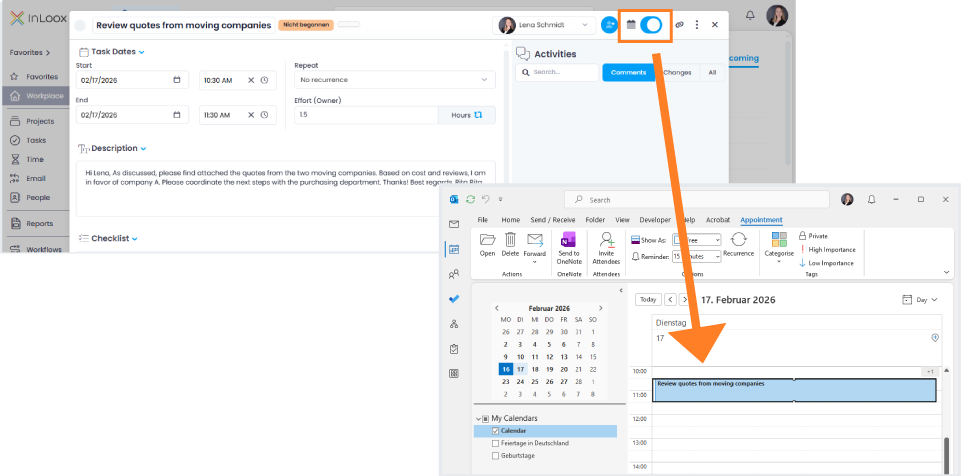
Project tasks can now be directly linked to your Microsoft Outlook calendar. After enabling the required permission in the Integration Center, simply toggle a switch within the task to add it to your calendar.

Synchronization Options

Two new options are available in the Integration Center:

  • Changes to InLoox tasks update calendar entries
  • Changes to calendar entries update the InLoox task

When both permissions are enabled, bidirectional synchronization is possible. Changes to date, time, or duration can be made either in InLoox or directly in the Outlook calendar, ensuring the task always remains up to date and consistent.

Synchronize InLoox task in Outlook calendar

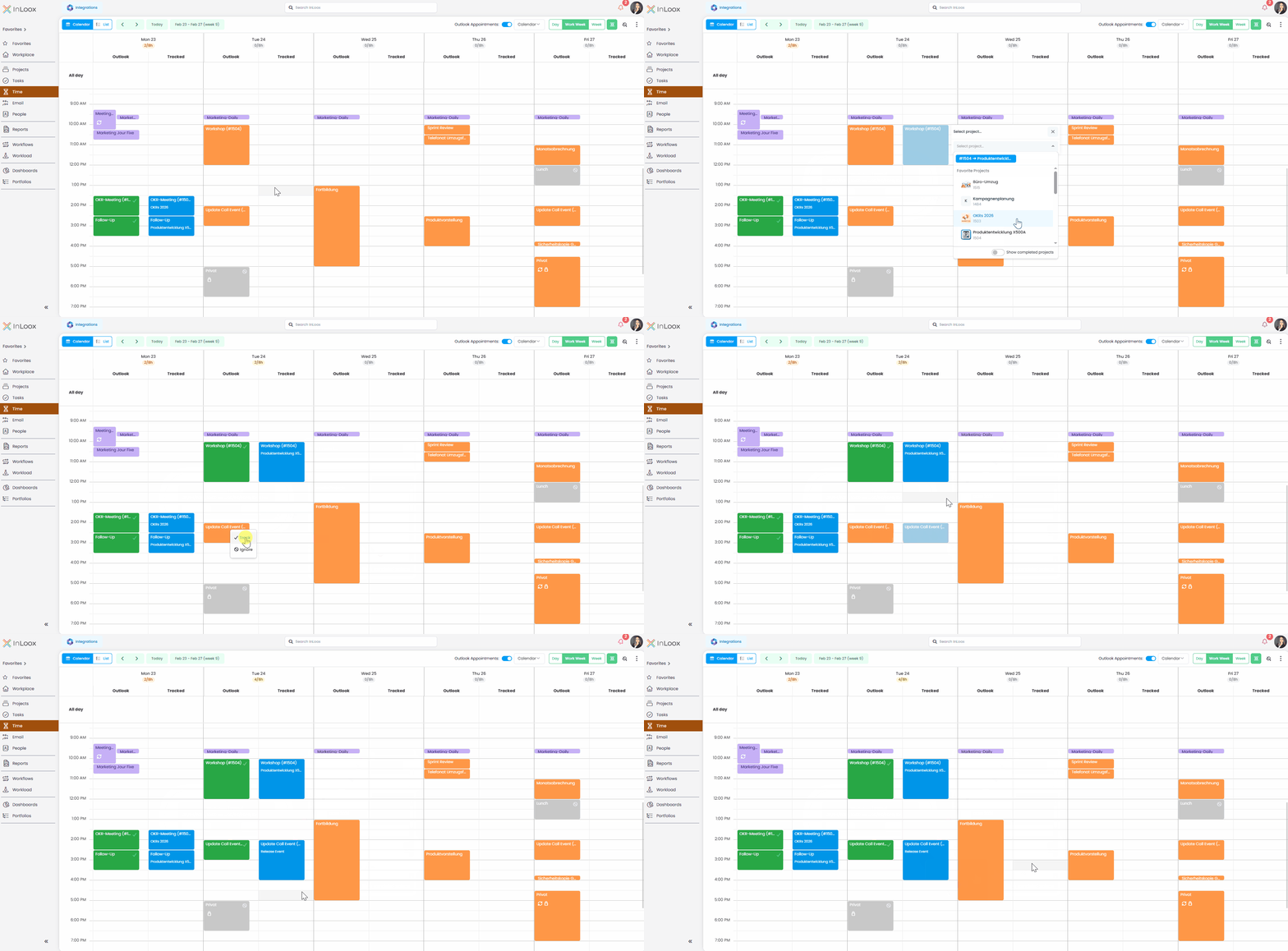
New Time Tracking Area: Log Outlook Appointments Directly

With version 26.1, we've made time tracking from calendar appointments even more straightforward. The former calendar section under "Track" has now been fully integrated into the main menu item Time.

In the new time tracking calendar, you can work in a daily, weekly, or workweek view and display your Outlook appointments directly using a simple toggle (connection to Microsoft 365 account required). An additional Tracked column instantly shows which appointments have already been logged.

Tracking time is simple: click the appointment, track it, select the project — done. Time entries can be flexibly adjusted, moved, or duplicated using drag and drop.

New features also include:

  • Automatic project suggestions when logging time, based on an InLoox project number (starting with #) included in the appointment title
  • Capacity display showing booked time and target working hours per day
  • Conditional formatting for color-coded highlighting of appointments

Of course, you can still create time entries independently of Outlook and switch between calendar and list views whenever needed.

Time tracking of Outlook calendar entries