5 posts tagged with "area:views"

List views and data display

View All Tags

Views: Advanced Column Chooser

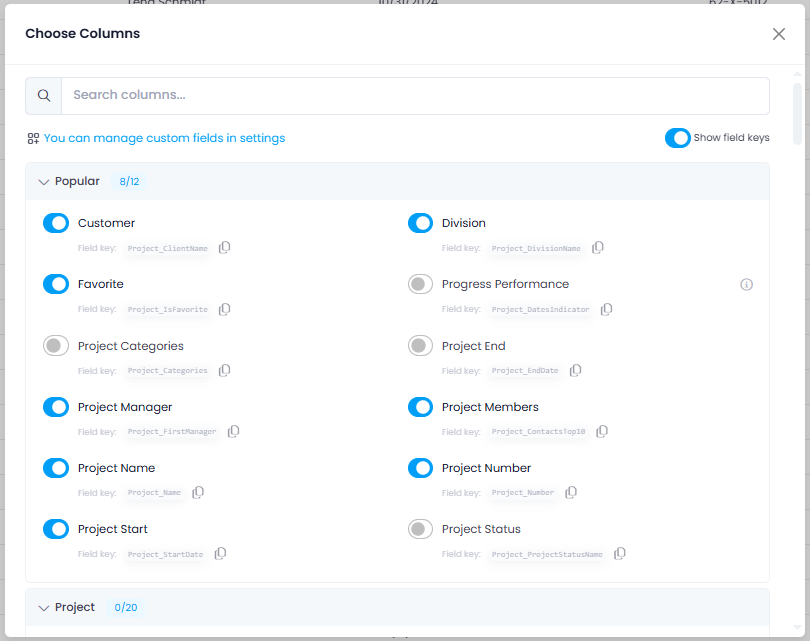
A new advanced column chooser makes it easier to find and add columns to your list views. Hover over an existing column header and click the + icon to open it. All available columns are grouped into practical thematic categories. More complex columns include a description of the data they contain.

You can also display and copy database field keys directly, which is especially helpful for dashboards and reports.

Advanced column chooser

Help article: Add Columns to Views

Conditional Formatting: Custom Colors

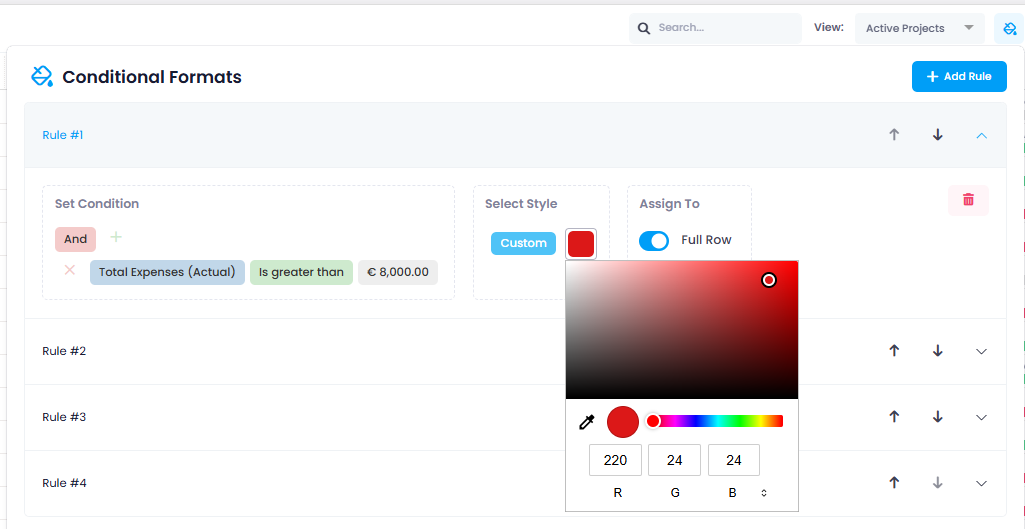
Custom colors are now available in conditional formatting. In addition to the predefined color options, you can now select "Custom" which opens a full color picker. There, you can define colors using RGB, Hex, or HSL values, or simply choose your desired shade using the integrated color picker.

This allows you, for example, to apply precise brand-compliant colors (CI colors) — for maximum flexibility in visually designing your project and task lists.

Custom colors in conditional formats

Help article: Conditional Formats

Conditional Formatting: Advanced Date Comparisons

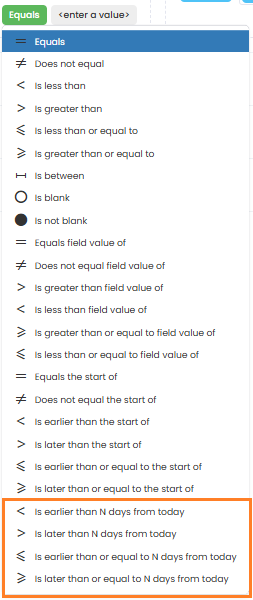
Conditional formatting has been enhanced with more flexible date comparisons. New comparison operators such as "Is earlier than N days from today" and "Is later than N days from today" are now available.

This allows you, for example, to highlight tasks whose due date falls within the next 14 calendar days, or to mark projects whose start date is more than 30 days in the past. It also enables you to visually represent sprint periods or upcoming deadlines.

note

Values are specified in calendar days. All comparisons are based on the current date ("today") and automatically shift as time progresses.

Advanced date comparisons in conditional formats

Help article: Conditional Formats

Quick Grouping for Time and People Lists

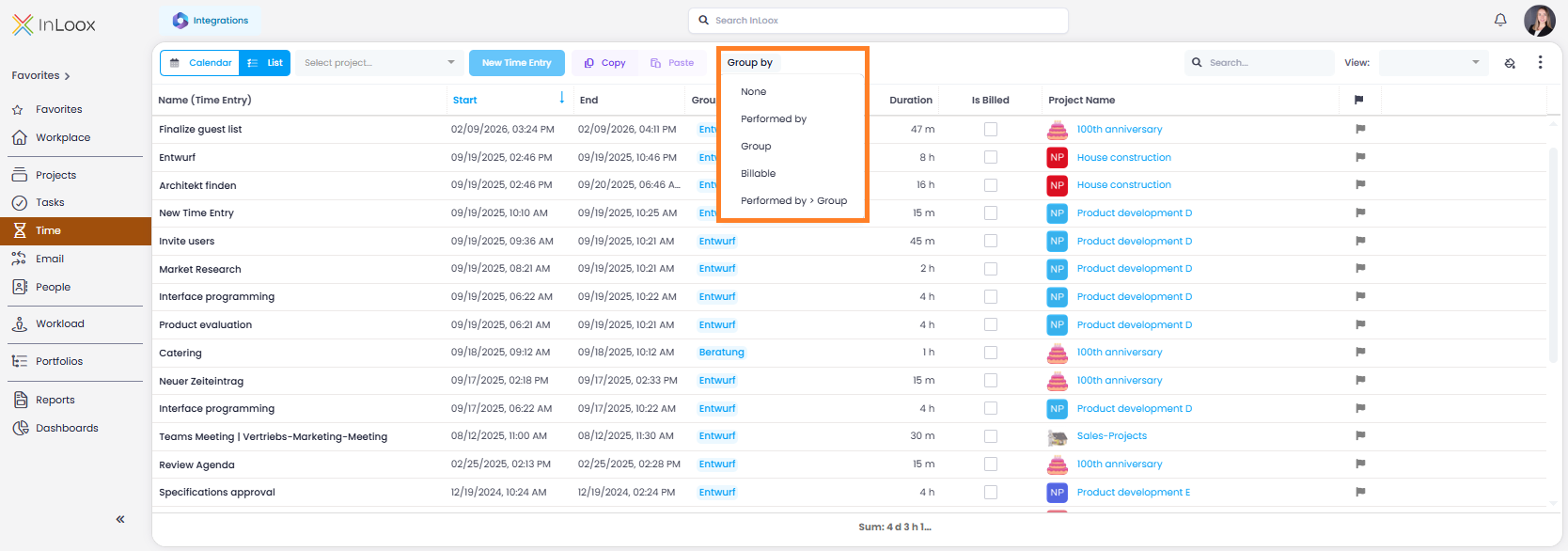
The views for people and time entries now include quick grouping options, allowing you to structure and analyze your data with just a few clicks:

People list:

  • Company
  • Department
  • Location
  • Company > Department

Time list:

  • Performed by
  • Group
  • Billable
  • Performed by > Group

These predefined quick groupings provide a fast and convenient way to get started. You can still use the Advanced Mode to group by any columns and create custom analyses.

Quick grouping in the time tracking view

New Project Performance Indicators

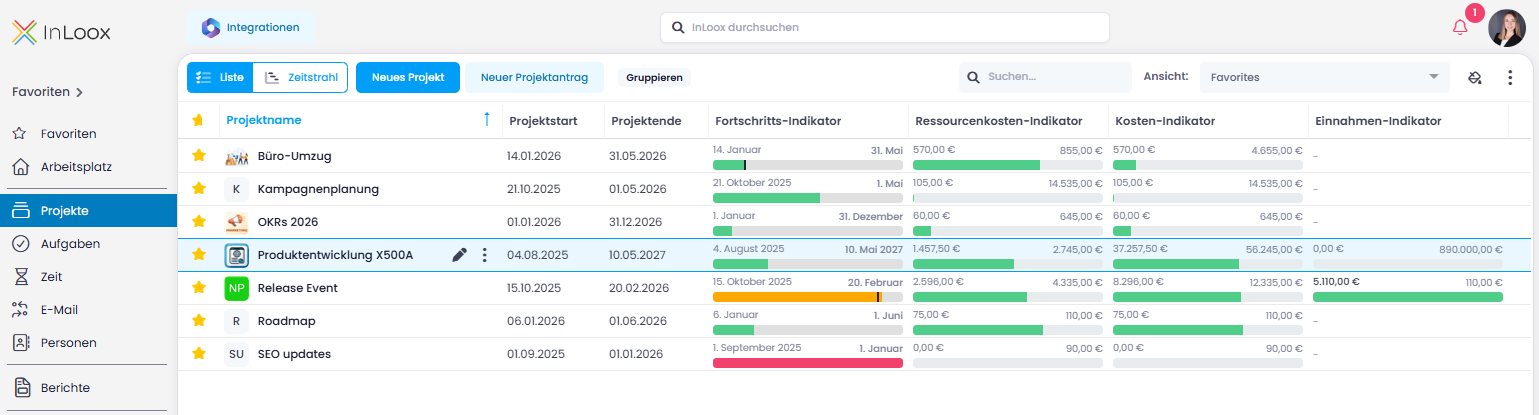
The project list now includes four new columns with visual indicators. These provide an instant overview of your projects' timeline, costs, and revenue — without the need for additional reports or dashboards:

  • Progress Performance: Visualizes the project timeline between start and end dates. A traffic light system (red, orange, green) shows whether the project is on schedule, while a marker indicates the actual work progress. This makes delays immediately visible.
  • Revenue Performance: Compares planned and actual revenue. Once the revenue target is reached or exceeded, the bar turns green.
  • Cost Performance: Compares planned and actual total expenses, making budget deviations instantly visible.
  • Resource Cost Performance: Based on time tracking data, this shows whether planned resource costs are being met or exceeded.

Project performance indicators