6 posts tagged with "area:time-tracking"

Time tracking

View All Tags

Multi-Select in Kanban Board and Time Calendar

You can now select multiple items for bulk editing in two additional views:

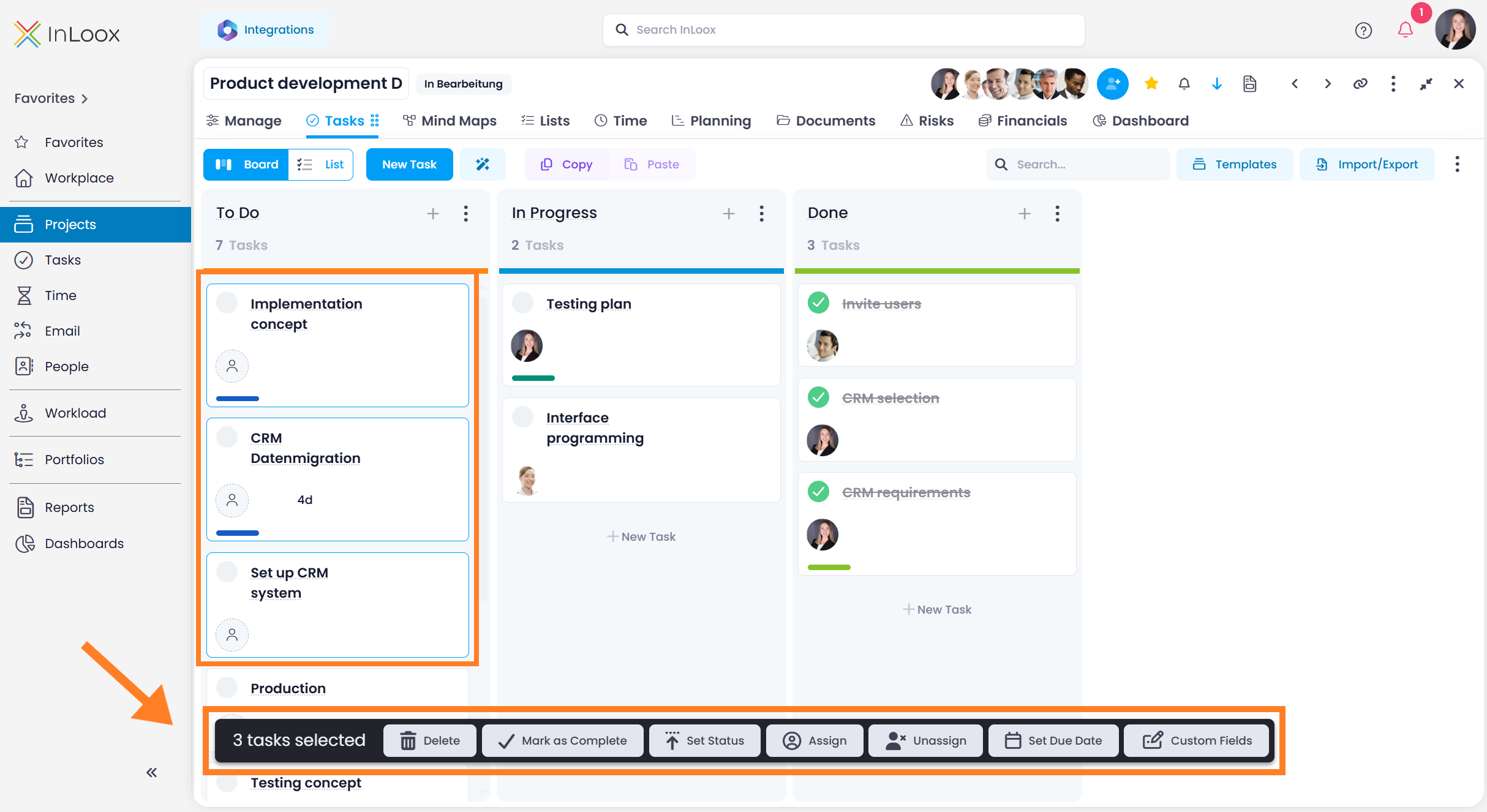
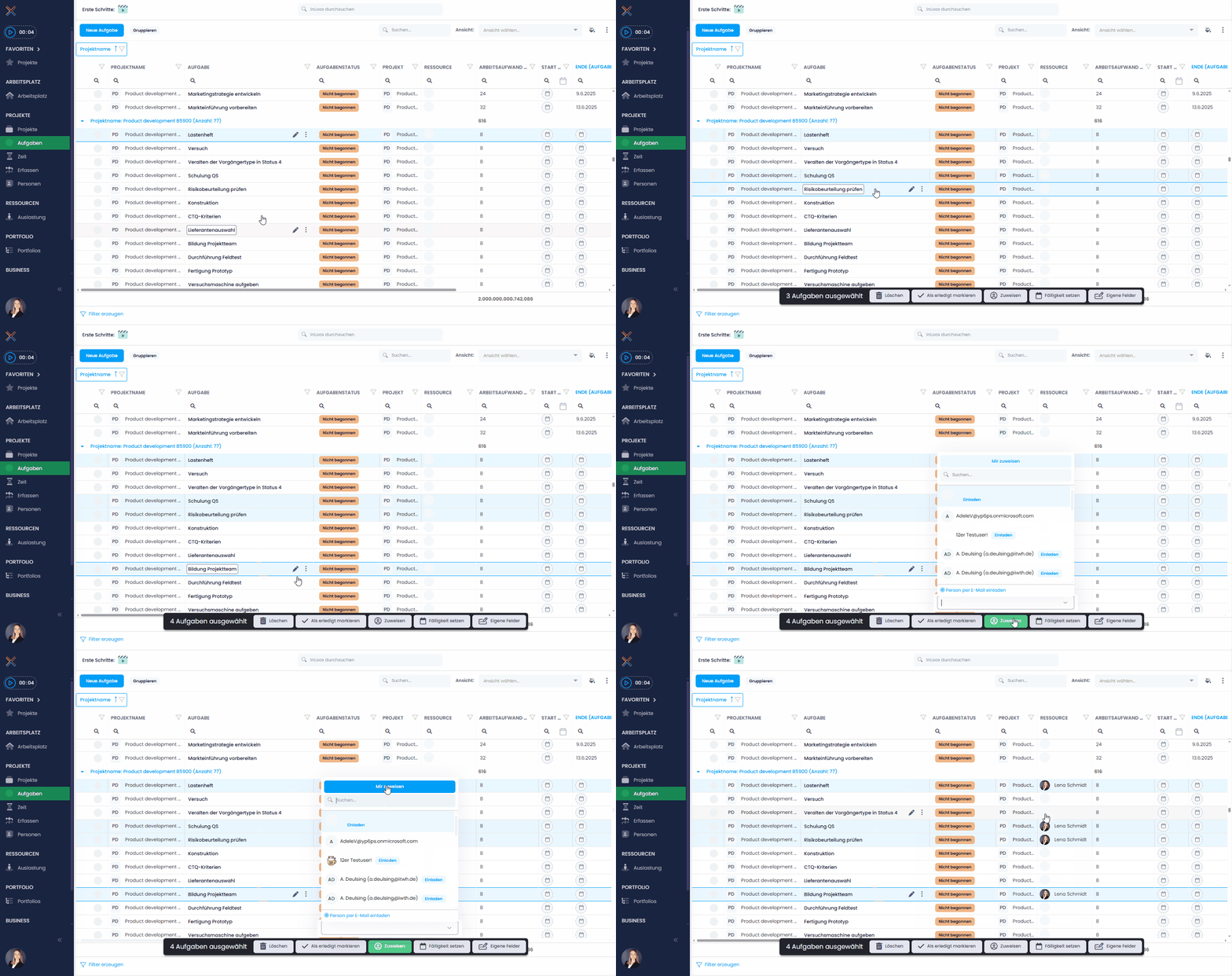
  • Kanban board: Hold Ctrl or Shift and click on task cards to select them. Selected cards are highlighted with a blue border. A command bar at the bottom of the screen shows available actions such as delete, mark as complete, set status, assign a resource, or edit custom fields.

Multi-select in Kanban board

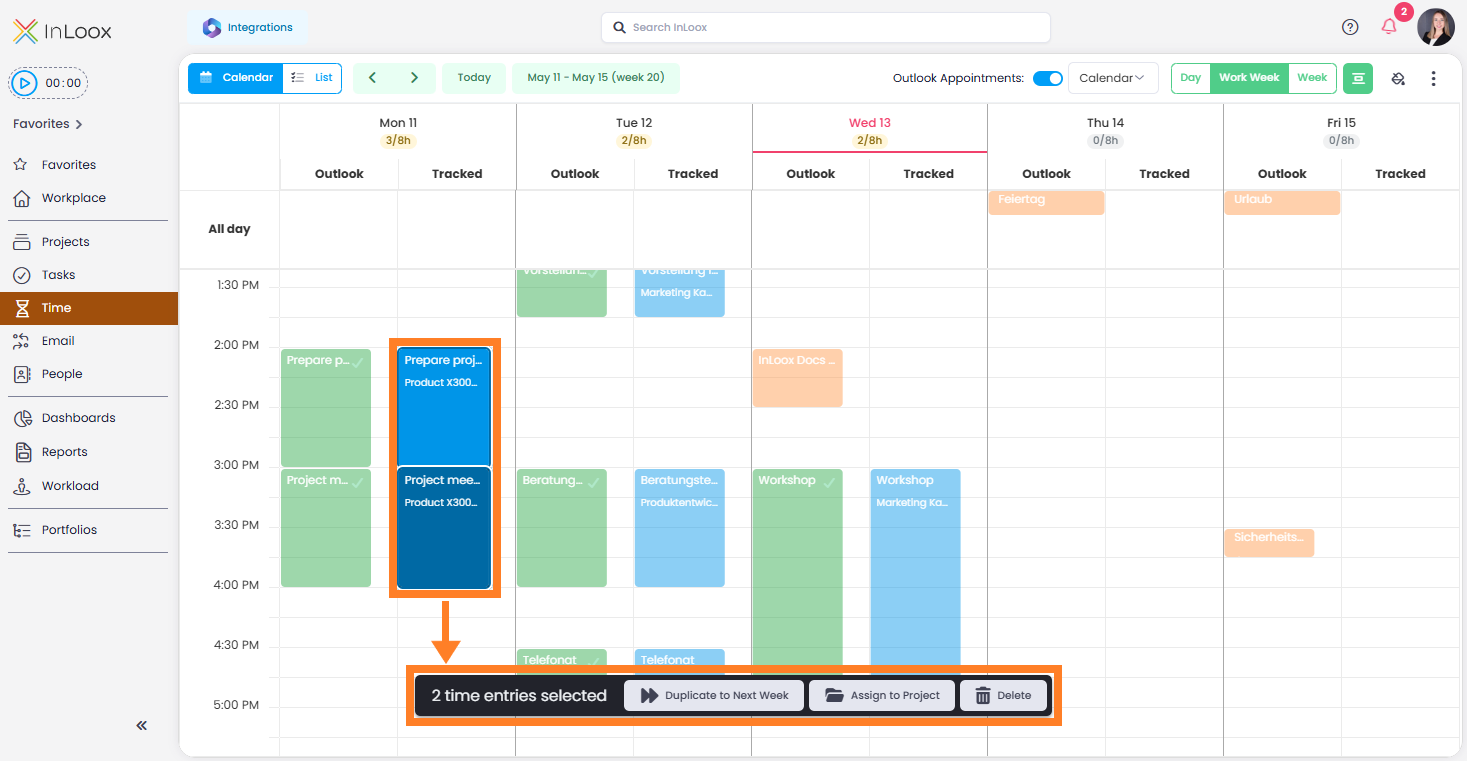
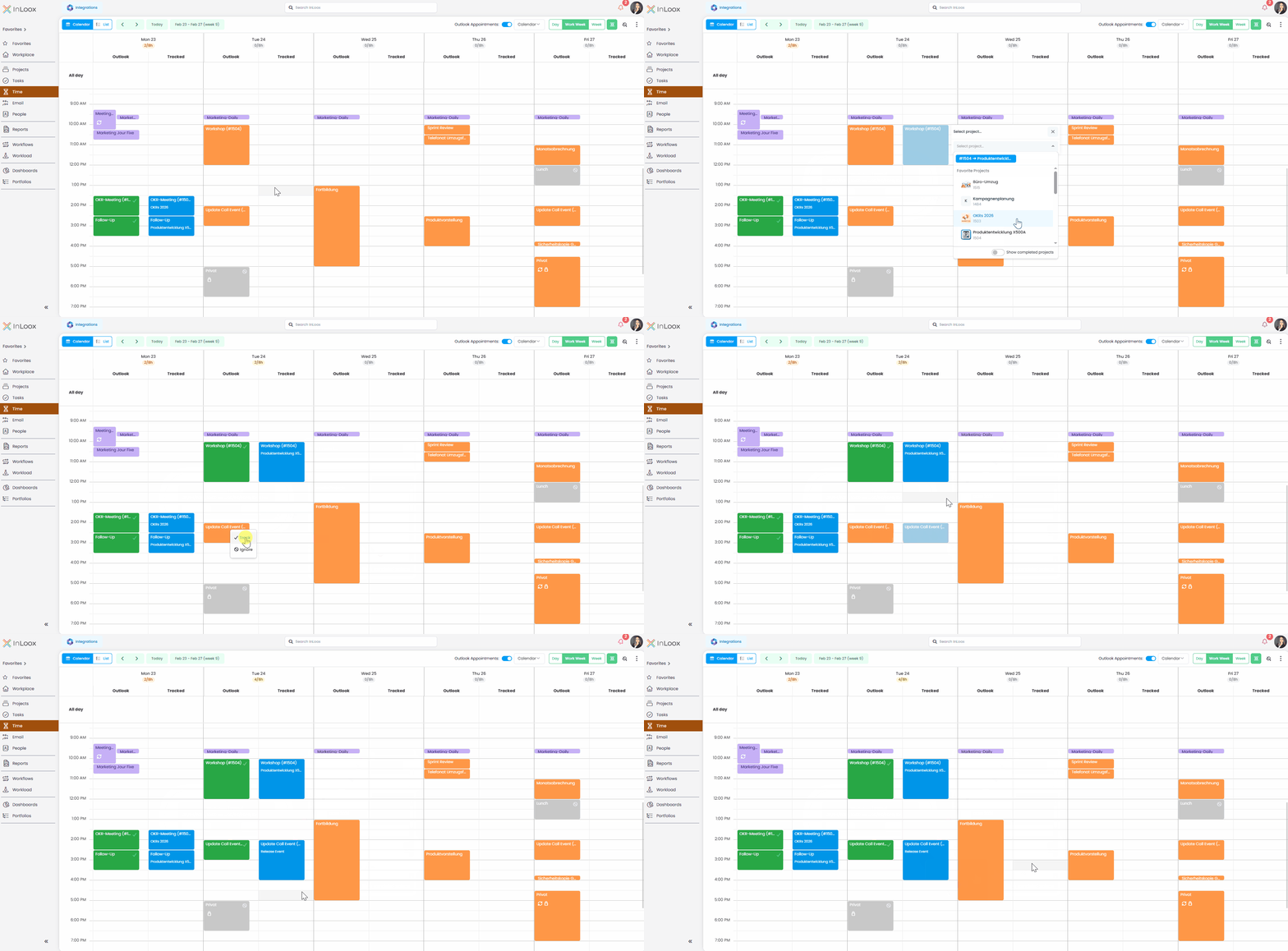
  • Time tracking calendar: Select multiple time entries in the calendar view to duplicate them to the next week, track them on a project, or delete them.

Multi-select in time tracking calendar

Time: Outlook Calendar Time Tracking for Exchange Server

InLoox for Outlook now supports time tracking from calendar appointments for both Microsoft Exchange Online and Microsoft Exchange Server (Self-Hosted).

With Exchange Online, browse and track appointments directly from the Time tab in the add-in. With Exchange Server, open a calendar appointment in Microsoft Outlook, launch the InLoox add-in, and track the appointment from there.

Default Group for Time Entries per Project

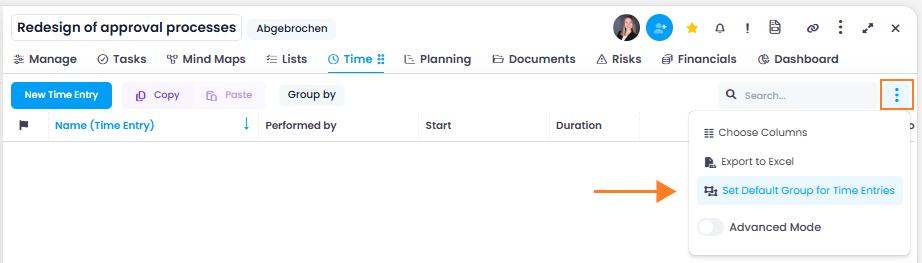
You can now define a default group for time entries on a per-project basis. This setting is configured by the project manager and applies to all project members. As a result, all newly created time entries in the project are automatically assigned to the defined group.

This feature originates from real-world use cases in consulting environments, where it is important to ensure that all time entries are consistently recorded in the correct group for billing purposes.

Default group for time entries

Help article: Edit a Time Entry

Quick Grouping for Time and People Lists

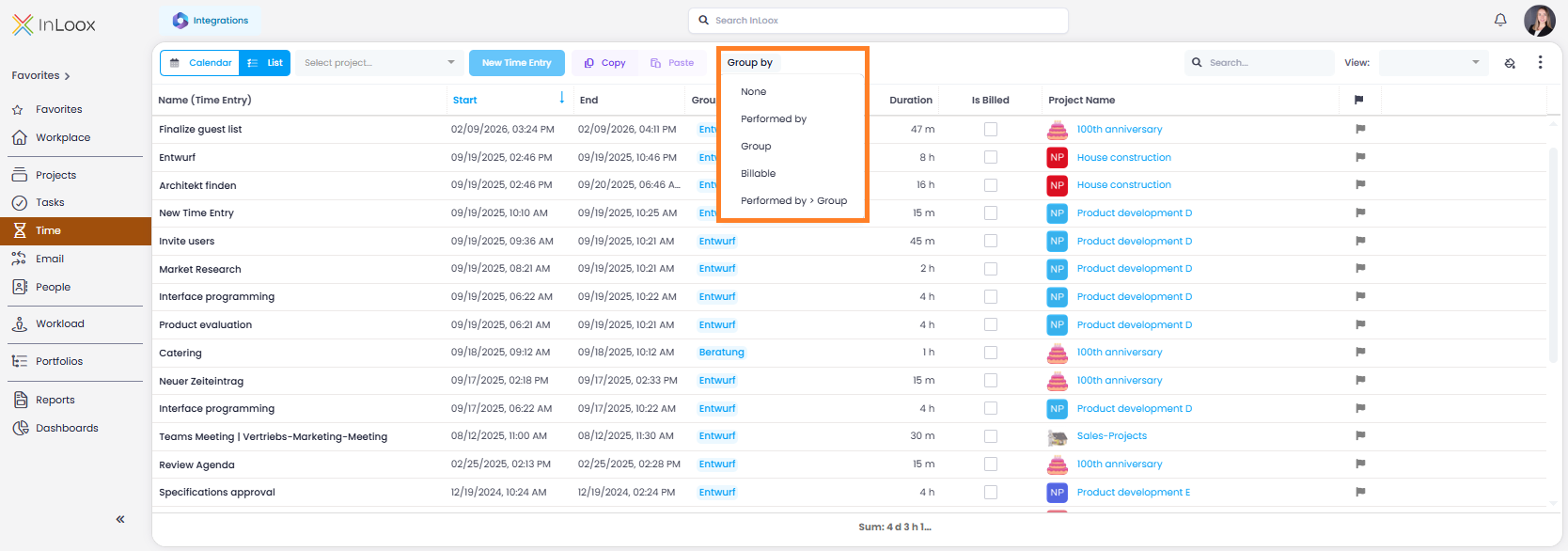
The views for people and time entries now include quick grouping options, allowing you to structure and analyze your data with just a few clicks:

People list:

  • Company
  • Department
  • Location
  • Company > Department

Time list:

  • Performed by
  • Group
  • Billable
  • Performed by > Group

These predefined quick groupings provide a fast and convenient way to get started. You can still use the Advanced Mode to group by any columns and create custom analyses.

Quick grouping in the time tracking view

New Time Tracking Area: Log Outlook Appointments Directly

With version 26.1, we've made time tracking from calendar appointments even more straightforward. The former calendar section under "Track" has now been fully integrated into the main menu item Time.

In the new time tracking calendar, you can work in a daily, weekly, or workweek view and display your Outlook appointments directly using a simple toggle (connection to Microsoft 365 account required). An additional Tracked column instantly shows which appointments have already been logged.

Tracking time is simple: click the appointment, track it, select the project — done. Time entries can be flexibly adjusted, moved, or duplicated using drag and drop.

New features also include:

  • Automatic project suggestions when logging time, based on an InLoox project number (starting with #) included in the appointment title
  • Capacity display showing booked time and target working hours per day
  • Conditional formatting for color-coded highlighting of appointments

Of course, you can still create time entries independently of Outlook and switch between calendar and list views whenever needed.
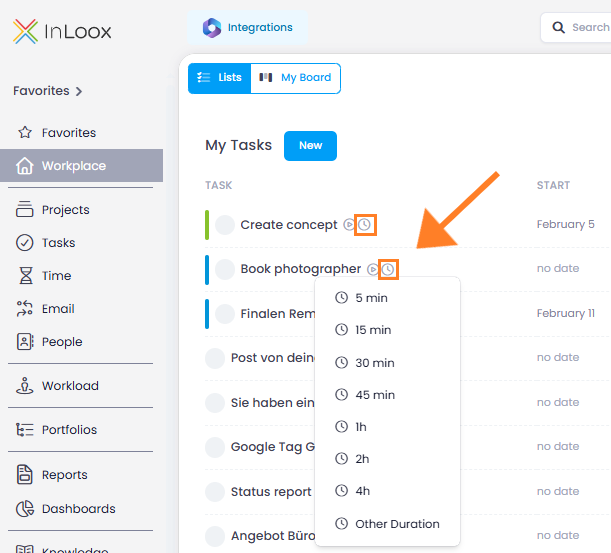
Time tracking of Outlook calendar entries