11 posts tagged with "area:tasks"

Task management

View All Tags

Tasks: Better Visibility and Traceability for Collaborators

Two improvements for collaborators on project tasks:

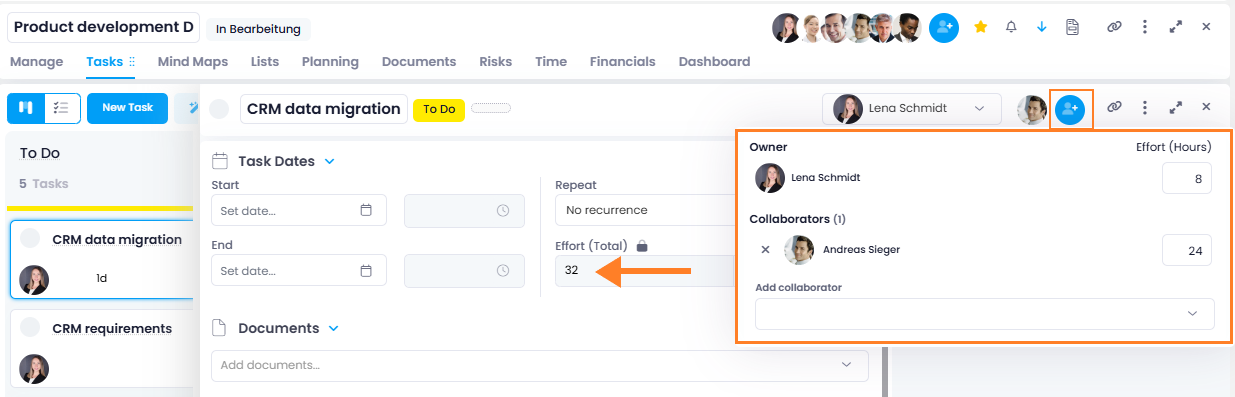
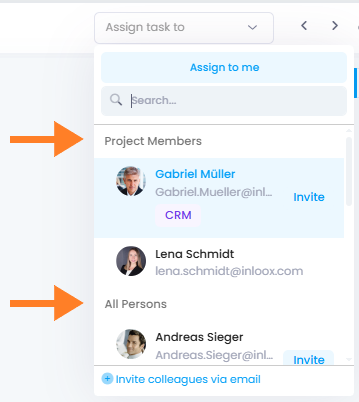
  • Workplace and task list visibility: Tasks where you are listed as a collaborator now automatically appear in your Workplace under My Tasks and in the global task list. A Collaborator column is available to identify these tasks at a glance.
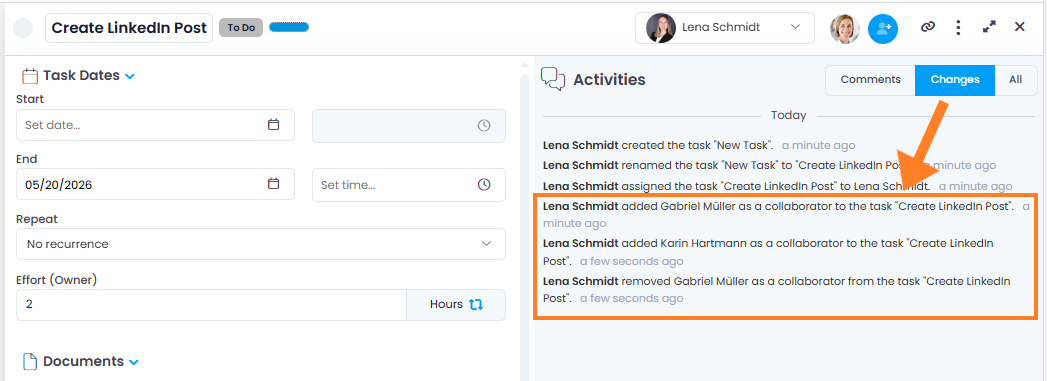
  • Activity tracking: Adding or removing collaborators is now recorded in the change history of the task and on the project's Manage page — for greater transparency in collaboration.

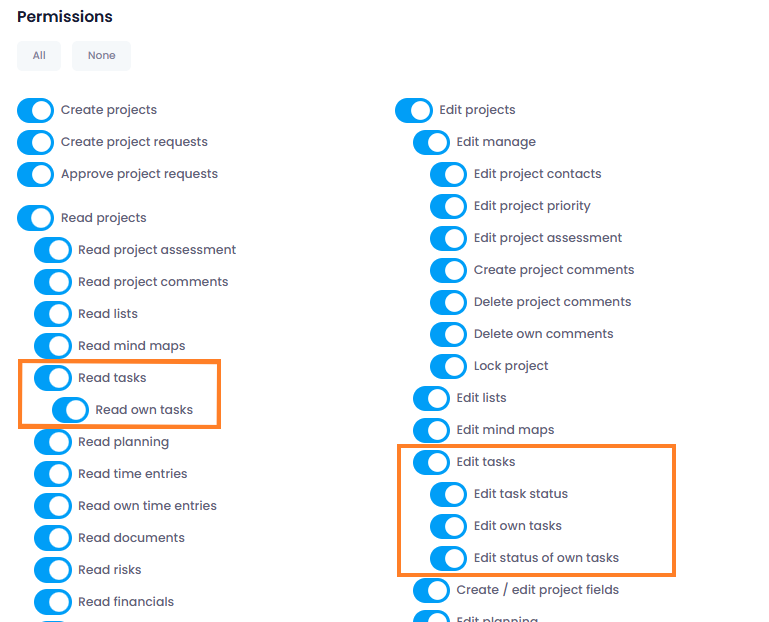
Note: You need at least the Read tasks permission to use these features.

Collaborator changes in activity history

Multi-Select in Kanban Board and Time Calendar

You can now select multiple items for bulk editing in two additional views:

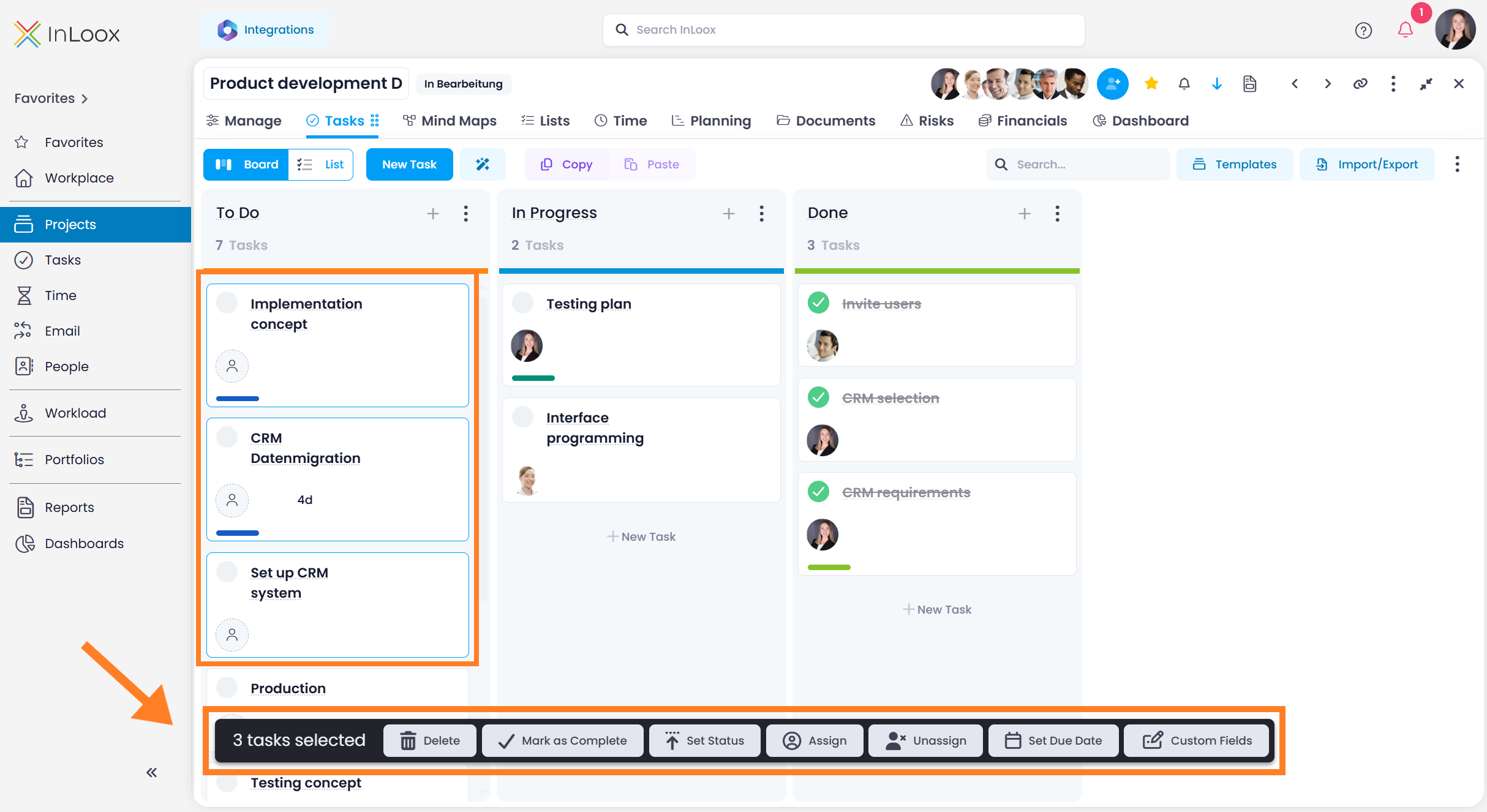
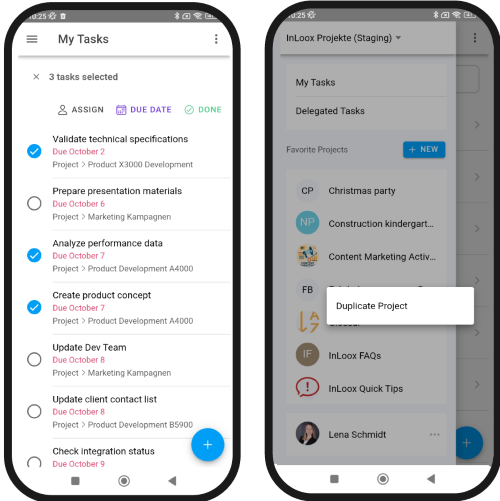
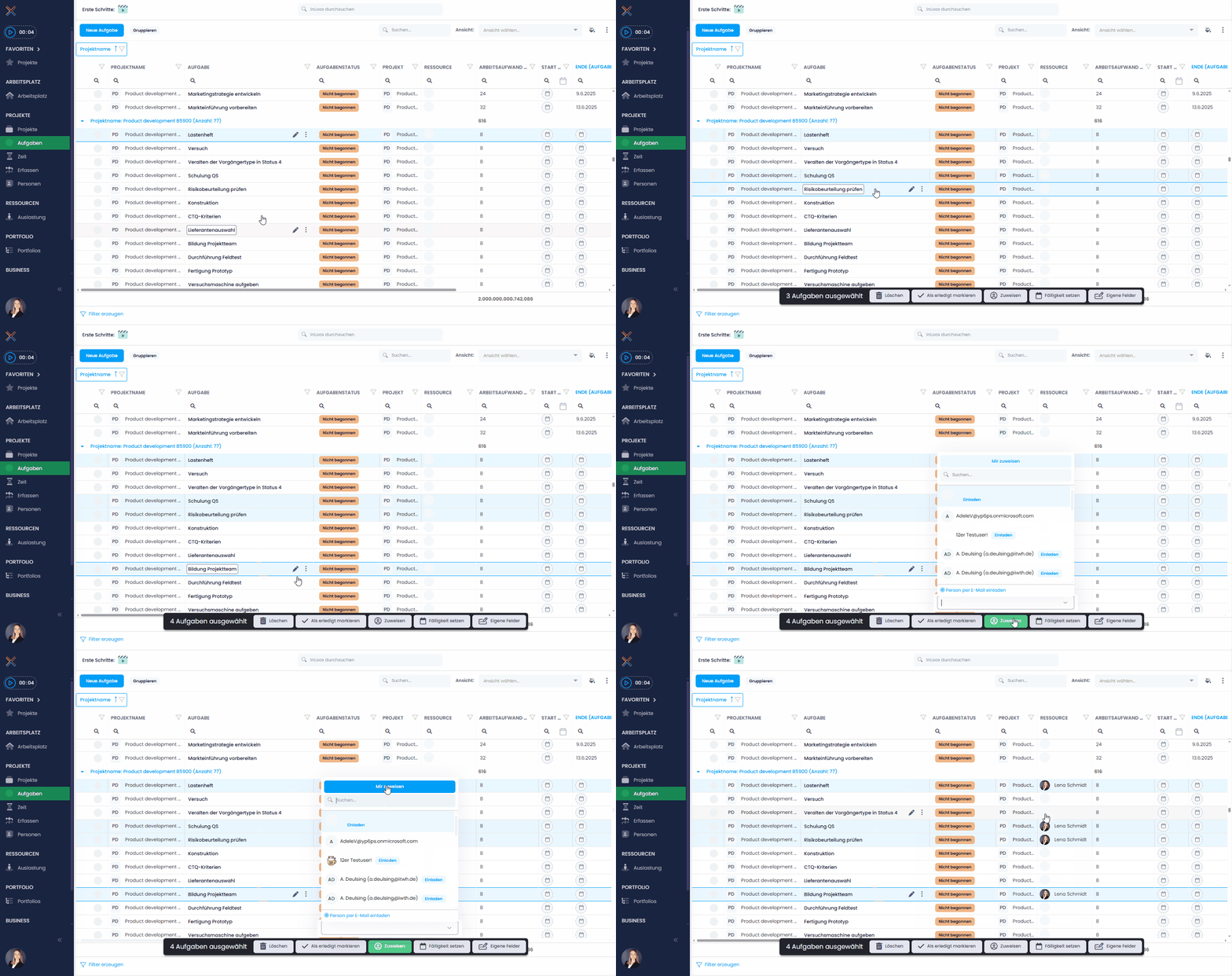
  • Kanban board: Hold Ctrl or Shift and click on task cards to select them. Selected cards are highlighted with a blue border. A command bar at the bottom of the screen shows available actions such as delete, mark as complete, set status, assign a resource, or edit custom fields.

Multi-select in Kanban board

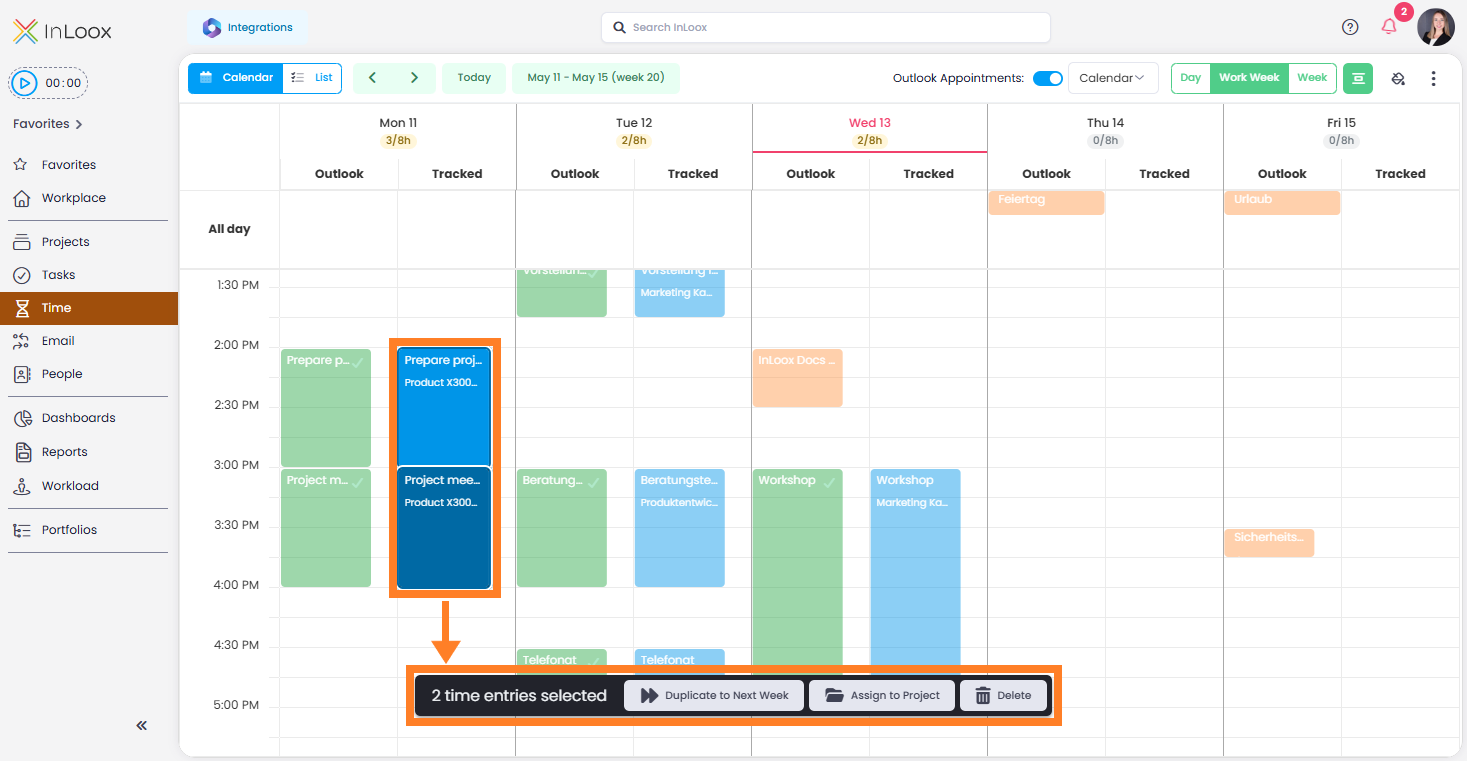
  • Time tracking calendar: Select multiple time entries in the calendar view to duplicate them to the next week, track them on a project, or delete them.

Multi-select in time tracking calendar

My Board: Your Personal Task Board Across All Projects

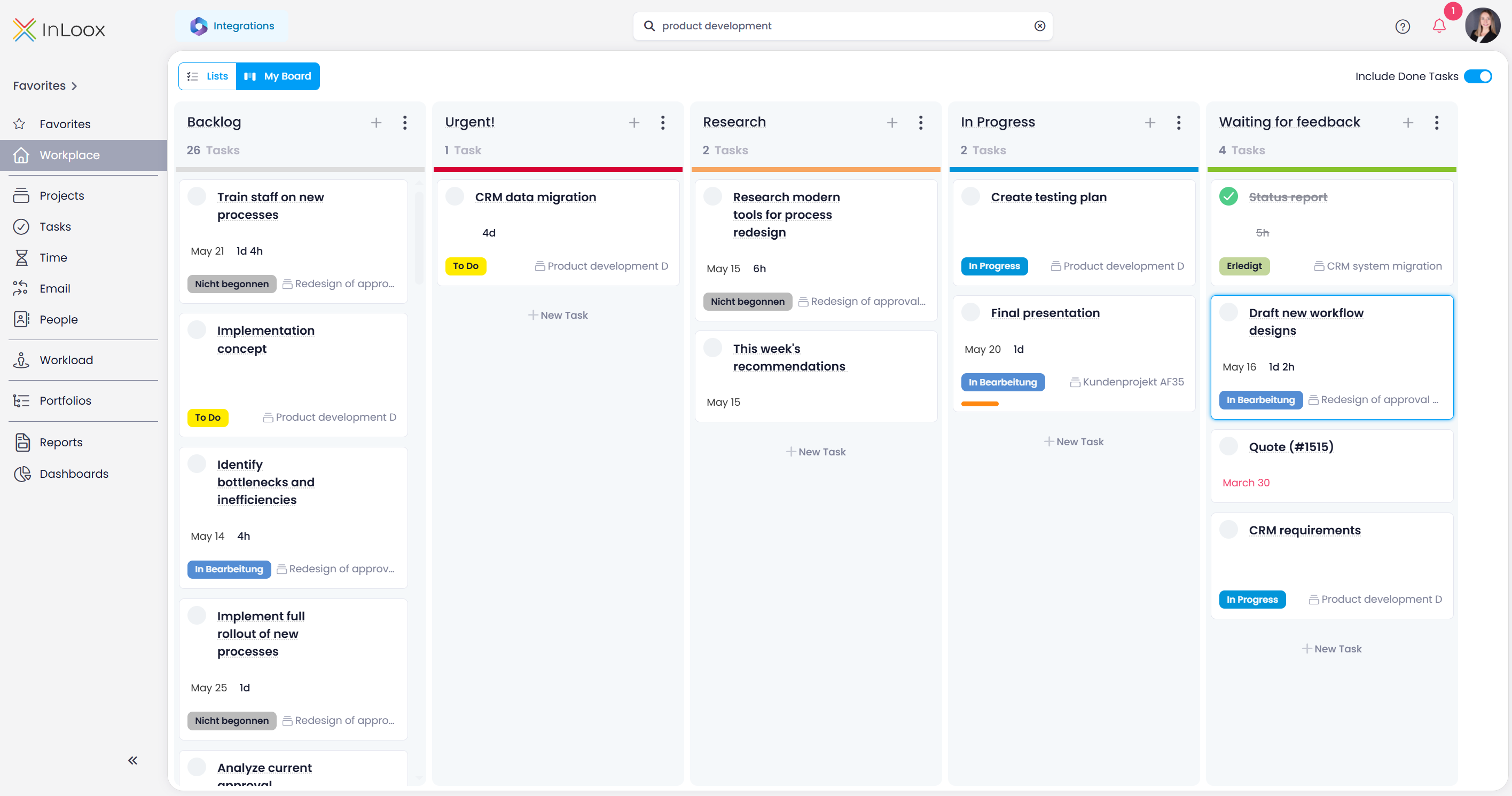
With My Board, you organize your tasks from all projects on a personal Kanban board. It is fully customizable with your own columns tailored to your personal workflow.

Unlike the project Kanban board, My Board is completely personal: column names, order, and card arrangement are visible only to you. Moving a card does not change the task status in the project.

Switch between My Board and the classic list view at any time using the toggle in the top-left corner.

My Board

Help article: My Board

Create Tasks from Emails Using Outlook Flags

InLoox users are already familiar with creating tasks directly from emails — for example via the InLoox for Outlook side panel, where tasks can be generated from an email with just one click.

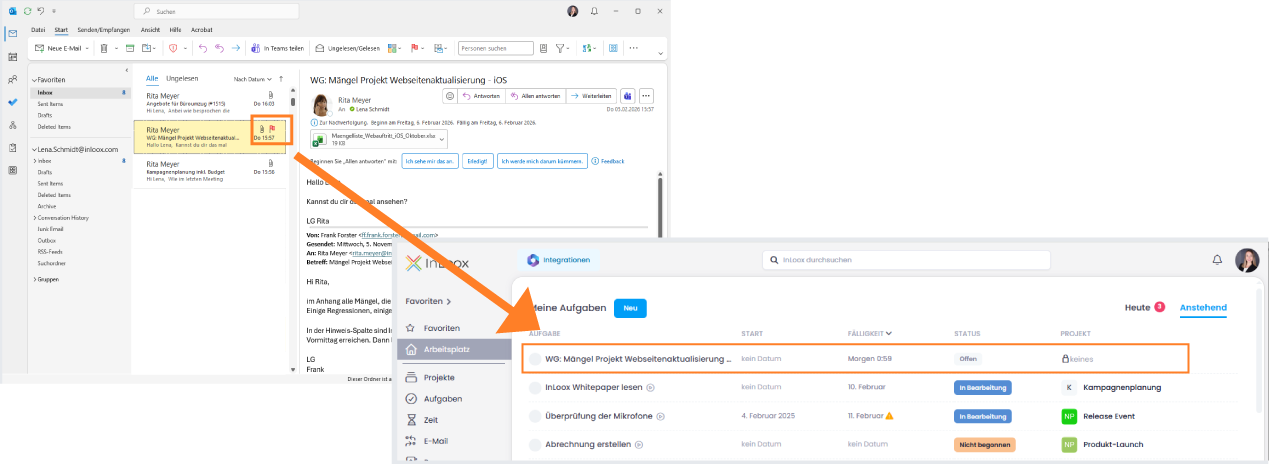
New in InLoox 26.1 is an additional, convenient option: after activating the feature Create tasks from flagged emails in the Integration Center, emails flagged in Outlook (e.g., Today, Tomorrow, Next Week) automatically generate corresponding InLoox tasks.

Optionally, synchronization can also be enabled here: if Update flags in emails is activated, completing the task in InLoox will automatically update Outlook and mark the email flag as completed as well. This new flag-based logic complements the existing side panel and provides another flexible way to quickly turn emails into structured tasks.

Flagged Outlook mail creates InLoox task

Extended Permissions: People, Tasks and Comments

With InLoox 26.1, permissions have been expanded and further refined. The following new rights have been introduced:

  • Edit people: Editing contacts is now a separate permission. Administrators receive this right by default, but it can be specifically revoked or assigned to other users as needed.
  • Add task comments: Controls who is allowed to create comments on tasks.
  • Delete task comments: Defines who is permitted to remove task comments.
  • Delete own task comments: Allows users to delete only the comments they have created themselves.
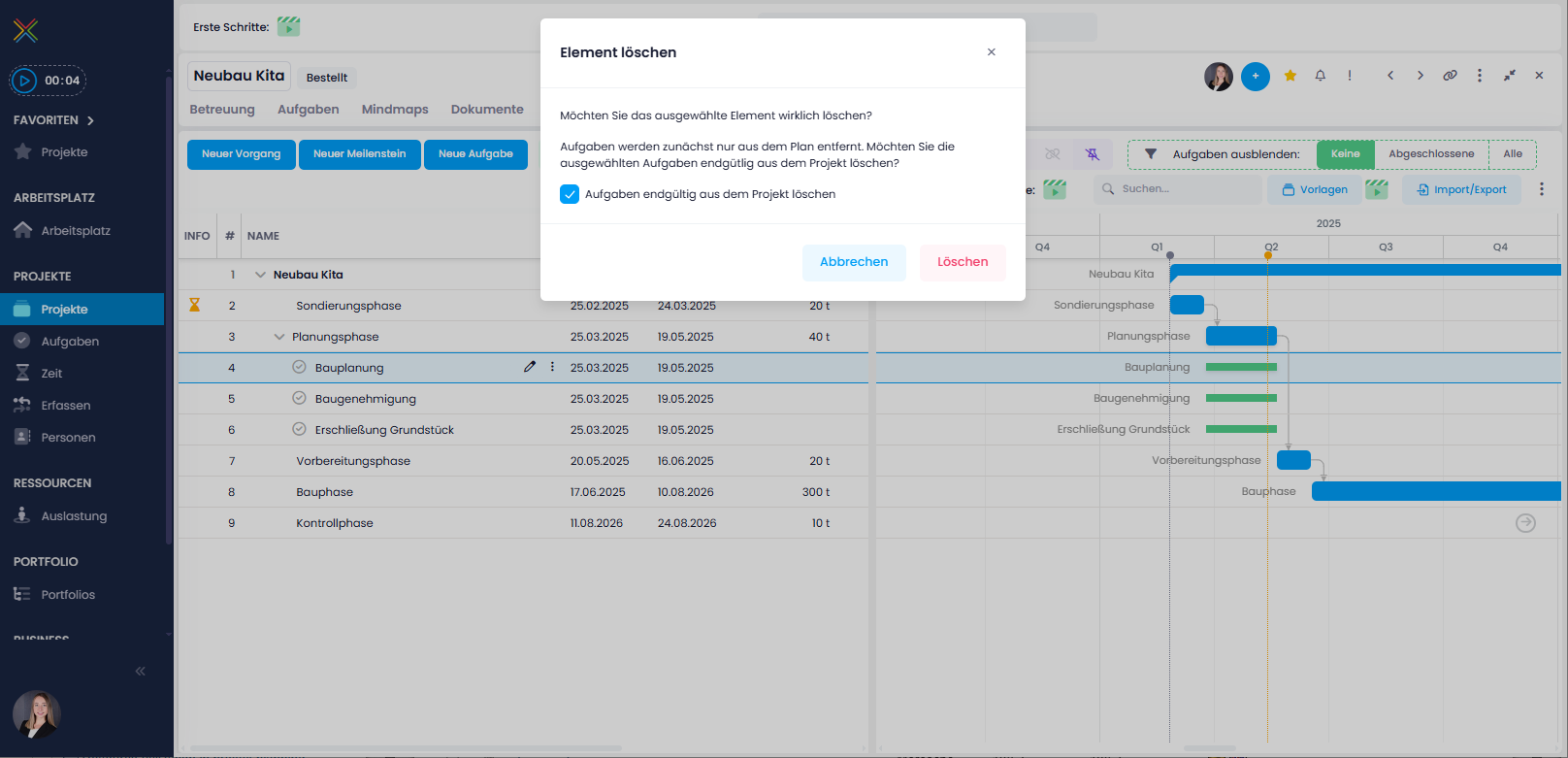
  • Delete tasks: Determines who is generally allowed to delete tasks.
  • Delete own tasks: Allows users to delete tasks for which they are assigned as the responsible resource.

These additions enable even more precise control over access rights and responsibilities.

Improved Workplace

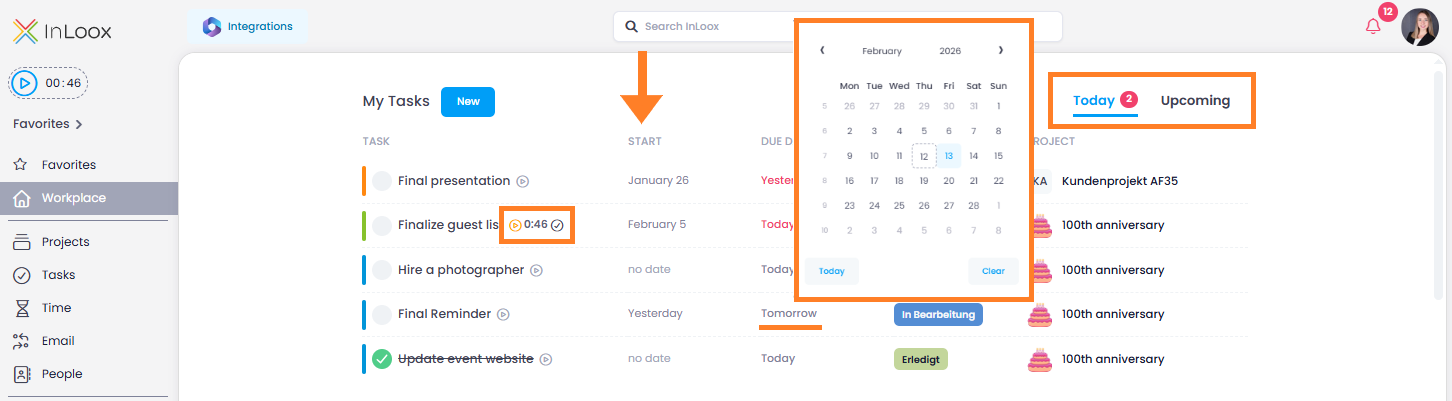
The workplace has been further optimized with this release. New enhancements include:

  • New "Start" column: Displays the start date of a task directly in the overview.
  • Inline editing of start and due dates: Dates can now be adjusted directly without having to open the task in full.
  • Direct tracking of stopwatch time: When using the stopwatch, an additional button is now available to track the recorded time immediately.
  • Simplified filter selection: In the top-right corner, you can now switch only between "Today" (including overdue tasks) and "Upcoming", providing a clearer structure for day-to-day work.

Workplace improvements

Help article: Workplace

Search Comments

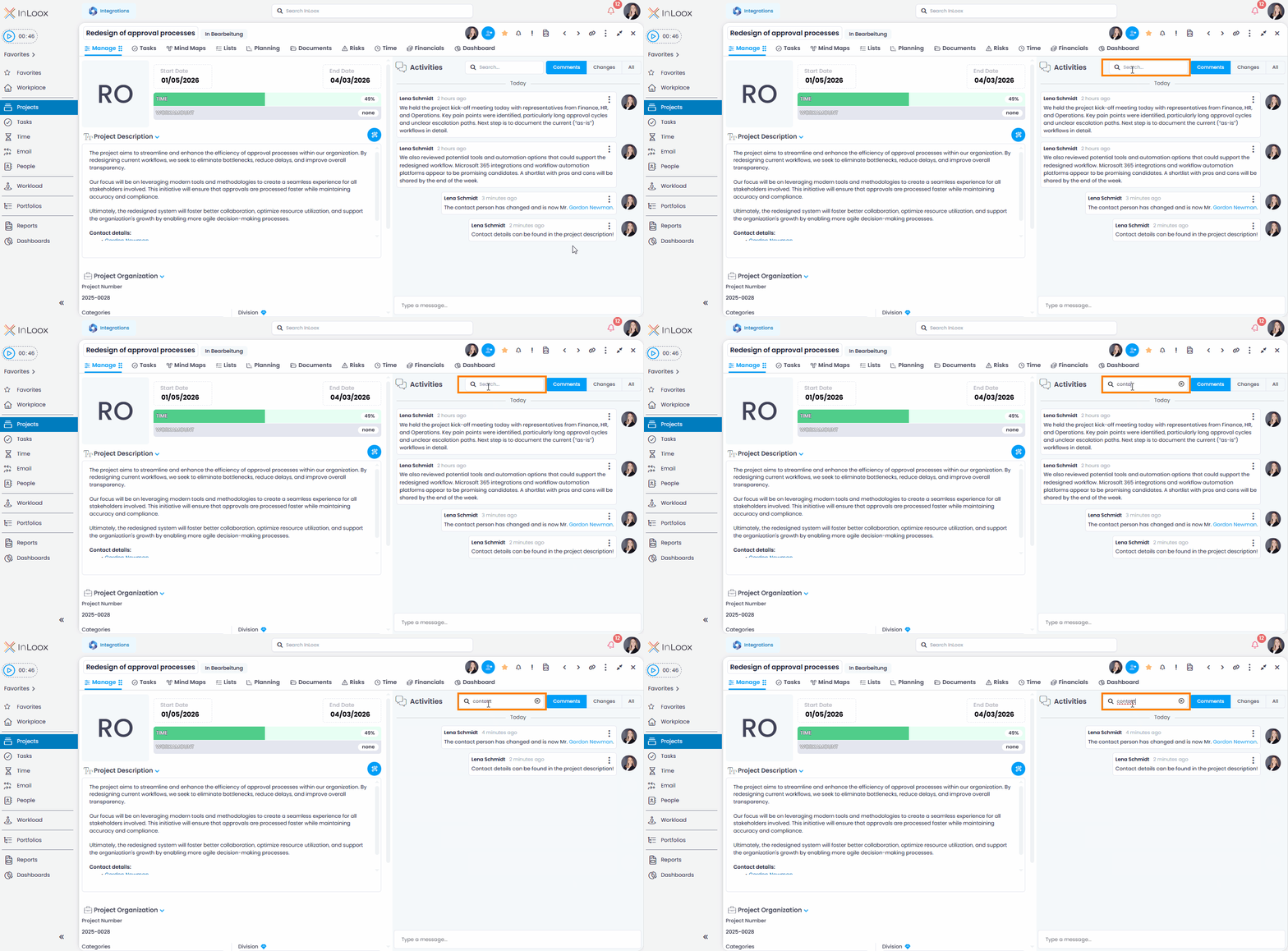
You can now search comments with ease. In areas that include comments — such as projects, tasks, or documents — a search field is now available, allowing you to filter existing comments by keywords. This helps you find relevant information and agreements much faster, fulfilling a frequently requested customer feature with this release.

Search comments

Help article: Comments

Sync Project Tasks with Outlook Calendar

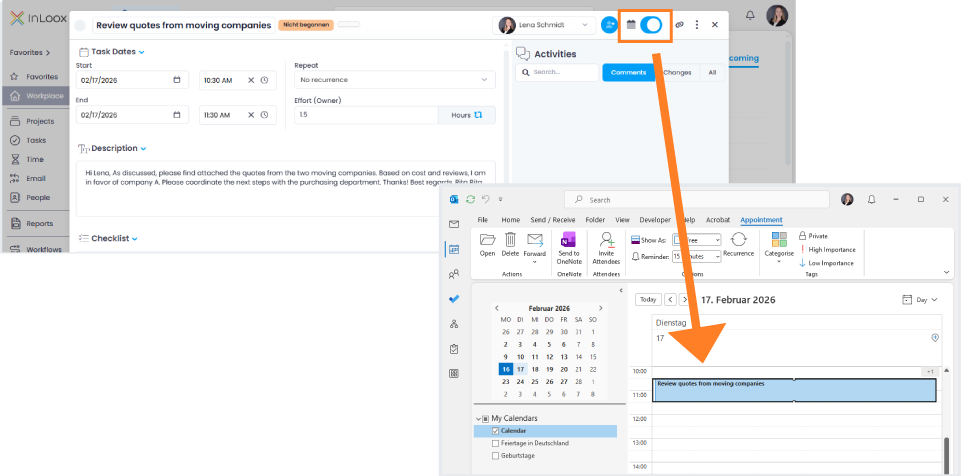
Project tasks can now be directly linked to your Microsoft Outlook calendar. After enabling the required permission in the Integration Center, simply toggle a switch within the task to add it to your calendar.

Synchronization Options

Two new options are available in the Integration Center:

  • Changes to InLoox tasks update calendar entries
  • Changes to calendar entries update the InLoox task

When both permissions are enabled, bidirectional synchronization is possible. Changes to date, time, or duration can be made either in InLoox or directly in the Outlook calendar, ensuring the task always remains up to date and consistent.

Synchronize InLoox task in Outlook calendar