9 posts tagged with "area:projects"

Projects and project list

View All Tags

Custom Fields: Multi-Select and Range

Two new custom field types are now available:

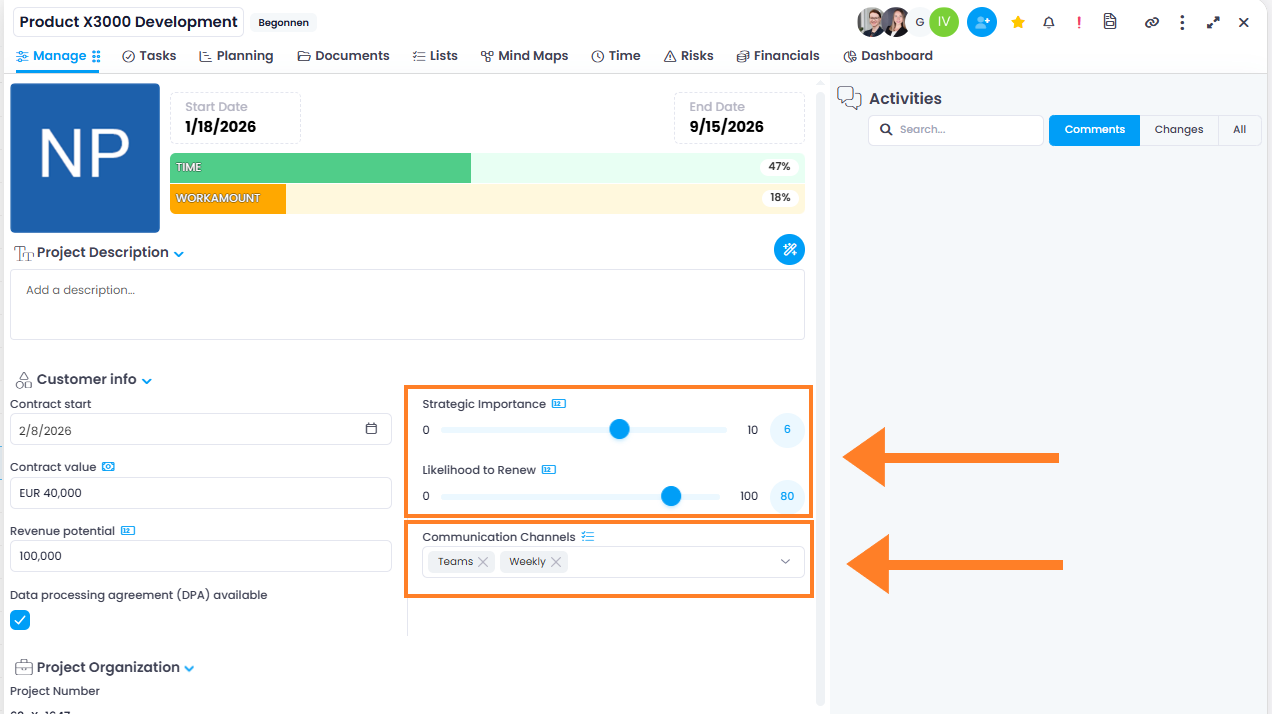
  • Multi-Select — Tag items with multiple values from a predefined list. Values are displayed as tags. If the Allow to add new item option is enabled in the field settings, users can also add new values directly in the field.
  • Range — Select a numeric value using a slider within a defined minimum and maximum, for example as a scale or percentage.

Multi-Select and Range custom fields

The new field types are ideal for classifications, ratings, or prioritizations and are available in all areas that support custom fields.

Help article: Custom Fields

Note: Custom fields are not available in the InLoox Professional Edition.

Custom Fields: Better Clarity with Sections

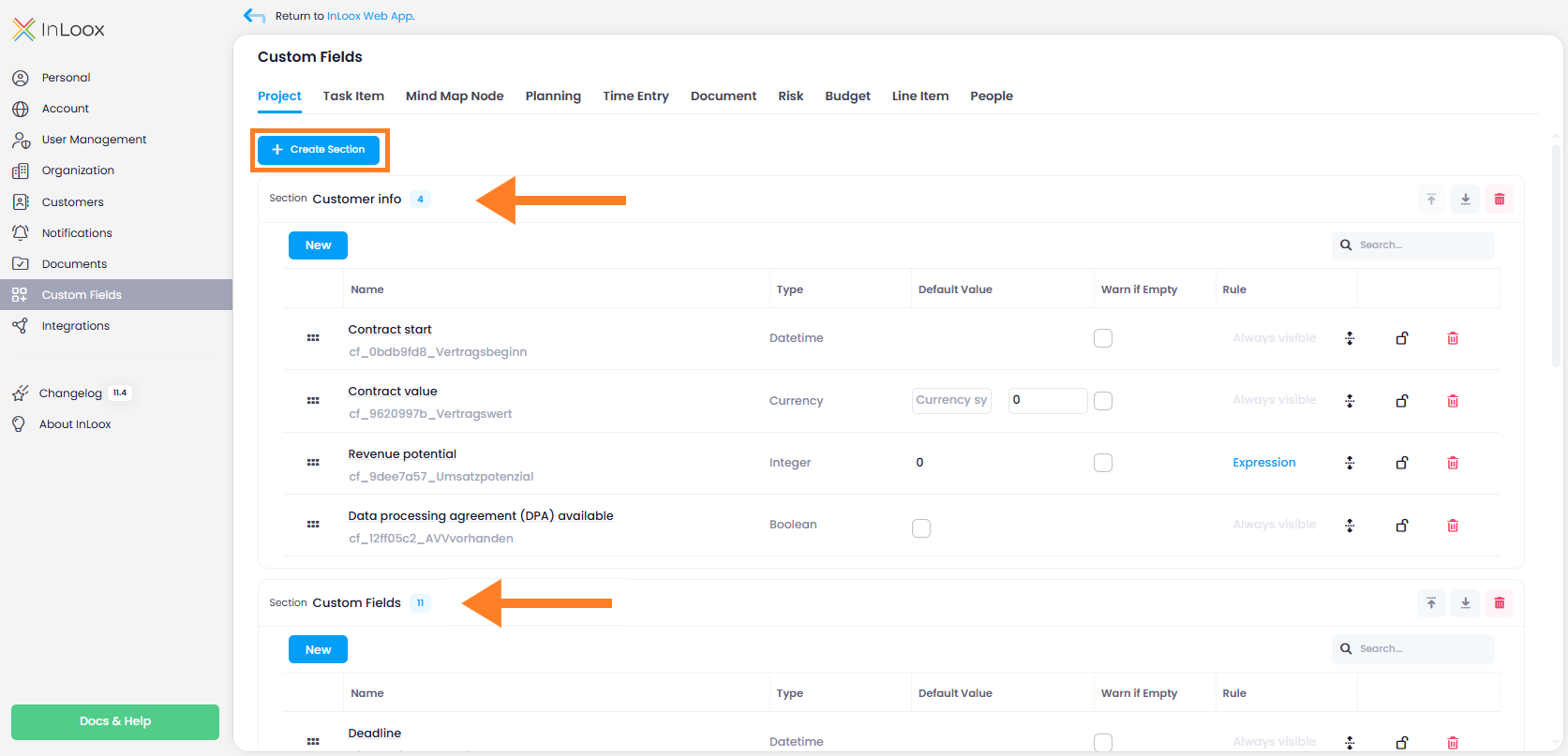
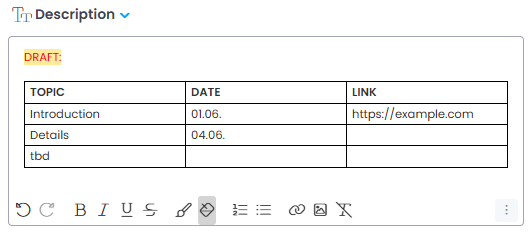
You can now organize custom fields into named sections. Sections group related fields together under a clear heading in the side panel, making it easier to find and fill in the right fields.

In the Account Settings, you can create, rename, sort, and delete sections. Fields can be moved between sections and rearranged using drag and drop. Note: Administrator rights are required for this.

Custom fields organized into sections

Note: Custom fields are not available in the InLoox Professional Edition.

Projects: Import Microsoft Planner Plans Directly

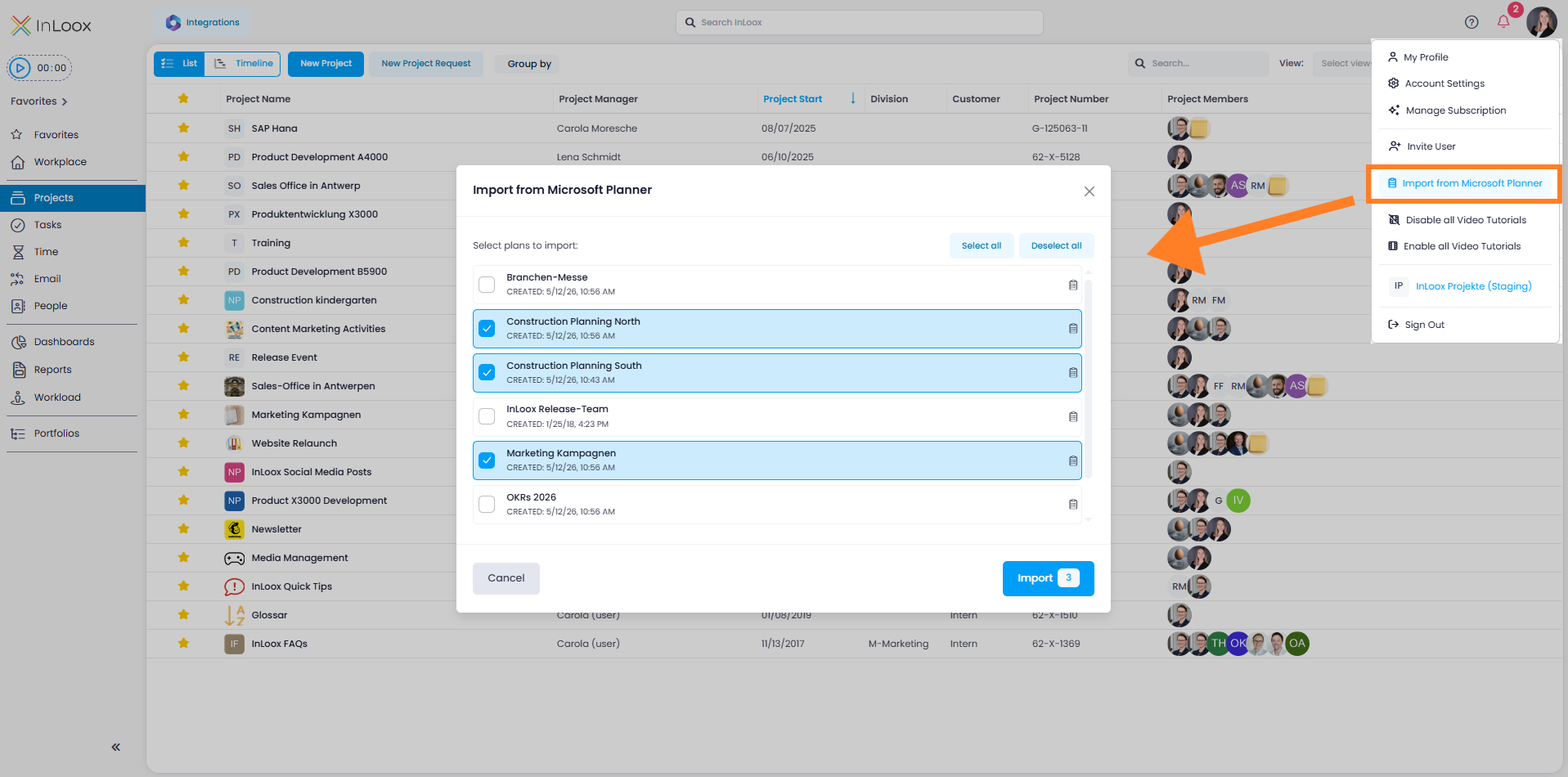
You can now import plans from Microsoft Planner directly into InLoox. Activate the Planner Import in the Integration Center, then start the import via your profile picture with Import from Microsoft Planner.

InLoox creates each selected Planner plan as a new project and imports the contained tasks directly as project tasks — ideal for a quick tool switch without manual data entry.

Planner import

Conditional Formatting: Custom Colors

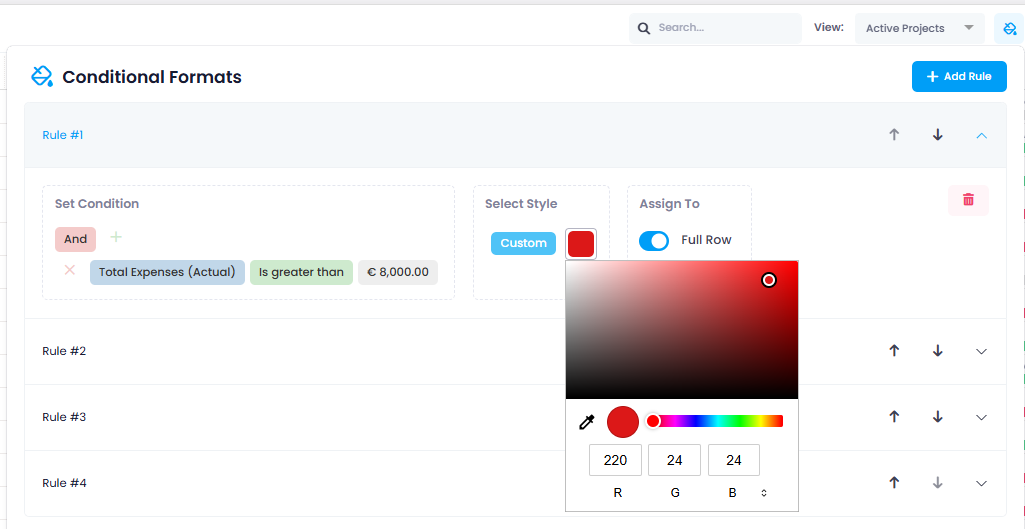
Custom colors are now available in conditional formatting. In addition to the predefined color options, you can now select "Custom" which opens a full color picker. There, you can define colors using RGB, Hex, or HSL values, or simply choose your desired shade using the integrated color picker.

This allows you, for example, to apply precise brand-compliant colors (CI colors) — for maximum flexibility in visually designing your project and task lists.

Custom colors in conditional formats

Help article: Conditional Formats

Conditional Formatting: Advanced Date Comparisons

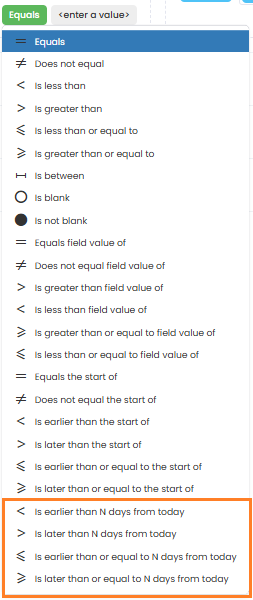
Conditional formatting has been enhanced with more flexible date comparisons. New comparison operators such as "Is earlier than N days from today" and "Is later than N days from today" are now available.

This allows you, for example, to highlight tasks whose due date falls within the next 14 calendar days, or to mark projects whose start date is more than 30 days in the past. It also enables you to visually represent sprint periods or upcoming deadlines.

note

Values are specified in calendar days. All comparisons are based on the current date ("today") and automatically shift as time progresses.

Advanced date comparisons in conditional formats

Help article: Conditional Formats

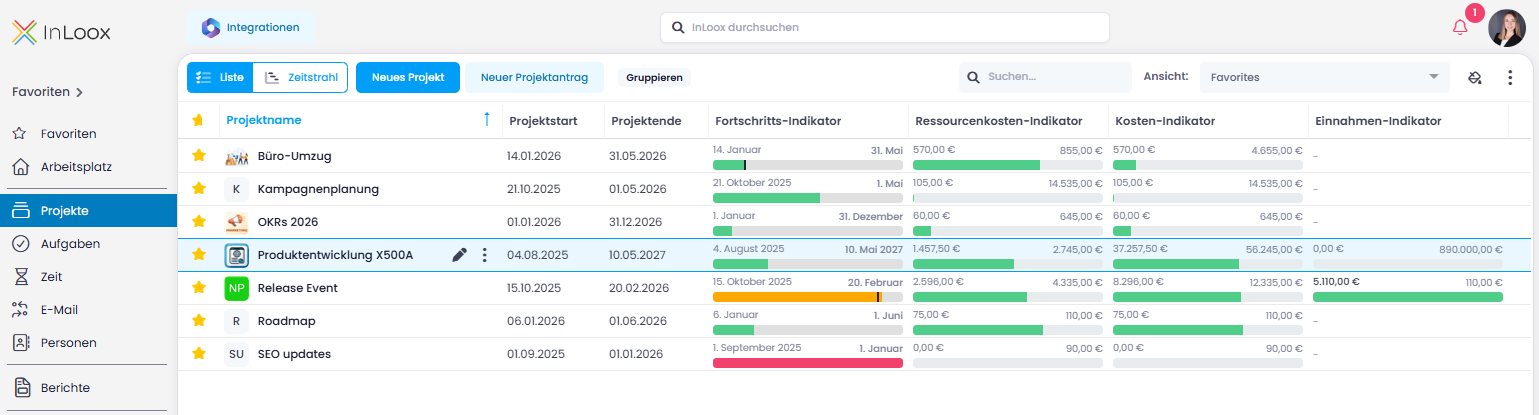
New Project Performance Indicators

The project list now includes four new columns with visual indicators. These provide an instant overview of your projects' timeline, costs, and revenue — without the need for additional reports or dashboards:

  • Progress Performance: Visualizes the project timeline between start and end dates. A traffic light system (red, orange, green) shows whether the project is on schedule, while a marker indicates the actual work progress. This makes delays immediately visible.
  • Revenue Performance: Compares planned and actual revenue. Once the revenue target is reached or exceeded, the bar turns green.
  • Cost Performance: Compares planned and actual total expenses, making budget deviations instantly visible.
  • Resource Cost Performance: Based on time tracking data, this shows whether planned resource costs are being met or exceeded.

Project performance indicators

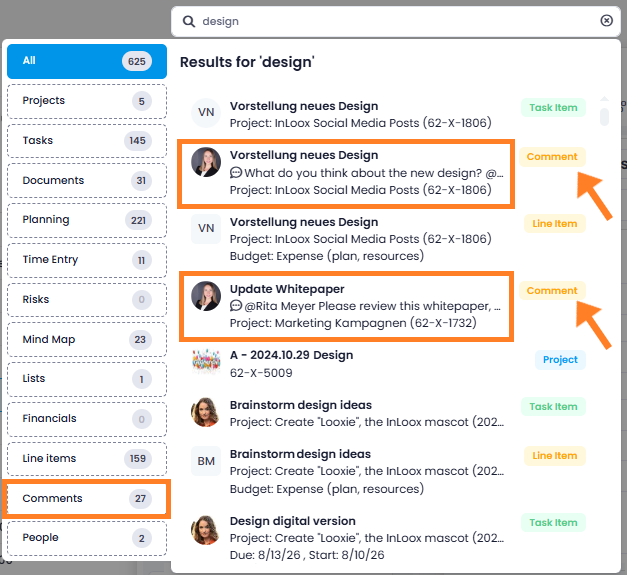
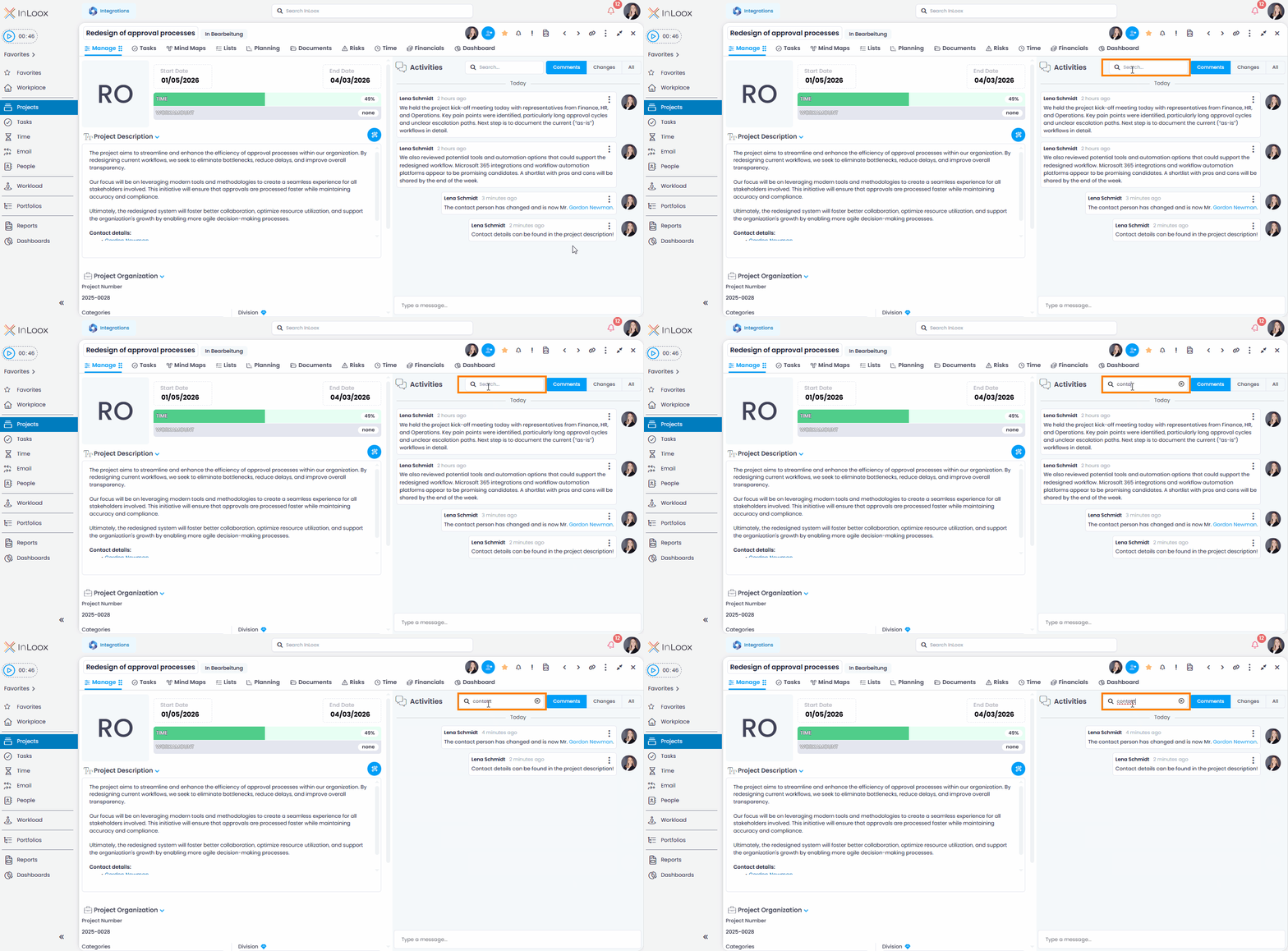
Search Comments

You can now search comments with ease. In areas that include comments — such as projects, tasks, or documents — a search field is now available, allowing you to filter existing comments by keywords. This helps you find relevant information and agreements much faster, fulfilling a frequently requested customer feature with this release.

Search comments

Help article: Comments

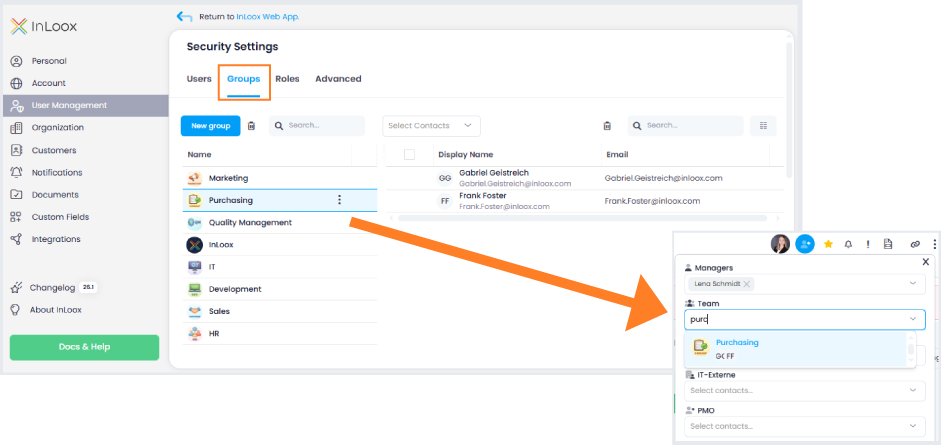
User Groups for Projects

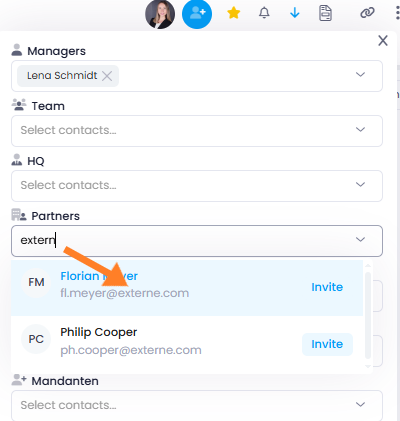
Managing project participants is now easier: In the Account Settings, you can create user groups within user management and assign individual users to them. The key benefit: project roles can now be assigned at group level.

In practice, many projects regularly involve the same teams — such as Marketing, HR, Development, or Procurement. Instead of adding each team member individually to every new project, simply assign the appropriate group to the desired project role. This significantly reduces the manual effort required when setting up new large-scale projects.

Add user group to project

This feature is available in the InLoox Enterprise, Enterprise Plus, and Self-Hosted editions only.