12 posts tagged with "area:planning"

Project planning and Gantt

View All Tags

Delays in Gantt - Navigate to the Root Cause

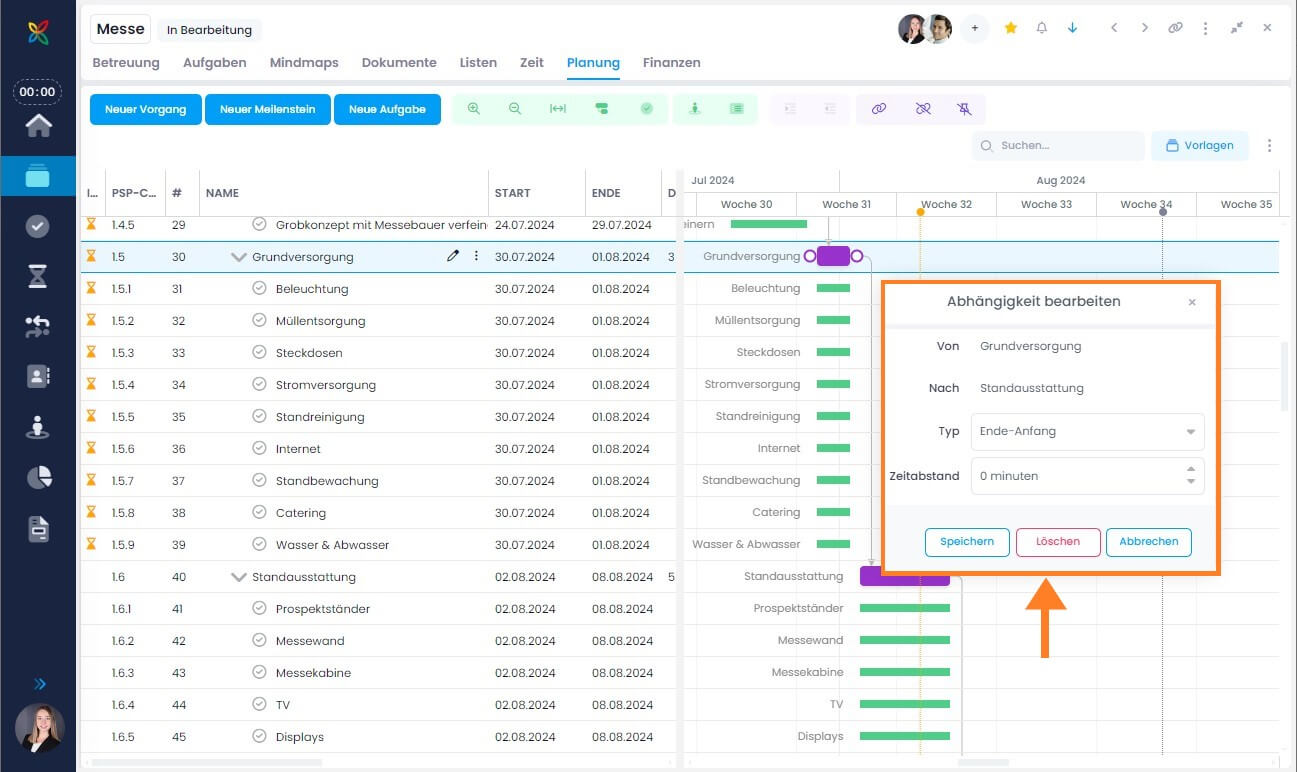
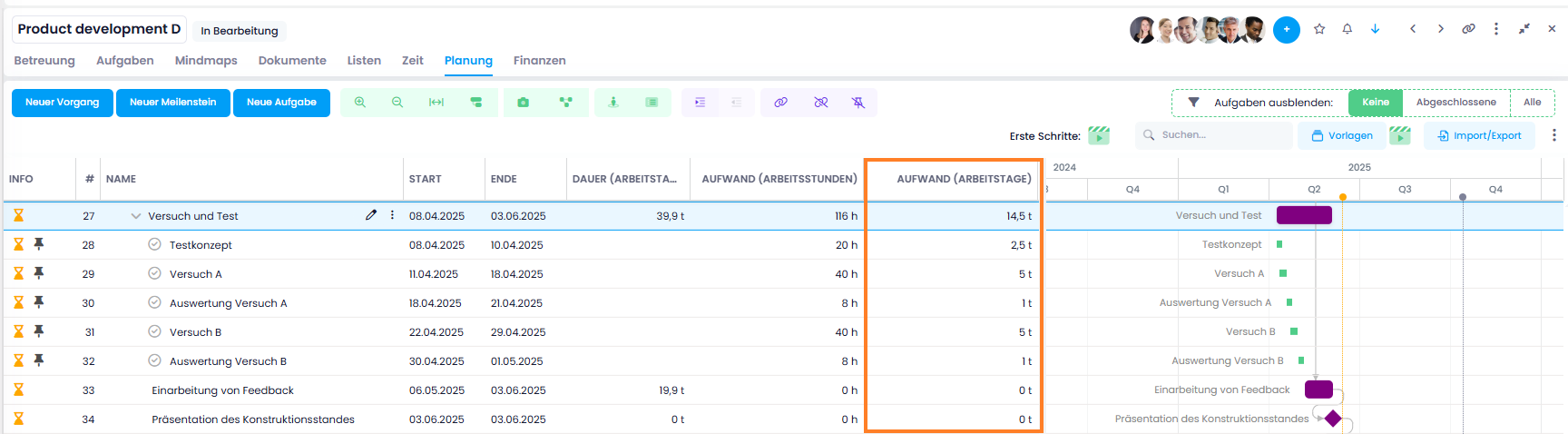
If a delay is shown for a summary activity in the Gantt chart (indicated by the hourglass icon), clicking on it will now take you directly to the deepest child element causing the delay.

This means you no longer need to manually search for the source of a delay in complex project plans — you are taken straight to the relevant planning element.

Dependency editor in the Gantt chart

Planning: Edit Multiple Planning Elements at Once

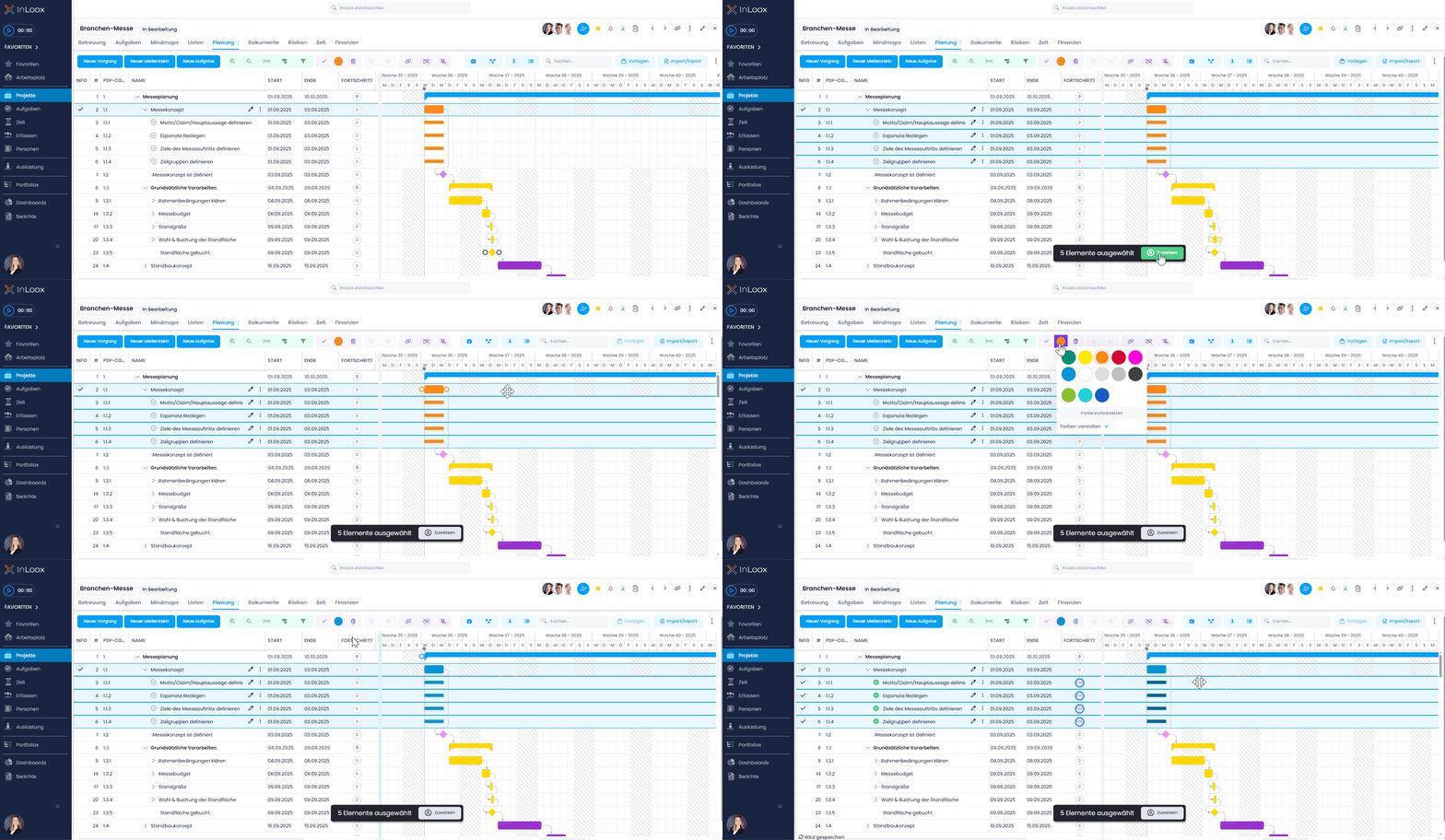
In the Gantt view, you can now use multi-select to edit several elements simultaneously. This saves time and makes planning even more efficient. Specifically, you can:

  • Assign or change a color for multiple planning elements
  • Mark multiple elements as completed
  • Delete multiple planning elements
  • Assign a resource to several tasks in the plan at once

Multi-editing in planning: assign resource, change color, mark tasks as done or delete

Planning: Improvements to Gantt Printing

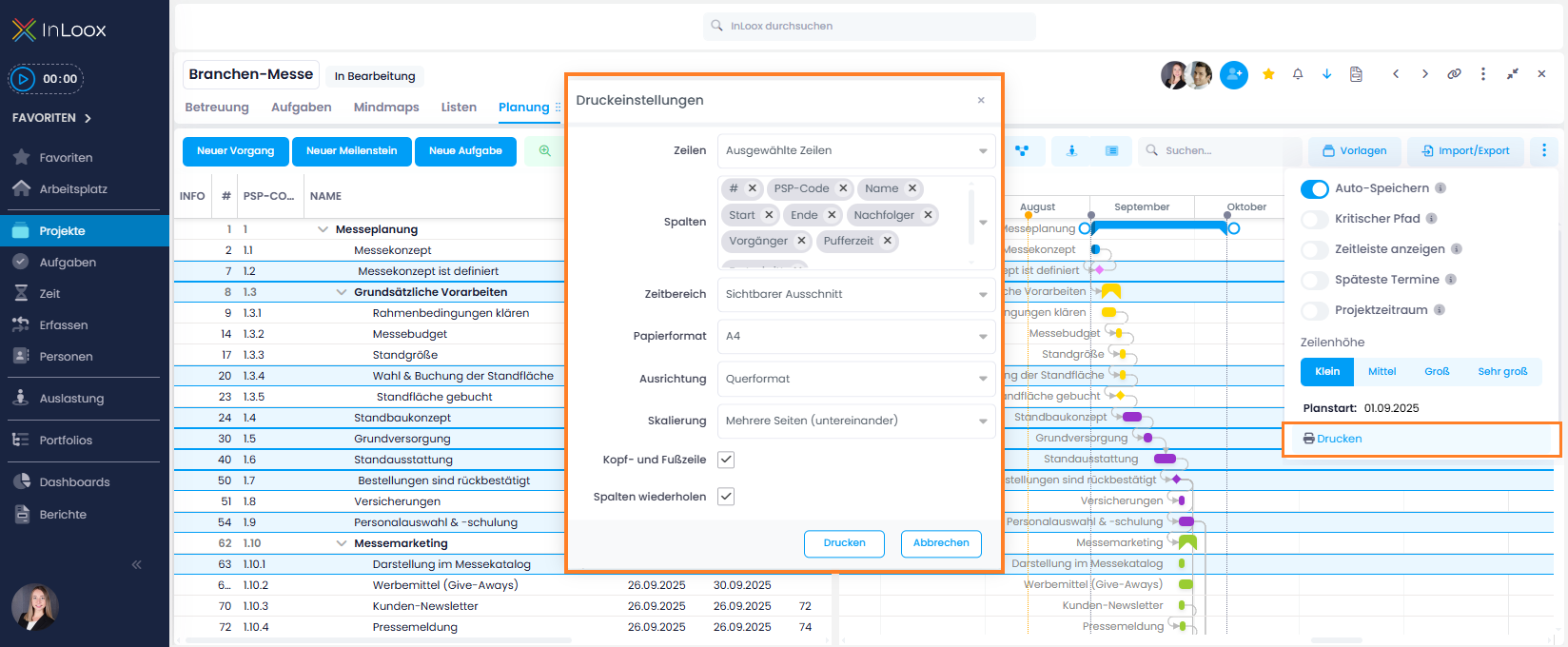
The Gantt print function now offers more flexibility and information:

  • Print only selected rows: You no longer have to print the entire plan – simply select the rows you need and print just those.
  • All columns available: All columns are now available for printing, including custom fields (previously only selected columns were available).
  • New "Header and Footer" option: When enabled, the printout will also include the project name, print date, name of the person who printed it, and the page number.

Options for Gantt printing

New Options for Activity Labels in the Gantt Plan

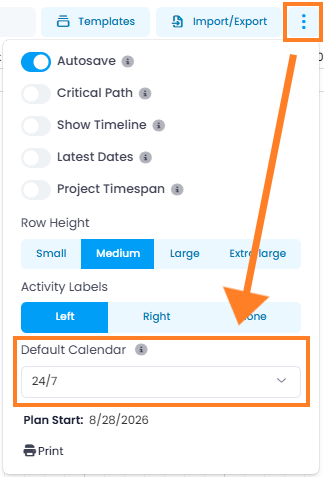
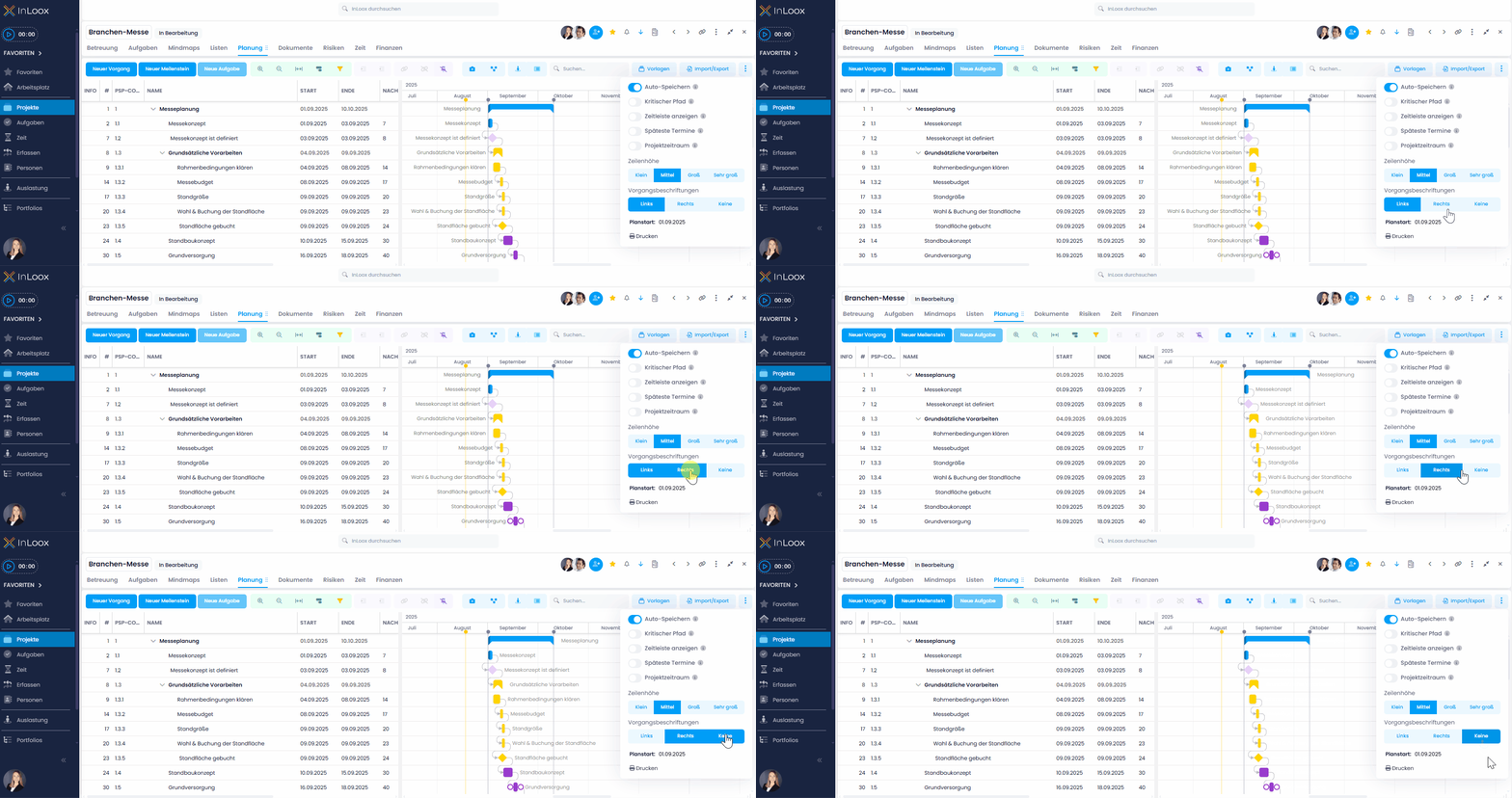
In the Gantt view, you can now flexibly decide where the labels of your planning elements should appear. Choose to display them either to the left or right of the activity bar – or hide the labels completely if you prefer a clean, minimalistic view.

Arrange or hide activity labels in the Gantt plan

Warning for Tasks Outside the Assigned Activity

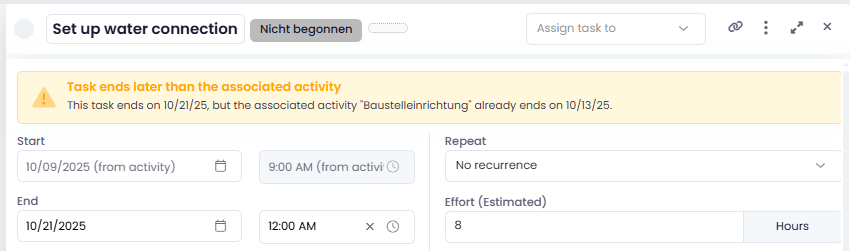
InLoox notifies you when a task falls outside the timeframe of its assigned activity, for example, if the task's end date has been manually extended and goes beyond the end of the activity. A corresponding warning appears directly within the task.

This deviation is now also visible in the Workplace and in the Kanban card: an orange warning triangle appears next to the due date, making scheduling conflicts immediately noticeable.

Warning for tasks that end later than the associated activity

Planning: Completely Delete Tasks

Previously, tasks removed from the Gantt plan were only unlinked from the timeline – but remained listed in the task overview.

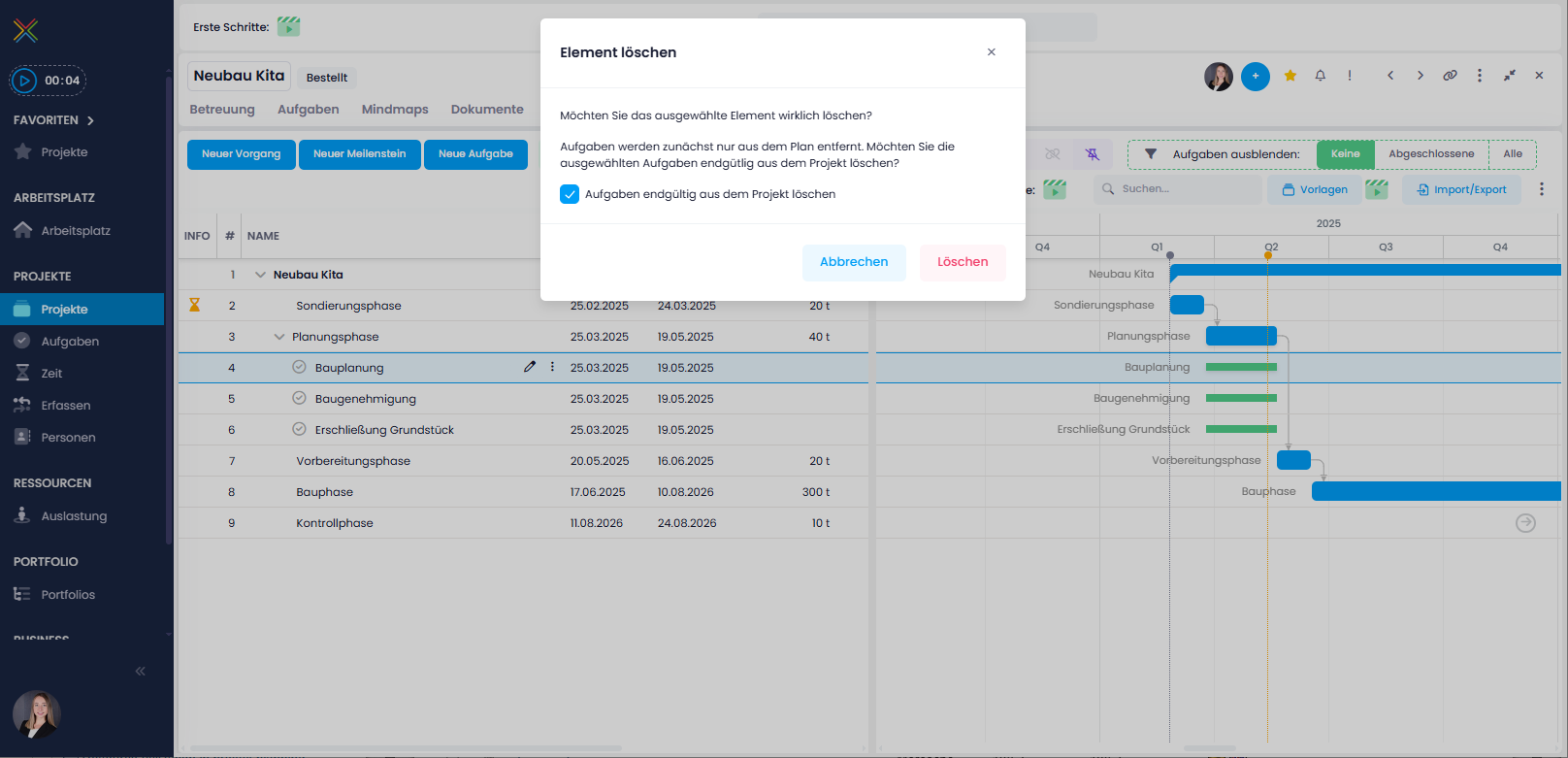
With InLoox 12, you now have more control: When removing tasks from the Gantt view, InLoox will ask whether you want to remove the task from the plan only or delete it entirely from the project. If the checkbox is selected, the task will be permanently deleted – no need to manually clean up the task list afterward.

This option also applies when deleting an activity that contains tasks. You can choose whether only the activity should be removed, or whether the related tasks should be deleted as well.

Remove or completely delete tasks from the Gantt plan

Planning: Followers on Planning Elements

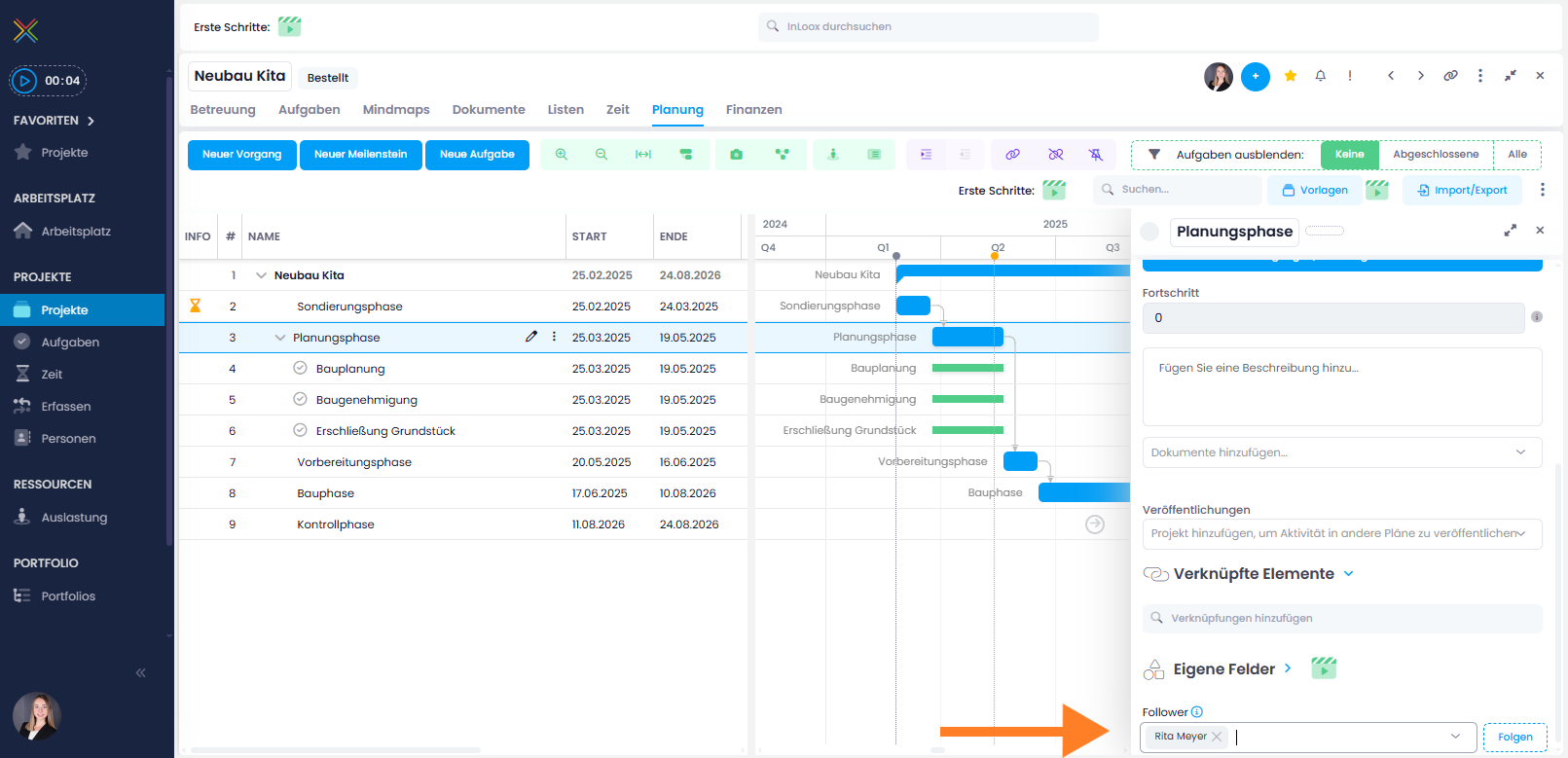
With InLoox 12, you can now add followers to activities and milestones – a feature that was previously only available for tasks.

From now on, you can subscribe yourself or other team members as followers of planning elements to receive automatic email notifications whenever changes are made. This helps all stakeholders stay informed when, for example, dates, dependencies, or descriptions are updated – even in complex schedules with many participants.

This feature is especially useful for project managers, PMOs, or subject matter experts who are not directly assigned to a planning element but still need to stay up to date on time-sensitive changes or status updates.

Planning: Followers on activity