7 posts tagged with "area:integrations"

Integrations, connections, and email

View All Tags

Projects: Import Microsoft Planner Plans Directly

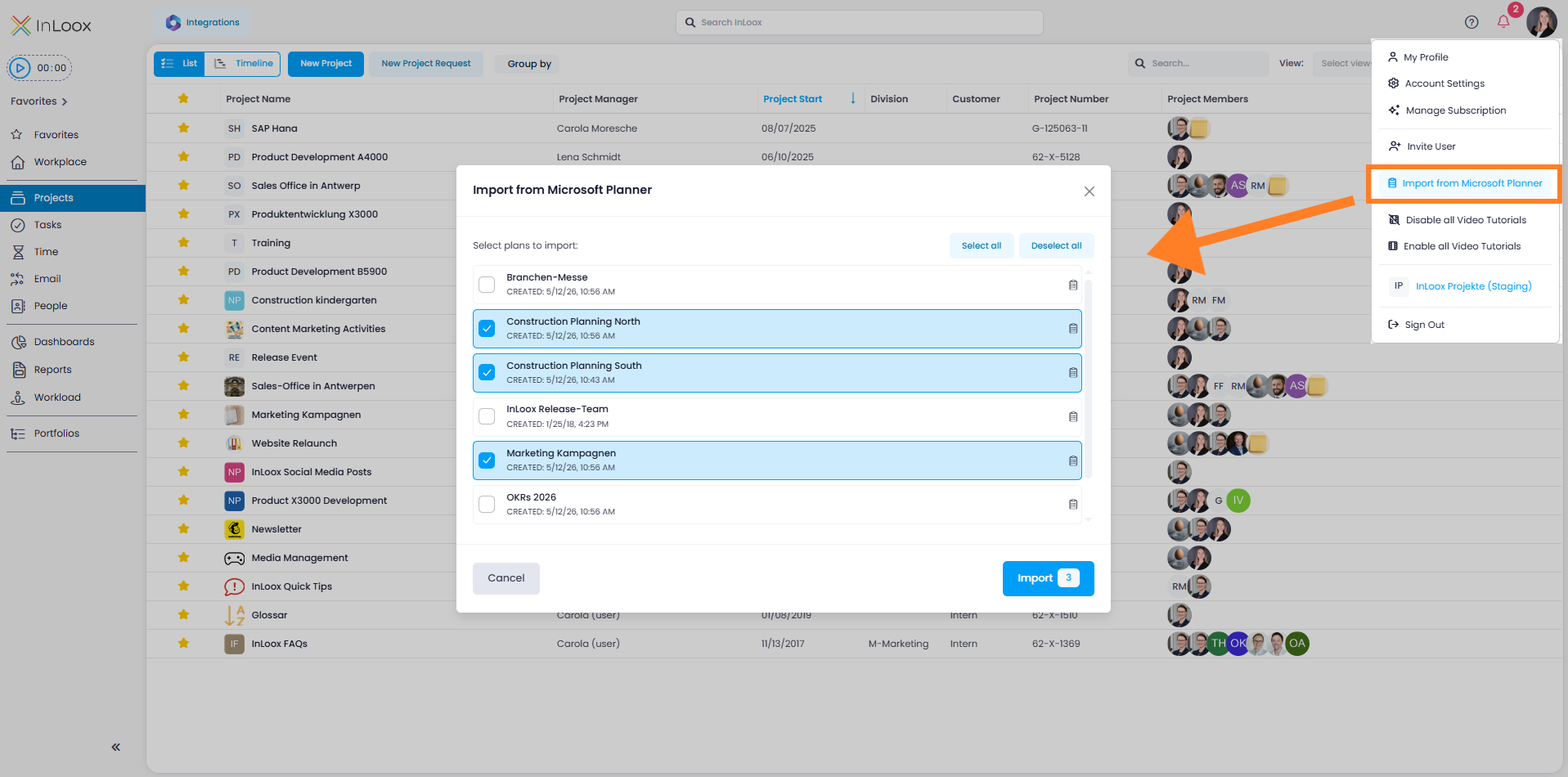
You can now import plans from Microsoft Planner directly into InLoox. Activate the Planner Import in the Integration Center, then start the import via your profile picture with Import from Microsoft Planner.

InLoox creates each selected Planner plan as a new project and imports the contained tasks directly as project tasks — ideal for a quick tool switch without manual data entry.

Planner import

Set Category on Processed Emails

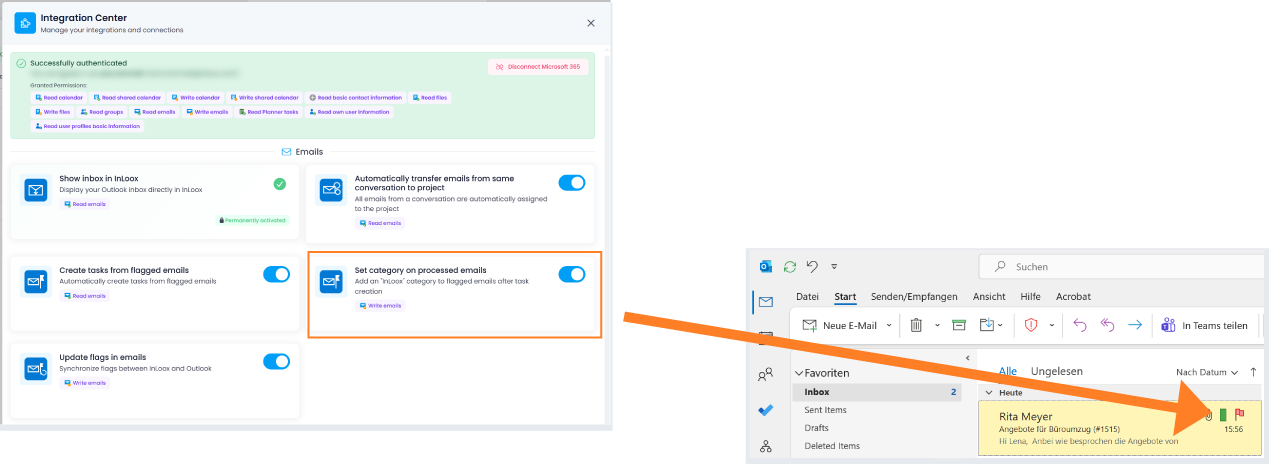
In the email integration, you can now automatically assign the category "InLoox" to emails that have been processed — such as when a task is created from an email (e.g., via flagging). This allows you to easily identify which emails have already been turned into tasks in InLoox directly within your inbox.

Prerequisite: The toggle Set category on processed emails must be enabled in the Integration Center.

InLoox category on flagged mails

Help article: Integrations: Emails

Invite Users from Microsoft 365 Contacts

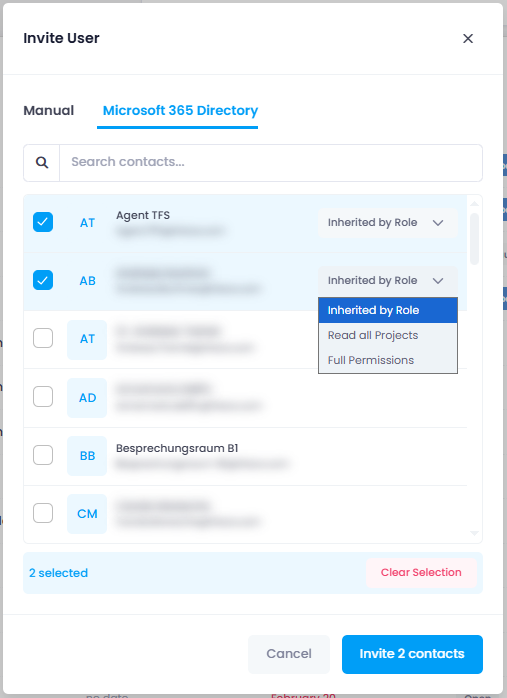
Inviting new users is now much more convenient: in the invitation dialog, you can directly access your Microsoft 365 directory and invite people from there. This allows you to add team members much faster.

Prerequisites

The required user permissions must be enabled in the Integration Center. Basic user information includes name and email address, while full user information provides additional profile details such as department or job title.

Invite users from the Microsoft 365 directory

New Integration Center

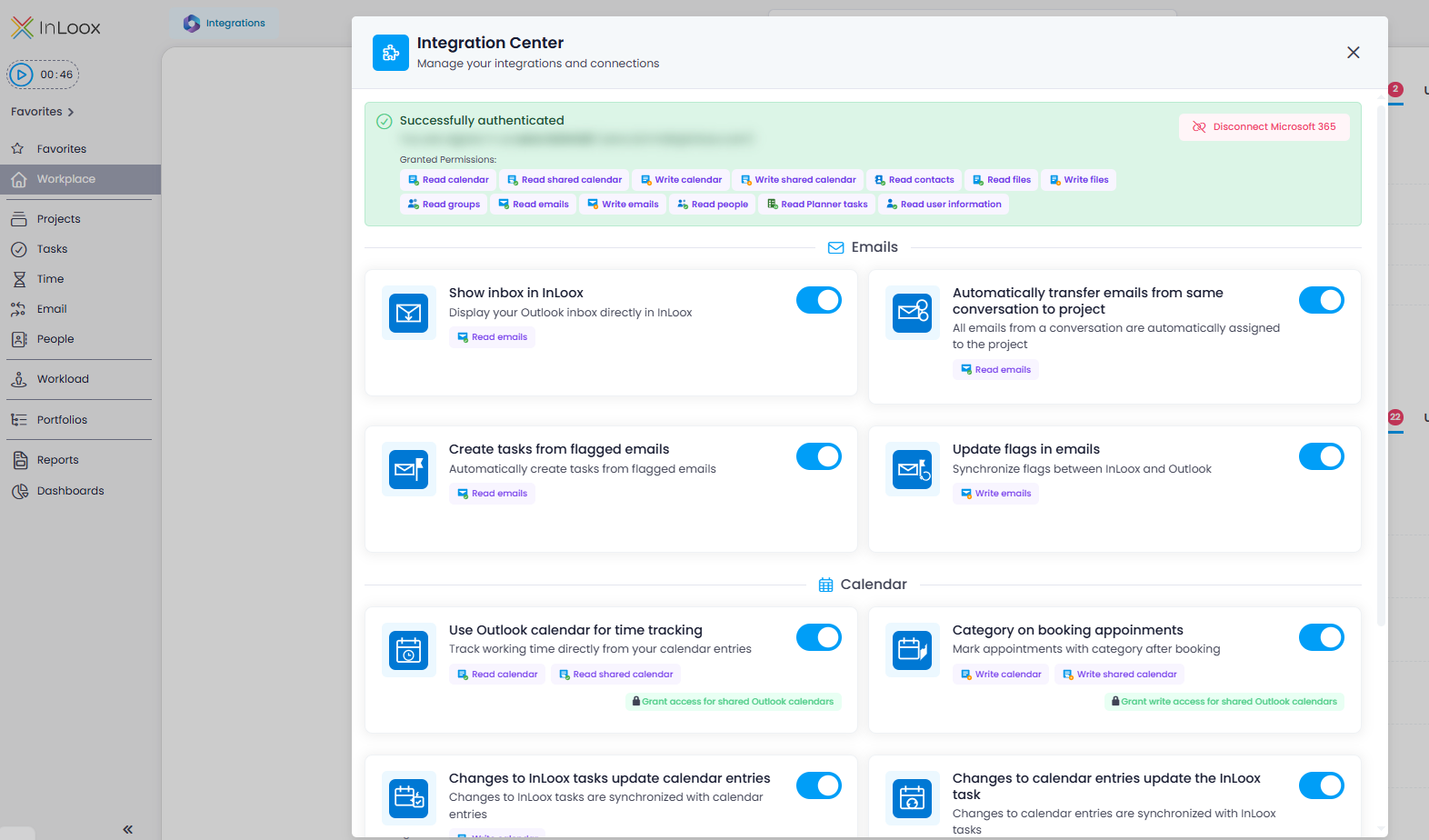
With InLoox 26.1, we are introducing the new Integration Center, your central hub for all Microsoft 365 integrations. It brings together everything related to emails, calendars, tasks, and documents in one clear, structured location. All integrations and their associated permissions are logically organized, giving you full transparency at a glance: see which features are active and how InLoox is connected to your Microsoft 365 environment.

The Integration Center provides the foundation for many of the new features in version 26.1. The individual functions will be presented in detail throughout this What's New.

Integration Center

Help article: Integrations

Self-Hosted

Some Microsoft 365 integrations require additional configuration steps by an administrator (e.g., enabling access to Microsoft Graph). For more details, see the support article: Configure InLoox Self-Hosted for MS365/Exchange Online Automations.

Redesigned Email Tracking

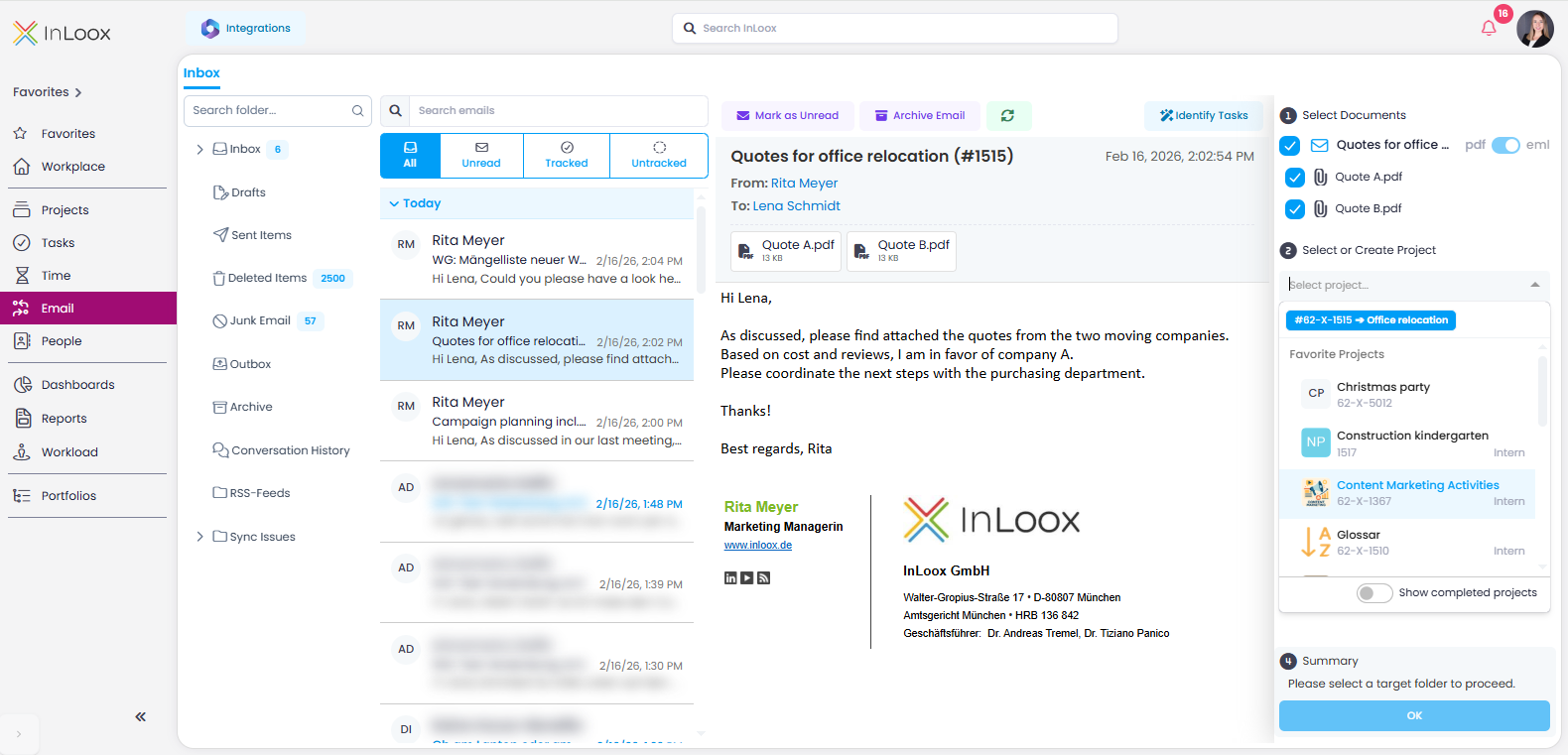
With version 26.1, the inbox in the "Track" section has been fundamentally redesigned and is now called Emails. The core idea remains the same: emails and attachments can be assigned to projects, and tasks can be created using the AI Assistant.

Email section overview

The redesign brings numerous improvements and new features:

  • Unified tracking process: Emails and attachments can now be tracked just as easily as in the Outlook add-in: select, choose project and project folder, save — done.
  • Automatic project suggestions: If the email subject contains an InLoox project number (starting with #), matching projects are automatically suggested when filing.
  • Duplicate check: You can instantly see if emails or attachments have already been tracked, including their project assignment.
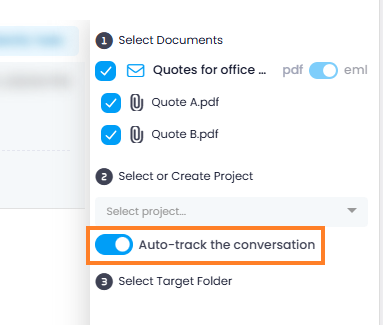
  • Automatic email tracking: When emails are filed in a project folder, all subsequent replies within the same conversation can be automatically stored in the same project folder. This requires enabling "Automatically transfer emails from the same conversation to the project" in the Integration Center.

Automatic email conversation tracking

  • Improved previews: Reliable display of email content and attachments, regardless of format.
  • Outlook folder structure, search & filters: Work within your familiar Outlook folder structure, search for emails, or filter by All, Unread, Tracked, or Not tracked.

Sync Project Tasks with Outlook Calendar

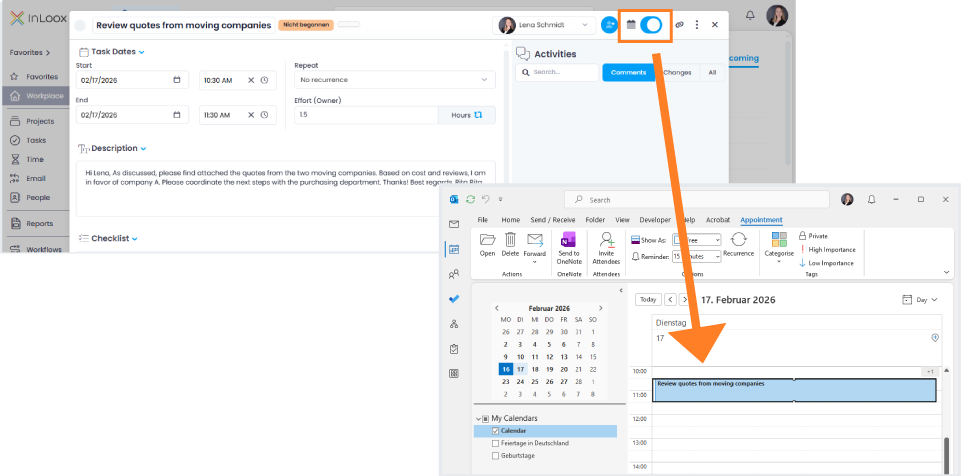
Project tasks can now be directly linked to your Microsoft Outlook calendar. After enabling the required permission in the Integration Center, simply toggle a switch within the task to add it to your calendar.

Synchronization Options

Two new options are available in the Integration Center:

  • Changes to InLoox tasks update calendar entries
  • Changes to calendar entries update the InLoox task

When both permissions are enabled, bidirectional synchronization is possible. Changes to date, time, or duration can be made either in InLoox or directly in the Outlook calendar, ensuring the task always remains up to date and consistent.

Synchronize InLoox task in Outlook calendar

New Time Tracking Area: Log Outlook Appointments Directly

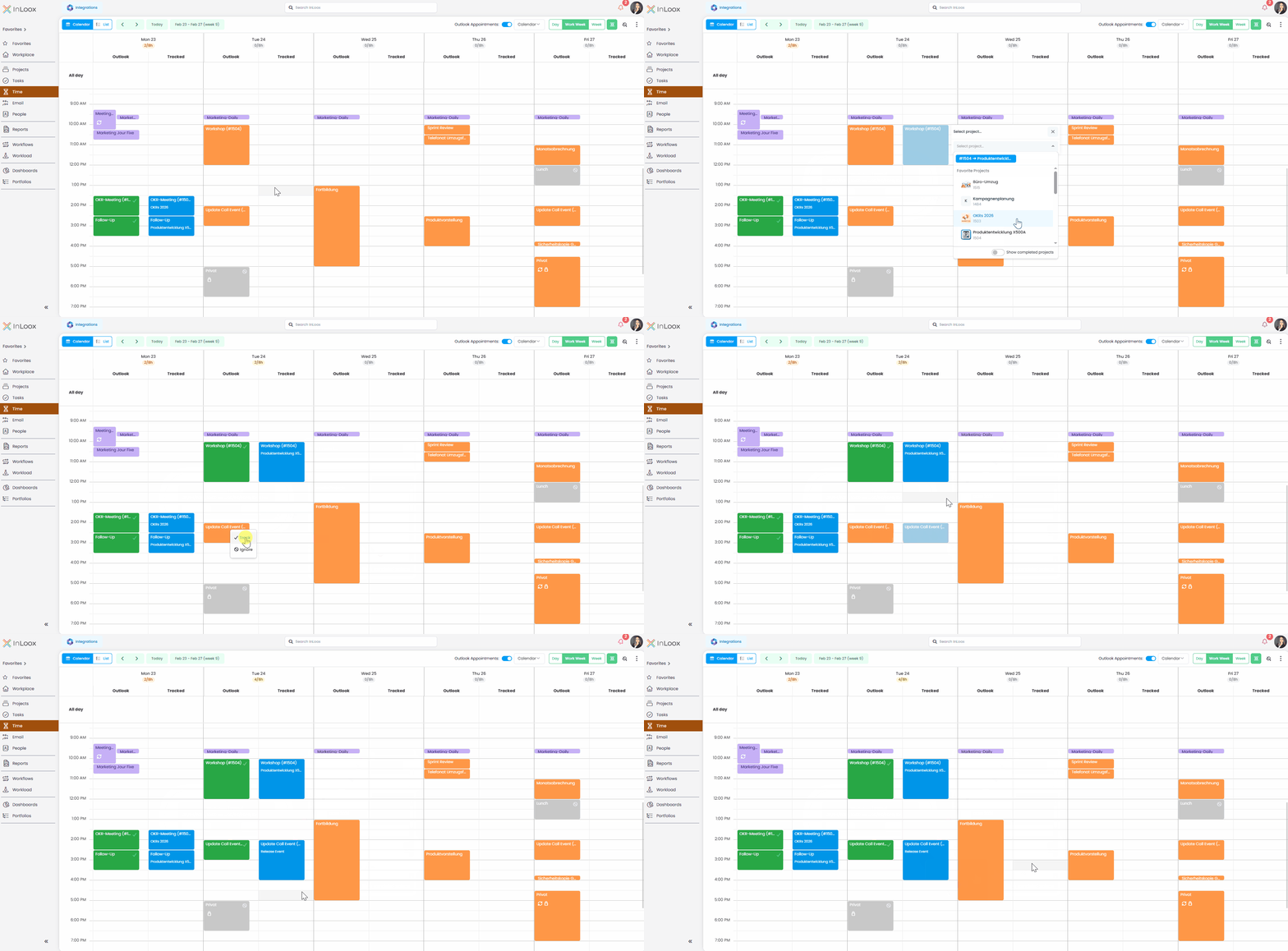
With version 26.1, we've made time tracking from calendar appointments even more straightforward. The former calendar section under "Track" has now been fully integrated into the main menu item Time.

In the new time tracking calendar, you can work in a daily, weekly, or workweek view and display your Outlook appointments directly using a simple toggle (connection to Microsoft 365 account required). An additional Tracked column instantly shows which appointments have already been logged.

Tracking time is simple: click the appointment, track it, select the project — done. Time entries can be flexibly adjusted, moved, or duplicated using drag and drop.

New features also include:

  • Automatic project suggestions when logging time, based on an InLoox project number (starting with #) included in the appointment title
  • Capacity display showing booked time and target working hours per day
  • Conditional formatting for color-coded highlighting of appointments

Of course, you can still create time entries independently of Outlook and switch between calendar and list views whenever needed.

Time tracking of Outlook calendar entries