4 posts tagged with "area:documents"

Documents and files

View All Tags

Documents: Delete Orphaned Items in Bulk

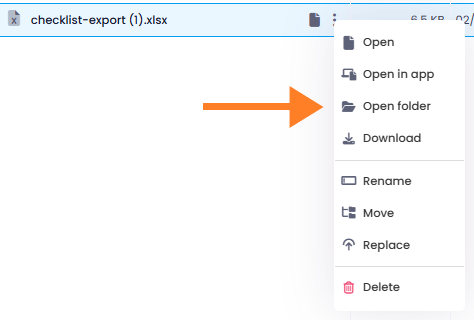
Orphaned documents and folders — files that are no longer connected to the active SharePoint folder structure — can now be permanently deleted all at once. Open the three-dot menu in the Documents section and select Delete orphaned elements. InLoox shows a confirmation dialog with the number of affected items before deleting them.

This action requires administrator rights and cannot be undone.

Delete orphaned elements

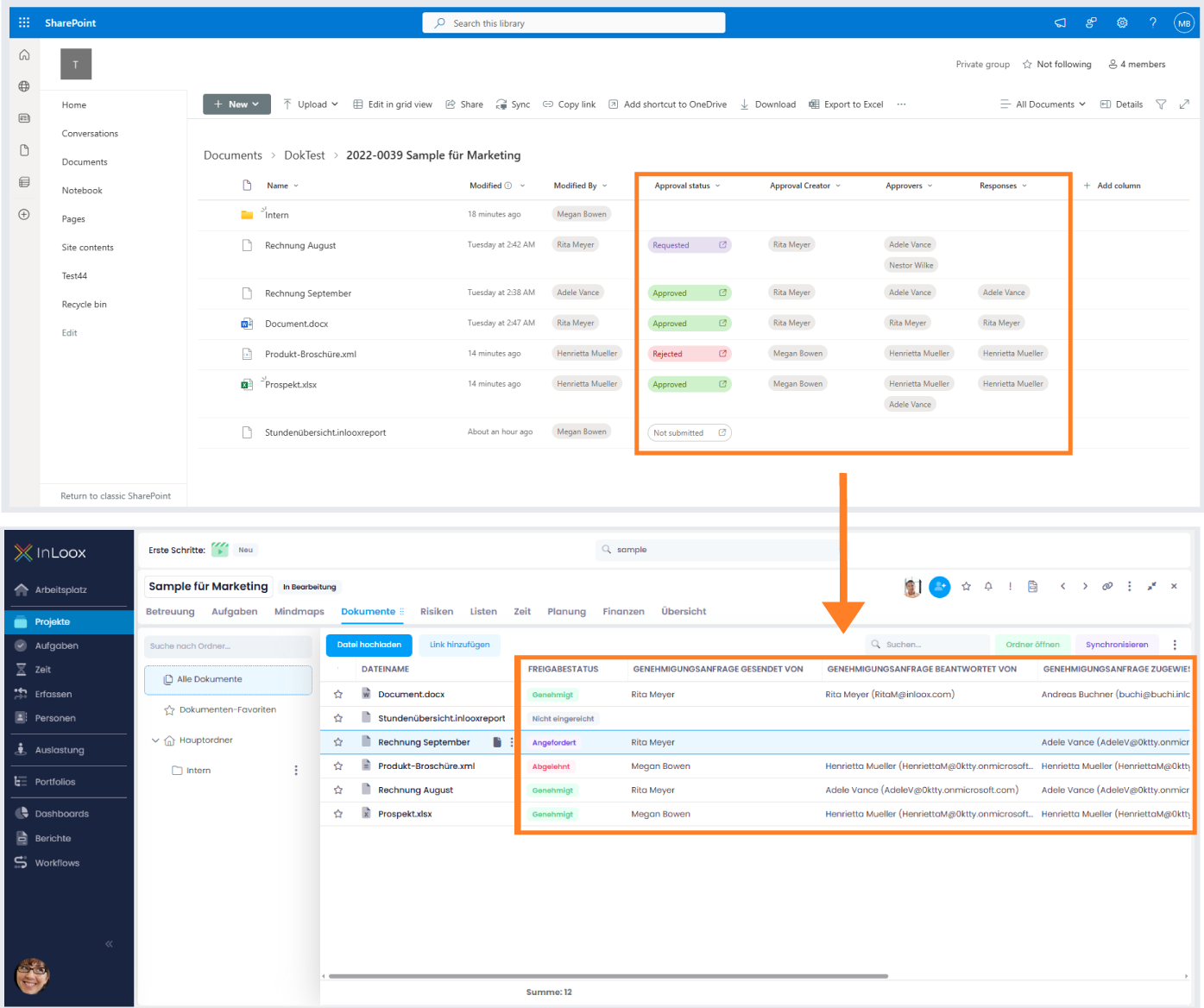
Documents: SharePoint Version and Sensitivity Label

Two new columns are available in the document view for SharePoint-synchronized documents:

  • SharePoint Version — Displays the document version number from SharePoint.
  • Sensitivity Label — Displays the sensitivity label assigned in SharePoint.

Add these columns using Choose Columns in the document view. InLoox displays the data read-only — the values are managed in SharePoint.

Enhancements to Documents: Clearly Structured Emails

With version 26.1, the Project > Documents area has been expanded, particularly in the way emails are handled.

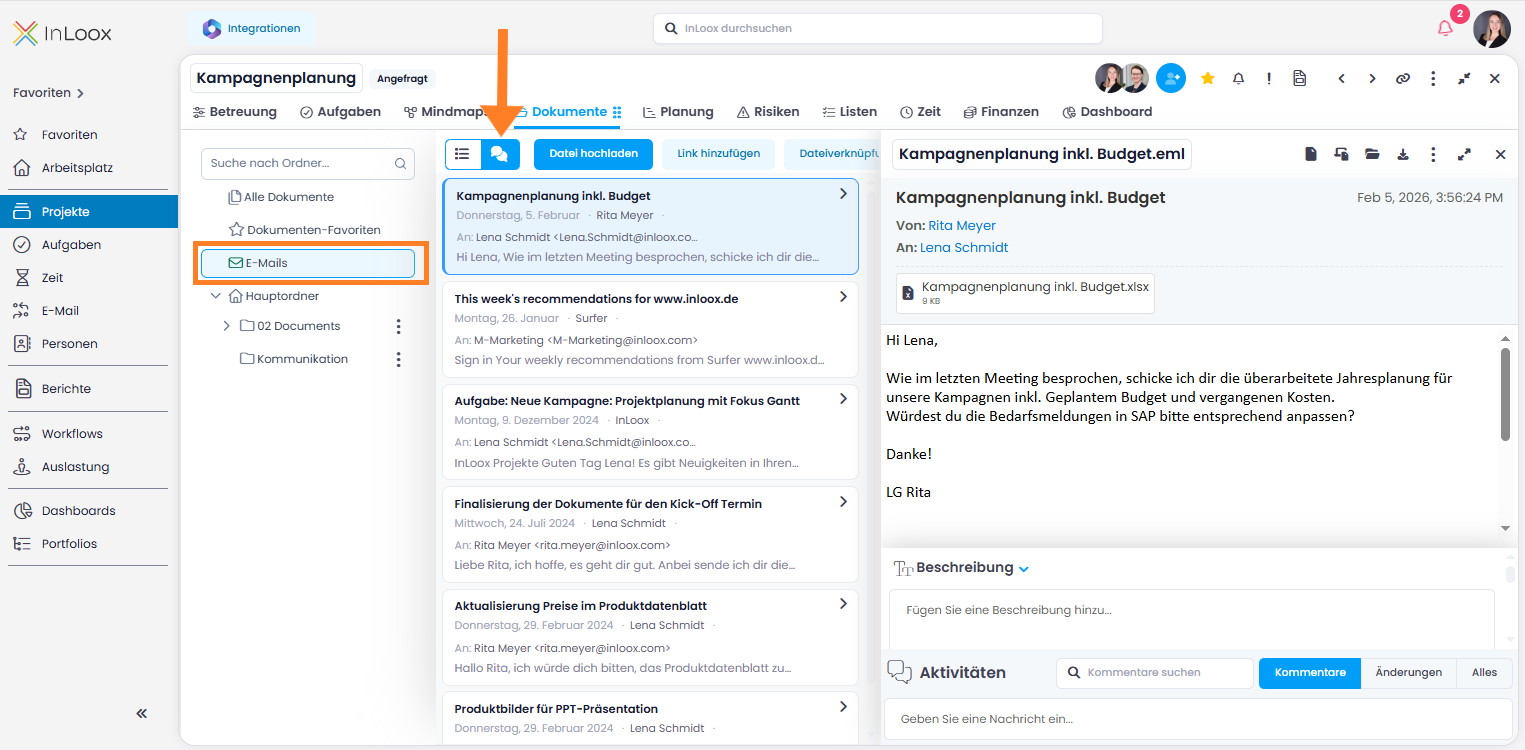
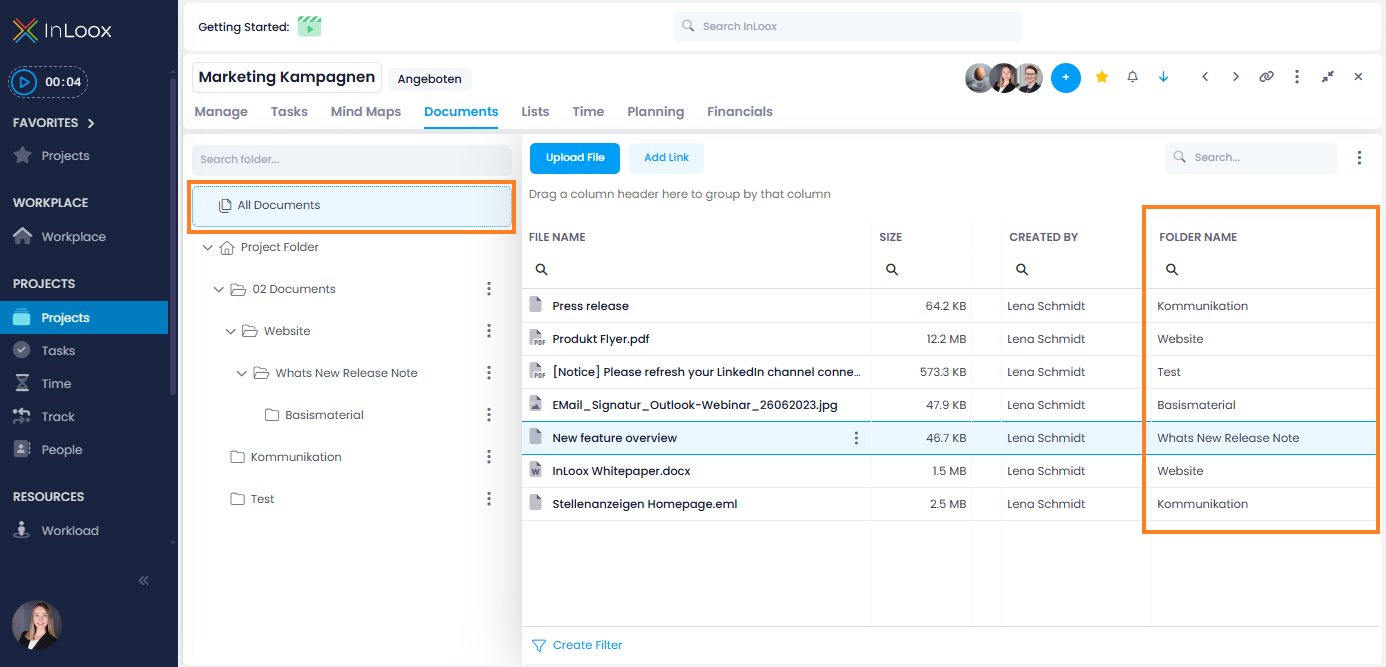
A new Emails folder is now available on the left-hand side. It provides a consolidated view of all emails posted to the project, regardless of which subfolder they were originally saved in — similar to "All Documents" but dedicated exclusively to emails.

Within this folder, you can choose between two views:

  • The familiar, classic list view
  • The new conversation view, where related emails are grouped together and displayed in a layout reminiscent of a CRM interface

All emails in conversation view

Help article: Emails in Documents

Redesigned Email Tracking

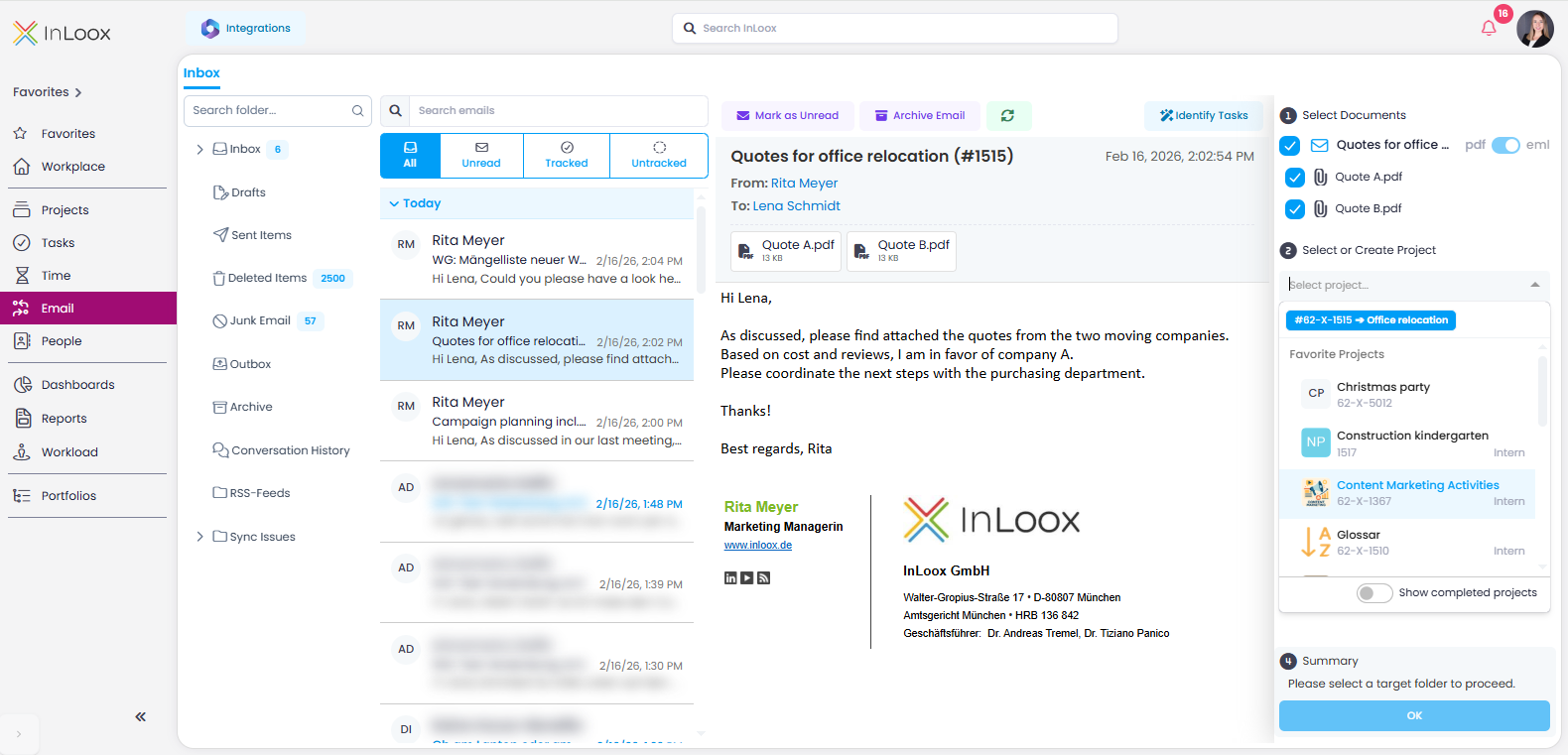
With version 26.1, the inbox in the "Track" section has been fundamentally redesigned and is now called Emails. The core idea remains the same: emails and attachments can be assigned to projects, and tasks can be created using the AI Assistant.

Email section overview

The redesign brings numerous improvements and new features:

  • Unified tracking process: Emails and attachments can now be tracked just as easily as in the Outlook add-in: select, choose project and project folder, save — done.
  • Automatic project suggestions: If the email subject contains an InLoox project number (starting with #), matching projects are automatically suggested when filing.
  • Duplicate check: You can instantly see if emails or attachments have already been tracked, including their project assignment.
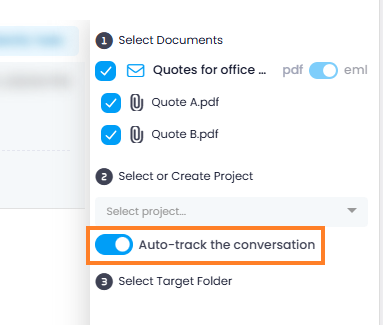
  • Automatic email tracking: When emails are filed in a project folder, all subsequent replies within the same conversation can be automatically stored in the same project folder. This requires enabling "Automatically transfer emails from the same conversation to the project" in the Integration Center.

Automatic email conversation tracking

  • Improved previews: Reliable display of email content and attachments, regardless of format.
  • Outlook folder structure, search & filters: Work within your familiar Outlook folder structure, search for emails, or filter by All, Unread, Tracked, or Not tracked.