Workload: Element Count and Tasks Without Effort
Not every team estimates its tasks in hours — and not every task has an effort from the start. Two additions make the workload useful in these cases as well.
-
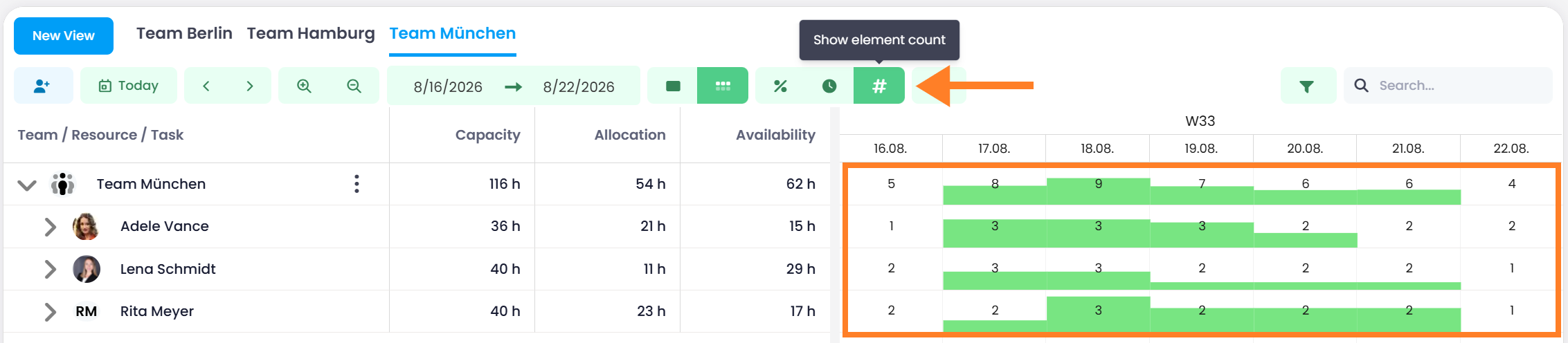
Display the workload by number of elements: Next to Show percentage and Show hours, the navigation bar now offers Show element count . Each period then shows how many elements are assigned to the resource, which gives you an overview of how the work is distributed even without effort estimates.
-
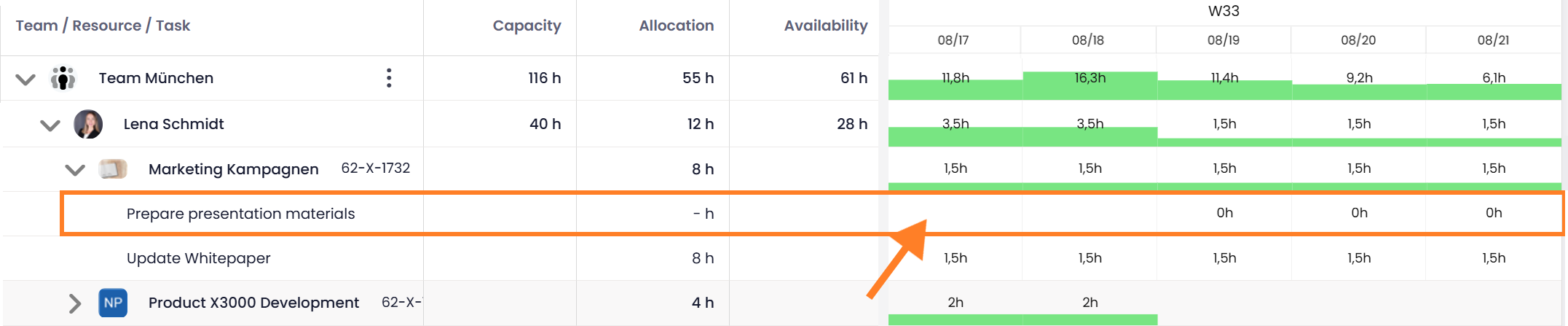
Recognize tasks without effort: If a task is scheduled but has no planned effort, the workload now shows 0 h or 0 % instead of an empty cell — the cell stays empty only when nothing is scheduled at all. Previously both cases looked the same, because only effort was displayed. So you can now tell that a resource is assigned to something even when the effort is still missing.
Help articles: Columns in the Workload View · Navigation, Details and Sharing