New Time Tracking Area: Log Outlook Appointments Directly
With version 26.1, we've made time tracking from calendar appointments even more straightforward. The former calendar section under "Track" has now been fully integrated into the main menu item Time.
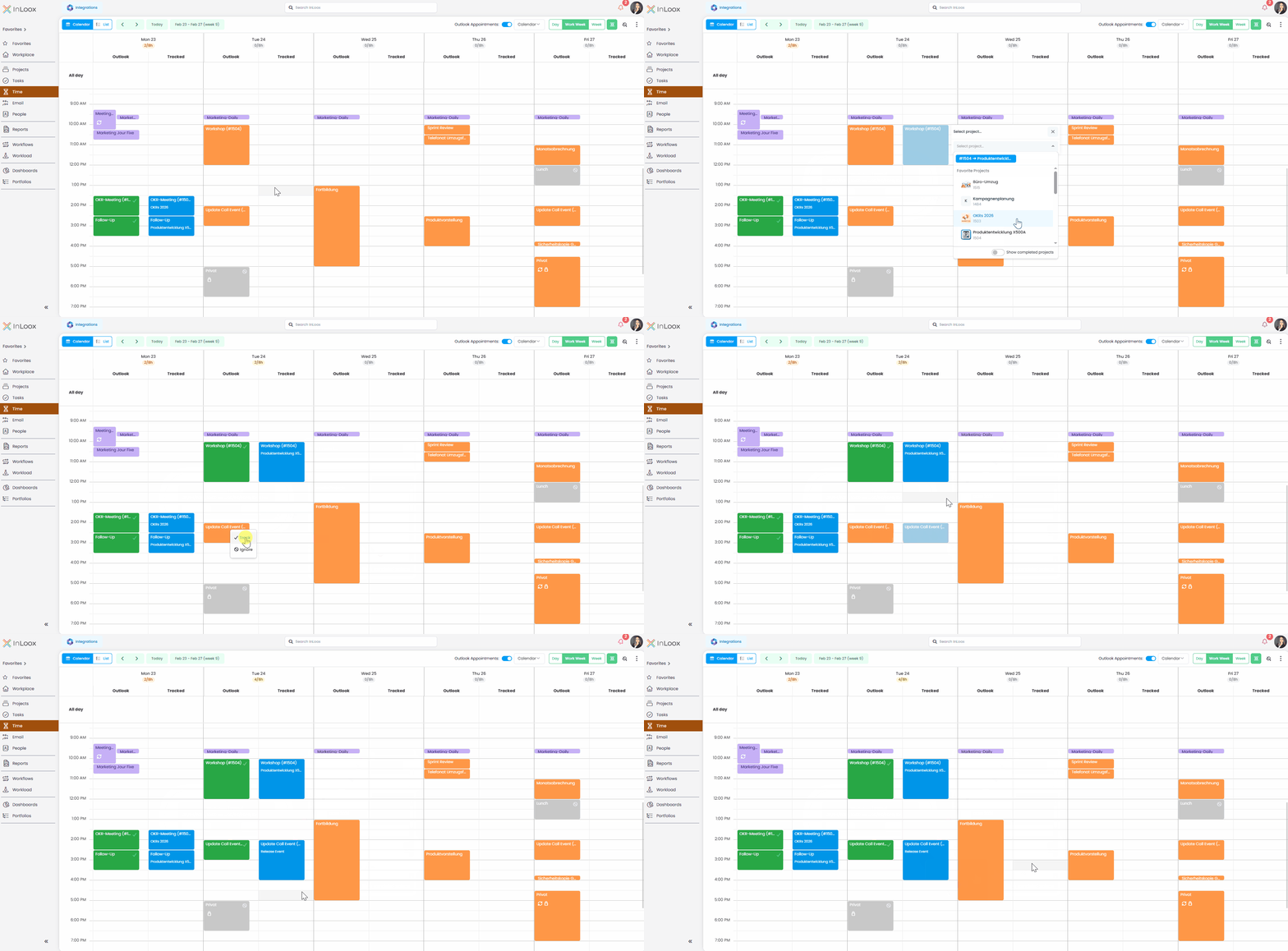
In the new time tracking calendar, you can work in a daily, weekly, or workweek view and display your Outlook appointments directly using a simple toggle (connection to Microsoft 365 account required). An additional Tracked column instantly shows which appointments have already been logged.
Tracking time is simple: click the appointment, track it, select the project — done. Time entries can be flexibly adjusted, moved, or duplicated using drag and drop.
New features also include:
- Automatic project suggestions when logging time, based on an InLoox project number (starting with #) included in the appointment title
- Capacity display showing booked time and target working hours per day
- Conditional formatting for color-coded highlighting of appointments
Of course, you can still create time entries independently of Outlook and switch between calendar and list views whenever needed.
Help article: Track Time of Outlook Calendar Entries