Workload: Color Scheme and Absences
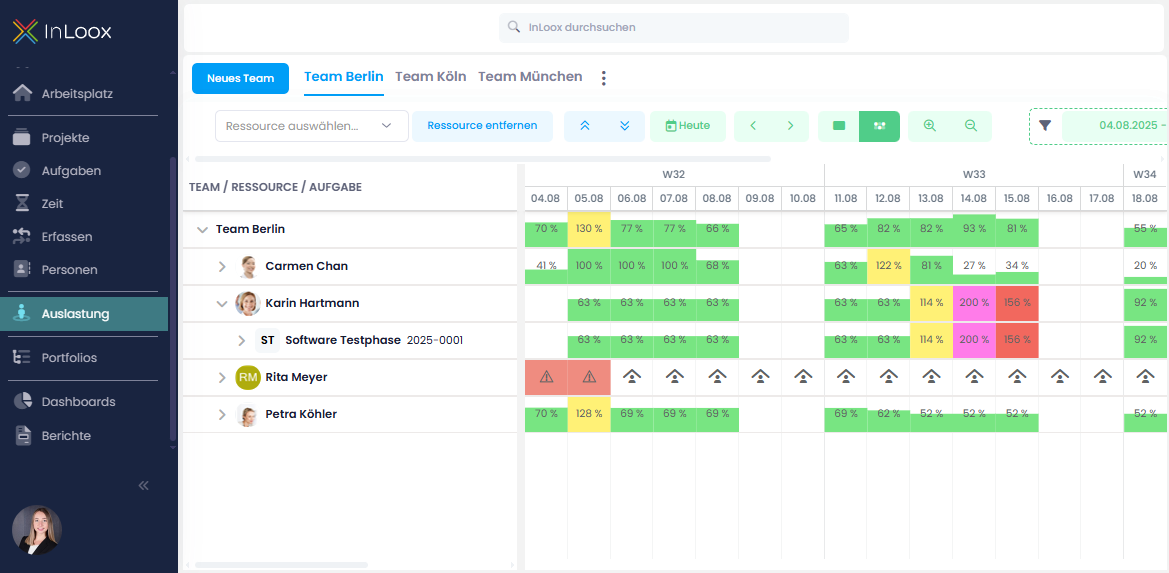
The Resource Utilization view is now even clearer thanks to a new color scheme. Depending on the utilization level, items are color-coded so you can instantly see where capacity is tight or has been exceeded:
- Green: up to 100%
- Yellow: over 100% to 150%
- Red: over 150% to 200%
- Purple: over 200%
Also new: Absences are now displayed directly in the utilization view with an icon. An exclamation mark indicates when people are booked for a task despite being absent – helping you quickly spot potential conflicts and make adjustments.
The data for this is based on non-working days that are either:
- defined for certain calendars in the Account Settings (e.g., public holidays), or
- set individually in the People section (e.g., personal vacation days).
The project number is now shown alongside the project name which avoids potential confusion with projects that have identical or similar names.
Help article: Define Working Hours, Calendars and Days Off | Workload Calculation