Add Project-Specific Task Columns
You can now add project-specific custom columns to the task list without needing administrator rights. These fields apply only within a specific project and appear exclusively in the task list view.
How it works: Open a project, go to the Tasks section, and switch to the List view (not the Kanban view). You'll now see the new "Add field" button, which lets you add a custom column to capture individual information directly. The available field types are: String, Datetime, Integer, Decimal, Boolean, List, or Currency.
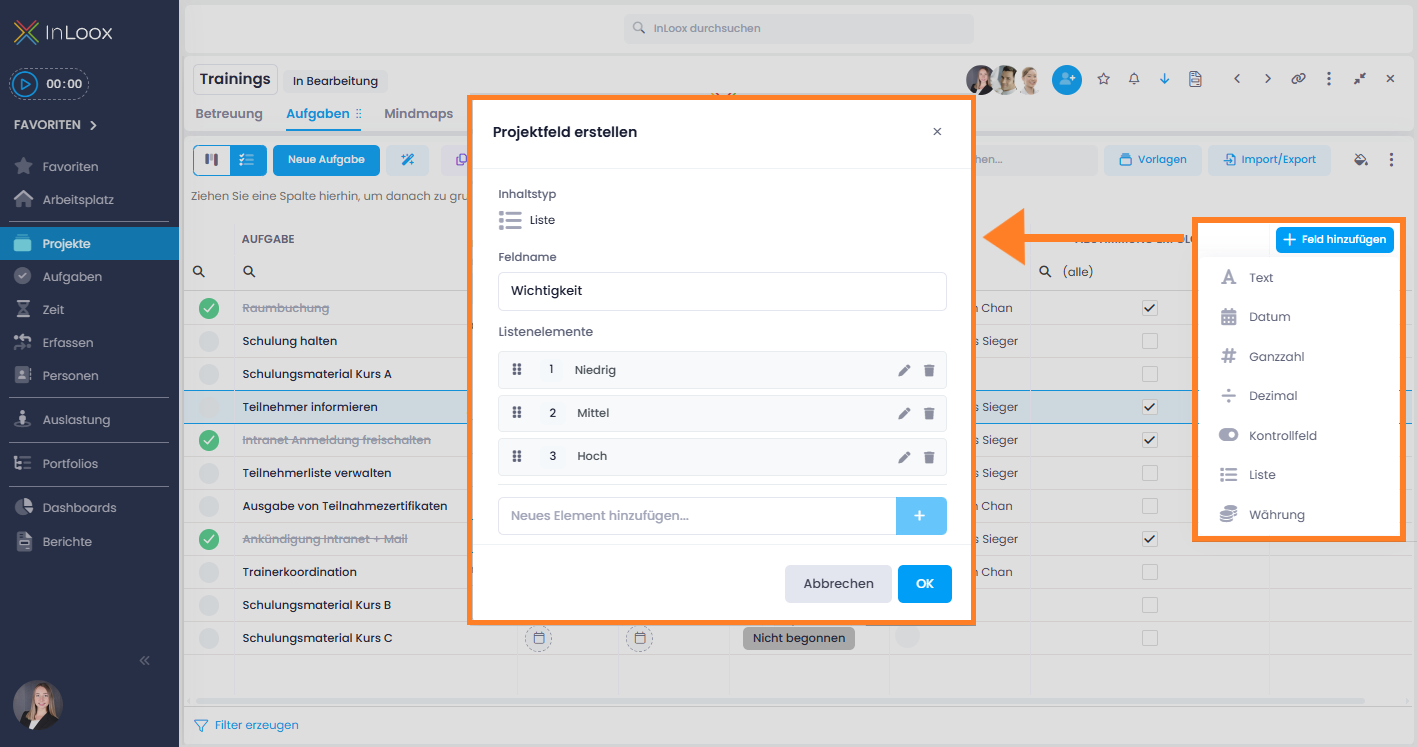
These project-specific fields are only displayed as columns in the list view. In this first step, they are not shown in the task's side panel.
Project-specific fields are limited to the given project and cannot be used in dashboards. The familiar custom fields from the Account Settings apply across projects (or selectively via rules), are stored in the database, and can be used in dashboards – and can only be created by administrators.
Help article: Add Columns to Project Task List View