Track Outlook Calendar Entries in InLoox
With the Microsoft 365 integration, your Outlook calendar appointments are displayed directly in the InLoox time tracking calendar. From there, you can track them as time entries with just a few clicks.
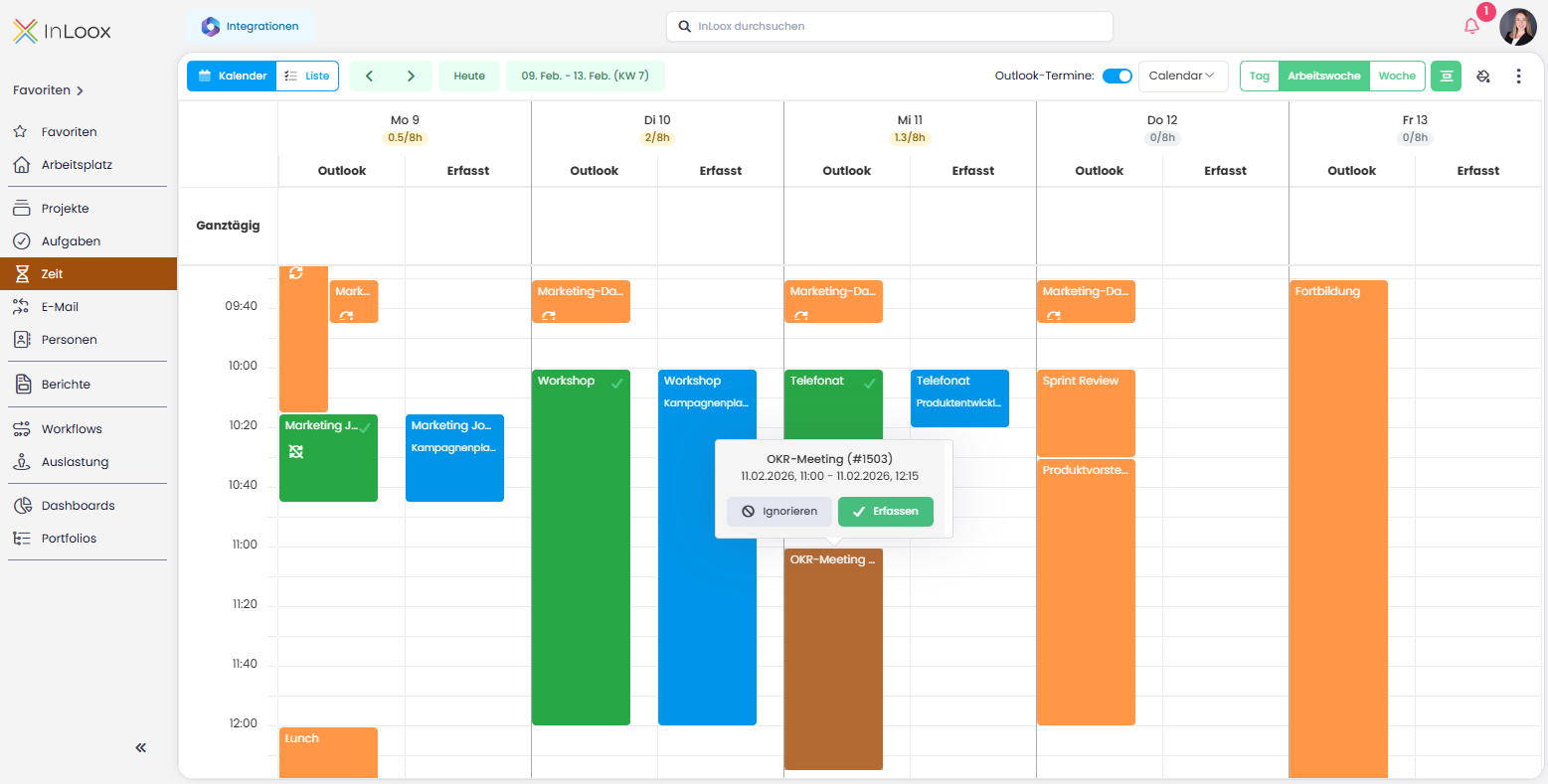
This functionality was previously available as Track. Since InLoox 26.1 (February 2026), time tracking from Outlook calendar entries has been moved to Time.
Prerequisites
To track Outlook calendar entries in InLoox, the following requirements must be met:
Required:
- Active connection to Microsoft 365
- Permission Use Outlook calendar for time tracking enabled
Optional:
- Permission Category on booking appointments enabled
- Permission Changes to InLoox tasks update calendar entries enabled
- Permission Changes to calendar entries update the InLoox task enabled
The Microsoft 365 connection and permissions are configured in the Integration Center in InLoox.
Configure the Calendar View
- Go to Time and switch to the Calendar view.
- In the upper-right corner, activate Outlook Appointments.
- Click the Calendar field to select your own calendar or shared calendars.
- If needed, change the view from Work week (default) to Day or Week.
- Click the time interval icon to change the default duration (e.g., from 30 to 60 minutes).
- Click to configure:
- Show Capacity Indicators — Displays daily planned hours based on your calendar working hours and capacity settings.
- Open Time Entry When Tracked — Opens the time entry in the side panel for editing details.
- Open Time Entry When Duplicated — Opens the time entry in the side panel after duplicating it to the next week.
- Show Private Appointments — Shows Outlook appointments marked as private.
- Include Appointment Body — Uses the appointment body text as the time entry description.
- Add Category to Appointment — Requires that you grant InLoox write access to your calendar in your profile settings.
How to Track Outlook Entries
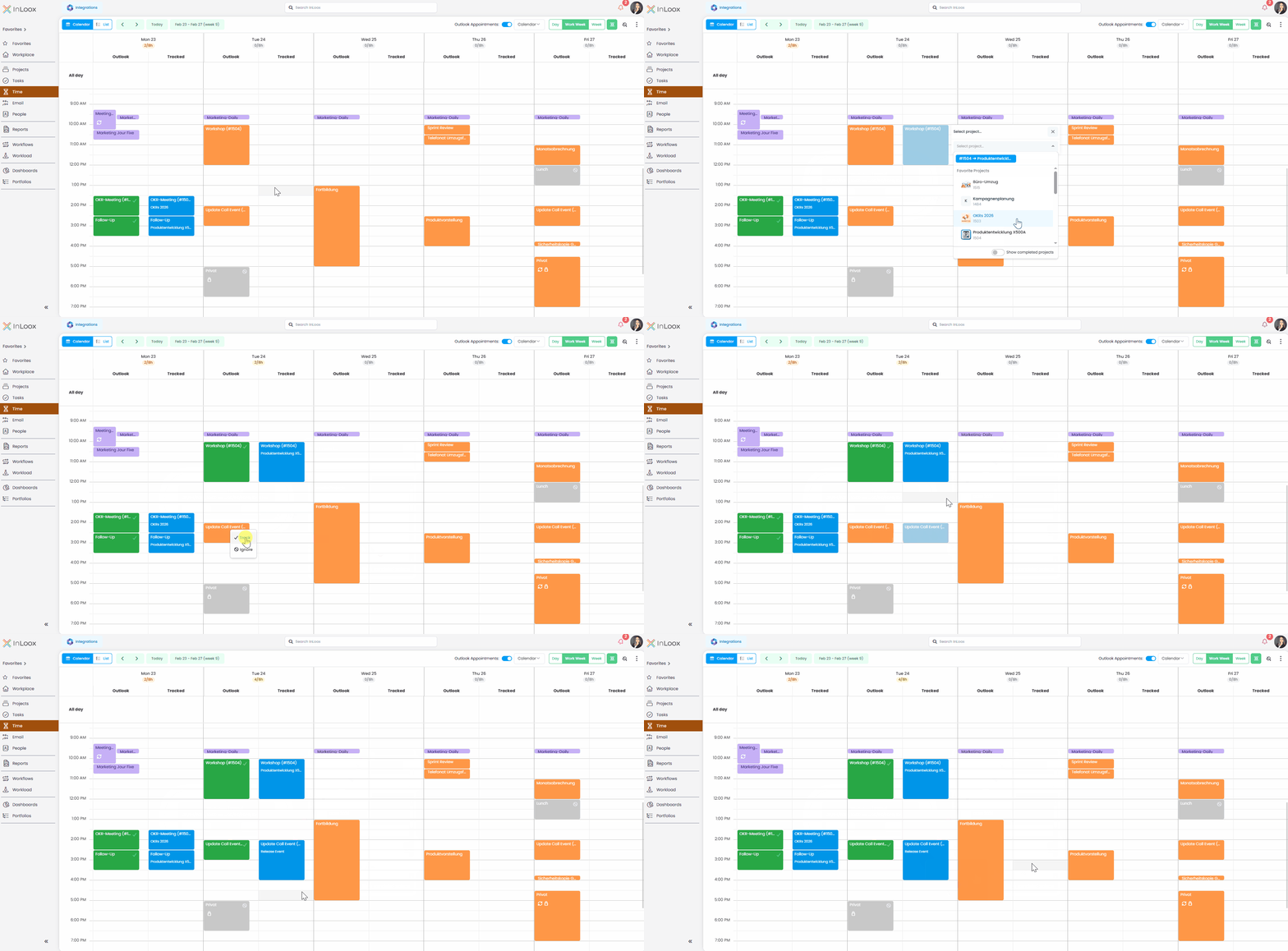
- Drag a calendar entry into the tracked column, or click it and select Track.
- Select the project for the time entry.
- To track in a completed project, activate Show completed projects.
- InLoox opens the time entry where you can change or add details.
If a tracked entry is assigned a cost group, InLoox automatically calculates the actual expenses in the project's financials.
If an Outlook appointment title contains part of an InLoox project number starting with # (e.g., #1234), InLoox automatically suggests matching projects when you track the entry. This saves you from having to search for the project manually.
Set Category Automatically
Additional prerequisite: Enable the permission Add category to appointment after booking in the Integration Center.
To automatically assign a category to tracked appointments:
- Click in the upper-right corner.
- Activate Add Category to Appointment.
- After tracking, the Outlook appointment is marked in green and assigned the category InLoox.
This categorization helps prevent duplicate bookings by making it immediately visible which appointments have already been tracked.
Select and Edit Multiple Time Entries
In the calendar view, you can select multiple time entries and perform bulk actions:
- Hold Ctrl and click individual time entries, or hold Shift and click to range-select.
- A command bar appears at the bottom of the screen with the following actions:
- Duplicate to next week — Copies the selected entries to the same weekday in the following week.
- Track on project — Assigns the selected entries to a project.
- Delete — Removes the selected time entries.