Edit a Time Entry
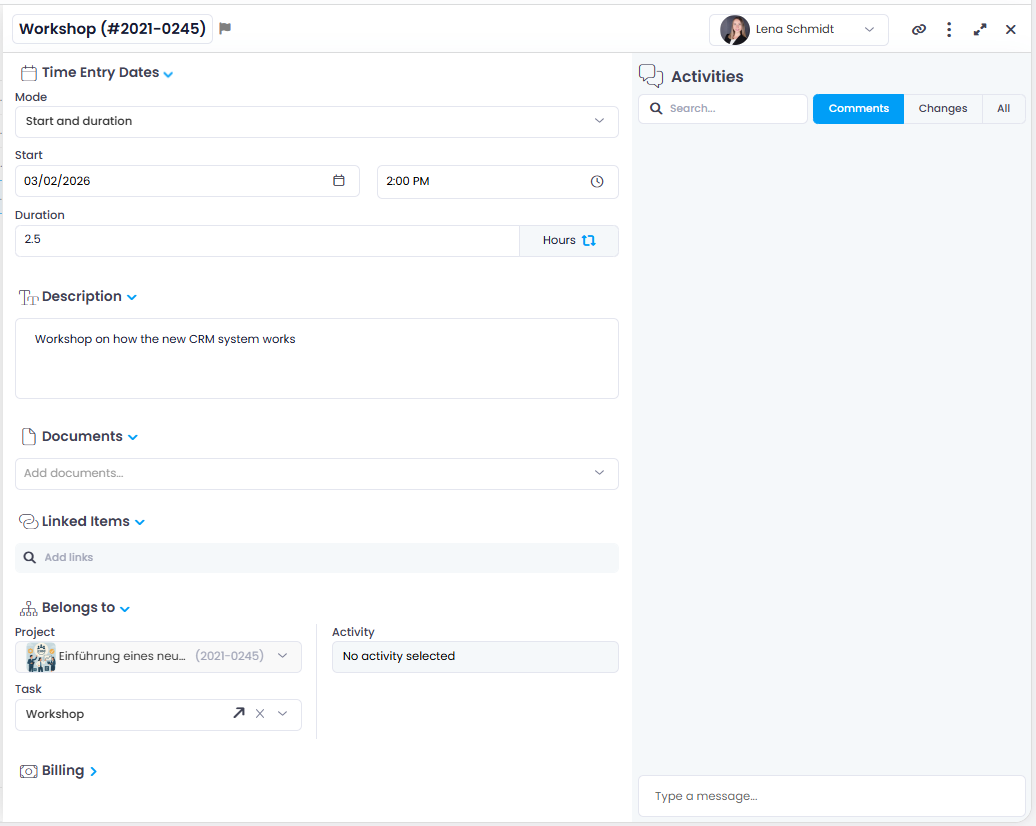
Once created, click a time entry to edit it. The following fields and options are available:
-
Name — Define a descriptive name for the activity.
-
Time entry dates (mode) — Choose between Start and duration, Duration and end, or Start and end. The duration (days, hours, minutes) represents the time spent working. Click on "Hours" to change the unit of effort. In time fields, you can enter times with or without separators (for example,
9,930, or1430).noteThe start date defaults to the creation date. By default, you can post effort retroactively for up to 30 days. The permission Allow backdating in time recording is required.
-
Description — Add a short description (e.g., a note for accounting).
-
Documents — Attach related documents or links.
-
Linked Items — Connect the time entry to items from current or other projects (documents, other time entries, mind map nodes, budgets, planning elements, or knowledge pages). Links are bidirectional.
-
Belongs to — Assign the entry to a project, activity, or task. You can create a new task by typing the name directly into the task field. If you want to link a time entry to an existing task, but no tasks appear, activate the toggle Show tasks from others. Tasks are grouped by Open and Done.
noteFor billed time entries, the fields Name and Belongs to are read-only and can no longer be changed.
-
Billing — Assign a cost group in the Group field (managed in InLoox settings, administrator rights required). Check Billable if the entry can be billed.
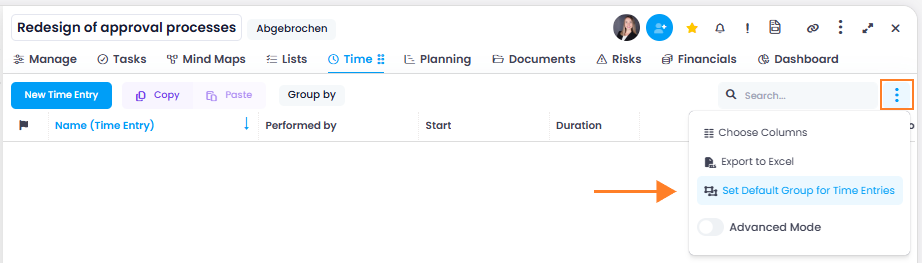
Default Billing GroupYou can define a default billing group for a project. This is typically done by the project managers. In the project, click the Time tab, then click on the left and select Set default group for time entries. Choose an appropriate cost group from the menu. All new time entries in this project will then use this group by default.
-
Custom fields — Managed in InLoox settings under Custom fields.
-
Resource (Performed by) — By default, the creator is the resource. You can change this if someone else performed the activity.
-
Comments — Useful for queries from supervisors about the time entry.
-
Delete — Open the header menu in the top-right corner and select Delete. InLoox first shows a confirmation dialog. The entry is deleted only after you confirm the action.
All information is saved automatically. Simply close the editing window when you're done.