Stopwatch
The InLoox stopwatch allows you to record the time spent on a task precisely to the minute and assign it directly to a project.
Start the Stopwatch
You can start the stopwatch from the following locations:
In a Task
-
Open a project-related task of your choice.
-
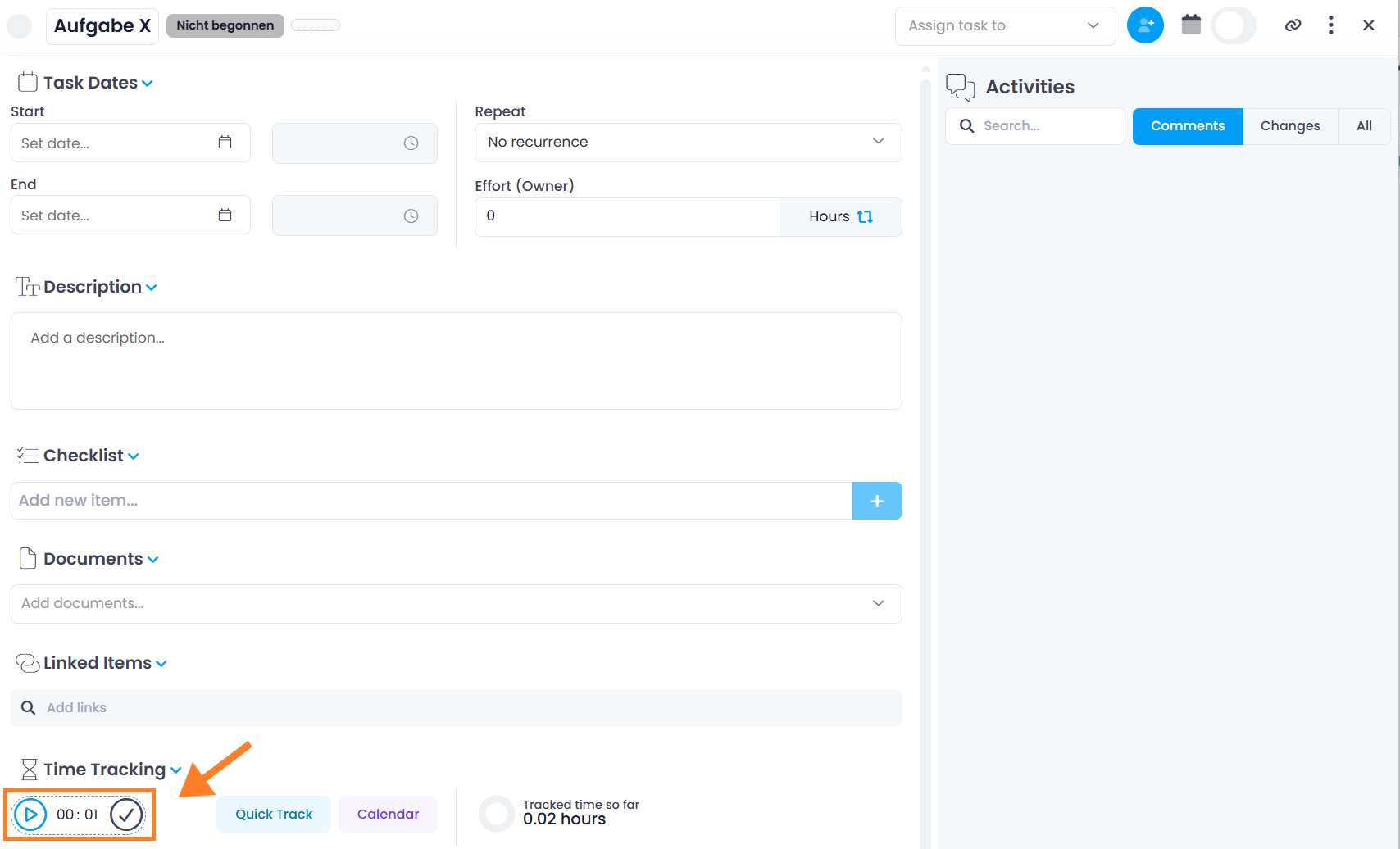
In the task, you can record time manually as usual, or use the stopwatch.
-
Click the play button to start the stopwatch.
In the Project Task List
In the project Tasks tab (list view), you'll find a small next to each task row that starts time tracking with a single click. The stopwatch is only available for tasks that have not yet been billed.
In the Workplace
In the Workplace view, you'll find a small next to each task that starts time tracking with a single click. The stopwatch is only available for tasks that are assigned to a project.
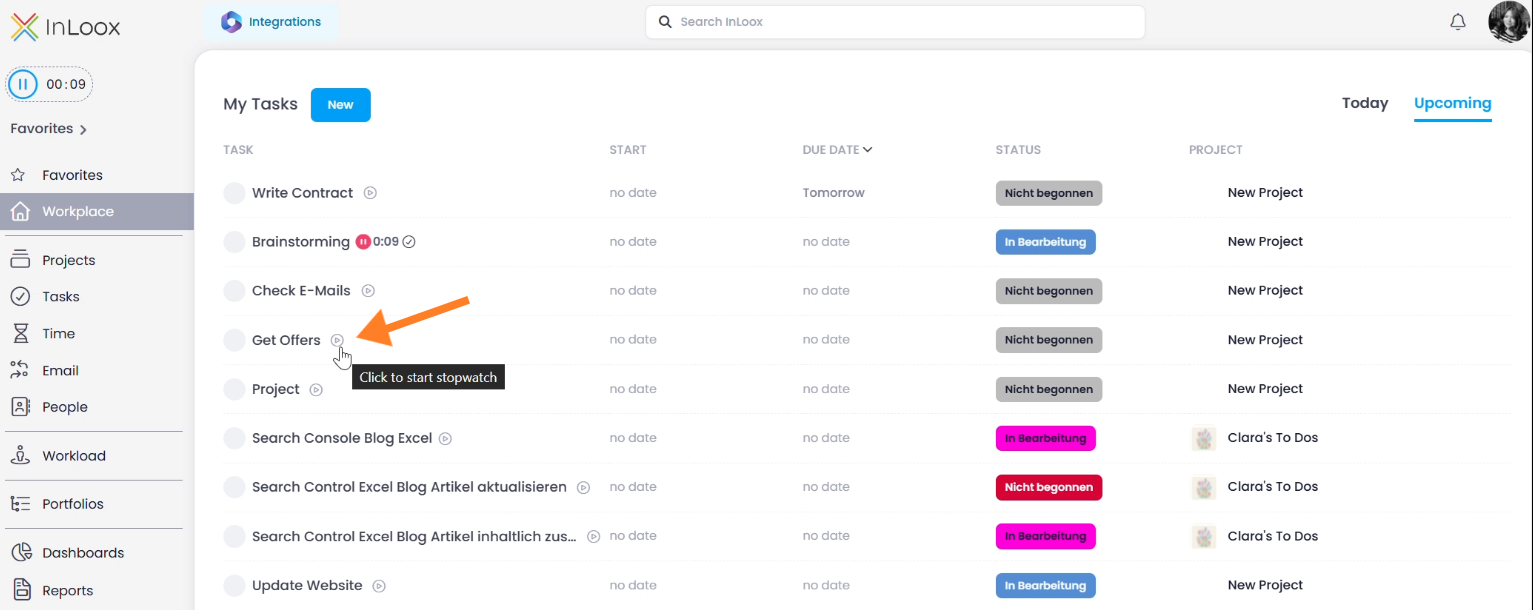
When the stopwatch is running, a red blinking button appears next to the task.

In the InLoox for Outlook Add-in
You can also start the stopwatch from the InLoox for Outlook add-in.
Pause, Delete, and Book the Stopwatch
Once the stopwatch is running, you can pause, resume, book, or delete it. Only one stopwatch can be active at a time — activating a stopwatch for a new task automatically pauses the previous one.
In a Task
In the task view, the stopwatch controls are displayed directly next to the timer:
-
Click the two vertical lines to pause the stopwatch.

-
Click the checkmark to stop the stopwatch completely and book the recorded time to the project.

In the Project Task List and Workplace
In the project task list and the Workplace, clicking the red blinking button pauses the stopwatch. The play button turns orange, indicating time has been recorded but not yet booked.

In the Status Display
When the stopwatch is running, you can see it in the status display at the top left of the menu. There you'll find all tasks with active stopwatches.
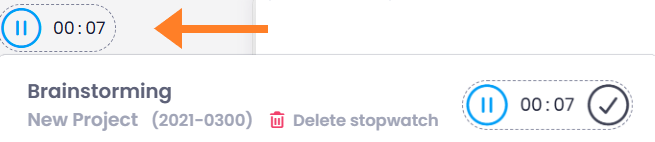
From the status display, you can manage your stopwatches:
- Pause — Click to temporarily stop the stopwatch. The recorded time is preserved and the stopwatch can be restarted at any time.
- Restart — Click on a paused stopwatch to resume time tracking. Times are accumulated across all pauses.
- Book time — Click to stop the stopwatch completely and book the recorded time to the project. The duration and end time are transferred to the corresponding time entry. To add further details (e.g., a description), open the time entry.
- Delete — Click to discard the stopwatch and its recorded time without booking.