Create a Time Entry
You have several options for creating a new time entry:
- Time entry from a project task
- Time entry in the project Time tab
- Time entry from the global time tracking view
- Time entry using the stopwatch
- Quick Track from the Workplace
- Time entry from a calendar appointment:
Time Entry from a Project Task
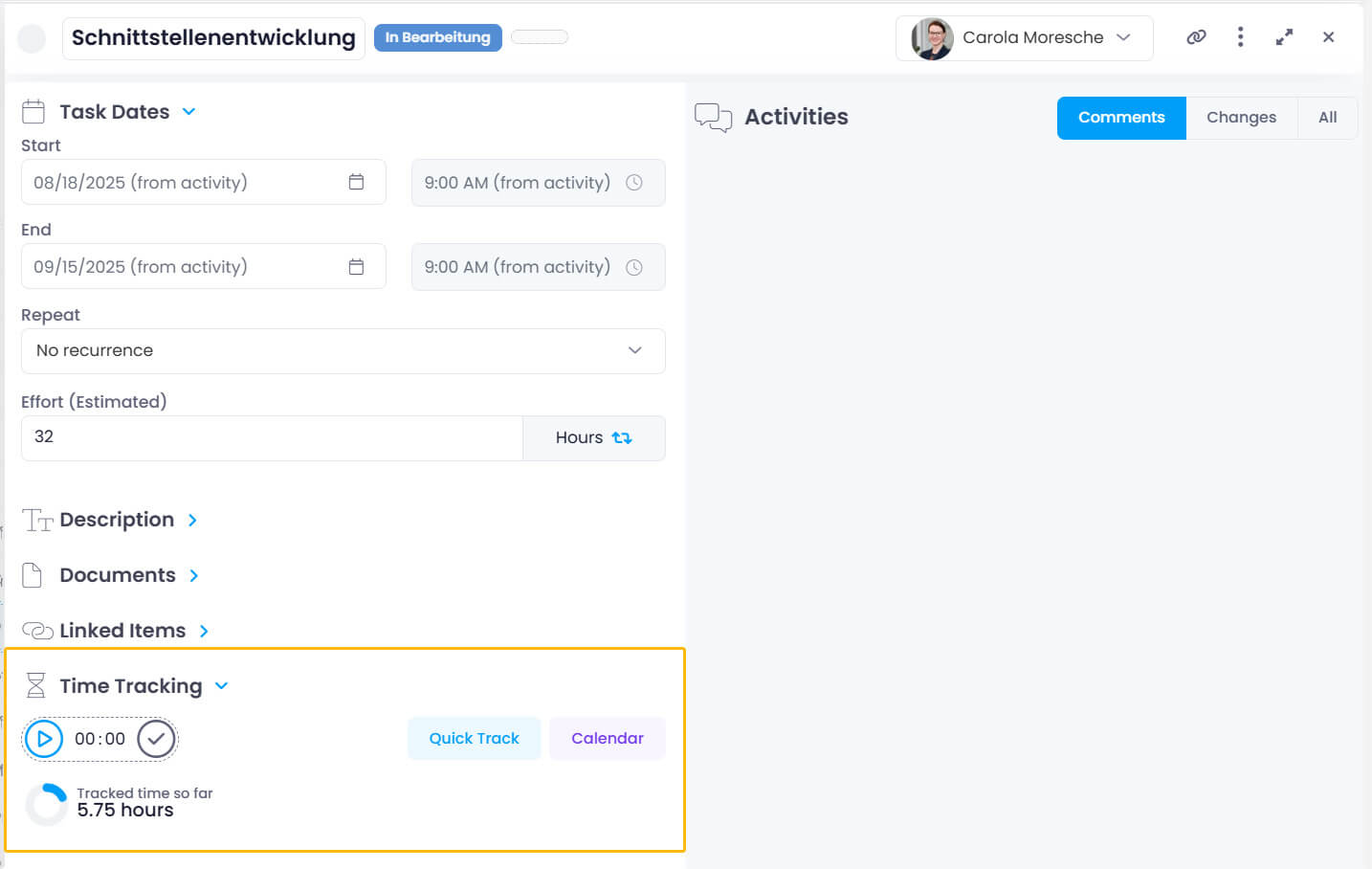
You can create a time entry directly from a task using the stopwatch, quick entry, or a calendar appointment.
- Click Projects in the left menu and open an existing project.
- Click the Tasks tab and select the task you want to track time for.
- In the open task, you'll see how much time has already been booked. To create a new entry:
- Click the start button to use the stopwatch. Click the checkmark to post the recorded time.
- Click Quick Track to log a predefined duration (e.g., 15 minutes or 2 hours).
- Click Calendar to record an appointment's duration as working time.
A time entry linked to the task is created and opened automatically. All task information is transferred. You can modify the title, description, duration, and other details.
Time Entry in the Project
- Click Projects in the left menu and open an existing project.
- Click the Time tab, then click the blue New Time Entry button.

- Add the relevant details for the time entry.
- You can also copy and paste an existing entry using the purple copy/paste icons.
Copying an entry also follows the backdating limit. If the copied start date is older than the allowed backdating days, you need the Allow backdating time entries permission.
Time Entry from the Global View
- Click Time in the left menu to open the global time tracking list.
- Switch between the List and Calendar views at the top.
List View
- At the top, select a project and click the blue New Time Entry button.

- Optionally link the time entry to a project task using the task picker.
Sort by start date (newest first) to quickly find your new entry. Click on Start date to toggle the sort order.
Calendar View
In the calendar view, you work in a Day, Week, or Work week layout — select the desired view in the upper-right corner. Click in the upper-right corner to configure the following settings:
- Show Capacity Indicators — Displays booked time and target hours per day.
- Open Time Entry When Tracked — Automatically opens the time entry in the side panel after creation.
The Tracked column shows at a glance which time entries already exist. To create a new entry, click the plus button at the corresponding day and time in the calendar, select the project, and the time entry is created. Then enter a title and adjust the duration and other details as needed.
This view becomes especially powerful when you connect a Microsoft 365 account. Activate the Outlook Appointments toggle to display Outlook calendar appointments directly in the calendar, and track them as time entries.
Multi-Selection and Bulk Actions
You can select multiple time entries in the calendar view to perform bulk actions on them at once.
- CTRL+Click (or Cmd+Click on Mac) — Toggle individual entries to add or remove them from the selection.
- SHIFT+Click — Range-select all entries between the last selected entry and the clicked entry, sorted by start time.
Selected entries are highlighted; all other entries are dimmed.
When one or more entries are selected, a command bar appears at the bottom of the screen with the following actions:
- Copy to Next Week — Duplicates all selected time entries, shifting each entry forward by 7 days.
- Assign to Project — Reassigns all selected entries to a different project. A project picker opens above the command bar.
- Delete — Deletes all selected entries after confirmation.
To clear the selection, press Escape or click any entry without holding a modifier key.
Fill the Time Entry with Details
Once created, click the time entry to edit it. Learn about all available fields and options in Edit a Time Entry.