Installation by the Microsoft Teams Admin
You can also upload the InLoox app as a custom app in Teams.
You will need the ZIP file for the InLoox for Teams app, which contains all required components such as the manifest and associated resources. Administrators can download this file from the InLoox account settings under Integrations.
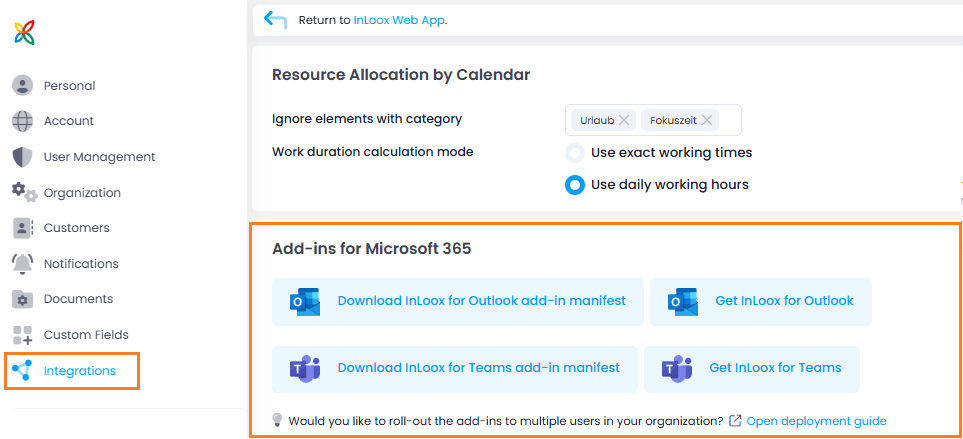
To install the app:
-
Open Microsoft Teams.
-
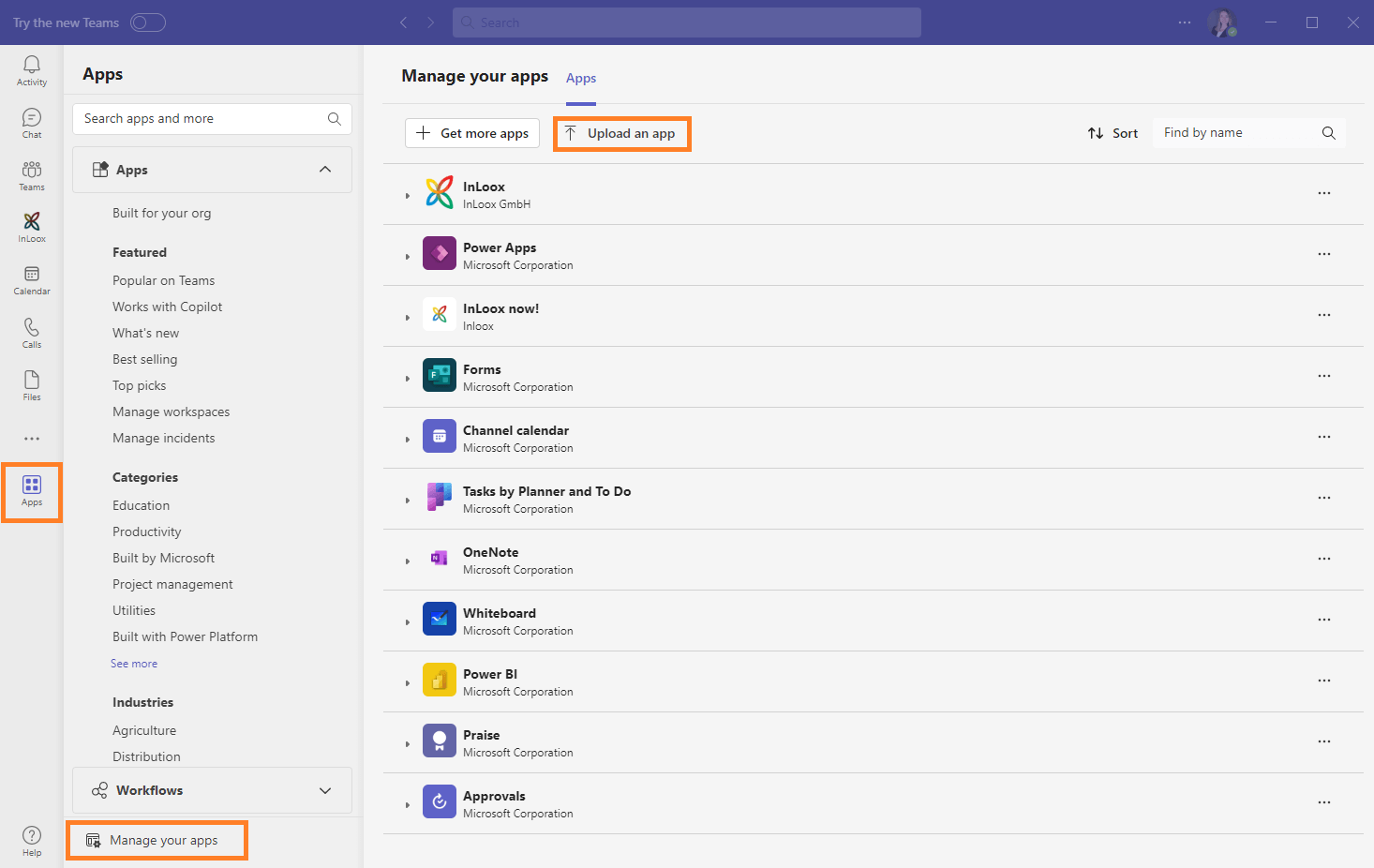
Click Apps in the bottom-left corner.
-
In the app store, select Manage your apps at the bottom left, then click Upload an app. The exact labels may vary depending on your version of Teams.
-
Select Upload a custom app and navigate to the ZIP file on your computer. Select the file and confirm the upload.
-
You may be asked to confirm certain permissions or settings. Follow the on-screen instructions to complete the installation.
-
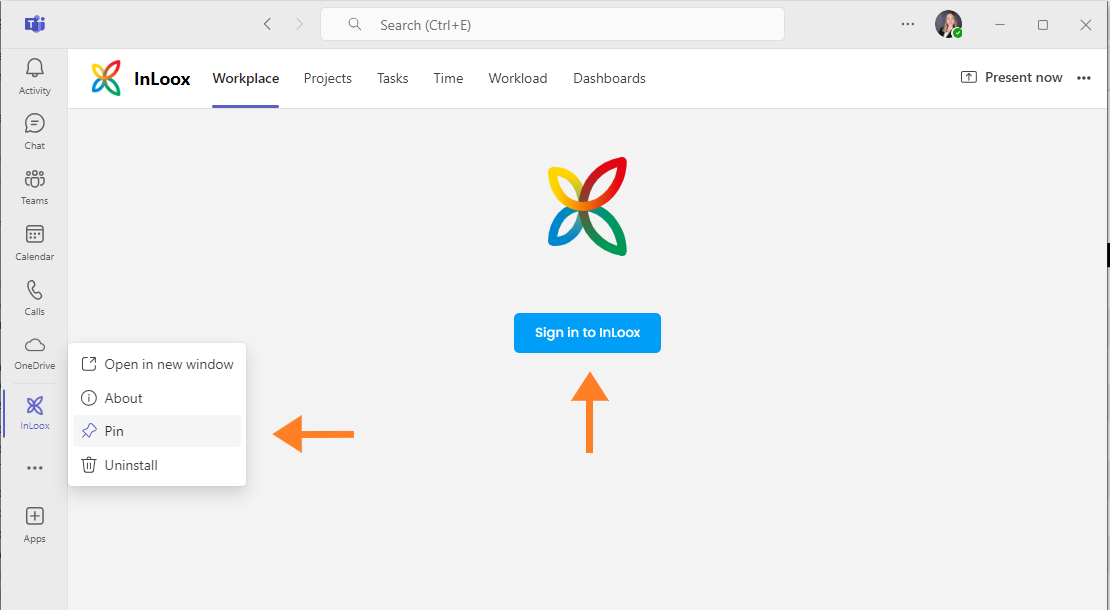
After the installation completes, InLoox appears in the app bar on the left or under Apps.
tipTo keep the app permanently visible in the app bar, right-click the InLoox icon and select Pin.
-
Click Sign In to InLoox and log in with your credentials.