Task Templates
If a certain set of tasks comes up again and again in your projects, it makes sense to save them as a task template. For example, these can be tasks that typically arise during a trade show appearance or a product launch. This way, you don't have to create these tasks over and over again, but only make adjustments for your current project.
To use task templates, you need role permissions for Tasks. Saving, loading, importing, exporting, and managing task templates require at least Read & Write permission for Tasks. For details, see Permissions.
Save and Load a Task Template
-
First, create the tasks you want to use in your template in a project. To learn how to do this, see Create Tasks and Edit Task.
-
To save the task template directly in InLoox, click Templates in the Tasks section of the project on the far right and then click Save Tasks as Template. Assign a name for your template and save.
noteIf you enter a name that is already used by an existing template, a Name already exists dialog appears. Click Overwrite to replace the existing template, or Cancel to keep the existing template unchanged.
-
The task template is now available to you in all your InLoox projects. You can find it under Templates. To load a task template into your project, simply click on the desired template.
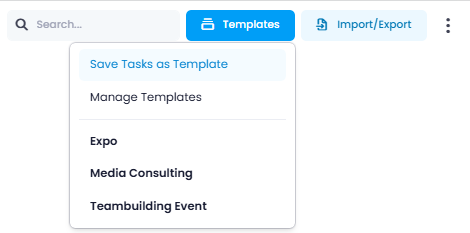
- If there are no tasks in your project yet, the tasks from the template will appear in the Kanban view, where you can continue editing them. If your project already contains tasks, the tasks from the template will be added to it.
A newly saved template is private: only you can see and use it. To make it available to your colleagues, publish the template.
Publish a Task Template
Task templates are private by default. Publishing a template determines who else can find and load it.
To make task templates available to other users, you need the Publish templates permission. For details, see Permissions.
-
Click the Templates button in the Tasks section of the project and select Manage Templates. The Task Templates window lists all templates available to you.
-
The icon to the right of each template shows its current publish status.
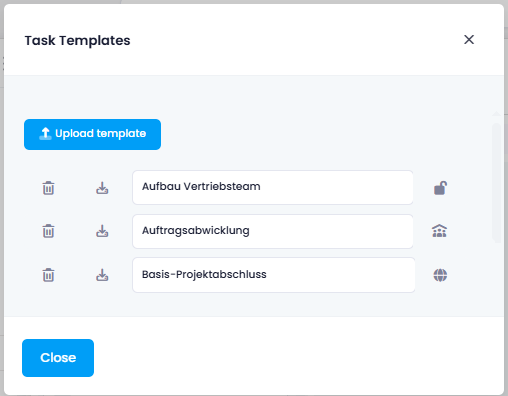
- — The template is published to the entire organization.
- — The template is private and only visible to you.
- — The template is published to specific divisions, groups, or persons.
-
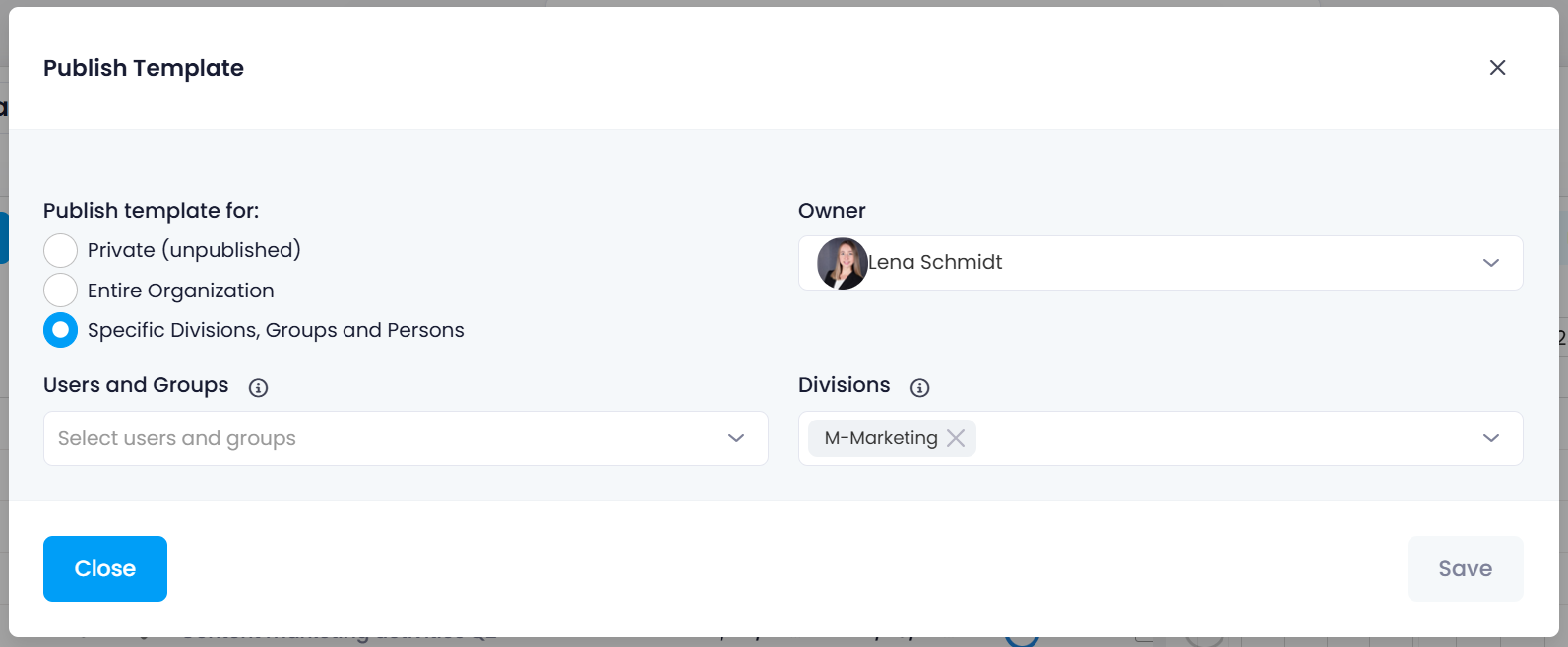
Click the status icon to open the Publish Template window.
-
Under Publish template for, select one of the following options:
- Private (unpublished) — Only you can see and use the template.
- Entire Organization — Everyone in your account can see and use the template.
- Specific Divisions, Groups and Persons — Only the selected recipients can see and use the template. Select the recipients under Users and Groups and Divisions.
-
The person who created the template is automatically set as its Owner. Optionally, you can assign a different owner.
-
Click Save.
Users with administrator rights always see all task templates in the account — including templates that other users have kept private — and can edit them, for example to change the publish status or the owner. This way, a template is not lost when the person who created it leaves the company: an administrator can still manage it and control its visibility.
Import and Export Tasks
Next to the Templates button in the Tasks section, you will find the Import / Export button. It offers the following options:
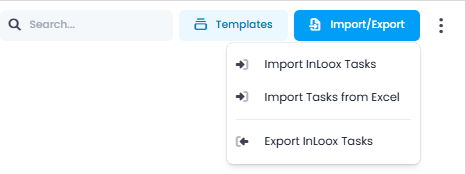
- Import InLoox tasks — Import tasks from an InLoox template file.
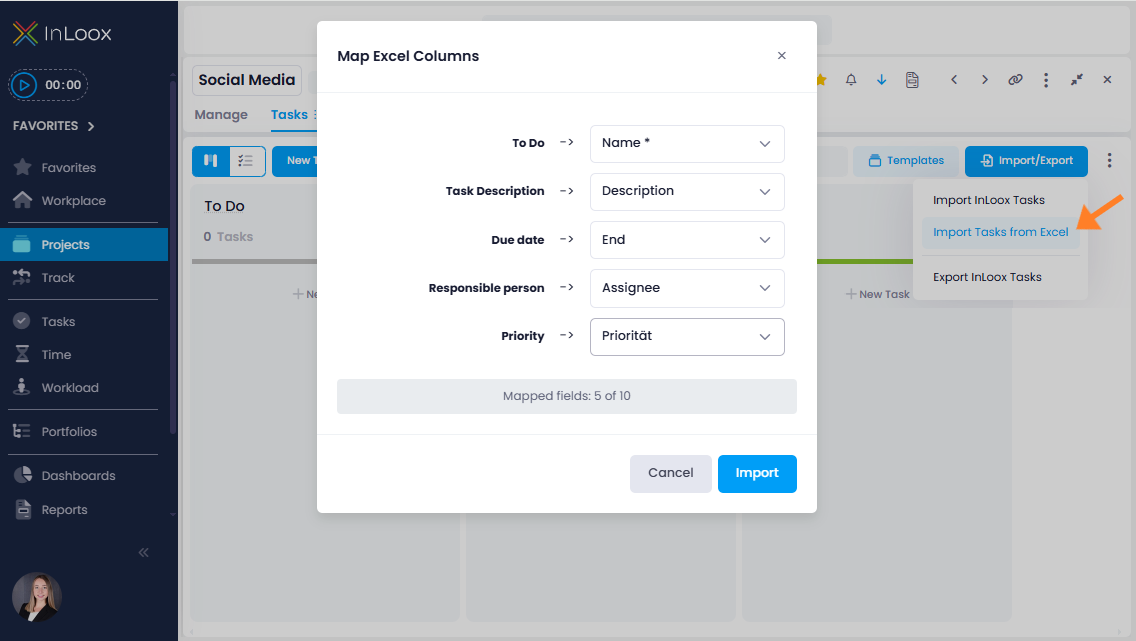
- Import tasks from Excel — Import tasks from an Excel file. A matching assistant guides you through mapping the columns. See also Import from Excel for details.
- Export InLoox tasks — Export the current project tasks as a file.
Manage Templates
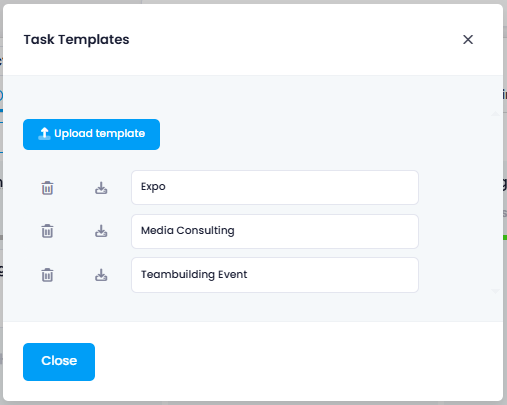
- Click on the Templates button in the Tasks section and click on Manage Templates.
- In the dialog, you can rename existing templates, download them, publish them, or upload new templates via Upload Template. The icon next to each template shows its current publish status — see Publish a Task Template.