Recurring Tasks
You can create InLoox tasks as recurring tasks (repeating tasks) — both within a project and without a project assignment in the global task list.
Create a Recurring Task
- Create a new task or open an existing task. This works both in the project tasks and in the global task list.
- Select the frequency in which the task should be repeated from the drop-down menu in the Repeat field. You can choose between Daily, Monday to Friday, Weekly, Bi-weekly, Monthly, Quarterly, and Yearly.
- Now enter all further details such as start/end date, task description, group, or activity assignment etc.
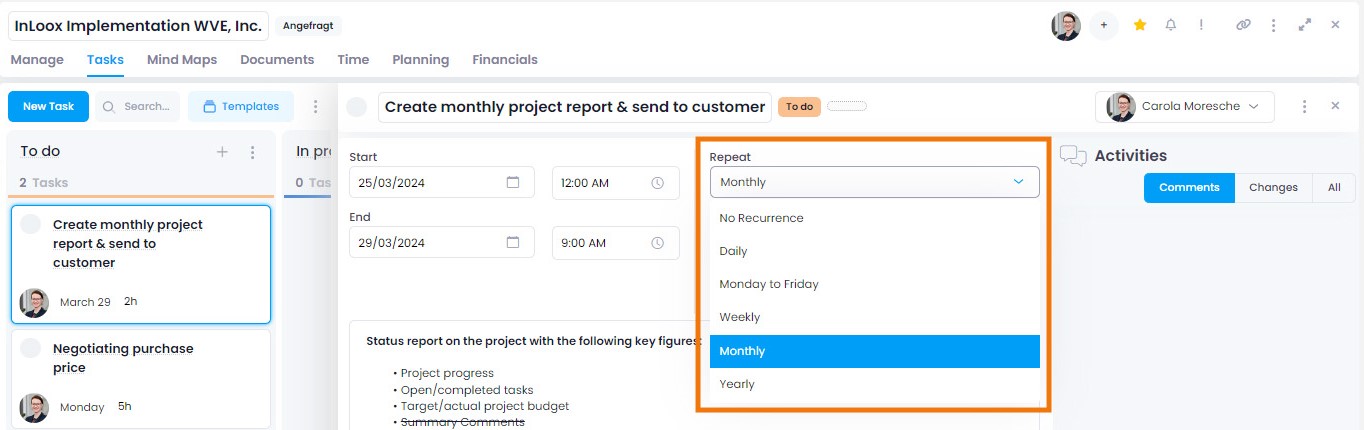
InLoox repeats the task based on the end date of the task. You must therefore set at least the end date for the recurring task for the repetition to take effect. You only need to create a recurring task once. When you check this recurring task off as completed, InLoox automatically creates the next task with the same settings.
If you want to stop automatic repetition, go to the currently active task and set the repetition cycle to No recurrence.
Repetition Cycles
The following options are available:
- No recurrence: The task is one-time and does not repeat itself.
- Daily: The task is repeated daily, from Monday to Sunday. The start time and end time are adopted for each day.
- Monday to Friday: The task is repeated every day from Monday to Friday. The start time and end time are adopted for Monday, Tuesday, Wednesday, Thursday, and Friday.
- Weekly: The task is repeated every week. The start date including the start time and the end date including the end time are adopted.
- Bi-weekly: The task is repeated every other week. The start date including the start time and the end date including the end time are adopted. Example: If the task is set for November 4th at 8:00, the next task in the next cycle will be created for November 18th at 8:00.
- Monthly: The task is repeated once a month. The start date including the start time and the end date including the end time are adopted. Example: If the first task contains the end date April 11, 2024 with the time 16:00, the next task in the cycle is created for May 11, 2024 with the end time 16:00 once the first task has been completed.
- Quarterly: The task is repeated every quarter of the year. The start date including the start time and the end date including the end time are adopted. Example: If the task is set to start on January 2nd, then the next task in the next cycle is created for April 2nd.
- Yearly: The task is repeated once a year. The start date including the start time and the end date including the end time are adopted. Example: If the first task contains the end date April 30, 2024 with the time 18:00, the next task in the cycle is created for April 30, 2025 with the end time 18:00 once the first task has been completed.
Recurring Tasks in the Gantt Chart
It is possible to assign a recurring task to an activity in the Gantt chart. However, we do not recommend this because:
- Recurring tasks require an end date for the calculation of the rhythm. Since tasks that are assigned to an activity should be based on its time specifications (start/end date or constraints) in order to ensure correct and adaptable planning, a fixed end date would lead to conflicts here.
- Recurring tasks are by definition endlessly repetitive. Gantt plans are limited in time. It therefore makes no sense to integrate endlessly recurring tasks into a project plan with a clearly defined time frame.
We recommend NOT assigning recurring tasks to an activity.
Effect of Recurring Tasks on the Workload
Only the current recurring task is relevant for calculating the workload and is shown in the workload display. This means that future recurring tasks are not taken into account when calculating the workload.