Create Tasks
Project tasks can be created in InLoox in the following ways:
- Manually in a specific project
- AI-assisted in a specific project
- From emails using the AI Assistant
- From a time tracking entry
- Copy and paste existing tasks
- In the global task list
- In the InLoox for Outlook Add-in
- By flagging emails in Microsoft Outlook
- In your Workplace
- From a mind map
- From an Excel file
- From templates
Create Tasks in the Project
If you want to create a task that is assigned directly to a project, you can create tasks directly in the Projects area. Go to Projects in the left sidebar and select the desired project by clicking on it. You are now directly in the project for which you want to create a new task.
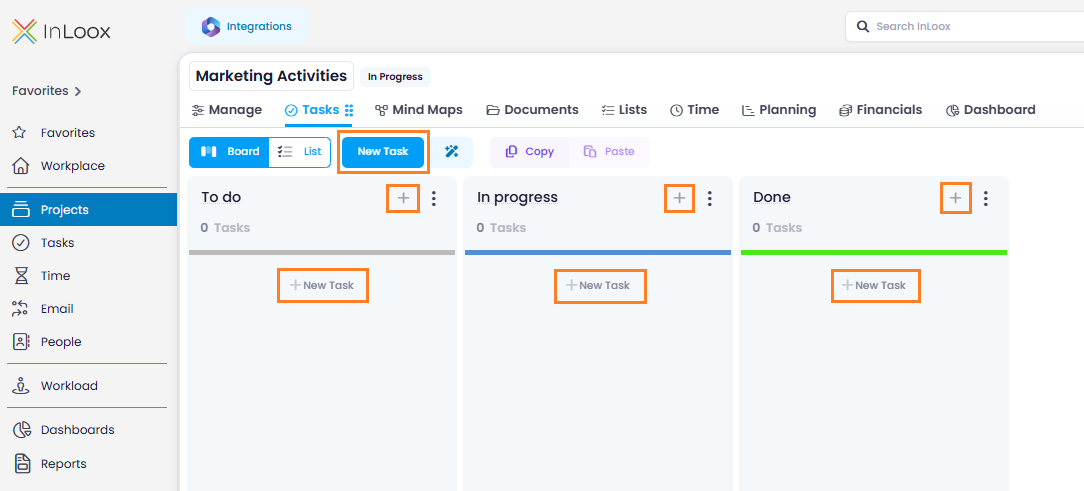
- Click on the Tasks tab, which opens the Kanban board.
- To create a task, click the New Task button in the upper left corner. The new task appears in the Kanban board in the leftmost column and in the topmost position.
- Alternatively, you can click directly in the desired column on , and a new task appears in the selected category.
- Now you can add information to the task such as name, description, due date, and more by editing it. For more information, see Edit Task.
AI-Assisted Task Creation
You must first allow AI assistance for your InLoox account: go to the InLoox settings under InLoox AI and enable the Allow AI assistance slider. You need administrator rights for your InLoox account. In InLoox Self-Hosted, the AI features additionally require a connected custom model. See InLoox AI.
After you have created a new project and entered the basic project information on the Manage page, go to Tasks.
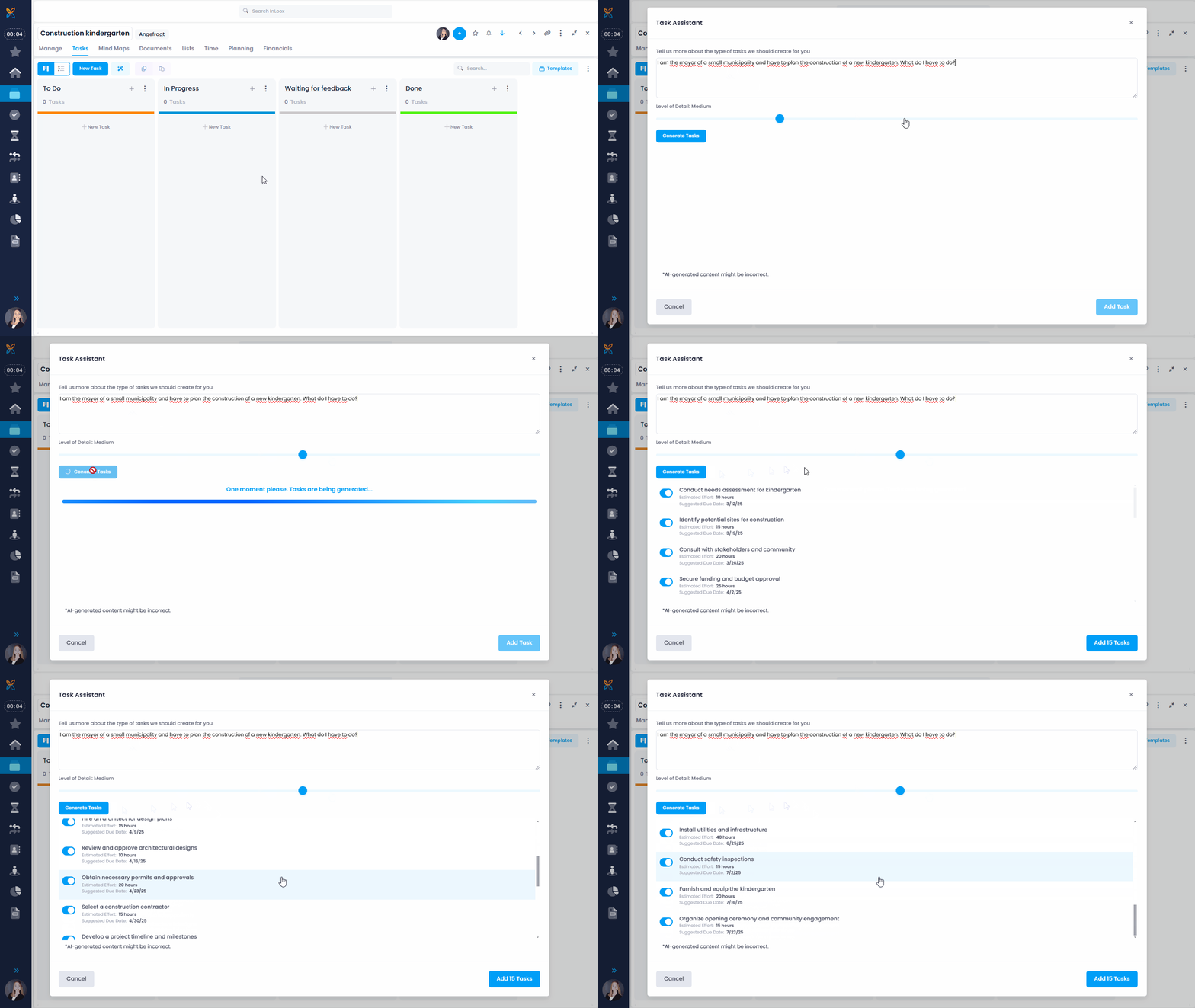
- Click on the AI Assistant icon next to the New Task button.

- The InLoox Task Assistant opens. Enter your prompt in the field. Describe your project and the project goal, and who the stakeholders are.
- On the range picker, define how detailed the AI assistant should break down the tasks. Low generates 5 tasks, Medium (stage 1) generates 10 tasks, Medium (stage 2) generates 15 tasks, High generates 20 tasks, Very high generates 25 tasks.
- Click Generate Tasks and the assistant will go to work. The tasks will have names, planned efforts, and due dates.
- Once you have checked the generated tasks, select the tasks you want to use in your project and click Add Tasks.
If you are not satisfied with the results, either add more details to your prompt or adjust the level of detail with the range picker.
Create a Task from a Time Tracking Entry
If you have a time tracking entry in your project, you can create a task from it with this time entry attached. This is useful when you for example track the time spent in a call or meeting, book it in a project, and realize that more work needs to be done.
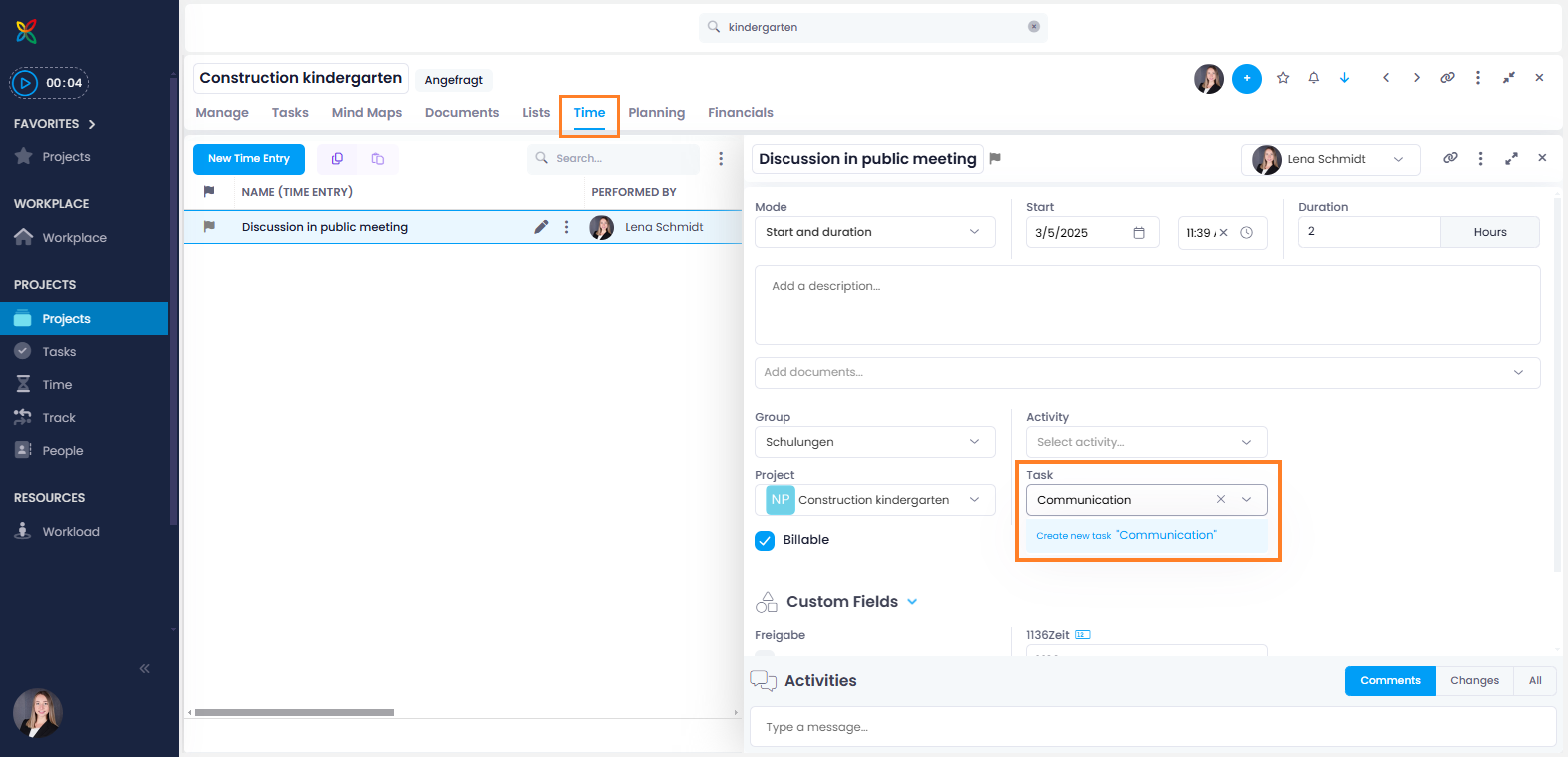
- Open a project, go to Time and click on a time entry to edit it.
- In the side panel, type the name of the new task in the Task field and press Enter.
- The new task is now created and the time entry is linked to it.
Copy and Paste Tasks in the Project
You can select, copy and paste a project task in the Kanban view or in the list view.
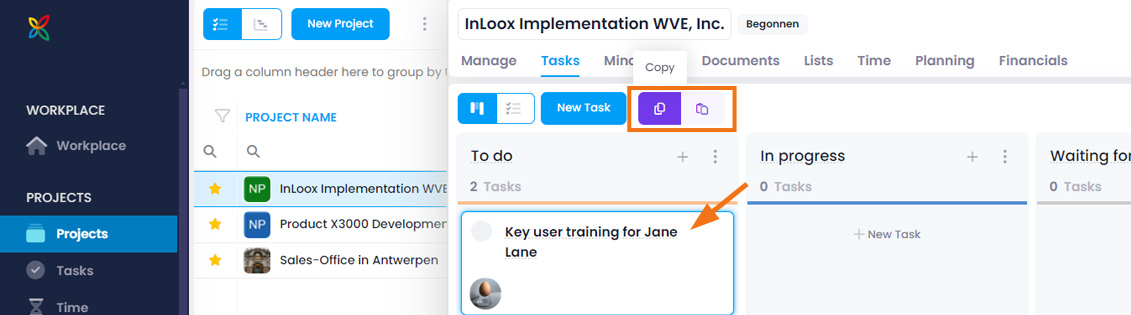
- Select the task.
- Click the purple Copy button in the menu.
- Then click the purple Paste button in the menu.
The following information is not transferred from the copied task to the pasted task:
- Time tracking entries
- Documents
- Comments
- Changes
- Billed status (Billed is reset to No)
The Billable setting is retained in the copied task.
Multi-Selection of Tasks
If you switch from the Kanban board to the list view, you can select several tasks (Ctrl + click on tasks) and copy and paste them at once.
Create Tasks in the Global Task List
To create a global task, select Tasks in the left sidebar. You are now in the global task list.
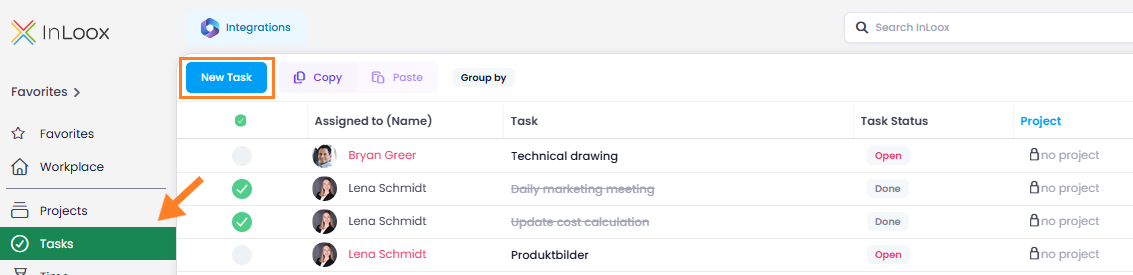
- Click the blue New Task button. A new task with the name New Task appears in your task list.
- When you click on this task, a side panel opens on the right side, where you can edit your task and enter important information.
- Give the task a name, select the start and end date with the corresponding time, and add a description. In addition, you can add task-relevant documents and assign the task to a group or a project. For details, see Edit Task.
Import Tasks from an Excel File
With InLoox, you can import tasks quickly and easily from an Excel file. This saves time and makes it easier to transfer existing data.
- Open the relevant project in InLoox or create a new project.
- Click on the Tasks tab in the top menu.
- Click the Import / Export button at the top right and select Import tasks from Excel from the dropdown menu.
- A dialog window opens where you can upload the desired Excel file.
- In the Map Excel Columns dialog window, match the columns from your Excel file with the existing columns in InLoox:
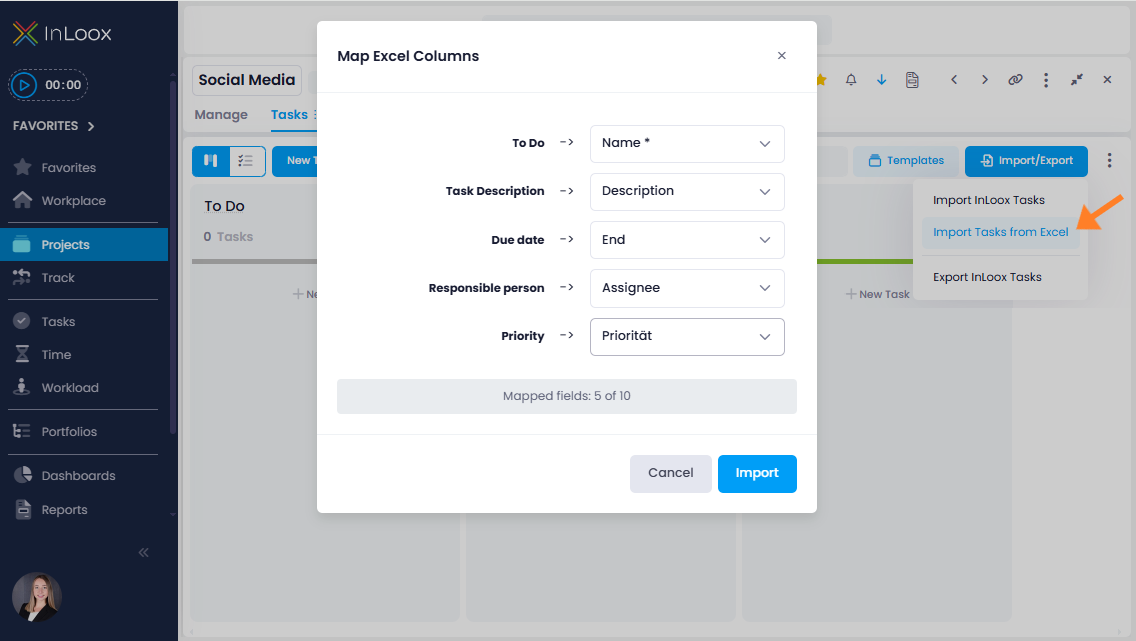
- On the left side, you see the columns from your Excel file. The InLoox columns are selected on the right side.
- The matching assistant automatically recognizes columns with the same or similar names and suggests direct matching if applicable.
- Alternatively, you can assign the columns manually. The following standard task fields are available in InLoox:
| InLoox Field | Description |
|---|---|
| Name | Title of the task (mandatory field) |
| Description | Detailed information on the task |
| Start | Planned start date |
| End | Planned end date / due date |
| Effort | Estimated work effort (e.g. in hours or minutes) |
| Status | Current processing status (e.g. To Do, In Progress, Done) |
| Assignee | Responsible person for the task |
| Custom Fields | User-defined |
You can map more of your Excel columns using custom fields in InLoox. Please note that custom fields must be created and configured correctly before importing. For more information, see Custom Fields. Custom fields are only available in the InLoox Enterprise (Plus) and InLoox On-Prem editions.
- Once you are done with the assignment, click Import. The tasks are then loaded into the Kanban board.
Create Tasks by Flagging Emails in Microsoft Outlook
This feature was introduced in InLoox version 26.1 (February 2026).
Prerequisites:
- Your InLoox account is linked to your Microsoft 365 account.
- The permission Create tasks from flagged emails is enabled in the Integration Center.
- Optional: The permission Update flags in emails is enabled to keep flags synchronized between InLoox and Microsoft Outlook.
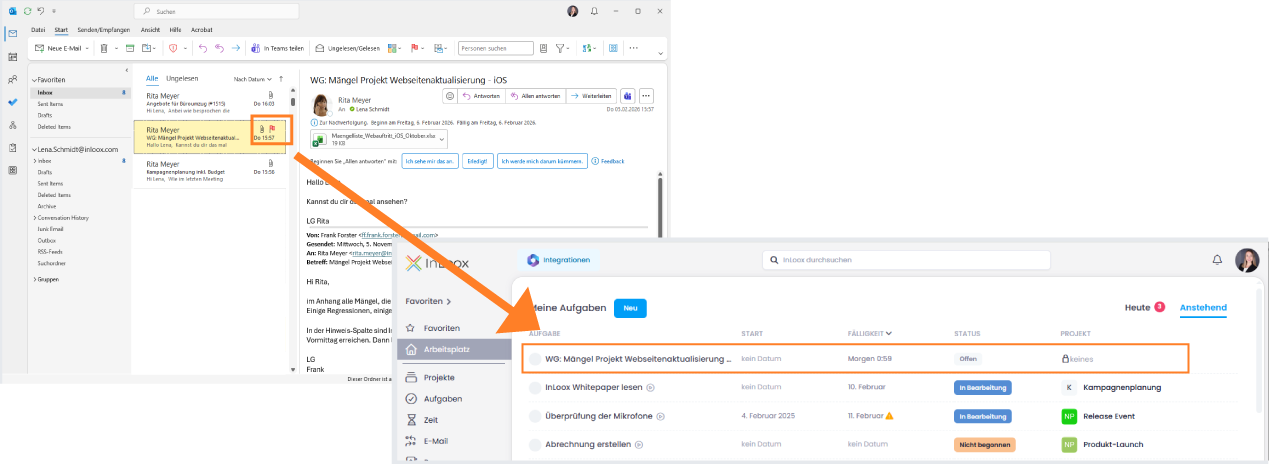
When you flag an email in Microsoft Outlook by clicking , a personal task is automatically created in InLoox. This task will appear in your Workplace, where you can further edit it and assign it to a project.
By right-clicking , you can set a due date (e.g. tomorrow). This due date will be taken into account when the InLoox task is created.
If you have enabled the optional permission Update flags in emails, the email in Microsoft Outlook will automatically be marked as completed as soon as you set the task status to done in InLoox.
Create Tasks in the InLoox for Outlook Add-in
You can also create tasks directly in Microsoft Outlook using the InLoox for Outlook Add-in. The add-in provides an InLoox side panel right inside Outlook, where you can create and manage tasks without leaving your inbox. For details, see the help article on Tasks in InLoox for Outlook.