Collaborators
Sometimes, several people share the workload of a task. In this case, you can add additional people as collaborators (contributors) to a task and assign them individual efforts. The assigned resource is still responsible for completing the task, but the collaborators also contribute effort that is included in the effort calculation.
InLoox adds up the individual effort of the resource and each collaborator and automatically adds it to the total effort for the task.
Add Collaborators to a Project Task
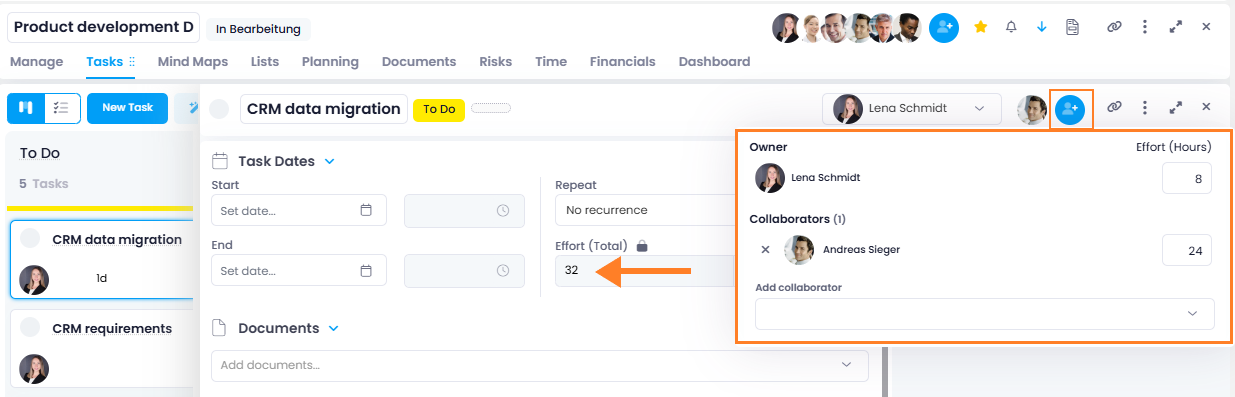
- Open a project task and click on the Add Collaborators symbol next to Resource. There you see the primary resource with name and assigned effort.
- Type in the name of the person in the Add collaborator field.
- Select the person and assign an effort, e.g. 1 work day. Please note that the value of the effort is determined by the value of the Effort field of the task. Change it there e.g. to Effort (hours), and the effort for collaborators will change, too.
- InLoox displays every collaborator next to the primary assigned resource and adds each collaborator's effort to the overall task effort.
- Click on the effort symbol next to the Effort field in the task to see every collaborator listed with their individually assigned effort.
Once you add collaborators with individual efforts to a task, the total effort field is locked for editing. The total effort of a task can no longer be changed manually, but will be automatically updated when collaborators are added, their efforts change, or collaborators are removed from the task.
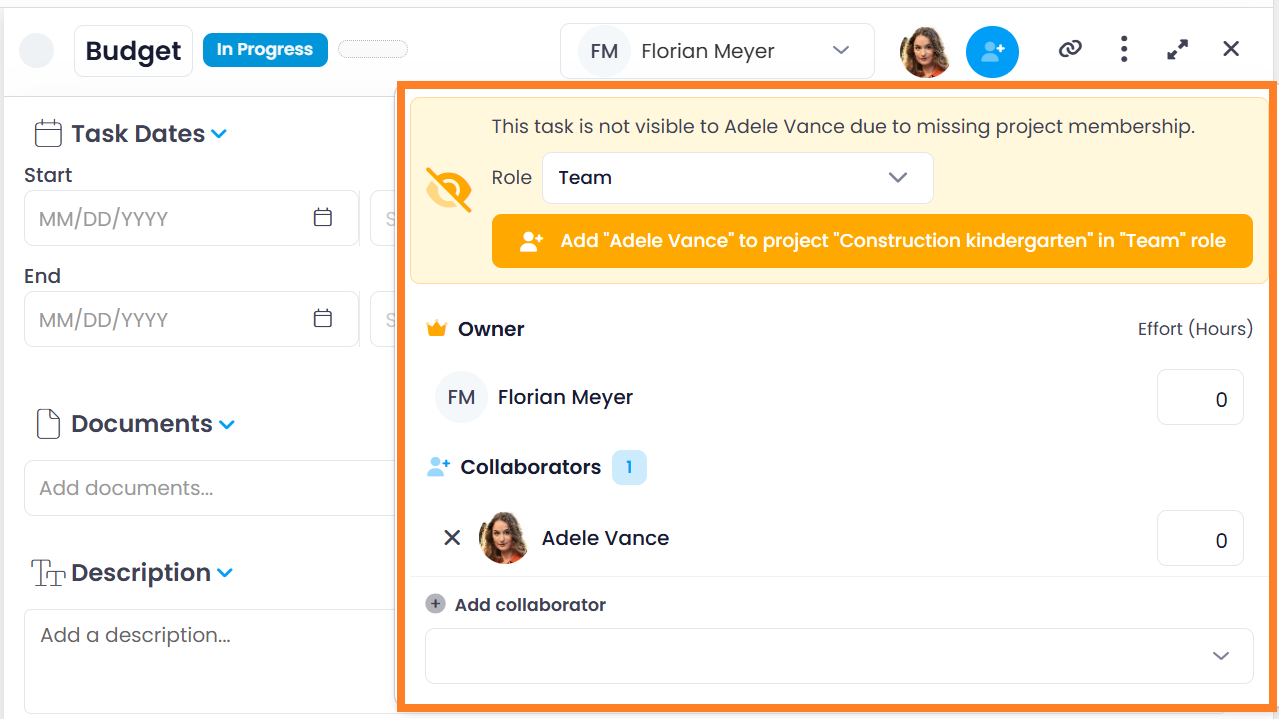
If a collaborator you add does not have access to the project and will therefore not be able to see the task, InLoox displays a warning banner directly in the task. Make sure all collaborators are project members with the appropriate permissions.
The banner appears right in the collaborators panel and lets you add the person to the project without leaving the task: select the project role in the Role dropdown and click the button below it.
Remove Collaborators from a Project Task
If you need to remove a collaborator, simply click on the Add Collaborator symbol next to the resource and then click on the X next to the person's name in the list of collaborators. InLoox will automatically subtract this collaborator's effort from the overall task effort.
Once every collaborator is removed, only the primary resource and their effort remains. This effort can also be adjusted manually again.
You can display the effort of the resource and collaborators in the Work effort (task) hours column in the task list. You can also change the effort there. In the Work effort (responsible person) hours column, you can only see the effort of the assigned resource (= the responsible person). Read the help article on list views for further details.
Collaborator Column and Workplace Visibility
Tasks where you are listed as a collaborator now automatically appear in your Workplace under My Tasks and in the global task list. This allows you to keep track of all tasks you actively contribute to, without having to navigate to each project individually.
You need at least the Read tasks permission to use this feature. See Permissions for details.
In the task list, you can add the Collaborator column to see at a glance which tasks you are contributing to. Tasks where you are a collaborator are marked with a checkmark in this column.
To add the Collaborator column to the task list, use the Choose Columns option in the list view. See the help article on list views for details.