Add/Remove Tasks in the Project Planning (Gantt Chart)
If your project also includes a project schedule with activities and milestones (Gantt chart), you can assign project-related tasks to the appropriate activity in the Gantt chart. This is particularly useful if a task is to be completed within the time frame of this activity and it is related to the content. However, you do not necessarily have to assign tasks — they can also exist as "free tasks" in the project.
Assign a Task to the Project Schedule
- Open the project and go to Planning.
- Click on the button Toggle unassigned task list in the bar above the Gantt chart. On smaller screens, this button may be hidden behind the Advanced menu.

- A side panel Unassigned tasks will then open on the right. There you will find an overview of all tasks in the project that have not yet been assigned to a planning element (i.e. an activity or milestone) in the Gantt chart.
- Now click on one of the tasks from the side panel and drag and drop it to the desired position in the Gantt chart. A green line in the planning list indicates where the task is assigned. Then release the task. It is now displayed as a task under the corresponding planning element.
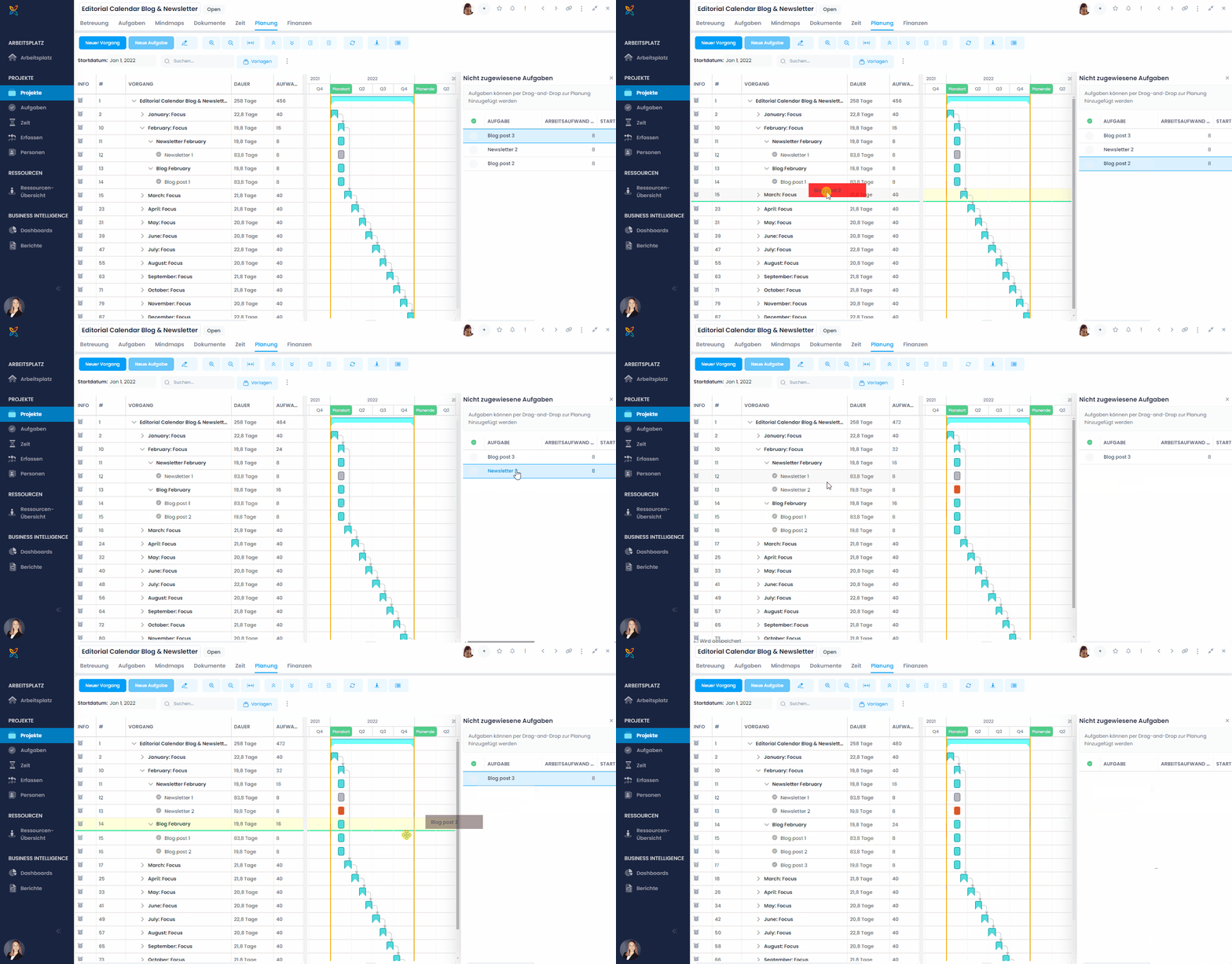
If you want to remove a task from the Gantt chart again, click on the task in the planning list and then right-click on Remove Task. The task will then reappear in the task side panel.
You can also hide tasks in the planning by clicking on the respective button in the navigation bar. Choose to show all, open, or no tasks in the Gantt chart.

Start and End Date of Tasks in a Gantt Chart
When you assign a task to an activity, the task automatically adopts the start date and end date of the activity. You may change the start and end date of the task manually. The manually adjusted start or end date of a task assigned to an activity does not influence the start or end date of the activity.
However, if the start or end date are outside the activity's start or end date, InLoox displays a warning in the task side panel. This warning is also displayed in the task list and in the Workplace.
For more details on adding tasks to the planning from the Gantt view, see the help article Add Tasks to the Project Planning (Gantt).
Remove Tasks from the Gantt Chart
If you want to only remove a task from the Gantt chart but keep the task in the project, do as follows:
- In the Gantt chart, click on next to the task name and click on Remove Task from Plan.
- A window will open. InLoox asks you to confirm the removal of the task. Click on Delete. Do not set a check mark for Permanently delete tasks from the project.
The task is only removed from the Gantt chart. It is still available in the Kanban board and the task list.
Delete Tasks in the Gantt Chart
To delete a task completely from both the Gantt chart and the project, do the following:
- In the Gantt chart, click on next to the task name.
- In the side panel, click on and then on Delete Task.
This deletes the task immediately without InLoox asking you to confirm the deletion!
Alternatively, you can also delete a task completely via the planning list:
- Click on next to the task name in the Gantt chart and click on Remove Task from Plan.
- InLoox asks you if you only want to remove the task from the Gantt chart, or if you want to permanently delete it from the project. If you want to delete it, set a check mark for Permanently delete tasks from the project.
- Click on Delete.
The task is now removed from the Gantt chart and deleted from the project.
Both the removal and the deletion of tasks from the Gantt chart cannot be undone! Deleting an activity or summary activity with linked tasks will also remove the tasks from the Gantt chart and — if the check mark is set — delete them from the project. See the help article on deleting planning elements for details.