Add Columns to Project Tasks List View
You can add your own custom field as a column in the project task list. These additional fields are:
- Specific for this project
- Not visible or usable in other projects
- Not selectable in the multi-project task list
- Not savable to a project task template
- Not visible in the task side panel
- Always added towards the right-hand side of the project task list
Add a Custom Column
- Open a project and go to Tasks.
- Switch from Kanban view to list view by clicking the list view button on the left.
- Click on the button + Add Field and select the type. You may add:
- String — a text field
- Datetime — a date and time field
- Integer — a whole numbers field
- Decimal — a decimal numbers field
- Boolean — a checkbox field
- List — a list field
- Currency — a currency number field (the currency is taken from your InLoox Account Settings)
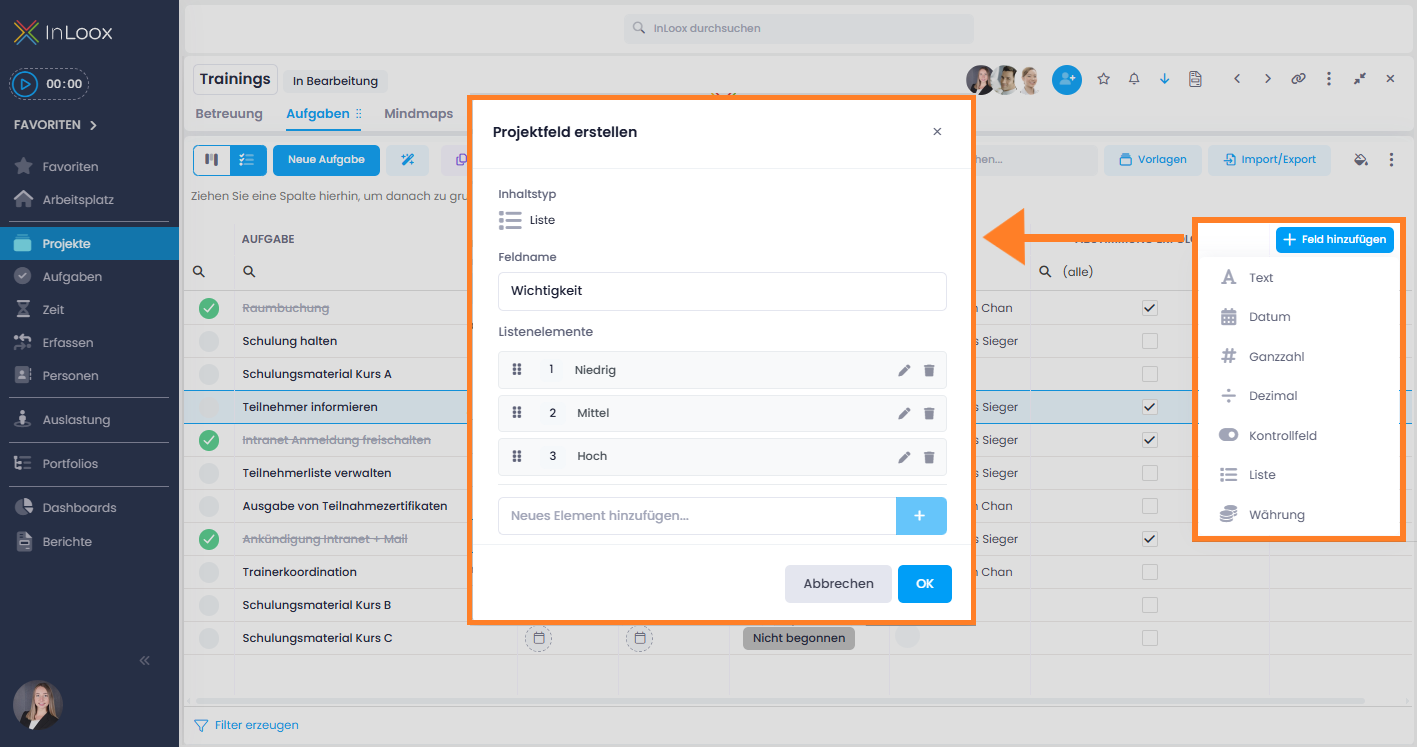
- Once you have selected the type of field, name it and fill in the details. For example, for a list field enter the various list items.
- Click OK.
- The new column is added to the list on the right. You may move the column to another position, but it will not stay there once you close the project task list and open another tab or project.
You can filter and sort the list by the added columns. You may also group the list by the added columns.
info
For general information on working with columns in list views, see Add Columns to List Views.