Global Tasks
The global task list provides a cross-project overview of all tasks in InLoox. To access it, click Tasks in the left-hand menu.
The list displays both personal tasks without a project assignment and project tasks from all projects in which you have at least read permission. You can edit task fields directly inline — simply click a field such as the task name, status, or start/end date and change it. Alternatively, click to open the task in the side panel.
To navigate from a task to its project, click the project name in the list.
You can also select multiple tasks at once to delete them, mark them as done, assign a resource, set a due date, or fill in custom fields. See Multi-Editing for details.
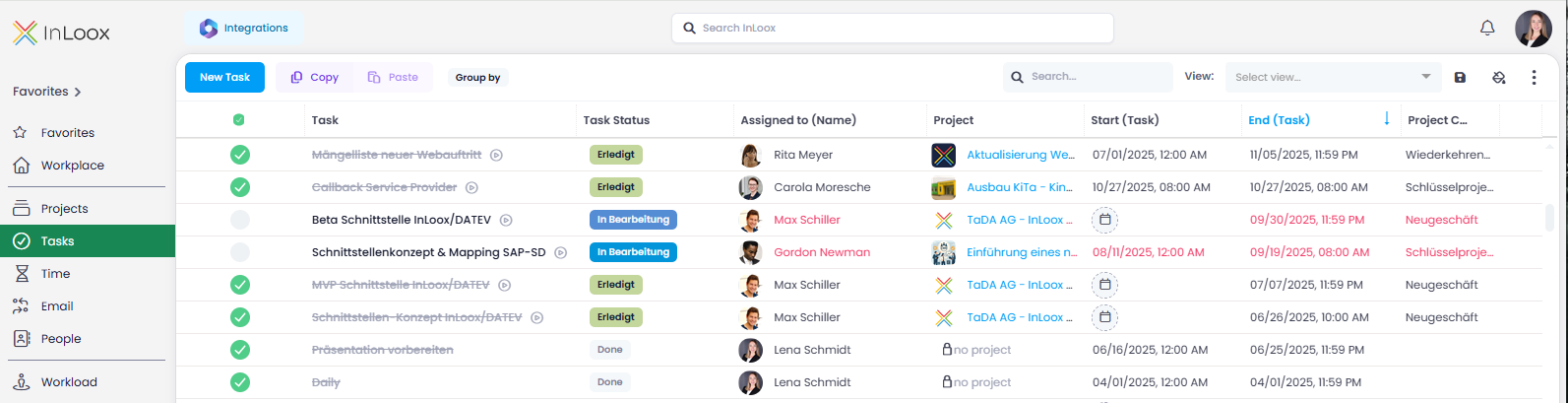
You can add or remove columns in the task list to display exactly the information you need. See Add Columns to List Views for instructions.
You can restrict users' access to tasks based on the permissions you assign globally, for divisions, or via project roles. See the help article on InLoox Permissions for details.
Standard Views
The following predefined views are available in the global task list:
- All Tasks — All tasks across all projects
- Open Tasks — Tasks that are not yet completed
- Completed Tasks — Tasks with status Done
- My Due Tasks — Your tasks that are upcoming or overdue
- My Tasks — All tasks assigned to you
Select a view from the dropdown in the upper-right corner.
Standard Groupings
The following standard groupings are available in the global task list:
- Project > Task Status
- Project > Task Status > Assigned To
- Project > Assigned To
- Assigned To > Project > Task Status
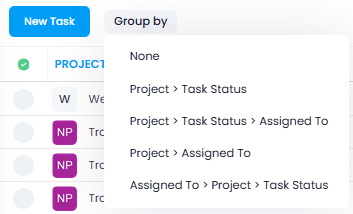
Select None to remove an existing grouping. These standard groupings are also available in the list view of project tasks.
For individual groupings, activate the Advanced Mode and drag columns into the grouping area. See Group, Filter, and Sort List Views for details.
Practical Examples
View tasks of multiple employees
To view all tasks of multiple employees, group by the Assigned To column and filter for the desired persons. The list then shows all tasks — both project-specific and personal — for these employees. Add the Status, Project Name, and End columns to see in which projects delays may be expected if tasks are not completed in time.
Status quo across projects
To get an overview of the status quo at task level across several projects, group by the Project Name column. Add the End (Task) column and sort ascending to see what is due soon. Additionally, display the End (Planning Element) column to see when the associated planning element is due. This helps you identify risks of time delays early.
Customer inquiry about project status
Group by First Customer and Project Name to see at a glance which projects are currently in progress for each customer. Add the Project Manager column to see who is responsible, and the Status column to track progress. The End (Task) and End (Planning Element) columns help identify what might become critical.
Personal cross-project task view
If you work across many projects, create a personal view: group by Project Name and filter by your name in the Assigned To column. Add the End (Task) and End (Planning Element) columns and sort ascending to see your most urgent tasks. Save this view for easy access.
Customize the Task List
The global task list is a standard list view in InLoox. For details on customizing it, see:
- Group, Filter, and Sort List Views — Grouping, filtering, advanced filter builder, and sorting
- Add Columns to List Views — Add or remove columns
- Save List View — Save views, share them with others, and manage saved views
- Import & Export List Views — Export to Excel or share views as JSON files
- Conditional Formats — Highlight data with color rules