Server Status (Self-Hosted)
The Server status page helps administrators monitor whether the core InLoox services are running and whether email sending works.
You can only access this page as an administrator in InLoox Self-Hosted.
Open Server Status
- Open Account Settings.
- Click Server status.
The banner at the top of the page sums up the current state: All systems operational as long as everything reports normally, or Issues detected as soon as a service or email sending needs attention. Next to it, InLoox shows when the data was last read.
The page refreshes automatically every 60 seconds. With you refresh it immediately.
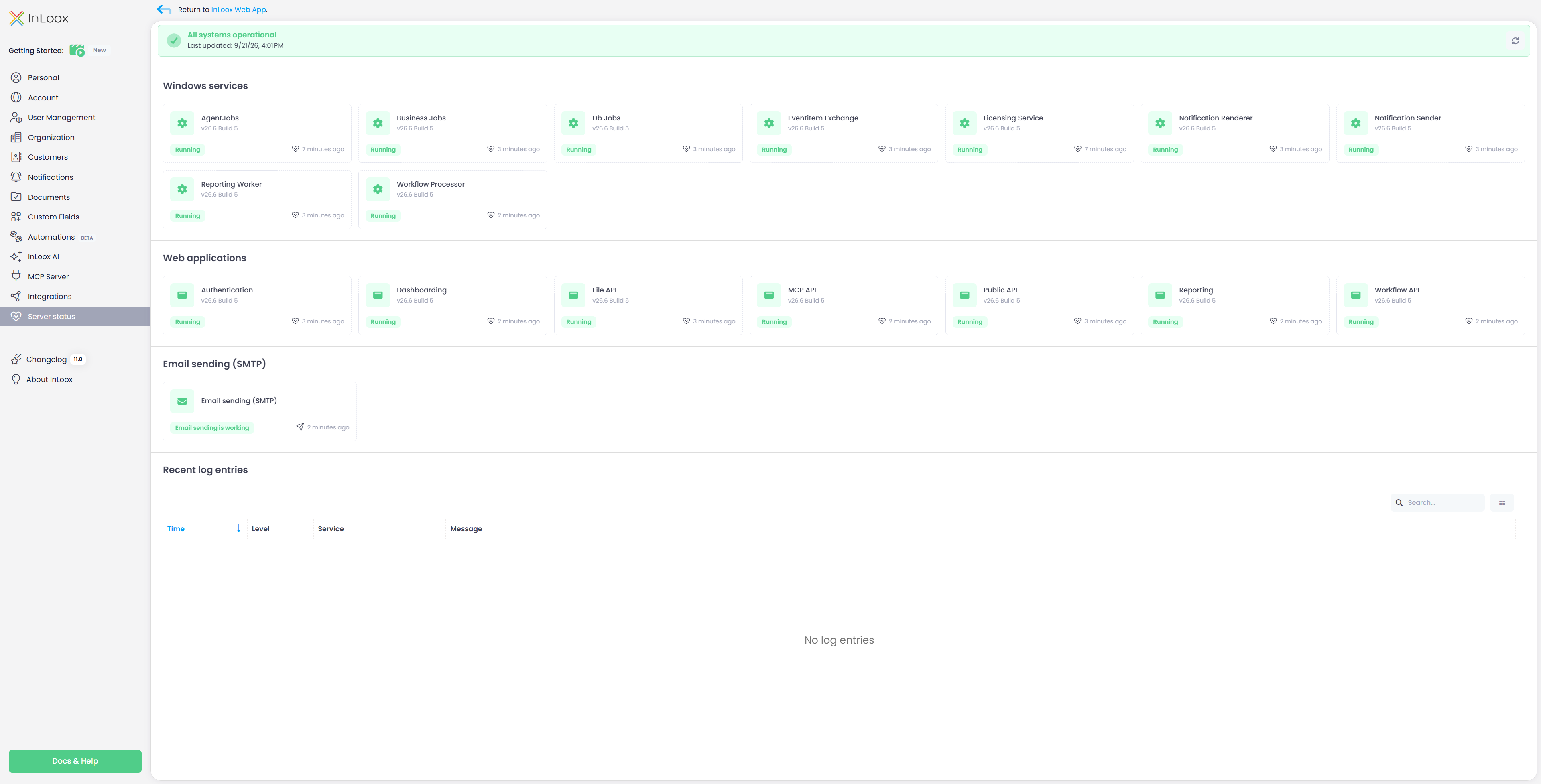
Windows Services and Web Applications
InLoox lists all relevant Windows services and web applications in two sections. Each entry shows the version the service reports and how long ago its last heartbeat arrived.
- Running — The service reports normally.
- No recent heartbeat — The last heartbeat is older than 15 minutes. The service is most likely no longer running.
- Never reported — No heartbeat has arrived yet. Right after an installation or a restart this is expected; if the status persists, the service was probably never started.
- Idle (no recent requests) — The web application has not processed any requests recently.
If a service reports a version different from the current installation version, InLoox marks it as a version mismatch.
Email Sending (SMTP)
The Email sending (SMTP) card shows the result of the most recent send attempt.
- Email sending is working — The last email was sent successfully.
- Email sending is failing — The last send attempt failed. You find the error message under Recent log entries.
- No emails sent yet — No email has been sent since the services started, so there is no result yet.
Recent Log Entries
The Recent log entries table collects the latest messages from all services, with Time, Level, Service, and Message. Entries with the level Error are highlighted in red and show the error detail below the message.
- Use the search field to narrow down the list, for example to a single service.
- Use the column button next to the search field to choose which columns are shown.
- The table is sorted by time, with the newest entry first.
As long as no service has reported a message, InLoox shows No log entries.