Configure Proxy Server for InLoox Self-Hosted
InLoox Self-Hosted requires internet access for license activation and update notifications. If your server operates behind a proxy or doesn't have general internet access, you can configure a proxy server within InLoox Self-Hosted.
note
This guide is only relevant for InLoox Self-Hosted.
Required Internet Access
The InLoox Self-Hosted Server needs access to the following URLs:
https://app.inloox.com/apihttps://account.inloox.com
Prerequisites
InLoox Self-Hosted Server must be installed in at least version 11.6.
warning
A proxy configured in the Windows system is not used by InLoox. You must configure the proxy server following this guide.
Configure Proxy Server During Installation
During installation or in configuration mode, enter the proxy server on the configuration page.
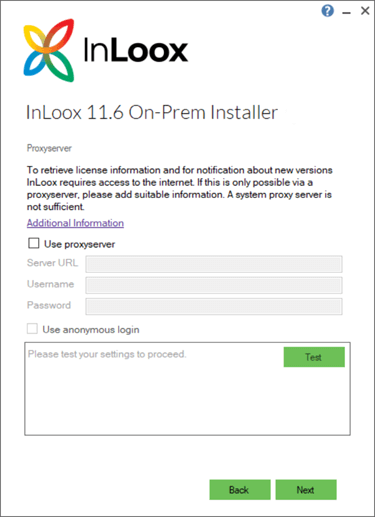
- Enter the proxy server URL in one of the following formats:
http://proxyserverhttp://proxyserver:8080
- If no login is required at the proxy server, check the box for anonymous login.
- Click Test to verify the configuration.
- If the test succeeds, proceed with the installation.
Configure Proxy Server After Initial Setup
If you set up the proxy server after the initial installation:
- Start the InLoox Self-Hosted Server setup as Administrator.
- Select Adjust configuration (Konfiguration anpassen).
- Enter the proxy server details on the configuration page.
- Complete the configuration adjustment.
- Restart IIS (Internet Information Services).
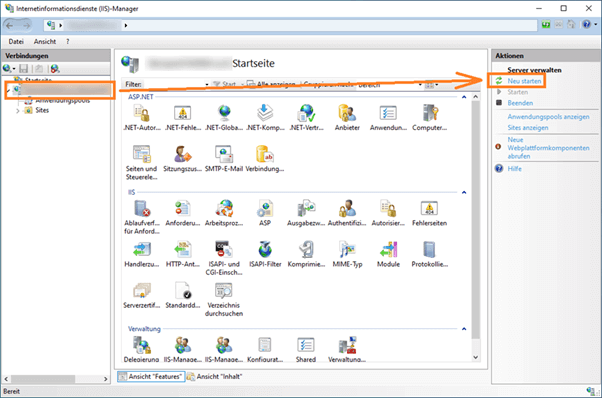
To restart IIS:
- Open Internet Information Services (IIS) Manager.
- Select your server in the left panel.
- Click Restart in the Actions panel on the right.