Rich Text
Overview
The Rich Text control displays formatted text (static, dynamic or mixed) in a report.

To add this control to a report, drag the Rich Text item from the Toolbox onto the report's Design Surface.

You can also drop an RTF, DOCX, or HTML file to a band to insert a Rich Text control with associated file content.
Load Content from a File
You can load RTF or HTML content from an external file. Expand the Data category and click the Load file property's ellipsis button.
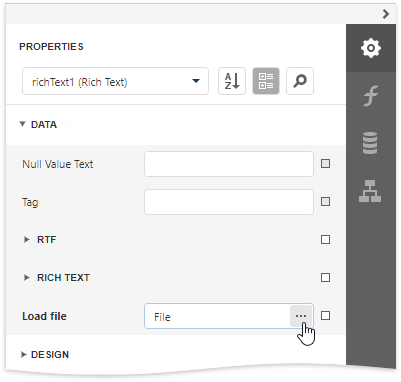
In the invoked Open dialog, select the file and click Open.
Rich Text supports the following file formats:
- RTF
- DOCX
- TXT
- HTML
Edit Content in Place
Double-click a Rich Text control and type text in the invoked in-place editor. A ribbon with text format options appears next to the editor.
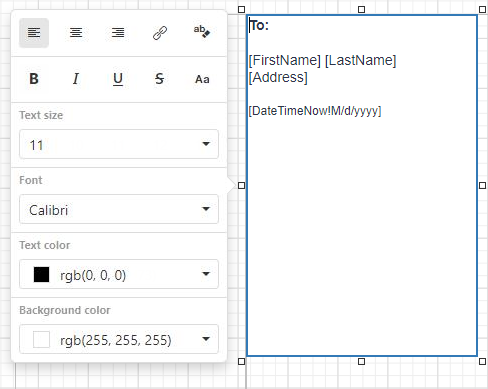
Rich Text supports the following edit operations:
-
Undo/Redo History
The undo/redo history contains the last 100 operations and is available until you exit the in-place edit mode.
-
Clipboard Operations
You can use clipboard operations (Cut, Copy, and Paste) to manipulate text and images.
-
Hyperlinks
You can create and modify hyperlinks.
-
Drag and Drop
Use Drag and Drop to move images and text within the editor.
The legacy Rich Text does not provide a ribbon with text format options. Its in-place editor allows you to enter only plain text. Bind the control to a data field that provides RTF or HTML content to display formatted text.

Bind to Data
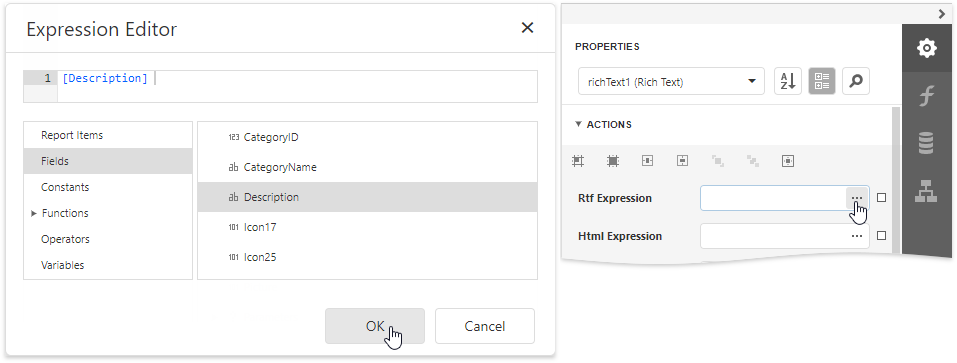
Click the Rtf Expression or Html Expression option's ellipsis button to invoke the Expression Editor. Use this editor to bind the control to a data field or construct a complex binding expression with two or more data fields.
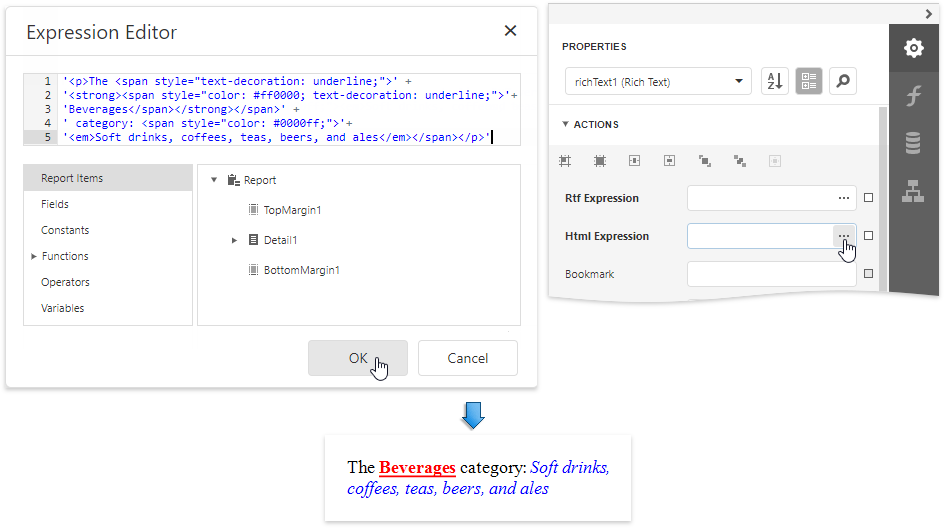
You can use HTML formatted text that contains markup tags to define text appearance. Click the Html Expression option's ellipsis button and enter this text in ' quotes ' in the invoked Expression Editor.
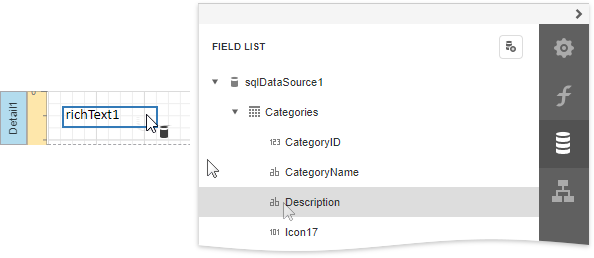
Drag and drop a numeric or text field from the Field List onto the Rich Text control to bind it to this field.
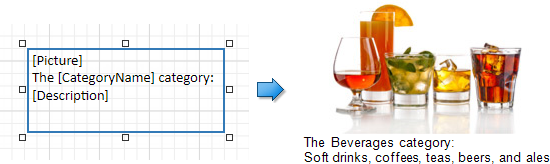
The Rich Text also enables you to merge data fields and static content in its text.
See the Bind Controls to Data and Use Embedded Fields topics for more information.
Markup Text
Supported Tags
The table below lists the supported HTML tags. External links are processed for inline pictures and style sheets (CSS files). The ID and Class attributes are interpreted for all tags, including the unlisted ones. These attributes are used to specify a style for content within a certain tag
| Tag | Attributes | Notes |
|---|---|---|
| a | dir | |
| b | dir | |
| base | ||
| basefont | size color face dir | |
| big | dir | |
| blockquote | dir | |
| br | dir | |
| center | dir | |
| code | dir | |
| del | cite datetime | |
| div | page-break-before page-break-after page-break-inside background-color border (CSS) dir | Only the always property value is supported for the page-break-before tag. |
| em | dir | |
| font | size color face dir | |
| h1-h6 | align dir | |
| head | ||
| html | ||
| hr | align color noshade size width | |
| i | dir | |
| ins | cite datetime | |
| img | align src height width | If the align attribute is not specified, the image is considered as inline. |
| li | type value dir | |
| link | href type media dir | |
| meta | ||
| ol | type value align dir | |
| p | align dir | |
| script | Text inside this tag is ignored. | |
| small | ||
| span | ||
| strike | dir | |
| strong | dir | |
| style | ||
| sub | dir | |
| sup | dir | |
| table | align bgcolor border bordercolor cellpadding cellspacing dir width | The dir attribute reorders table columns. |
| td | align bgcolor bordercolor colspan height nowrap rowspan text-align valign width | The align tag is supported in the Internet Explorer only. The Rich Text control's interpretation of the bordercolor attribute is different from the HTML browser. |
| th | any allowed | |
| tr | align bgcolor bordercolor height text-align valign | The align attribute is supported in the Internet Explorer only. |
| title | Text inside this tag is ignored. | |
| u | dir | |
| ul | dir |
Unsupported Tags
- <base> tag with href attribute;
- <div> tag with border, align and float CSS attribute;
- <li> tag with list-style-image CSS attribute;
- <margin> tag;
- <tab> tag;
- <table> tag with cols attribute;
- <td> tab with bordercolor and nowrap attributes;
- !important declaration;
- word-wrap and break-word css properties;
- css3 shapes;
- <ui> tag with type attribute.
Export to Excel
When a report is exported to XLS or XLSX, the following rich-text content is converted from Rich Text controls into Excel-native rich-text content:
| HTML Tags and RTF Equivalents | |
|---|---|
| Text format | <b>, <i>, <u>, <s>, <strong>, <em> |
| Line break | \ |
| Non-breaking space | |
| Font | <font face=[font name]> |
| Font size | <font size=[font size]> |
| Foreground color | <font color=[color]> |