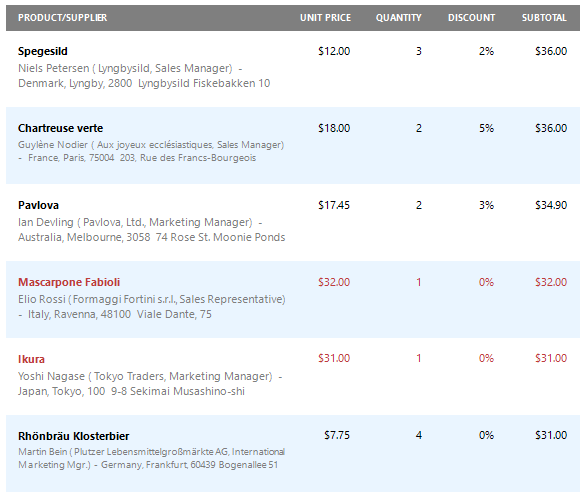
Conditionally Change a Control's Appearance
This document describes how to change a report control's appearance based on a specific condition.
-
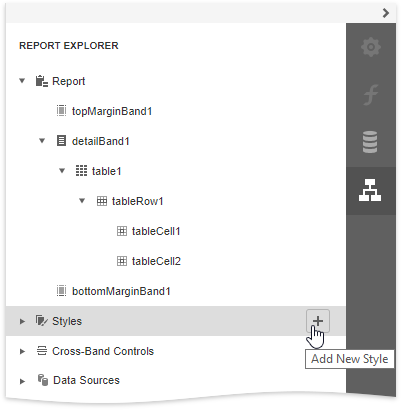
Switch to the Report Explorer panel, select the Styles node and click Add New Style to create a new visual style.
-
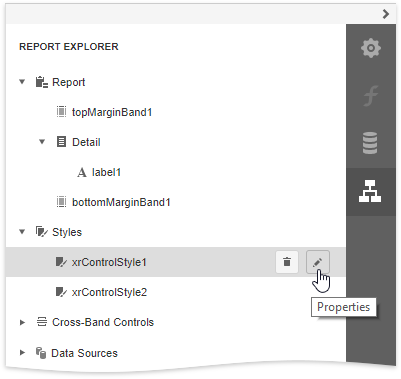
Click the created style and select Properties.
-
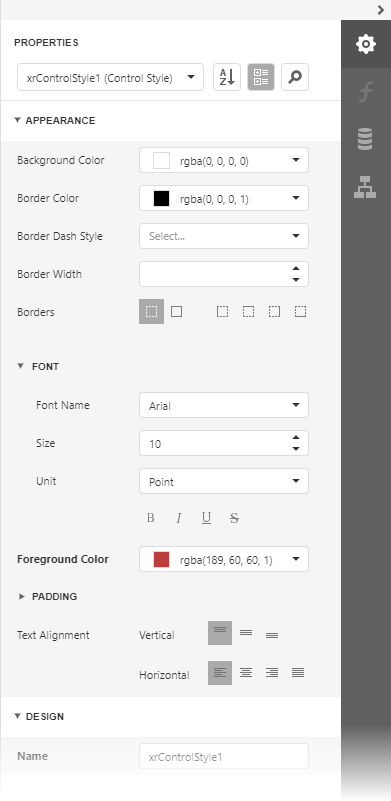
In the Properties panel, customize the created style's appearance settings.
-
Create another style 'xrControlStyle2' with default settings.
-
Select a report element to which you wish to specify a style selection rule (a table row with a cell bound to the 'UnitPrice' field), switch to the Expressions panel, and click the ellipsis button next to the Style Name property.

-
In the invoked Expression Editor, specify the style switch condition:
Iif( [UnitPrice] >= 30, 'xrControlStyle1','xrControlStyle2')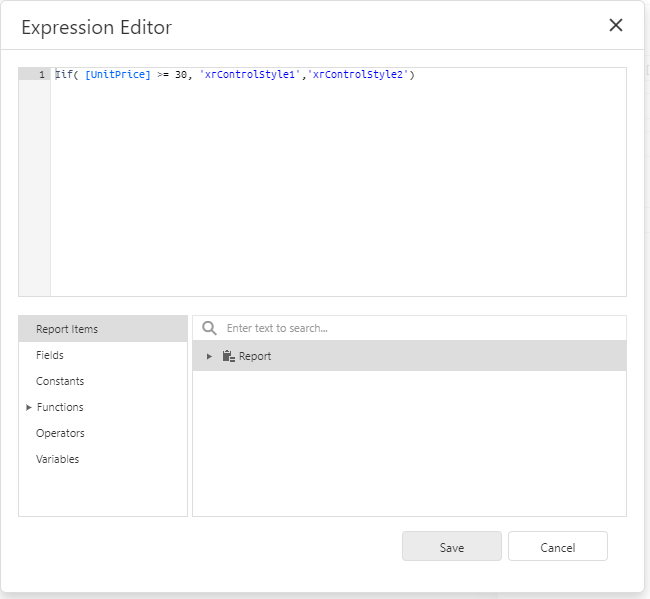
-
Switch to Print Preview to view the results.