Count the Number of Groups in a Report
This document describes how to count the number of groups in a report.
-
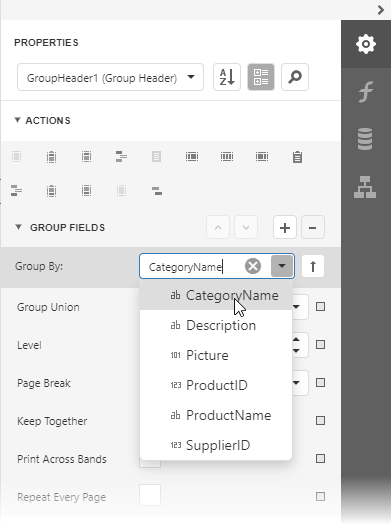
Insert the Group Header band, select the Group Fields section in the Group Header Tasks category and add a new group field to group the report's data by the required field.
-
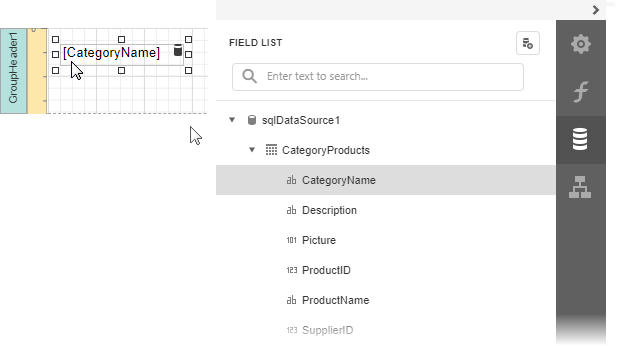
Switch to the Field List and drop the group field onto the created Group Header.
-
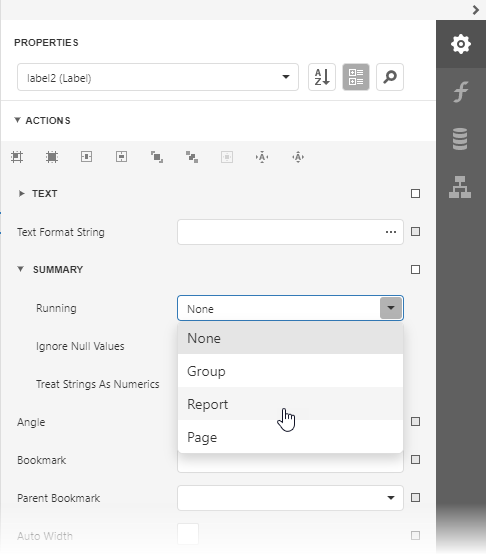
Drop a label onto the Report Footer, expand the Summary section in the Label Tasks category and set the Running property to Report.
-
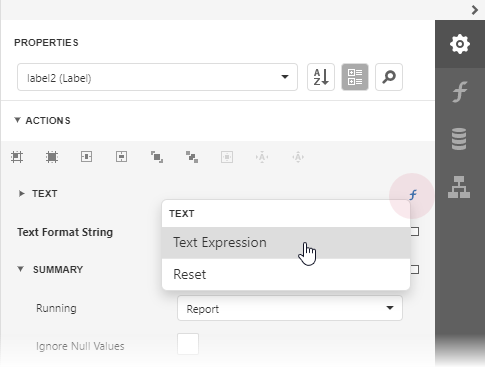
Click the Text property marker to invoke the menu. Select Text Expression to invoke the Expression Editor.
-
In the Expression Editor select the sumDCount summary function in the Functions | Summary section:
sumDCount([CategoryName])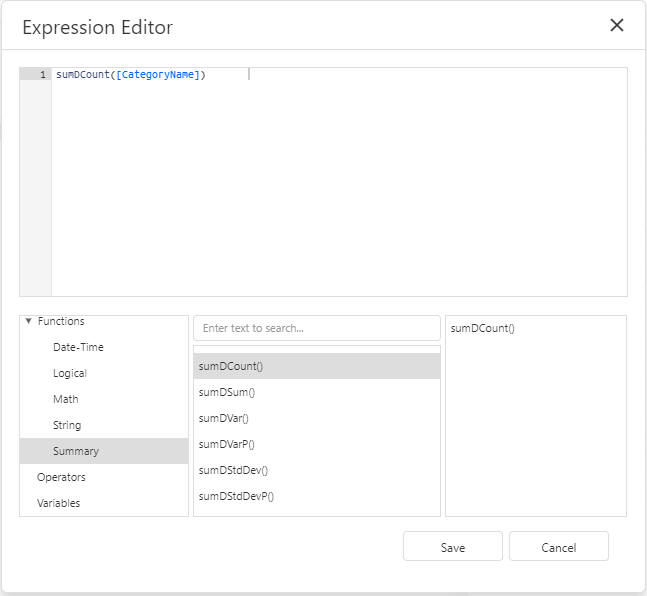
-
Use the Text Format String property to format the summary's value.
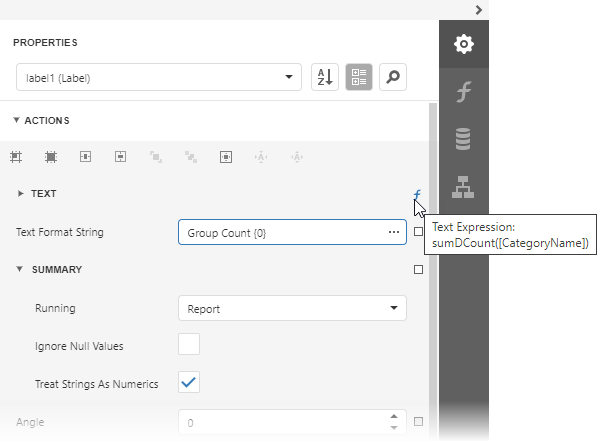
-
Switch to Print Preview and see the group count in the report footer:
