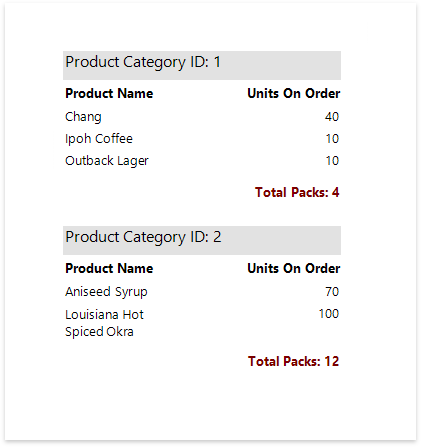
Calculate an Advanced Summary
This document describes how to calculate an advanced summary for report groups using a built-in summary function and arithmetical or logical functions.
-
Create a new report or open an existing one and bind it to a data source.
-
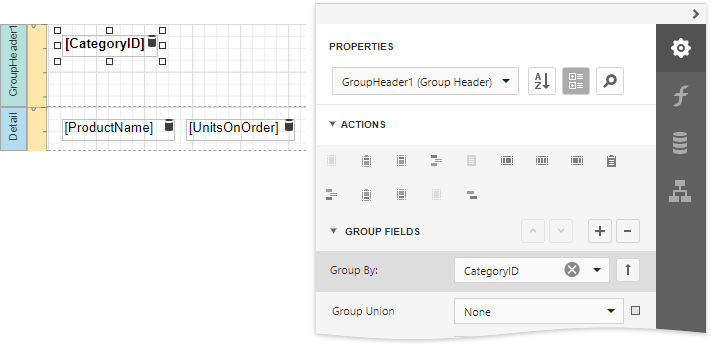
Insert the Group Header band, select the Group Fields section in the Group Header Tasks category and add a new group field to group the report's data by the required field.
-
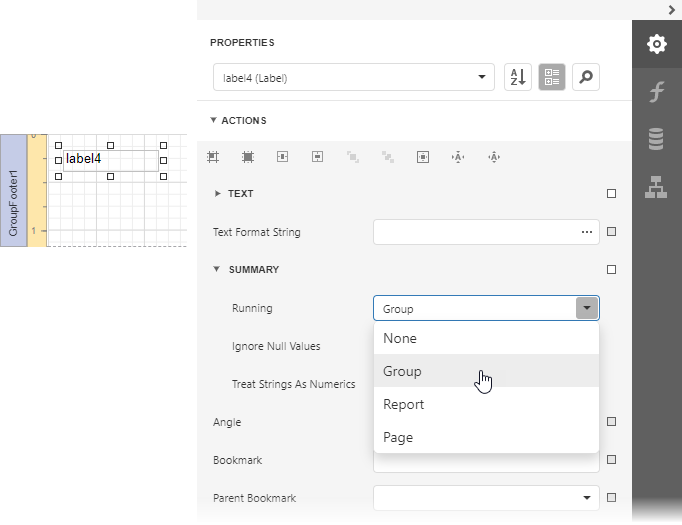
Insert the Group Footer band and drop a Label onto it to display the summary result. Expand the Summary section in the Label Tasks category and set the Running property to Group.
-
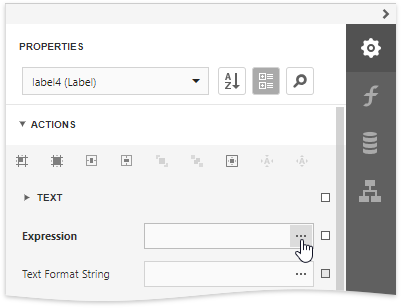
Click the ellipsis button for the label's Expression property.
-
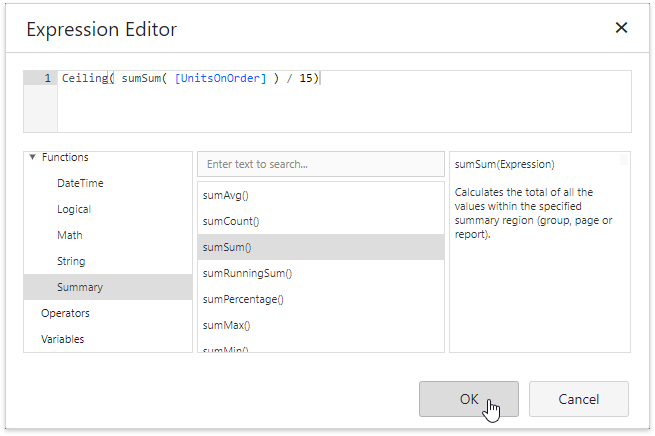
This invokes the Expression Editor where you can specify a custom expression with the required summary functions and other logical or arithmetical functions. For example:
 tip
tipSee the Functions in Expressions topic for a complete list of supported summary functions.
-
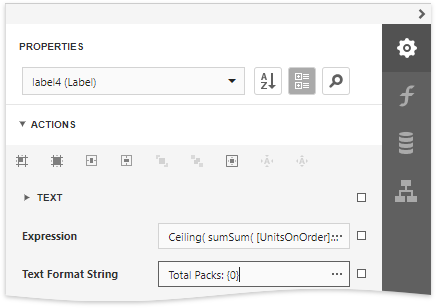
You can use the Text Format String property to format the summary's value.
Switch to Print Preview to see the result.