Report Design Analyzer
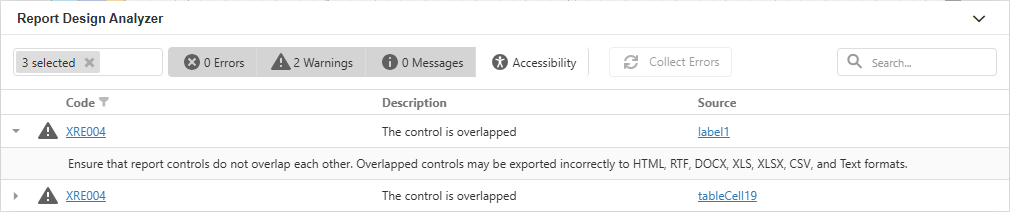
The Report Design Analyzer shows errors, warnings, and information messages that help you to detect and fix issues in a report.
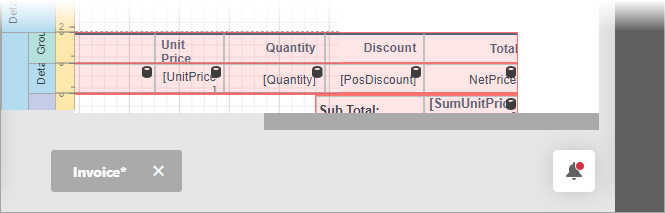
Invoke the Report Design Analyzer
Click the bell tab in the bottom.
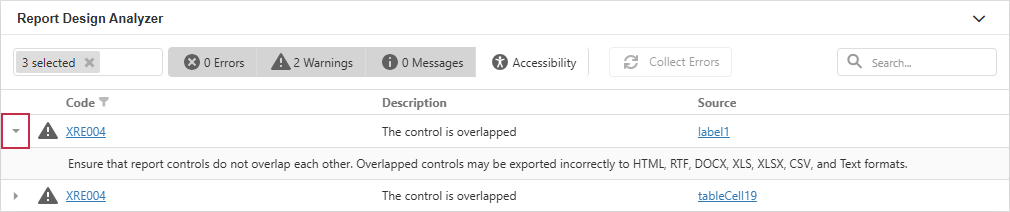
Fix Issues
Each message contains a recommendation on how to fix an issue. Click the Plus icon in front of the message to expand the recommendation.
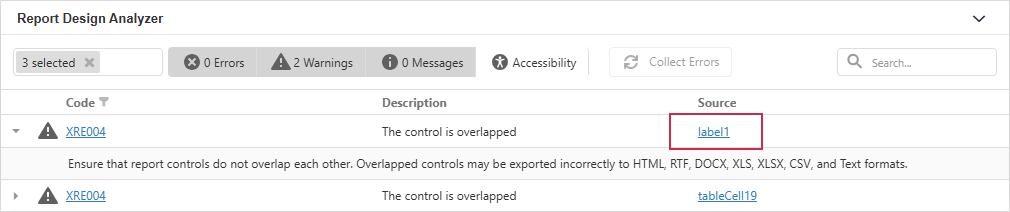
The Source column contains a reference to the control or script that caused the issue. Click the reference to navigate to this control or script.
Filter Messages by Source
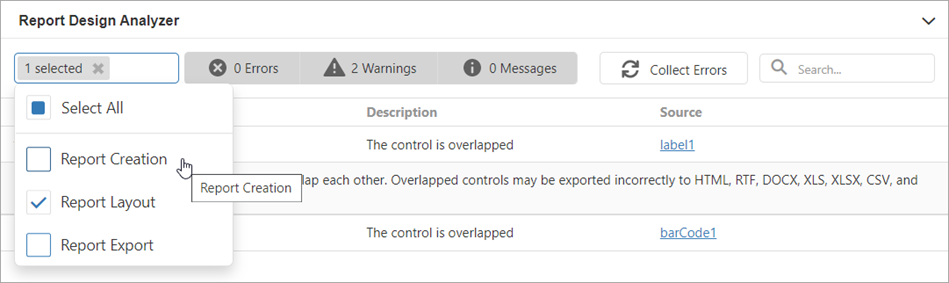
Based on their source, report errors are divided into four groups:
- Report layout errors – occur, for example, when report controls overlap each other or extend beyond the report’s printable area.
- Report creation errors – occur while the report document is created. For instance, it might include notifications about invalid property values or unreachable sources of content.
- Report export errors – happen while the report document is exported to PDF, XLSX, and other formats.
- Report script errors (this group is not displayed if report scripts are disabled in your application) – for example, errors in script syntax.
You can disable messages that belong to a particular source:
Filter Messages by Type
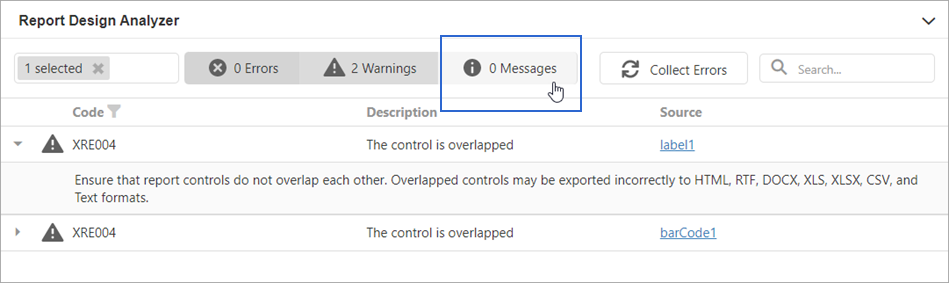
You can enable/disable messages of each available type ("Error", "Warning", or "Information") or any combination of them. Click the panel in the UI as shown in the image below to enable/disable messages of a corresponding type.
Enable Accessibility Validation
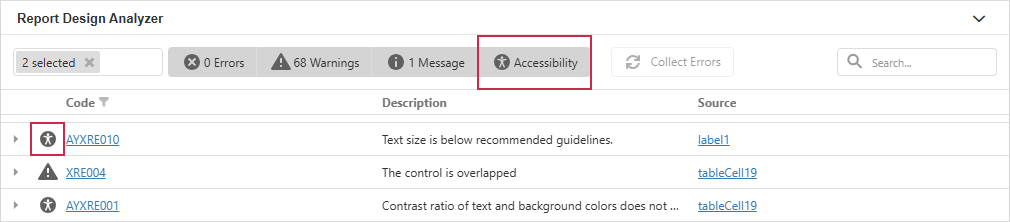
Click the Accessibility bar item in the UI panel to display accessibility-related issues in the Report Design Analyzer.
Use filters by type and source to navigate long issue lists:
- Like other report design issues, accessibility issues are divided into errors, warnings, and messages. If you deselect the Warnings button, all accessibility warnings will be hidden.
- The source filter allows you to select report controls where issues originate.