Preview, Print and Export Reports
Preview a Report
To switch a report to the print preview mode, click the Preview button on the toolbar. You will see your report populated with data and broken down into pages.
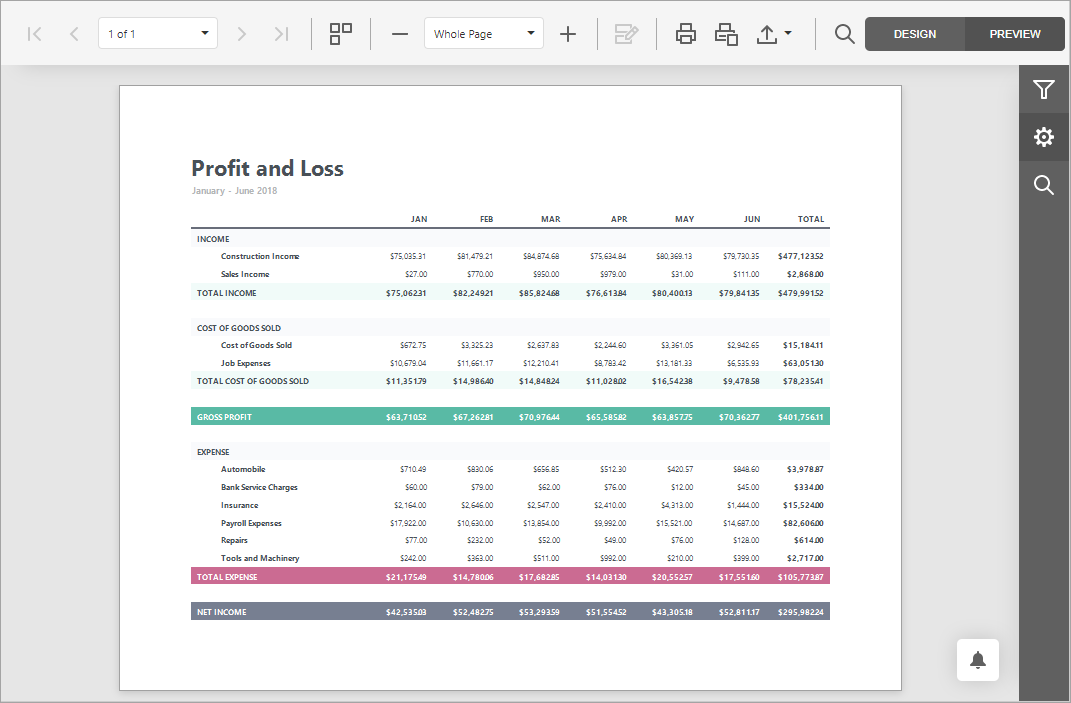
The print preview mode provides options for printing and exporting your report.
Print a Report
When in the Preview mode, you can use toolbar commands to print out your report.

Export a Report
When in the Preview mode, you can export your report to files in different formats.
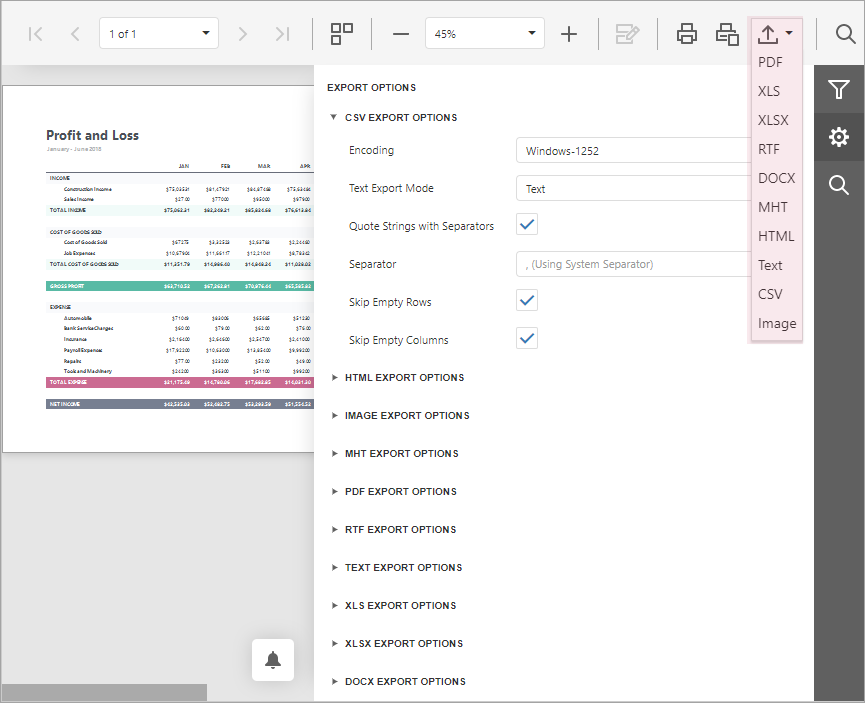
The following export formats are available:
- CSV
- HTML
- Image (BMP, EMF, GIF, JPEG, PNG, TIFF, WMF)
- MHT
- RTF
- Text
- XLS
- XLSX
- DOCX
Hide Report Controls in Documents Exported to Specific Formats
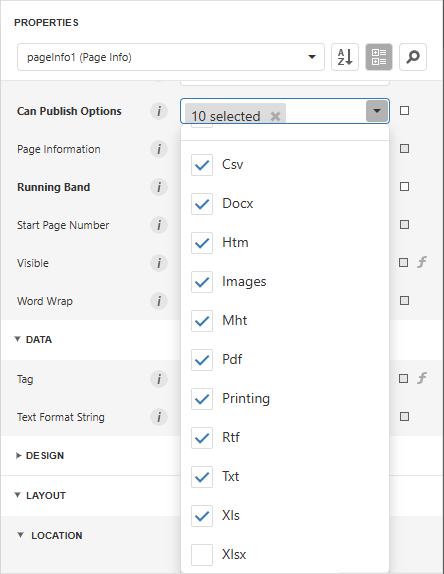
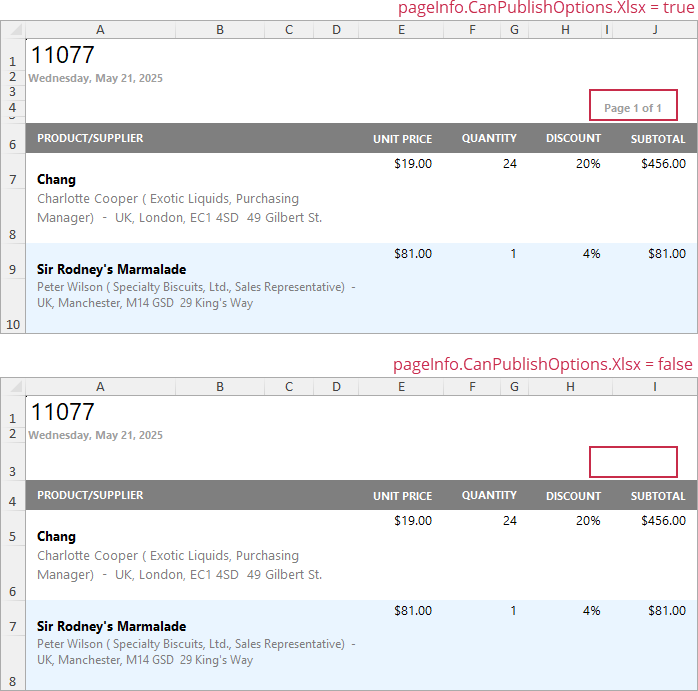
You can specify the Can Publish Options setting in the Properties grid to exclude report controls from certain export formats.
The following image illustrates the resulting XLXS document with and without page information:
Export a Report to PDF with Accessible Tags (PDF/UA Compatibility)
Use the Accessible Role option to specify how report elements should be treated by screen readers in the exported PDF document:
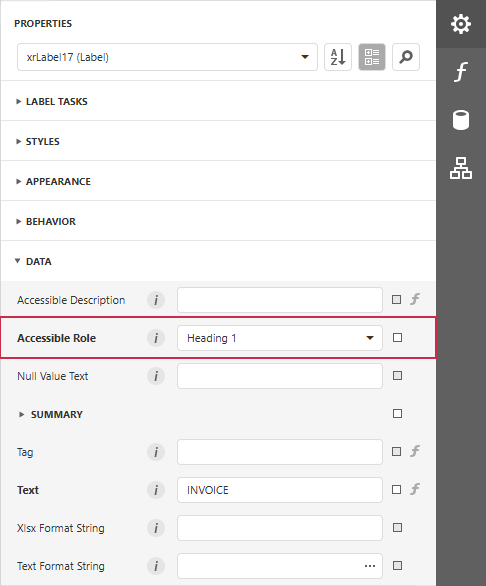
Set the PDF/UA Compatibility property to PDF/UA-1 to conform the exported PDF document to PDF/UA specification. Then, export the report to PDF format.
Use this table to map report controls to accessibility structure roles in exported PDF files.
The table describes the following:
- How each control behaves when the Accessible Role property is set to Default.
- Roles you can assign to ensure that screen readers correctly identify the element's purpose in the exported PDF document.
Decorative role means an element is treated as an artifact (outside the tag tree). Use this role only for non-informative visual elements.
| Element(s) | Default behavior when Accessible Role = Default | Role you can specify |
|---|---|---|
Label | No semantic role; treated as a Div. | Heading |
Table | No semantic role; treated as a Div. | Table |
Table Row | No semantic role; treated as a Div. | Table Header Row |
Table Cell | Treated as a paragraph (P). | Header Cell |
Watermark (an image watermark) | Treated as an artifact; excluded from the PDF logical structure. | Figure |
Watermark (a text watermark) | Treated as an artifact; excluded from the PDF logical structure. | Paragraph |
Picture Box, Shape, Bar Code, Zip Code | Treated as a Figure. | Decorative (Artifact) |
The Accessible Description property is not in effect for artifacts.
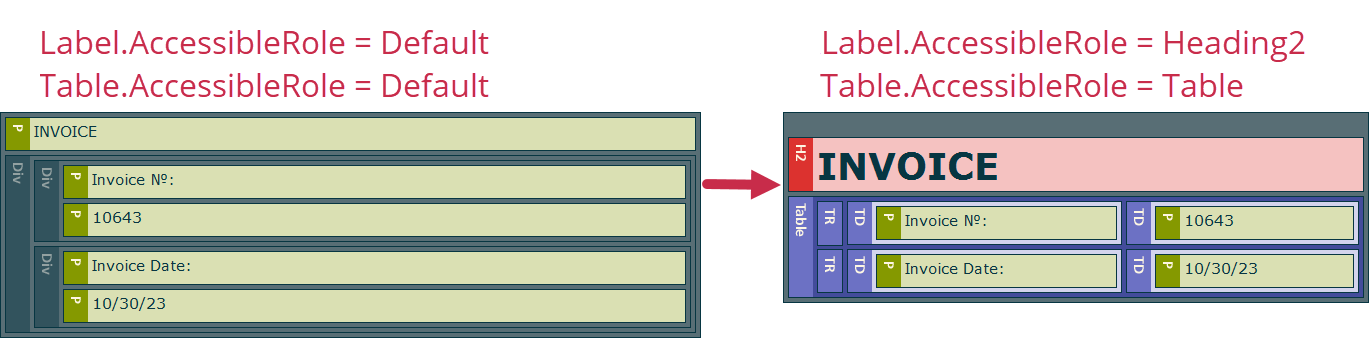
The following image illustrates the difference between default and specified roles: