Add New Reports
InLoox offers several ways to create reports:
- Standard reports — Predefined report templates that you can create using the New report button. For more information, see Standard Reports.
- Import report templates — You can also upload and manage existing report templates. For details, see Report Templates: Import, Export, and Manage.
- Reports with the Report Designer — Fully custom reports created with the Report Designer. This topic covers this approach.
This topic explains how to create a new report in the Report Designer.
Before you start, make sure to back up the current report.
Open the Report Designer and Create a New Report
To open the Report Designer and start with a new blank report:
-
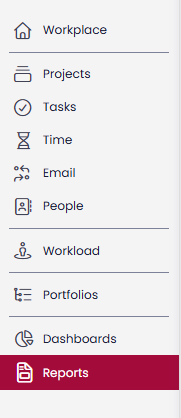
Navigate to InLoox → Reports in the left-hand menu.
-
Click the Report Designer button.

-
An Open Report dialog will appear, allowing you to select an existing report. Click Cancel to start with a new blank report.
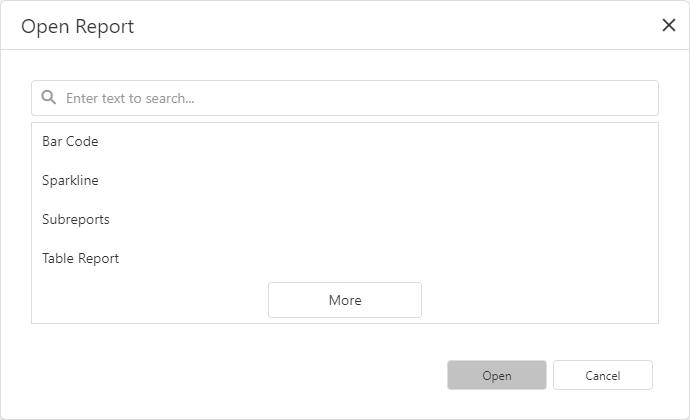
After clicking Cancel, you are already in a new blank report and can start designing right away. For information on adding controls, see Use Report Elements.
If you are already in the Report Designer and want to create another new report, use one of the following alternatives.
Create a new blank report from the menu
Click New in the designer menu.
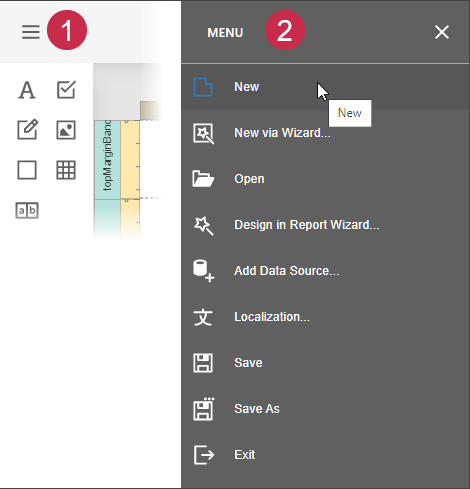
The created report contains three bands - Top Margin, Detail, and Bottom Margin.
Create a new report using the wizard from the menu
Click New via Wizard in the designer menu.
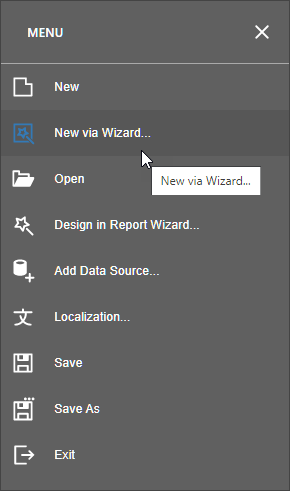
Go through the wizard's pages to get a predesigned report. For more information about this option, refer to Report Wizard.