Project Members
All members assigned to a project are displayed with their profile picture in the top right corner.
Add Members
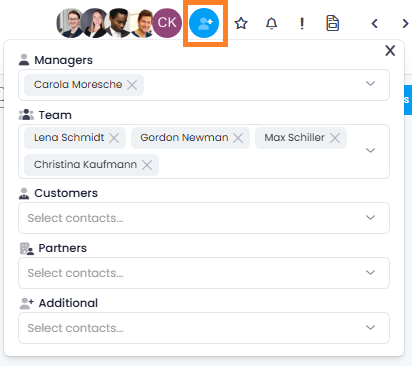
Using , you can add contacts to the following roles:
- Managers
- Team
- Customers
- Partners
- Additional
In all of these roles — including the Customers role — you assign individual contacts from People & Contacts or user groups. Organizations cannot be assigned here. The Manage page has a second field that is also labeled Customers; that field assigns an organization to the project, see Project Client.
Add User Groups
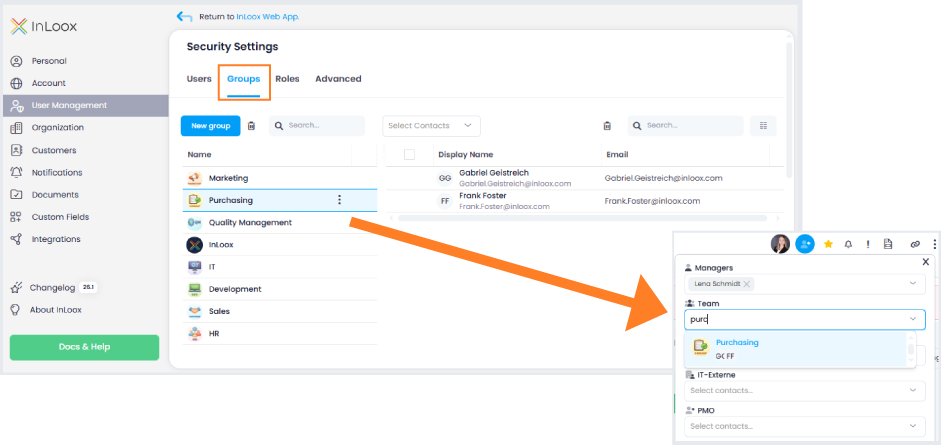
In Account Settings, you can create user groups under User Management and assign individual users to them. The key advantage: project roles can also be assigned at the group level. This feature is available in InLoox Enterprise, Enterprise Plus, and Self-Hosted editions.
In practice, many projects involve the same teams — such as Marketing, HR, Development, or Procurement. Instead of adding each team member individually to every new project, simply assign the appropriate group to the desired project role. This significantly reduces the manual effort required when setting up new large-scale projects.
Define Additional Roles
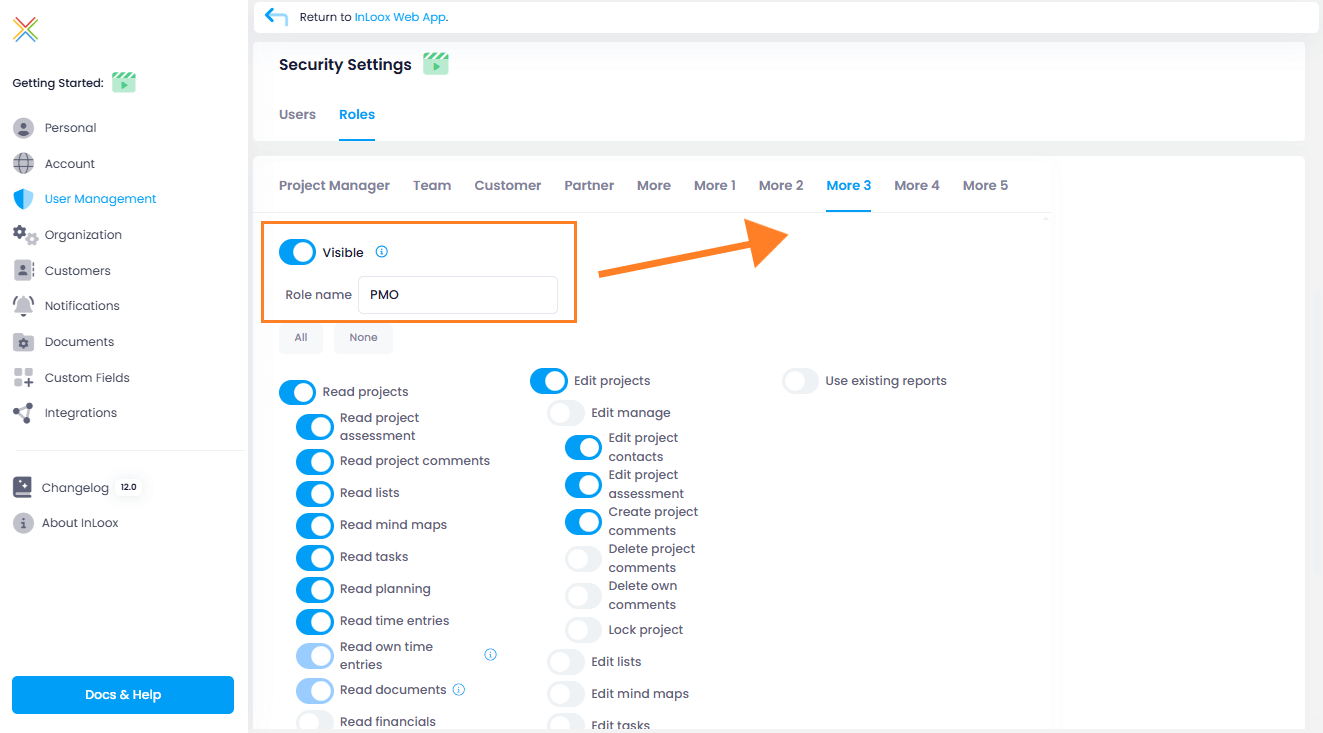
For InLoox Enterprise Plus and InLoox Self-Hosted accounts, administrators can define up to 5 additional project roles with individual permissions.
- Click your profile picture and then Account Settings.
- Click User Management. In the Security Settings section, click the Roles tab.
- Select one of the five additional roles and configure it by:
- Making it visible — only visible roles are available in projects.
- Assigning a custom name.
- Granting read and edit permissions.
The configured roles are then available on the Manage tab of your projects, where you can assign members to them.
Project Client
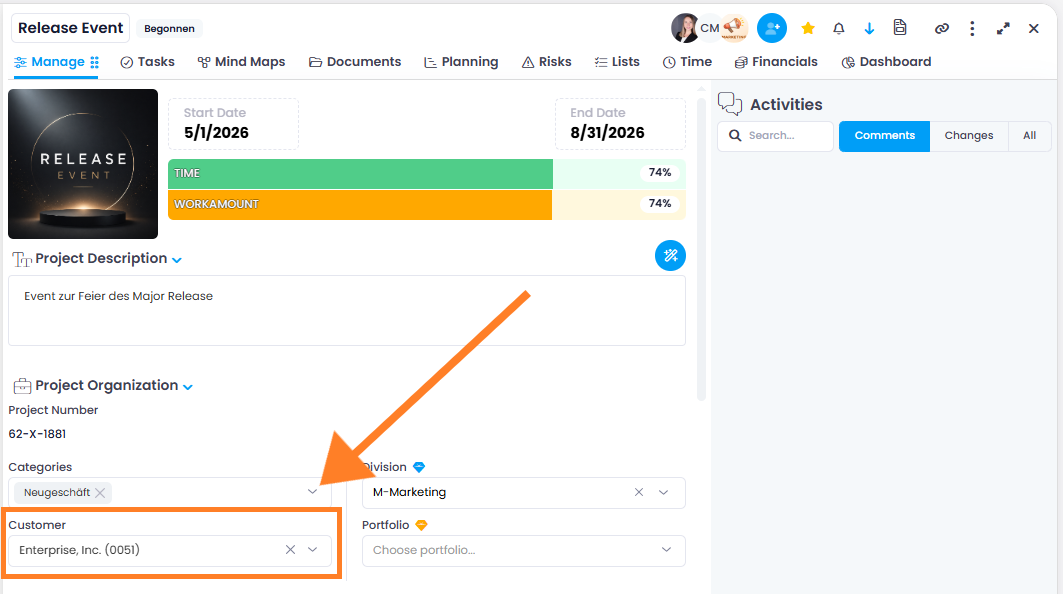
Using the Customers field on the Manage page, you link the project to an organization — the company the project is delivered for. This field carries the same label as the Customers project role described above, but the two are independent of each other: the role holds individual contacts or user groups, this field holds a single organization.
Select an organization from the dropdown menu or search by name or number. If the organization does not exist yet, type its name directly in the field to create it — this requires the global permission Create organizations on the project manage page or Create, edit and delete organizations.
You manage the organization itself, its assigned contacts, and all projects linked to it in Organizations.