Add or Remove Columns
You can customize which columns are displayed in the project list to show the information most relevant to your work.
Customize Columns
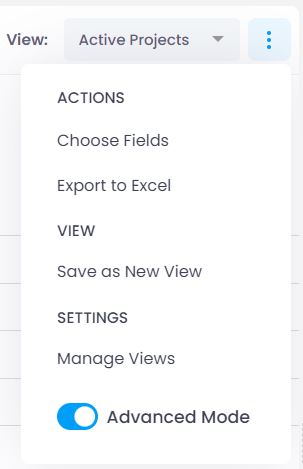
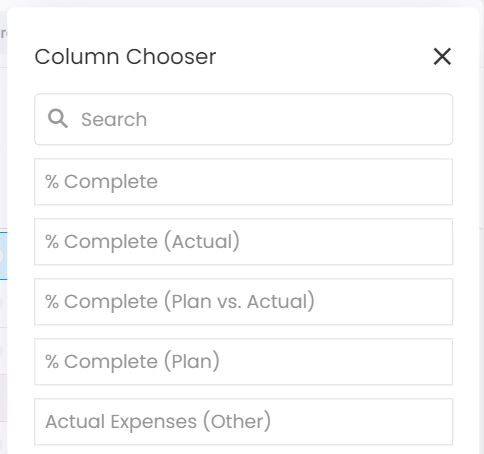
- Click in the upper right corner and select Choose Columns.
- Drag the desired columns into the list.
- To remove a column, drag it out and release.
- If you accidentally remove a column, click the undo button in the green bar at the lower left.
- To save this view, click and select Save as New View. Learn more about saving list views.
Custom fields defined for the Projects section (such as Risk) can also be displayed as columns. For a complete list of all available columns, see the overview of columns in list views.
Table View
To display the project list in a table view (similar to a spreadsheet), switch to Advanced mode. Click the three vertical dots in the upper right corner and activate Advanced mode.
This view is best suited for desktop work. The Simple view is more suitable for smartphones and tablets.
If you still want to access the table view on a mobile device, save a view optimized for your screen size as a template on desktop. You can then select it on your mobile device under View.
For a detailed description of table view functions, see the help article on list views. The controls work the same way across all areas of InLoox.