Project Assessment
The project assessment allows you to evaluate and classify your projects based on key parameters — helping you prioritize and compare projects at a glance. You can find the project assessment on the Manage tab of a project.
Project Assessment is not available in the InLoox Professional edition.
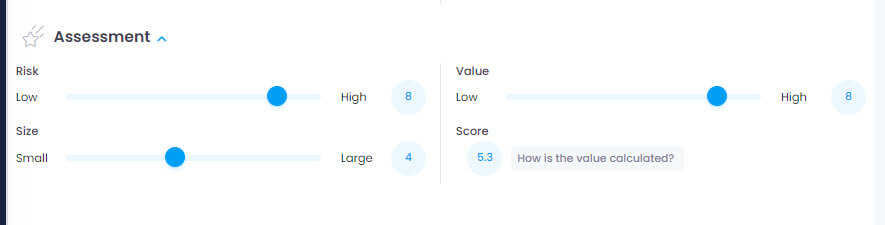
When you create a new project, you can evaluate it using three parameters, each on a scale of 1 to 10:
- Risk: 1–3 = Low, 4–6 = Medium, 7–10 = High
- Size: 1–3 = Small, 4–6 = Medium, 7–10 = Large
- Value: 1–3 = Low, 4–6 = Medium, 7–10 = High
To view or edit the project assessment, you need the corresponding permissions: Read project assessment / Edit project assessment.

Defining Parameters
Defining the values for project evaluation should be individually designed for each organization. We recommend developing a criteria catalog that allows classification based on objective standards.
Example for Size:
- Small: Max. 2 employees, max. €10k budget, max. 3 months
- Medium: Max. 4 employees, max. €50k budget, max. 6 months
- Large: 8+ employees, €100k+ budget, 6+ months duration
Example for Value:
- Low: Operational, regulatory obligation
- Medium: Opens permanent but limited optimization potential
- High: Strategic, affects top 5% key accounts
Overall Score & Dashboard
The overall score reflects a project's performance on a scale of 0 to 10, calculated as:
Overall Score = ((10 − Risk) + (10 − Size) + Value) / 3
Use the free standard dashboard "Project Value" to visualize risk, size, and value parameters in a matrix. Download the template from the InLoox resources page.
Show Overall Score Column in Project List
- Click Projects in the left menu.
- Click at the top right.
- Click Select columns.
- Search for "Overall Score."
- Drag the Overall Score column into the project list.
- Group projects by score by dragging the column into the grouping area.
You must be in Advanced mode to group by columns.