Edit a Project
Click on a project to open and edit it. The Manage tab opens first. Use the other tabs to access project-specific areas: Tasks, Mind Maps, Documents, Lists, Time, Planning, and Financials. In the InLoox Enterprise, Enterprise Plus, and Self-Hosted editions, two additional areas are available: Risks and Dashboard.

Manage the Project
The Manage tab opens by default.
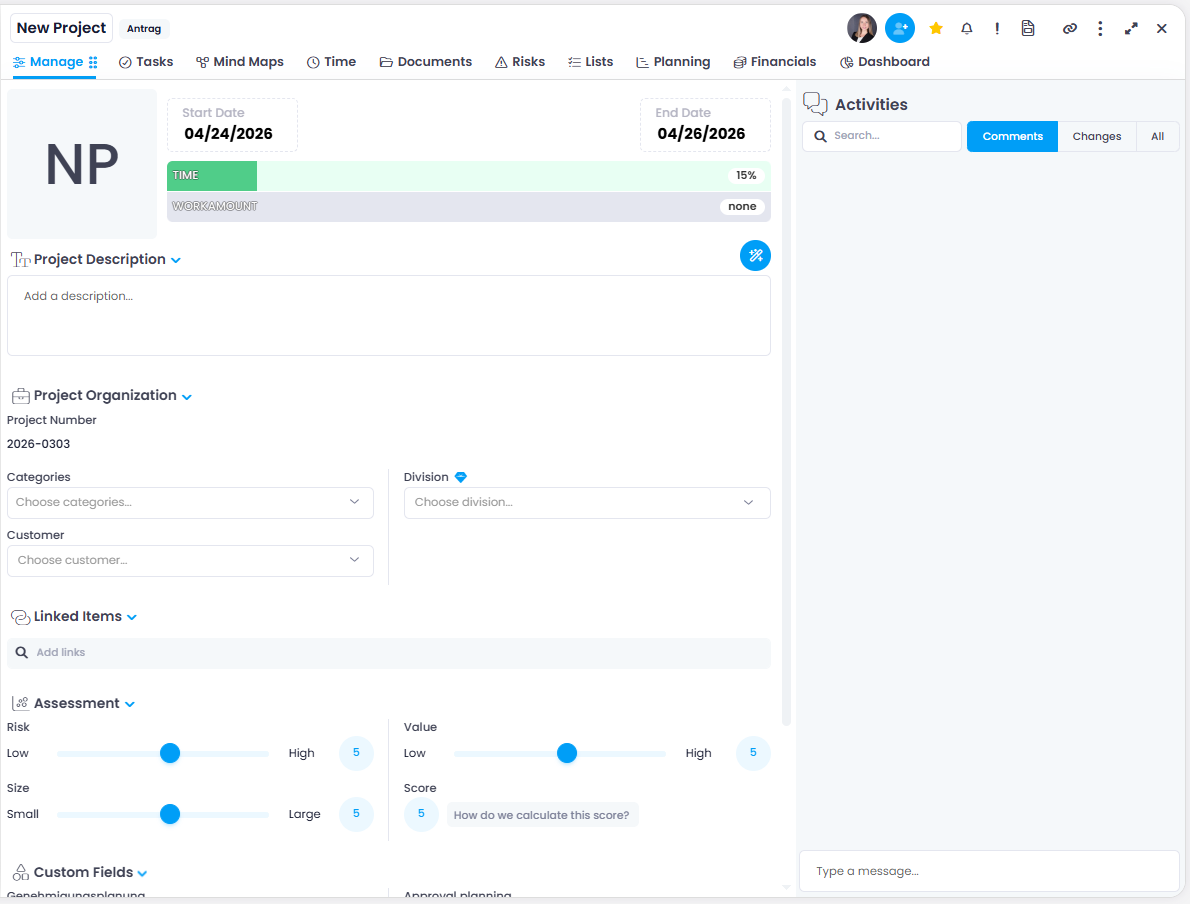
In the Manage tab, you can enter the most important project information:
-
Project image — Click the square field to upload an image. By default, InLoox uses the initials of the project name.
-
Start and end dates — Adjust the project timeline.
tipIf the start date is in the future, you may need to adjust the end date first, since the start date must be before the end date.
-
Project details — Enter a project description. With the InLoox AI Assistant, you can generate an automated description based on the project name.
-
Project number — Automatically generated by default. Administrators can customize the format in InLoox settings. If sequential numbering is configured with a fixed digit length, InLoox pads shorter values with leading zeros (for example,
0007). -
Division, client, and category — Select the responsible division, client, and category. If you enter a client that doesn't yet exist, InLoox offers to create a new one.
-
Linked Items — Connect a project to relevant items from current or other projects (tasks, documents, time entries, mind maps, budgets, planning elements, or knowledge pages). Links are bidirectional.
- Custom Fields — Specify additional data (e.g., detailed description, revenue potential, deadline). Administrators can customize these in InLoox settings.
- Assessment — Evaluate the project based on risk, size, and value parameters.
Toolbar Functions
At the top right, you'll find a toolbar with additional functions:
- Project members — Add project members (project managers, employees, customers, partners, or additional contacts). You can also add user groups.
- Favorite — Mark the project as a favorite (listed in the main menu).
- Notifications — Activate or deactivate notifications about changes.
- Priority — Assign a priority (Normal or High).
- Left/Right Arrow — Navigate to the previous or next project.
- Copy link — Copy the project's link to the clipboard.
- More — Upload an image, archive, lock, or delete the project.
- Fullscreen — Switch between fullscreen and split view.
- Close — Close the project and return to the project overview.
All information is saved automatically. You can close the project at any time and your changes will be stored.
Project Progress
In the project list, project progress is displayed as a percentage (if the Progress column is enabled). This value shows:
- 100% completed for status Completed, Accepted, or Rejected
- 0% completed for status Started or Offers