Planning Templates
Working with planning templates is a convenient way to create project schedules quickly and easily. If you have recurring projects, it makes sense to save your Gantt plan as a template for other projects.
Save a New Planning Template
To save a self-created plan as a template:
-
Create a Gantt plan that you want to use as a template.
-
Click the Templates button on the right side.
-
Select Save plan as template.

-
Give the template a name and confirm with Save.
 note
noteIf you enter a name that is already used by an existing template, a Name already exists dialog appears. Click Overwrite to replace the existing template, or Cancel to keep the existing template unchanged.
-
You will find the planning template when you click on the Templates button.
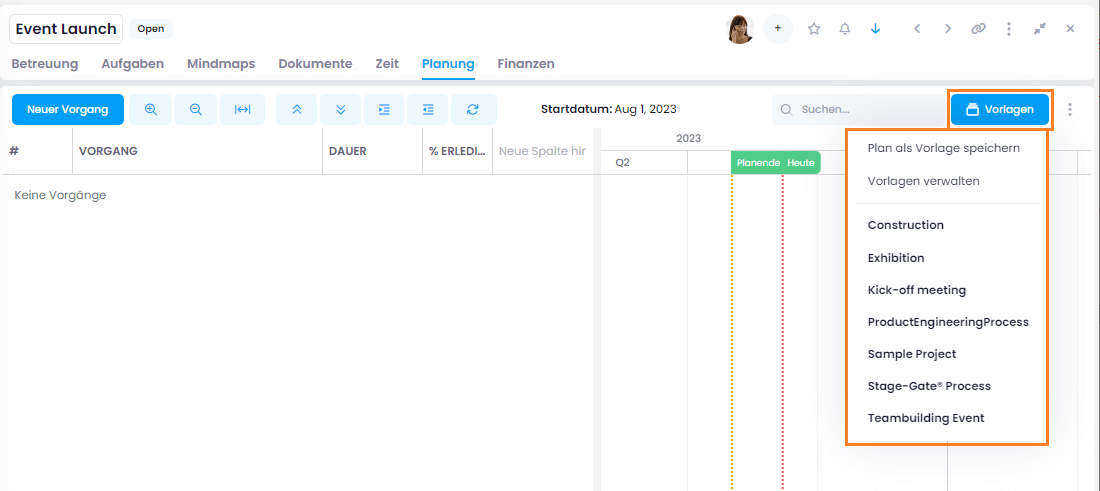
A newly saved template is private: only you can see and use it. To make it available to your colleagues, publish the template.
Under Manage templates, you can delete, rename, download, and publish templates.

Publish a Planning Template
Planning templates are private by default. Publishing a template determines who else can find and load it.
To make planning templates available to other users, you need the Publish templates permission. For details, see Permissions.
Since InLoox 26.5, a new planning template is private until you publish it. Previously, every saved template was immediately visible to everyone in the account. All templates that already existed in your account were set to Entire Organization with the update, so they remain visible to everyone as before.
-
Click the Templates button on the right side and select Manage templates. The Planning Templates window lists all templates available to you.
-
The icon to the right of each template shows its current publish status.
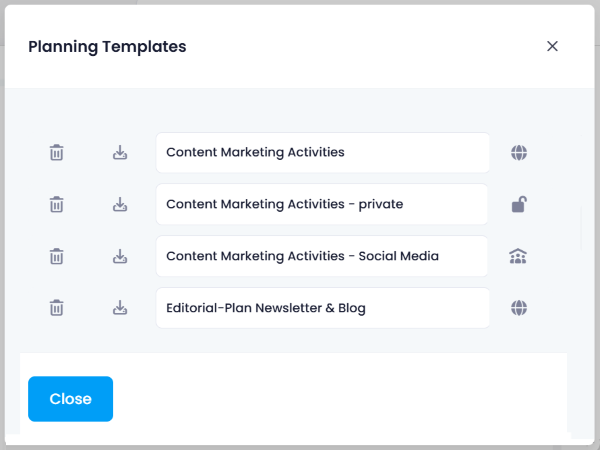
- — The template is published to the entire organization.
- — The template is private and only visible to you.
- — The template is published to specific divisions, groups, or persons.
-
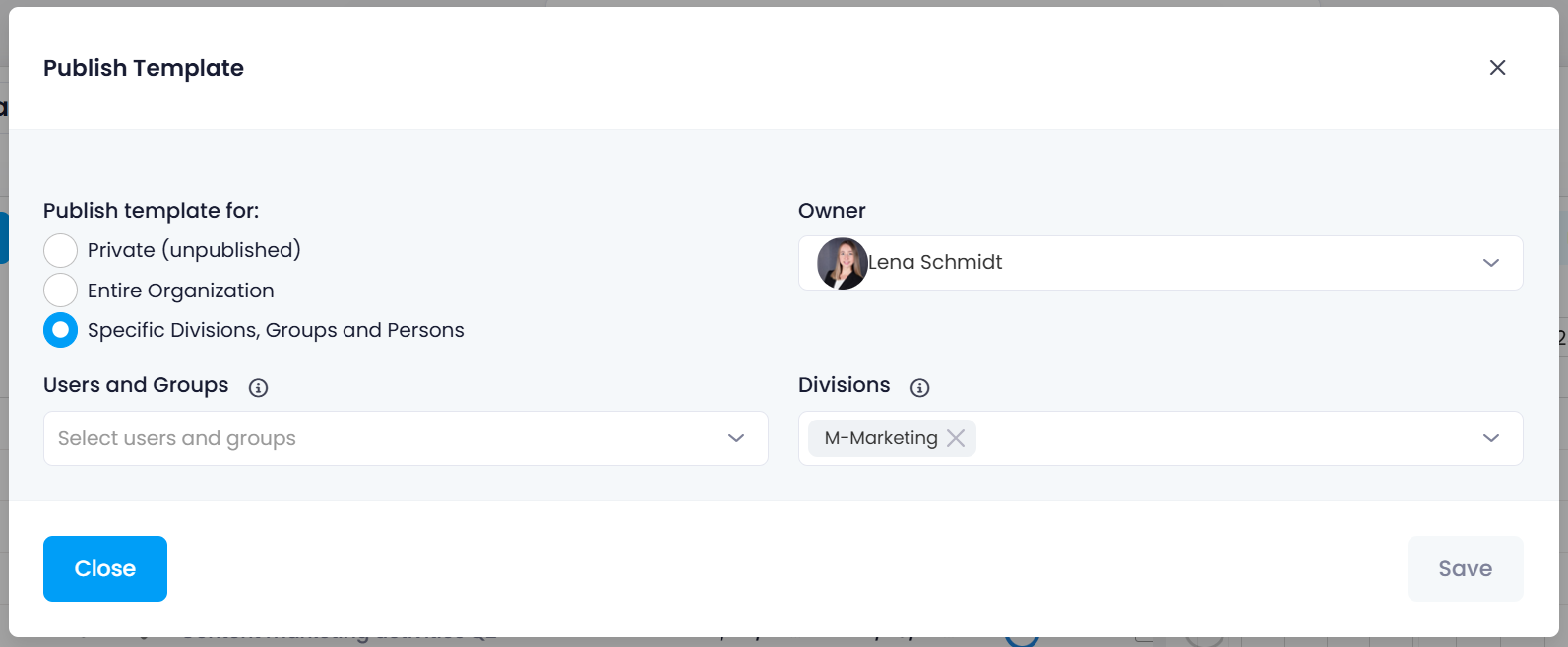
Click the status icon to open the Publish Template window.
-
Under Publish template for, select one of the following options:
- Private (unpublished) — Only you can see and use the template.
- Entire Organization — Everyone in your account can see and use the template.
- Specific Divisions, Groups and Persons — Only the selected recipients can see and use the template. Select the recipients under Users and Groups and Divisions.
-
The person who created the template is automatically set as its Owner. Optionally, you can assign a different owner.
-
Click Save.
Published templates are only visible to users who have permission to access Planning. See Permissions.
Users with administrator rights always see all planning templates in the account — including templates that other users have kept private — and can edit them, for example to change the publish status or the owner. This way, a template is not lost when the person who created it leaves the company: an administrator can still manage it and control its visibility.
Load an InLoox Planning Template
If InLoox plans have already been saved as templates in your database, you can use them for a new project:
- Create a new project or open an existing project.
- Navigate to the project planning.
- Click the Templates button on the right side. All planning templates available to you are displayed — your own templates and the templates that others have published to you.
- Select the desired template.
- In the Load planning template window, define the time frame for the plan:
- Select Automatic calculation if you want the start date to match the creation date.
- Select Manual calculation to set the start date yourself.

If planning elements with constraints have been saved in the template, InLoox will adopt these settings when importing. Constraints that may be in the past will be applied, and all planning elements will need to be adjusted manually.
If planning elements with constraints have been saved in the template, InLoox will not apply these settings. Start and end constraints are not applied, and all planning elements are imported with the constraint "Start = As early as possible." This simplifies further processing and is the recommended approach.

- Load resource data: The resource assigned to the task and the estimated effort are imported from the template. If unchecked, these fields will remain empty.
- Load completion data: The Completed marker will be transferred, and planning elements may be marked as completed in the new plan.
- Click OK. The planning template is now loaded into the Gantt chart.
To load a plan from an InLoox, Excel, CSV, or Microsoft Project file instead, see Import and Export Plannings.