Planning Views
A planning view stores how the planning of a project is displayed. Instead of setting up the planning list and the Gantt chart again in every project, you save the setup once as a view and select it whenever you need it. Views are not tied to a project — you can apply a view in any project whose planning you can open.
What a Planning View Stores
A planning view contains everything you set up in the planning toolbar and in the planning list:
- Columns of the planning list with their order and width, including the columns of your own custom fields
- The width of the divider between the planning list and the Gantt chart, and the zoom level of the Gantt chart
- Row Height (Small, Medium, Large, Extra large)
- Activity Labels (Left, Right, None)
- Latest Dates, Project Timespan, Show sprints, and Sprint names in the header
- The Show Tasks filter
Not part of a planning view: Autosave, Show Timeline, the baselines you selected, and the Resource Utilization pane. These are set per project.
The View Menu
To open the view menu:
-
Open a project and click Planning.
-
Click in the toolbar above the Gantt chart.
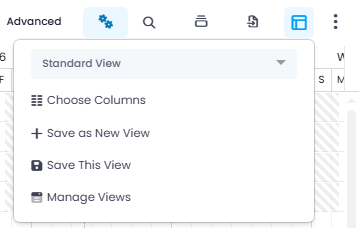
The menu contains:
- The view selector at the top — select a saved view. InLoox applies it to the open Gantt chart immediately.
- Choose Columns — Opens the column selection of the planning list.
- Save as New View — Saves the current setup under a new name. Enter the name and click Save.
- Save This View — Saves the current setup to the selected view.
- Manage Views — Opens the dialog in which you rename, publish, lock, download, and delete views.
A view is available in every project. Set up one view for quick reviews — for example with only the Name, Start, End, and Resources columns — and another with all columns for detailed planning.
Saving Changes to a View
Which changes InLoox keeps, and how, depends on the view you are working in:
- Your own private view — InLoox saves changes to the layout and the display settings automatically.
- A published view that you own — Changes are not saved automatically. The hint You changed this public view. Save the view to apply your changes for all users. appears above the Gantt chart. Click Save This View in the hint to apply them for all users.
- A published view of another user — Your changes are only temporary. Click Save as my own view in the hint to keep them in a personal copy.
- A locked view — Your changes are only temporary. The hint tells you to save your changes as your own view or to unlock the view in Manage Views.
- A default view — Default views are visible to everyone and can only be changed by administrators. If you are not an administrator, click Save as my own view in the hint to keep your changes.
Saving a published view changes the planning display for every user it is shared with. To change the display for yourself only, save your changes as your own view.
Sharing a Planning View
To publish a view, you need the Publish views permission. Administrators have this permission by default and can publish and change any view, including default views. For details, see Save, Manage, and Publish Views.
To share a view with your team:
-
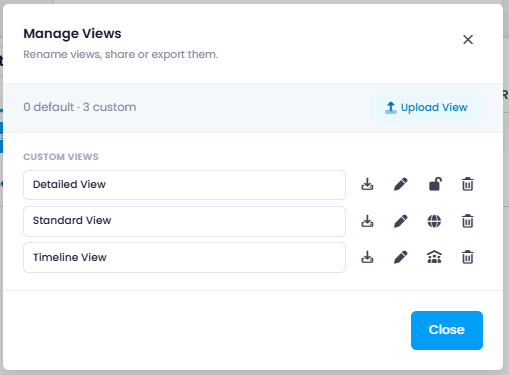
Click in the toolbar above the Gantt chart and select Manage Views.
-
In the Custom views section, click the status icon next to your view to open the Publish View window. Depending on the status of the view, this is , , or .
-
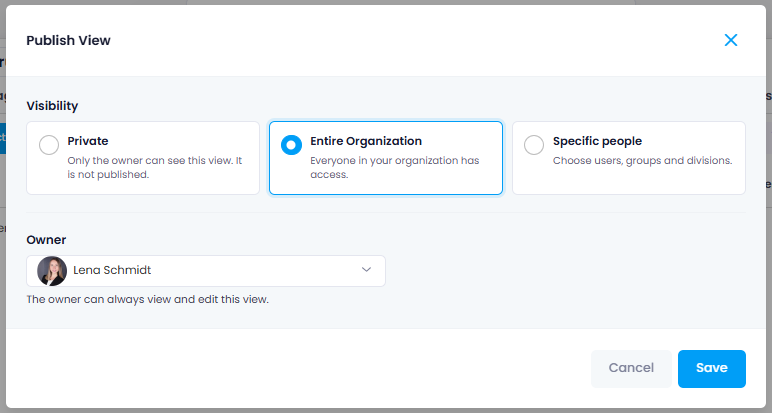
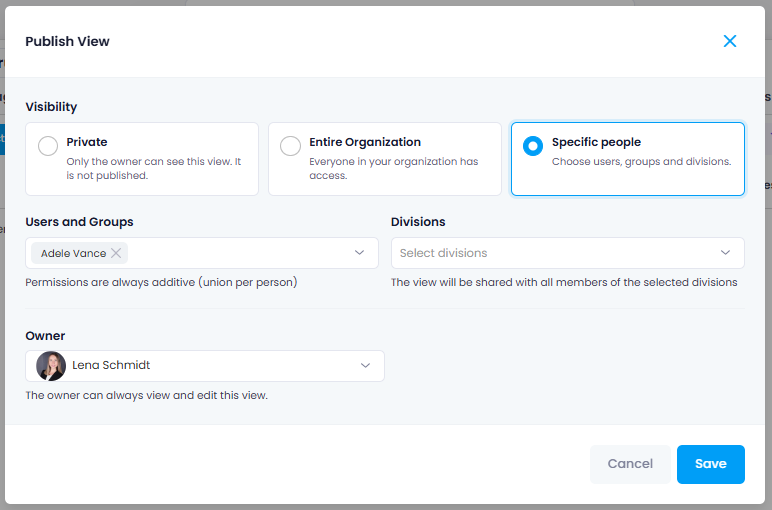
Under Visibility, select one of the following options:
-
Private — Only the owner can see this view.
-
Entire Organization — Everyone in your InLoox account can select and use the view.
-
Specific people — Only the selected recipients can select and use the view. Select the recipients under Users and Groups and Divisions.
-
-
Optionally, select a different Owner to hand the view over to a colleague.
-
Click Save.
The view then appears in the view selector of every user it is shared with. In Manage Views you can also:
-
Rename a view by editing its name directly in the list.
-
Lock a view so that changes to it are not saved: click next to the view. A locked view shows . Only the owner of a view and administrators can lock or unlock it.

-
Download a view as a file, or upload a view file.
-
Delete a view. Default views cannot be deleted.
Your Planning Layout Follows You
InLoox stores the planning layout in your user profile instead of in the browser. The columns, their order and width, the divider, and the zoom level are therefore the same in every browser and on every device you use. The first time you open a planning, InLoox takes over the layout your browser already had stored.
InLoox does not store where you last scrolled, which planning elements you had selected, the date range currently visible in the Gantt chart, or the height a row gets from its content.