Import and Export Plannings
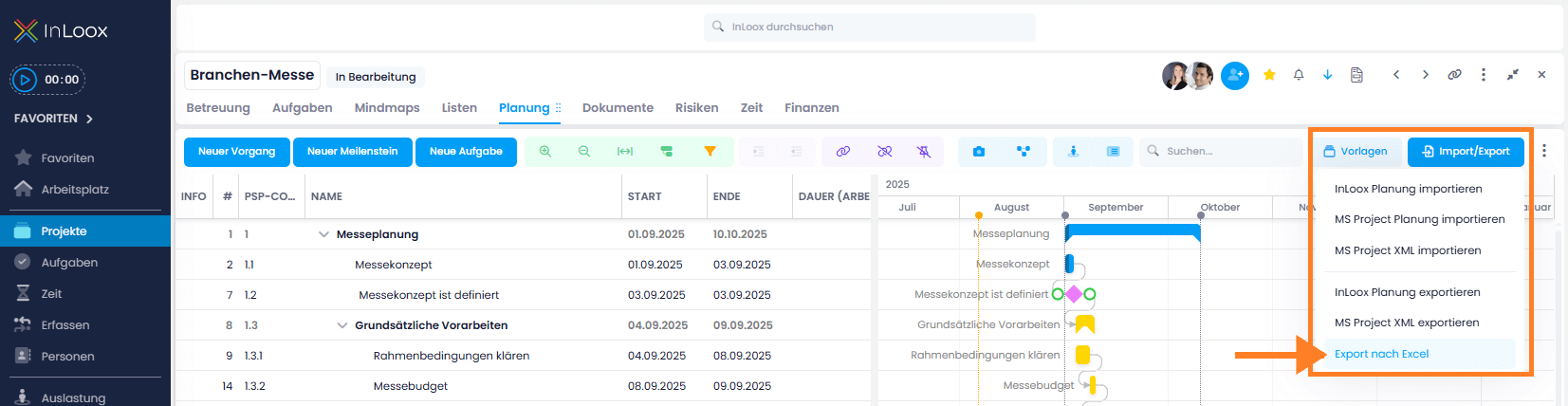
Using the Import / Export button in the Planning tab, you can import a planning from different sources and export your Gantt plan. The planning is loaded directly into the project's Gantt chart.
Import an InLoox Planning File
Import InLoox planning files (.inlooxplanning or .xml) as follows:
- Create a new project or open an existing project, then navigate to Planning.
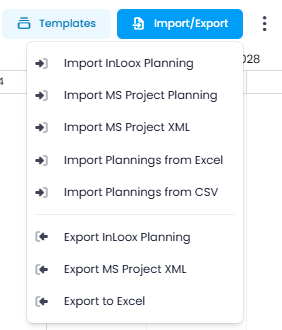
- Click the Import / Export button on the right and select Import InLoox Planning.
- Select the corresponding file from your PC, file server, or document folder, and click Open.
- The imported planning elements will load in the Gantt chart. This may take a few seconds.
The InLoox website offers numerous free planning templates for download.
Import Plannings from Excel or CSV
You can create planning elements directly from a Microsoft Excel or CSV file:
-
Create a new project or open an existing project, then navigate to Planning.
-
Click the Import / Export button on the right and select Import Plannings from Excel for an Excel file, or Import Plannings from CSV for a CSV file.
-
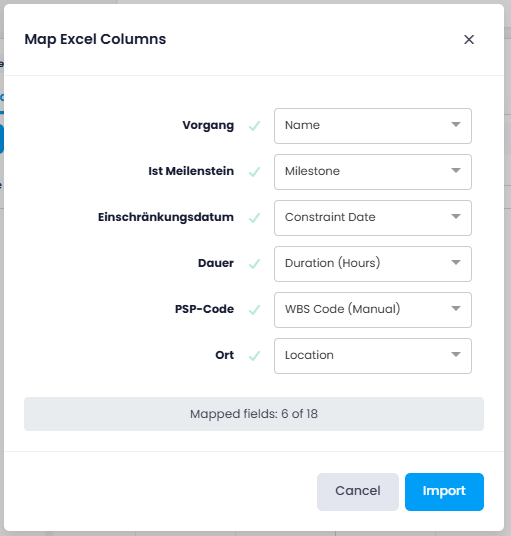
Select the corresponding file from your device and click Open. The Map Excel Columns window opens. Depending on file size, this can take a moment. It lists the column headers from your file on the left and a dropdown for the matching InLoox planning field on the right.
-
For each column you want to import, select the corresponding planning field from the dropdown:
- Name — This field is required. Without it, the import cannot be started.
- Duration (Work Days), Duration (Hours), Milestone, Description, Constraint, Constraint Date, Location, WBS Code (Manual), Calendar, and your custom fields — These fields are optional. Leave a column unassigned if you do not want to import it.
-
Click Import. The planning elements will load in the Gantt chart. Depending on the planning size, this step can also take a moment.
- In Excel files, column headers must be in the first row.
- InLoox imports only the first worksheet of an Excel file.
- Use Duration (Work Days) for numeric values without a unit that represent work days.
- Use Duration (Hours) for numeric values without a unit that represent hours.
- Values with an explicit unit (for example
2d,8h, or30m) keep their unit regardless of which duration field they are mapped to. - Work days are calculated using the working time calendar configured in InLoox (default: Monday to Friday, 8 hours per day). Configured holidays or other calendar rules can cause differences between the Excel planning and the imported InLoox planning.
- Imported planning elements use the default constraint As soon as possible and are scheduled relative to the set plan start. Set the plan start correctly before importing.
- You can import only activities and milestones via Excel import, not summary activities or tasks. Import tasks separately if needed and assign them afterward.
- Whether an imported element becomes an activity or a milestone is determined either by duration (
0= milestone) or by the mapped Milestone column. Accepted milestone values are:true,yes,1,ja,milestone,meilenstein. Any other value is imported as an activity. - If you import a Constraint Date without a Constraint, InLoox automatically applies Start – No earlier than.
Export your current planning to Excel first to see the expected column structure for a smooth import.
Import a Microsoft Project Plan
You can import MS Project plans as .mpp, .mpt, and .xml files:
- Create a new InLoox project or open an existing one.
- Click the Planning tab.
- Click the Import / Export button on the right.
- Select Import MS Project Planning for
.mpp/.mptfiles, or Import MS Project XML for.xmlfiles. - All available MS Project files are displayed. Select one and click Open.
During the import, InLoox shows a blocking progress dialog until the process finishes. After a successful import, InLoox shows a confirmation message and you can edit the plan further in the Gantt chart.
If the selected file is not compatible or does not contain an importable planning, InLoox stops the import and displays an error message.
- If you notice discrepancies between the InLoox and MS Project plans after import, this may indicate a planning error or conflict in the MS Project plan.
- Dependency lag and lead values are imported with their matching unit (duration, elapsed duration, or percentage).
- When importing, the working time calendar from the MS Project file is also transferred and stored as a new InLoox working time calendar.
Export a Planning
When you export a plan, you save it to your server or local storage. You can export a Gantt plan as:
- An
.inlooxplanningfile - A Microsoft Project
.xmlfile - A Microsoft Excel
.xlsxfile
- Click the Import / Export button on the right and select Export InLoox Planning, Export MS Project XML, or Export to Excel.
- The file will download to your device.