Invite People to InLoox
You can invite people manually or — since InLoox 26.2 — invite existing contacts directly from the Microsoft 365 directory, provided you have connected your Microsoft account to InLoox.
You need either administrator rights to invite other people to your InLoox account, or your InLoox administrator has enabled the invite permission for all users.
Invite Users
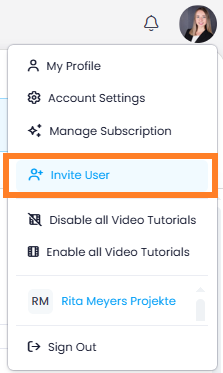
- Click on your profile picture.
- Click Invite User.
"Manual" tab
In the Invite User dialog, you are on the Manual tab by default.
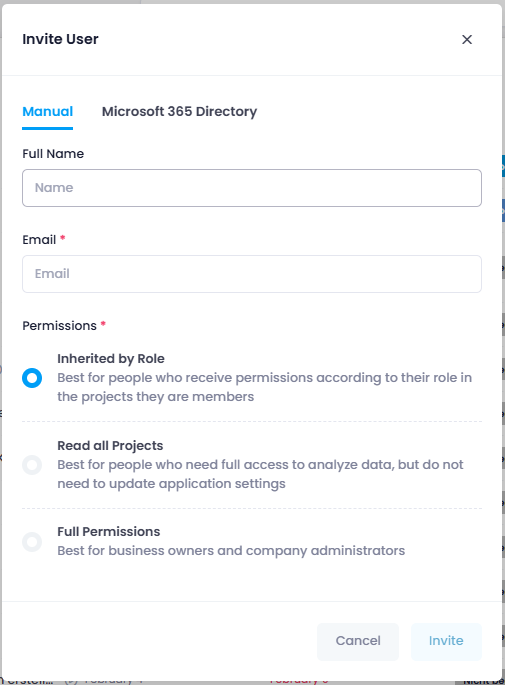
- Enter the name and email address of the person you want to invite.
- Select how the person should receive access rights for the InLoox account:
- Inherited by Role (recommended) — The person receives access rights based on their project role. This person cannot change InLoox account settings.
- Read all Projects — The person receives full rights for all projects and project data but cannot change InLoox account settings.
- Full Permissions — The person receives administrator rights. This means they can read and edit all projects and project data and change all InLoox account settings. Only an administrator can grant this permission to another person.
- Click Invite.
Always designate at least two people as InLoox administrators so that there is always someone available in your organization if settings need to be changed or new people need to be provided with licenses.
The invited person receives an email with the link to your InLoox account.
"Microsoft 365 Directory" tab
Select the Microsoft 365 Directory tab to invite existing people from your Microsoft 365 directory.
To access your Microsoft 365 directory, you must connect your InLoox account to your Microsoft 365 account and enable either the Basic user information or Full user information permission in the Integration Center.
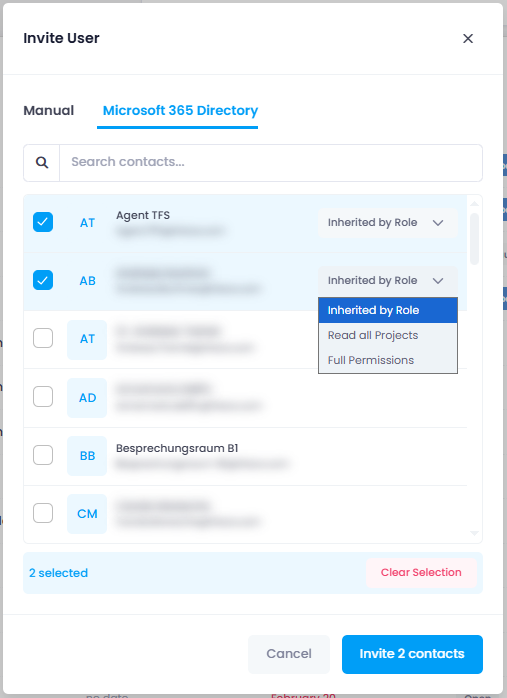
- Search for the name or email address of the desired person.
- Select one or more people.
- Choose how the person(s) should receive access rights for the InLoox account.
- Click Invite.
The invited person(s) receive an email with a link to sign in via Microsoft 365.
Users invited from the Microsoft 365 directory — or contacts that originate from the contact sync — are automatically linked to their Microsoft 365 account. They do not need to set this up manually. The invitation email contains only a sign-in link via Microsoft 365 and does not offer the option to set a password.
More Options
Via the People section
To invite colleagues via the People section, you first need to create a contact for them. Then select the contact in the list. In the side panel that opens, click Invite.
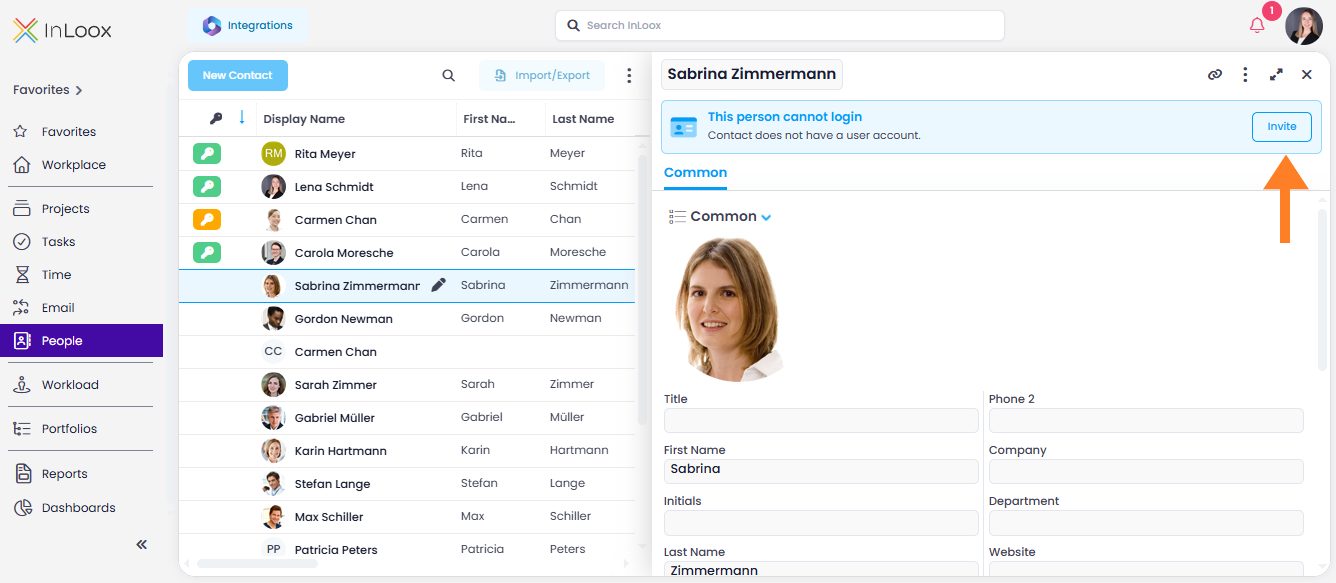
The person receives an email invitation with a corresponding link to accept it.
Directly in a project
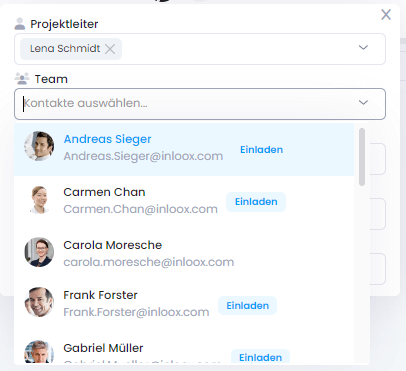
Add team members to a project who do not yet have an InLoox license. Click the Invite button next to the person (provided a contact already exists) to invite them to InLoox.
Via task assignment
You can also invite people directly within a task. Select the task, click Assign task to, and select Invite colleagues via email from the drop-down menu at the bottom. Enter the name, email address, and role to invite the person.

To let the invited person start working with InLoox immediately, grant them the corresponding permissions. Go to Account Settings → User Management and give the person a license by setting their access to Read & Write. In the Global tab, you can configure user-based permissions.
Recognize invitation status
In the People list, indicates each person's invitation status:
- Green key icon — The person has accepted the invitation and can log in to InLoox.
- Orange key icon — The person has been invited but has not yet accepted the invitation.
- No icon — The person has not been invited and cannot log in.
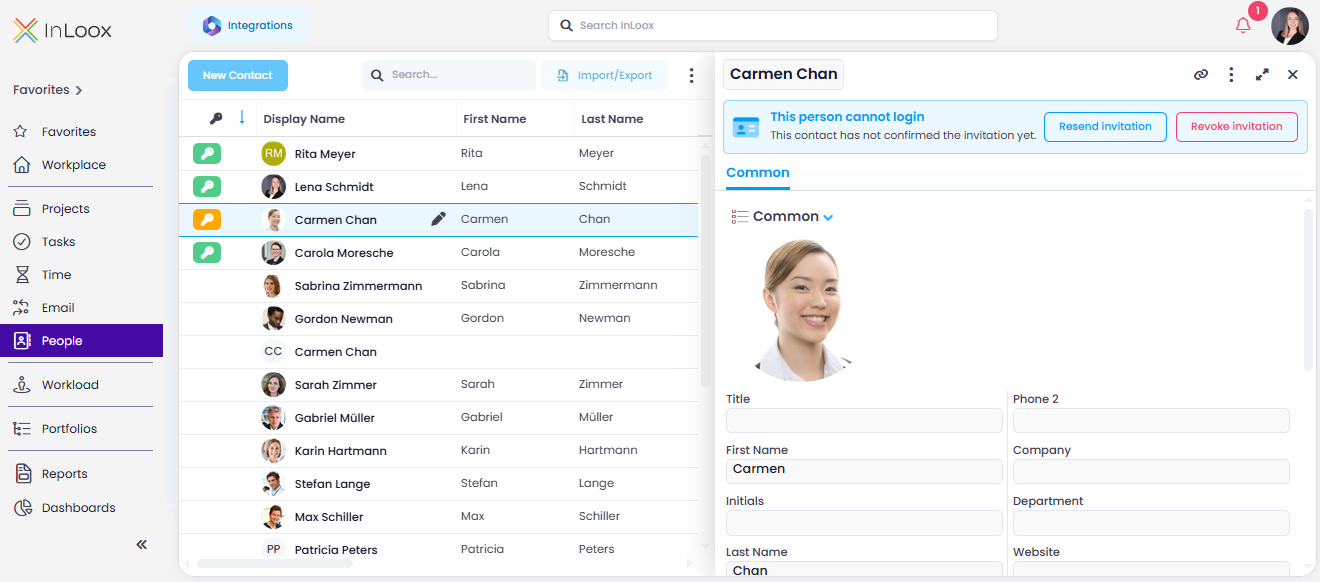
A contact card is also created for the invited person automatically, so you can immediately assign tasks or project roles to them.
Enable invite permission for all users
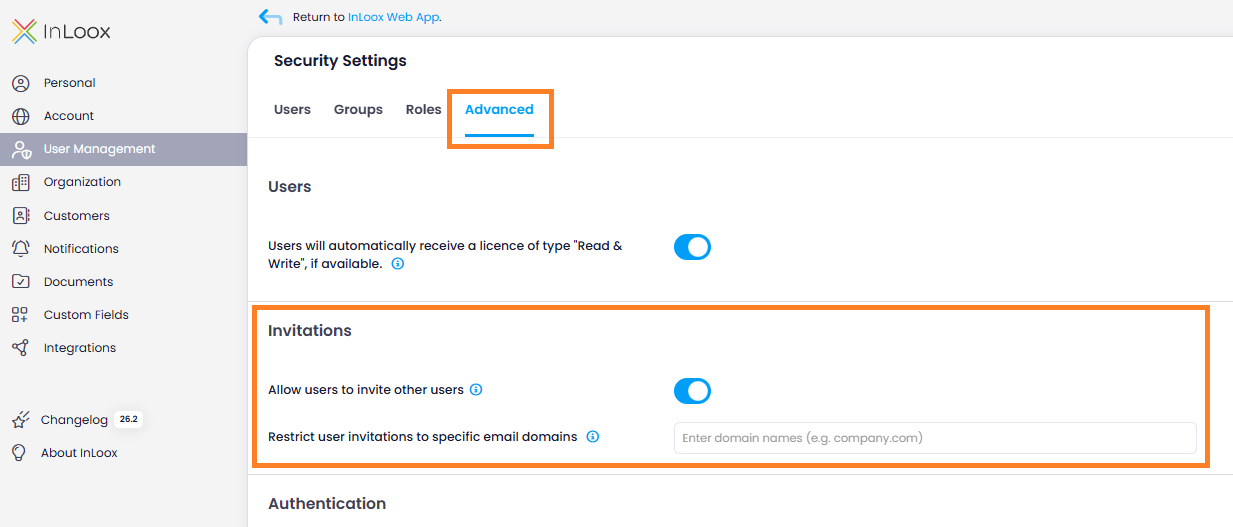
By default, only administrators can invite people to the InLoox account. As an administrator, you can allow all users to invite others:
- In InLoox, click on your profile picture in the upper-right corner.
- Click Account Settings.
- Click on User Management.
- Switch to the Advanced tab.
- Under Invitations, activate the toggle Allow users to invite other users.
- Optionally, enter one or more email domains in the field Restrict user invitations to specific email domains to limit who can be invited. If no domain is specified, users can invite anyone.