Import and Export Contacts
You can import contacts from an Excel or CSV file. This is especially useful when you have a large number of contacts and want to avoid entering each one manually. Exporting contacts is only available as an Excel file.
Import Contacts from Excel or CSV
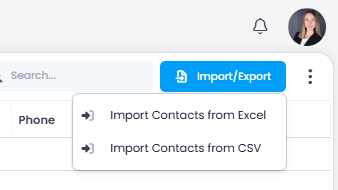
- Click the Import button and select Import contacts from Excel or Import contacts from CSV.
File requirements
- Excel: The file must contain a column named Email with a valid email address in each row. The email address is the only required field for the import.
- CSV: The header row must contain a column named Email, and each contact must have a valid email address. The email address is the only required field for the import.
- A window opens where you can match the columns of your file to the columns in InLoox.
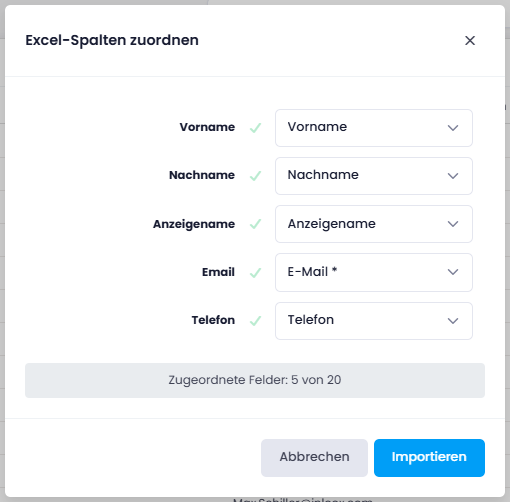
- After completing the column matching, click Import.
Export Contacts to Excel
- Click in the upper-right corner.
- Click Export to Excel.
- InLoox exports the entire contact list. If you have set a filter, only the filtered contacts are exported.