Define Availability of a Person
You can define the availability of a person individually. You can:
- Set a specific base load for project work for a person (e.g., 80%).
- Add days off.
How to Set a Base Load for a User
- Click on People in the menu.
- Select a person and open the entry for editing by clicking .
- Click on the Availability tab.
- Select the calendar for which you need to set a specific availability.
- Define the percentage (e.g., 50%). This is the person's availability for project work.
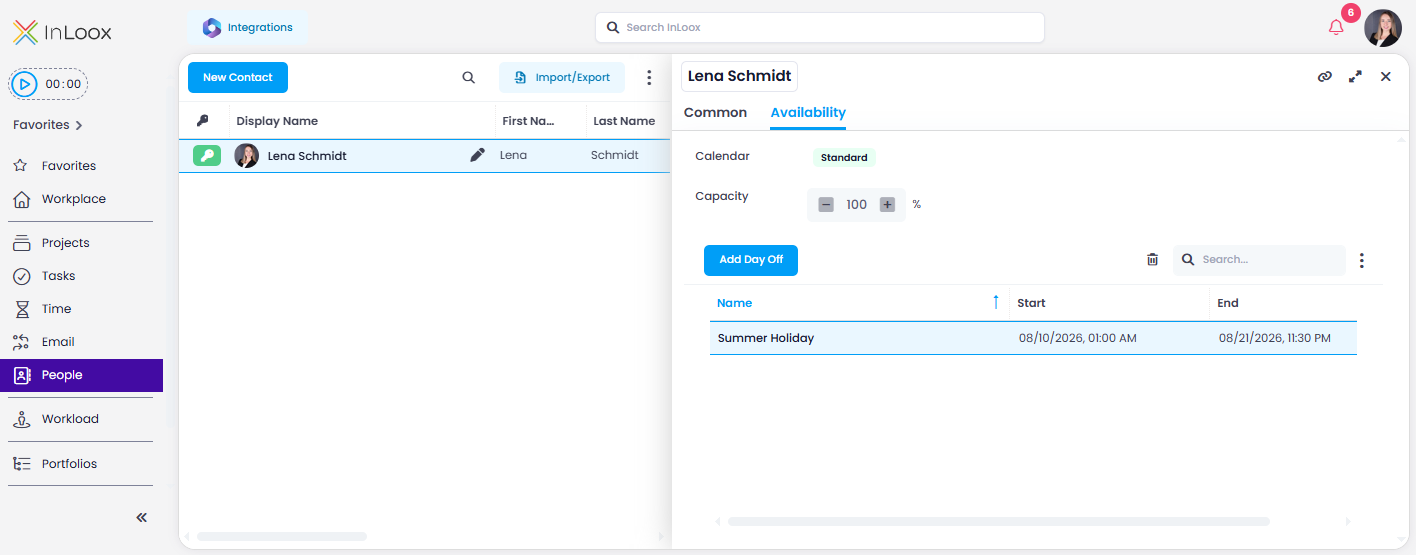
The capacity value is not limited to 100%. For generic resources such as machines or automated equipment, values above 100% can be meaningful — for example, 300% for a machine with three parallel production lines running simultaneously.
A capacity of 0% is also valid and supports proactive capacity planning at the team level. For example, you can create a dummy resource with 0% capacity and add it to a team in the Workload/Resource Overview. Then assign tasks (along with their effort) to the dummy resource before it's clear which team member will take on the implementation. This makes the planned team load visible without distorting the individual workload of single team members. Once responsibilities are finalized, the tasks can simply be reassigned to the actual team members.
How to Add Days Off for a User
- Click on People in the menu.
- Select a person and open the entry for editing by clicking .
- Click on the Availability tab.
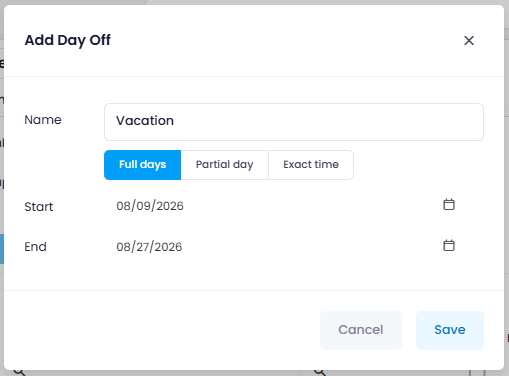
- Under Days Off, click Add Day Off and enter the name for the day off (e.g., "Vacation").
- Select the entry mode: Full days, Partial day, or Exact time.
- Depending on the selected mode, enter the date or the start and end date — and, for Exact time, the exact times as well.
- Confirm the entry by clicking Save.