Create a New Contact
The Different Contact Types
In InLoox, there are two types of contacts, which differ in their origin and editing options:
InLoox Contacts
These are all contacts that:
- Have been created manually in InLoox, or
- Have been invited to the InLoox account via the invitation feature.
Editing: These contacts can be edited directly in InLoox (e.g., name, email address, permissions), provided you have the global user permission Edit People.
Microsoft 365 Contacts
These are contacts that are automatically integrated into InLoox through a connection with a Microsoft 365 business account.
- Synchronization occurs automatically once a Microsoft 365 business account is connected to InLoox. For more information, see Microsoft 365 Contact Synchronization.
- These contacts originate from your organization's Azure Active Directory.
- When you show the column Contact synchronized, an icon will be displayed for these contacts.
Editing: These contacts are read-only in InLoox. Changes (e.g., name, email) must be made in Azure Active Directory — not in InLoox.
Create a New Contact
To create new contacts in People in InLoox, you must have the global user permission Edit People. Contact your InLoox account administrator to have this permission activated for you.
-
Click the New contact button.

-
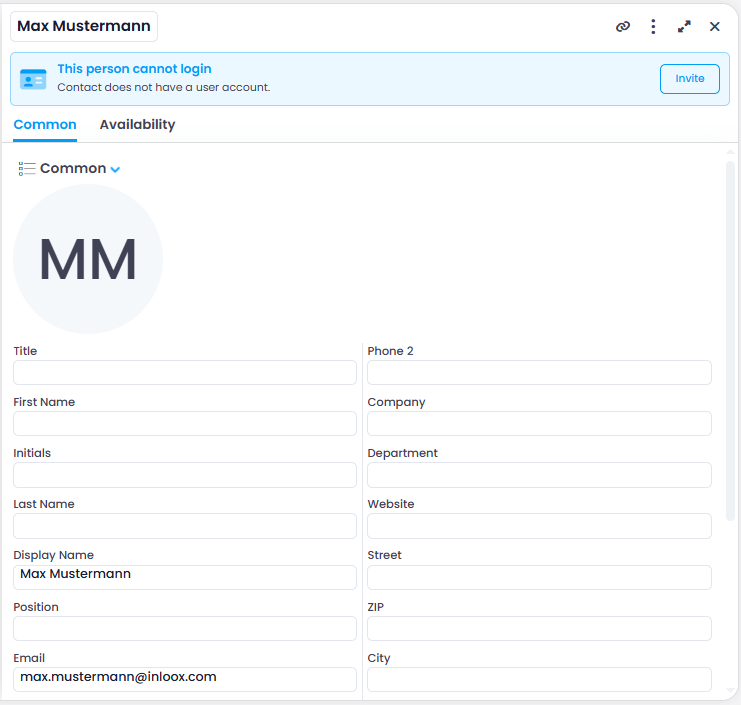
Enter an email address. This field is required.
noteThe email address must follow the format of a valid email address but does not need to actually exist. For example, when creating a generic resource like a machine or team, you can use an address such as
maschine1@firma.de. -
You can then add further details in the side panel — such as personal information, contact data like the address, or other data like the website.
-
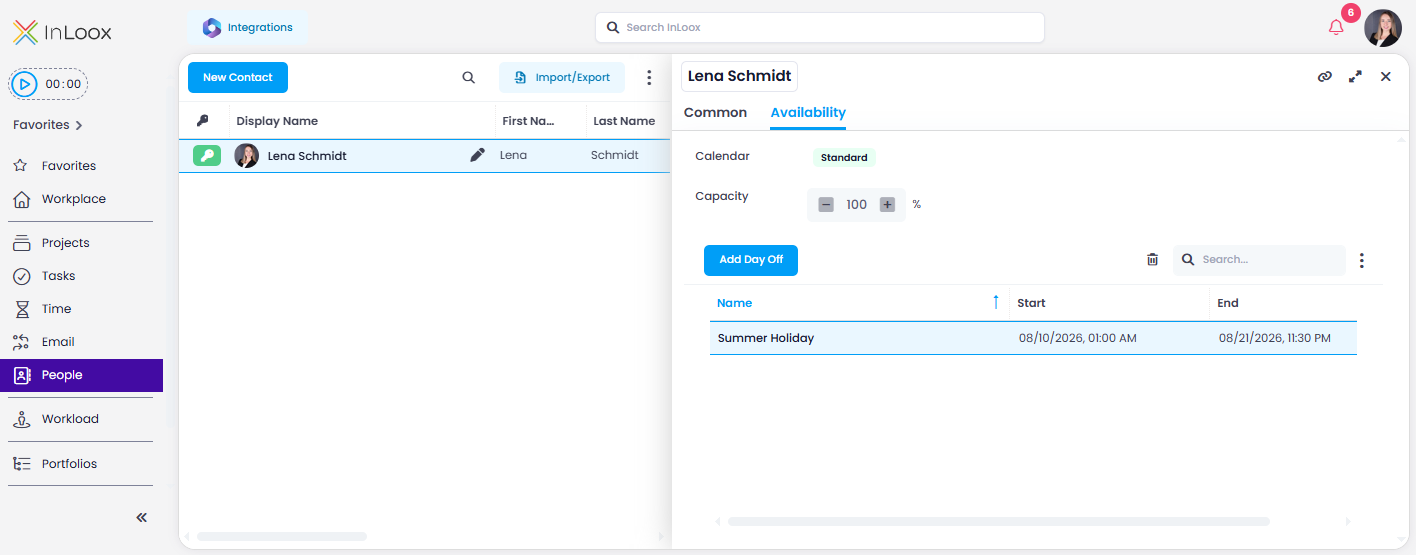
In the Availability tab, you can set the appropriate work calendar and define the capacity in percent. Learn more in the Define Availability of a Person help article.
Generic Resources as Contacts
In InLoox, contacts do not have to represent real people. You can also create generic resources as contacts — also referred to as generic people, placeholders, or dummy resources — for example, to represent entire teams, departments, machines, or equipment. Such a placeholder holds the capacity in the plan until you assign a specific person, so you can plan at the team or role level first and assign individuals later. Generic resources appear in the Workload view like any other resource, which lets you identify bottlenecks or overloads early in the planning process.
Typical Use Cases
- Teams and departments: Create a contact named "Construction" or "Carpentry" to represent the capacity of an entire team or department. This lets you plan at the team or role level before assigning specific individuals.
- Machines and equipment: Contacts can also represent non-person resources such as machines, production lines, or other equipment. These are then available for resource allocation and capacity planning just like any other contact.
Capacity for Generic Resources
For each contact, you can set a capacity in percent in the Availability tab. This value is used in the workload and capacity calculation.
For generic resources, the capacity does not have to be limited to 100%:
- A machine with three parallel production lines might have a capacity of 300%.
- A resource that is available around the clock (24/7 operation) can also be configured with a capacity exceeding 100%.
To set the capacity for a contact, open the contact entry, click on the Availability tab, and enter the desired percentage. Learn more in the Define Availability of a Person help article.