Clear the Add-in Cache (Outlook Classic)
If the InLoox for Outlook add-in shows outdated content, fails to load, or behaves unexpectedly, clearing its cache usually resolves the problem. The following steps describe how to clear the cache in Outlook Classic.
These steps apply to the classic desktop version of Microsoft Outlook. The developer tools used here are provided by the underlying browser engine and are safe to use.
Clear the Cache
-
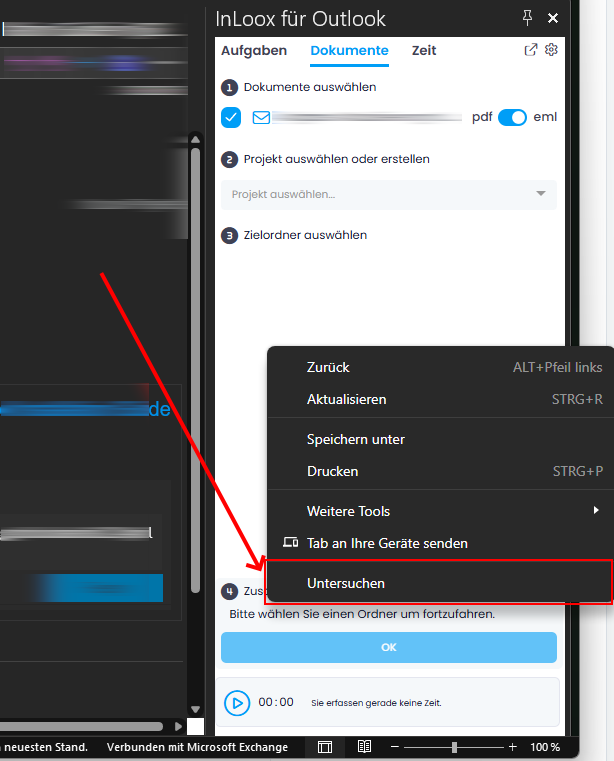
Open the InLoox for Outlook side panel. Right-click inside the add-in panel and select Inspect from the context menu.
-
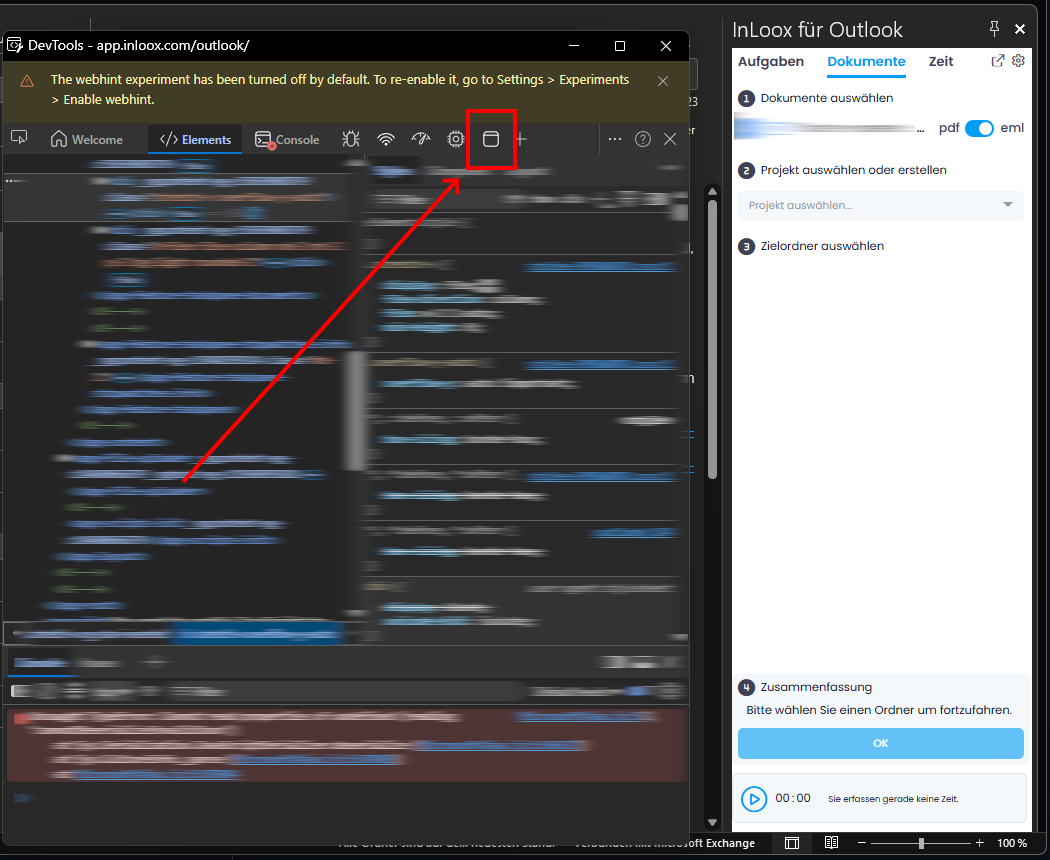
The developer tools open. Select the Application tab. If it is not visible, click the double-arrow (>>) icon to reveal it.
-
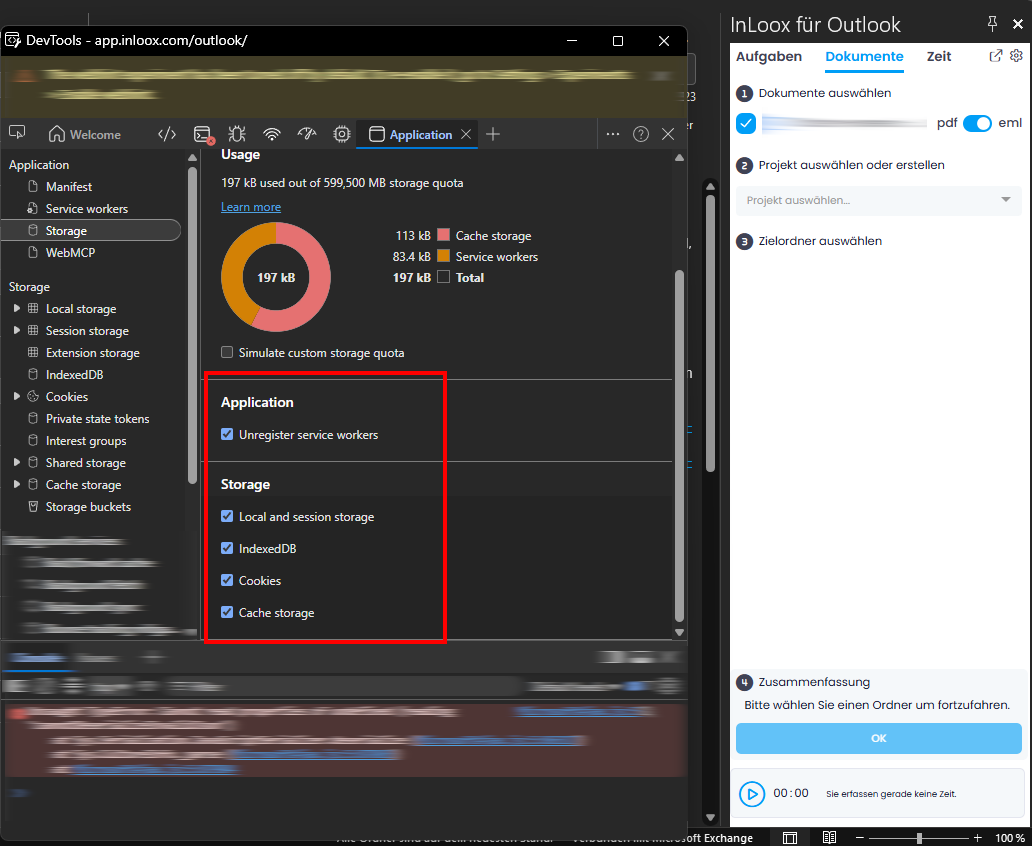
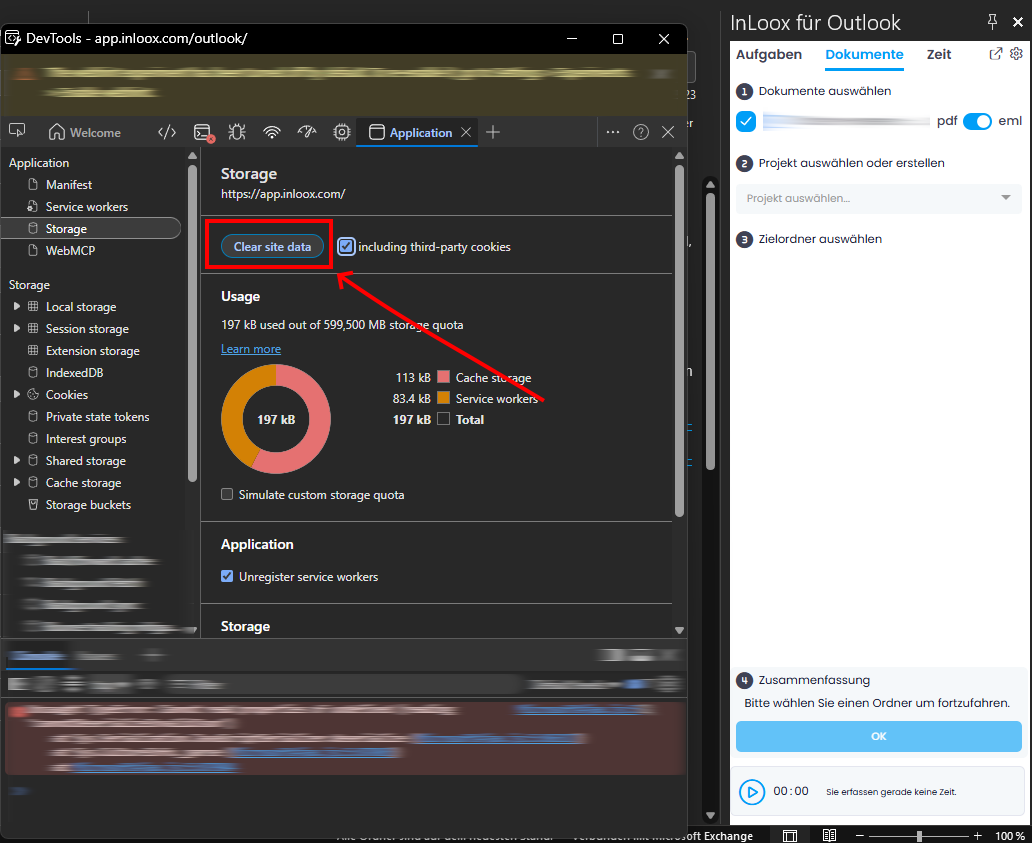
In the left sidebar, select Storage. Make sure all storage options are ticked:
- Unregister service workers
- Local and session storage
- IndexedDB
- Cookies
- Cache storage
-
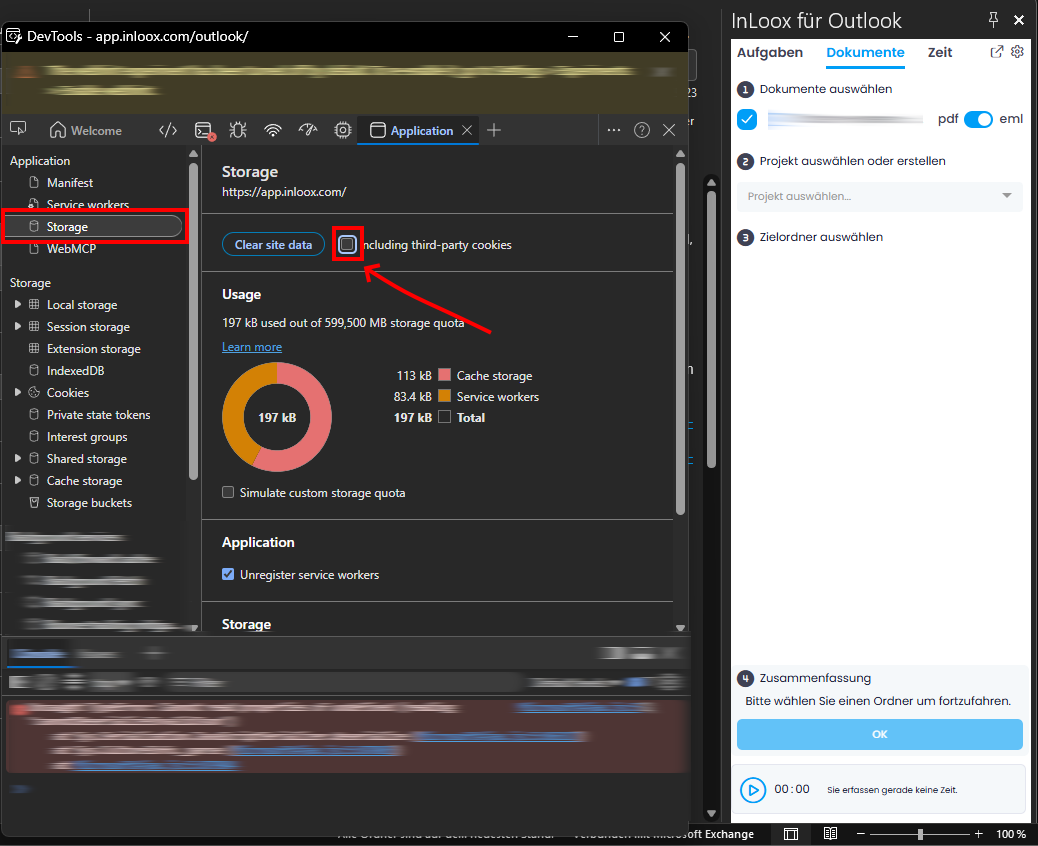
Tick the including third-party cookies checkbox.
-
Click Clear site data.
Restart Outlook
Finally, close Microsoft Outlook completely. Wait about 30 seconds to make sure the application has fully shut down, then reopen Outlook. The InLoox for Outlook add-in now loads with a fresh cache.
Clearing the cache signs you out of the add-in. When you open the InLoox for Outlook side panel again, log in to your InLoox account.