Clear the Add-in Cache (New Outlook)
If the InLoox for Outlook add-in shows outdated content, fails to load, or behaves unexpectedly, clearing its cache usually resolves the problem. The new Microsoft Outlook stores the add-in cache in a folder on your computer. The following steps describe how to delete that folder in the new Outlook.
These steps apply to the new Microsoft Outlook. If you are using the classic desktop version, follow the Clear the Add-in Cache (Outlook Classic) guide instead.
Close Outlook
- Close Microsoft Outlook completely. Make sure no Outlook window is left open. Wait about 30 seconds to ensure the application has fully shut down before you continue. This is important so the cache folder is not locked while you delete it.
Delete the Cache Folder
-
Press Windows + R to open the Run dialog. Paste the path
%LOCALAPPDATA%\Microsoft\Olkand click OK.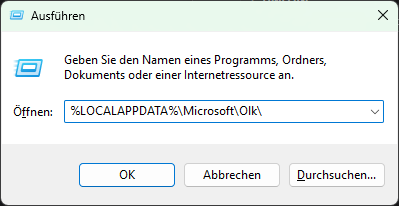 note
noteThe full cache path is
%LOCALAPPDATA%\Microsoft\Olk\EBWebView. Paste only the path withoutEBWebViewso that you land inside the Olk folder and can delete theEBWebViewfolder in the next step. -
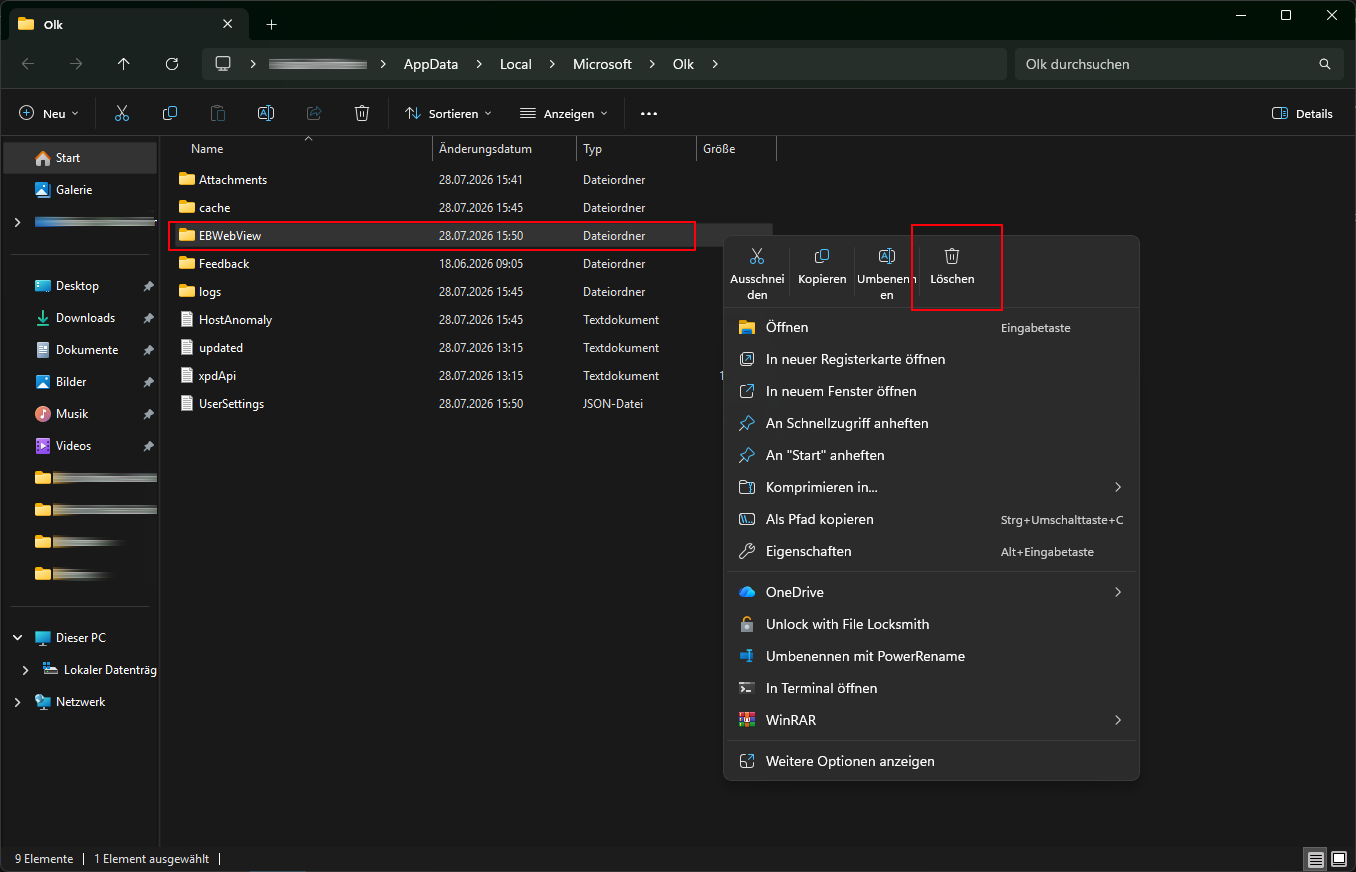
The Olk folder opens in File Explorer. Right-click the EBWebView folder and select Delete.
 info
infoThe EBWebView folder holds the cache for all modern add-ins in the new Outlook. This cannot be avoided, so if other modern add-ins are installed on this device, their cache is cleared as well, and you may need to sign in to them again.
Restart Outlook
-
Reopen Microsoft Outlook. The InLoox for Outlook add-in now loads with a fresh cache and appears logged out.

Clearing the cache signs you out of the add-in. When you open the InLoox for Outlook side panel again, click Log in to InLoox to sign back in to your InLoox account.