Installation
There are several ways to install the InLoox for Outlook Modern Add-in. Choose the method that matches your environment and role. Before installing, make sure your environment meets the system requirements.
- Self-Installation via Microsoft AppSource — for users of InLoox Cloud editions with Microsoft Exchange Online
- Installation by the Microsoft 365 Administrator — for InLoox Cloud and Self-Hosted with Microsoft Exchange Online
- Installation by the Microsoft Exchange Administrator — for InLoox Cloud and Self-Hosted with Microsoft Exchange Server
Self-Installation via Microsoft AppSource
This method is available for InLoox Cloud editions (InLoox Professional, InLoox Enterprise, or InLoox Enterprise Plus) with Microsoft Exchange Online.
As a user of one of the Cloud editions, you can install the InLoox for Outlook add-in yourself from the Microsoft Store:
- Visit https://appsource.microsoft.com/en-us/product/office/WA200006590. Alternatively, search for InLoox for Outlook manually in the Microsoft Store.
- Follow the installation instructions.
- After successful installation, you will find an Open InLoox Add-in button in the Home tab of your Microsoft Outlook menu.
Installation by the Microsoft 365 Administrator
This method is available for InLoox Cloud editions and InLoox Self-Hosted, each with Microsoft Exchange Online.
- Log in to Microsoft 365 with your administrator account.
- Select the app launcher icon at the top left and click Admin. Alternatively, open https://admin.microsoft.com/.
- In the sidebar, click Show all.
- In the Admin Center, go to Settings > Integrated apps.
- Depending on your InLoox edition, proceed as follows:
For InLoox Self-Hosted
-
Select Upload custom apps.
-
In the App type field, select Office Add-in.
-
Activate the checkbox Upload manifest file (.xml) from device.
-
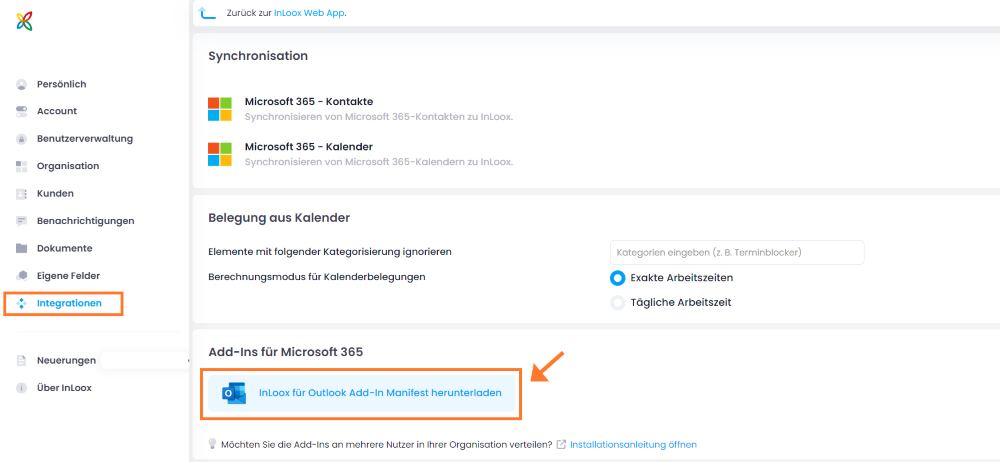
Click Choose File to select the manifest file for the InLoox for Outlook add-in. This file can be downloaded from your InLoox Account under Account Settings > Integrations > Download InLoox for Outlook Add-in Manifest.
-
Click Next.
For InLoox Cloud
- Select Get apps.
- Search for InLoox for Outlook.
- Click Get It Now, then click Get It Now again.
Assign Users
- In the Deployment method section, select an option to specify how the add-in will be deployed to users.
- In the Assign users section, select one of the following options:
- Entire organization — Deploy the add-in to everyone.
- Specific users/groups — Deploy the add-in to selected users or user groups only. Use the search option to find the desired users or groups.
- Just me — Make the add-in available only to yourself.
- Click Next, then click Next again.
- Click Finish deployment. A green checkmark is displayed when the add-in deployment was successful. Deployment on all devices can take up to 24 hours.
Installation by the Microsoft Exchange Administrator
This method is available for InLoox Cloud editions and InLoox Self-Hosted, each with Microsoft Exchange Server 2016 or 2019. With this option, you may only be able to use the Modern Add-in in restricted mode (without access to email attachments, without the ability to set Outlook categories, and without the ability to save emails as EML file attachments), depending on the Microsoft Outlook client used.
-
Open the MS Exchange Admin Center (EAC). Instructions on accessing the EAC can be found in the Microsoft documentation.
-
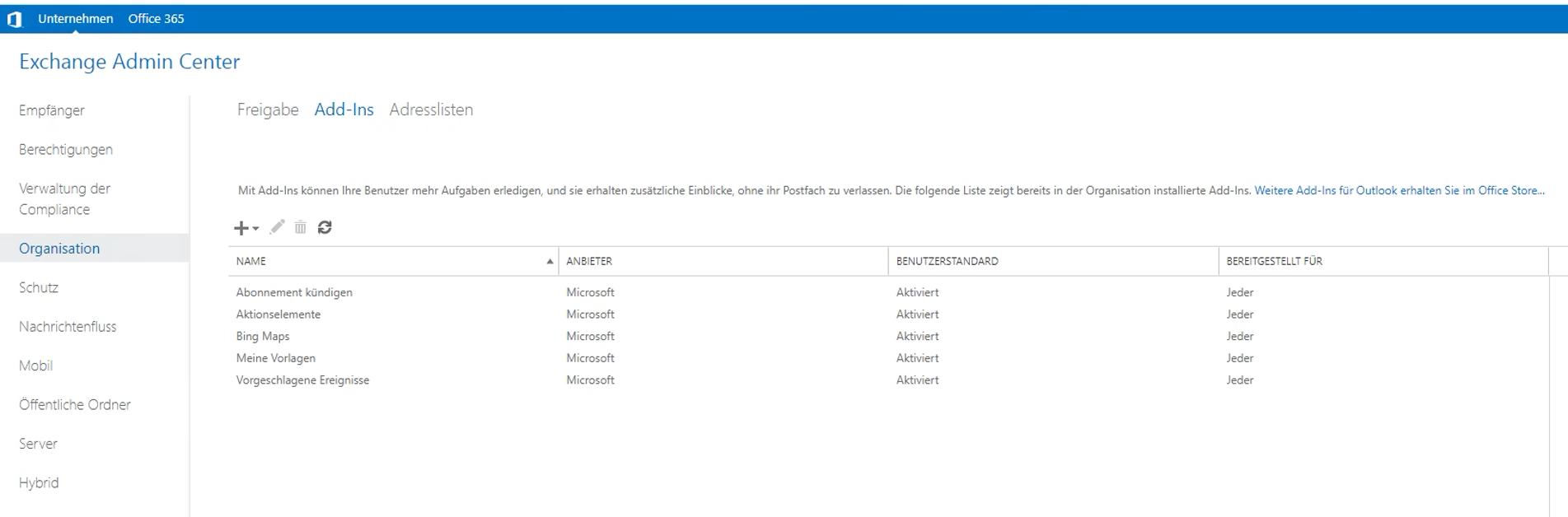
In the Exchange Admin Center, go to Organization > Add-Ins.
-
Add the InLoox for Outlook add-in:
-
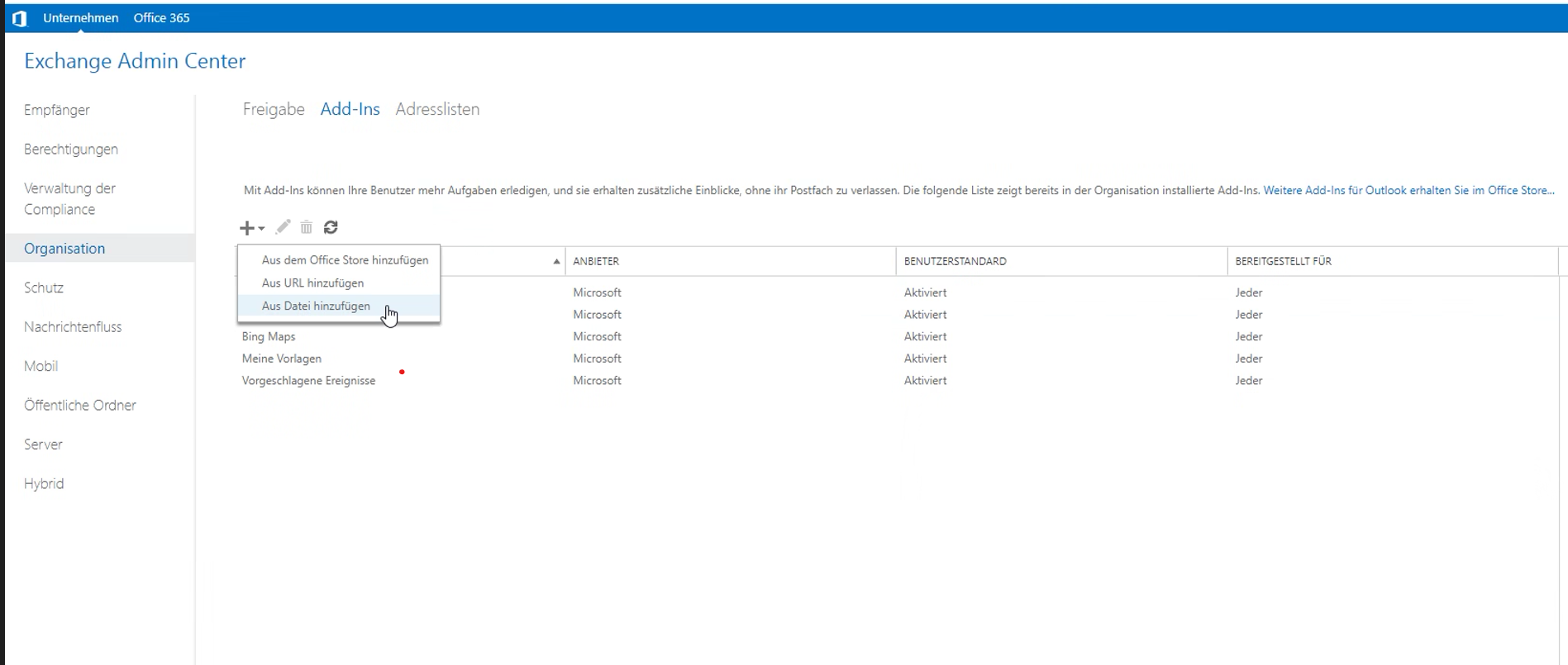
Click the + button (Add):
- If you use an InLoox Cloud edition, select Add from Office Store and follow the instructions. Then proceed with step 4 of this guide.
- If you use InLoox Self-Hosted, select Add from file.
-
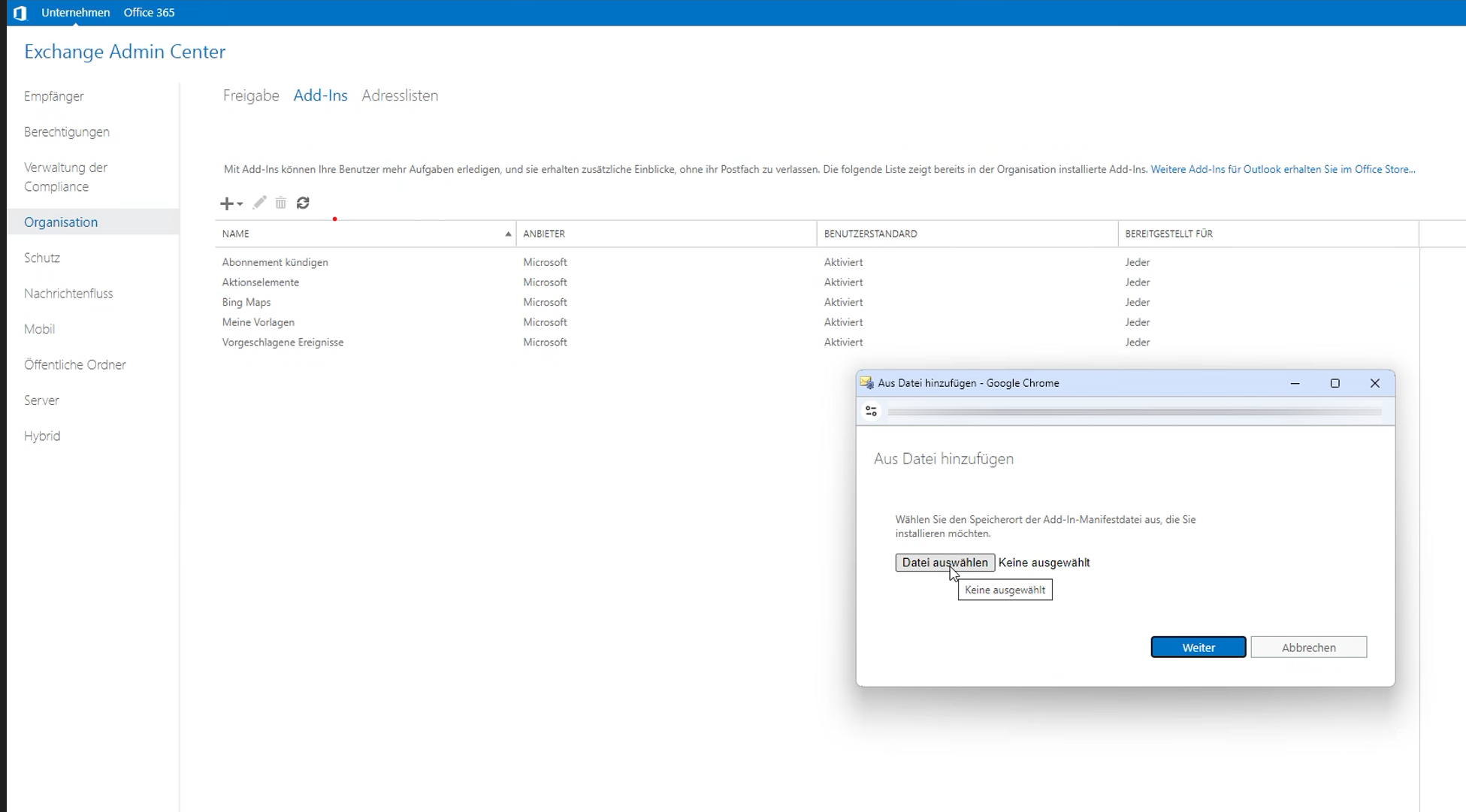
For InLoox Self-Hosted only: Upload the InLoox for Outlook manifest file that you previously downloaded in the InLoox settings under Integrations.
-
The InLoox for Outlook add-in is now displayed in the list of available apps.
-
-
Make the add-in available for users:
-
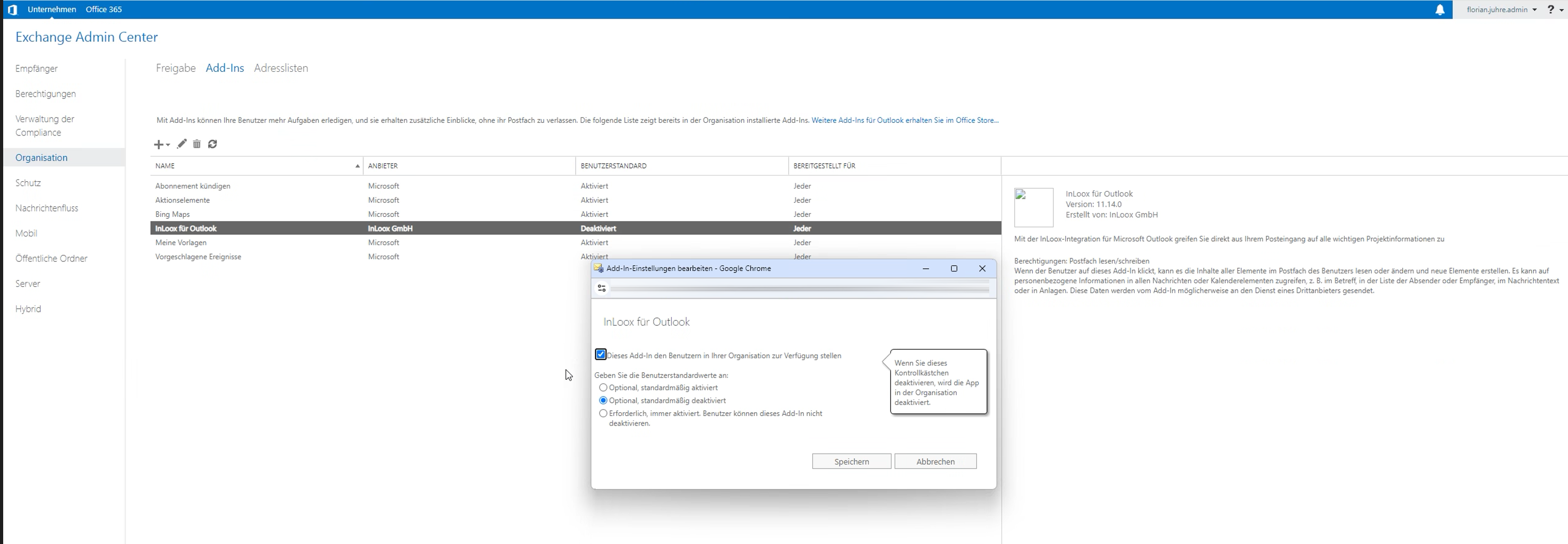
Double-click the InLoox for Outlook add-in to open the add-in settings.
-
Activate the checkbox Make this add-in available to users in your organization.
-
Select one of the following options:
- Optional, enabled by default — The add-in is enabled by default but can be disabled by users.
- Optional, disabled by default — The add-in is disabled by default; users can enable it if required.
- Mandatory, always enabled — The add-in is always enabled; users cannot disable it.
-
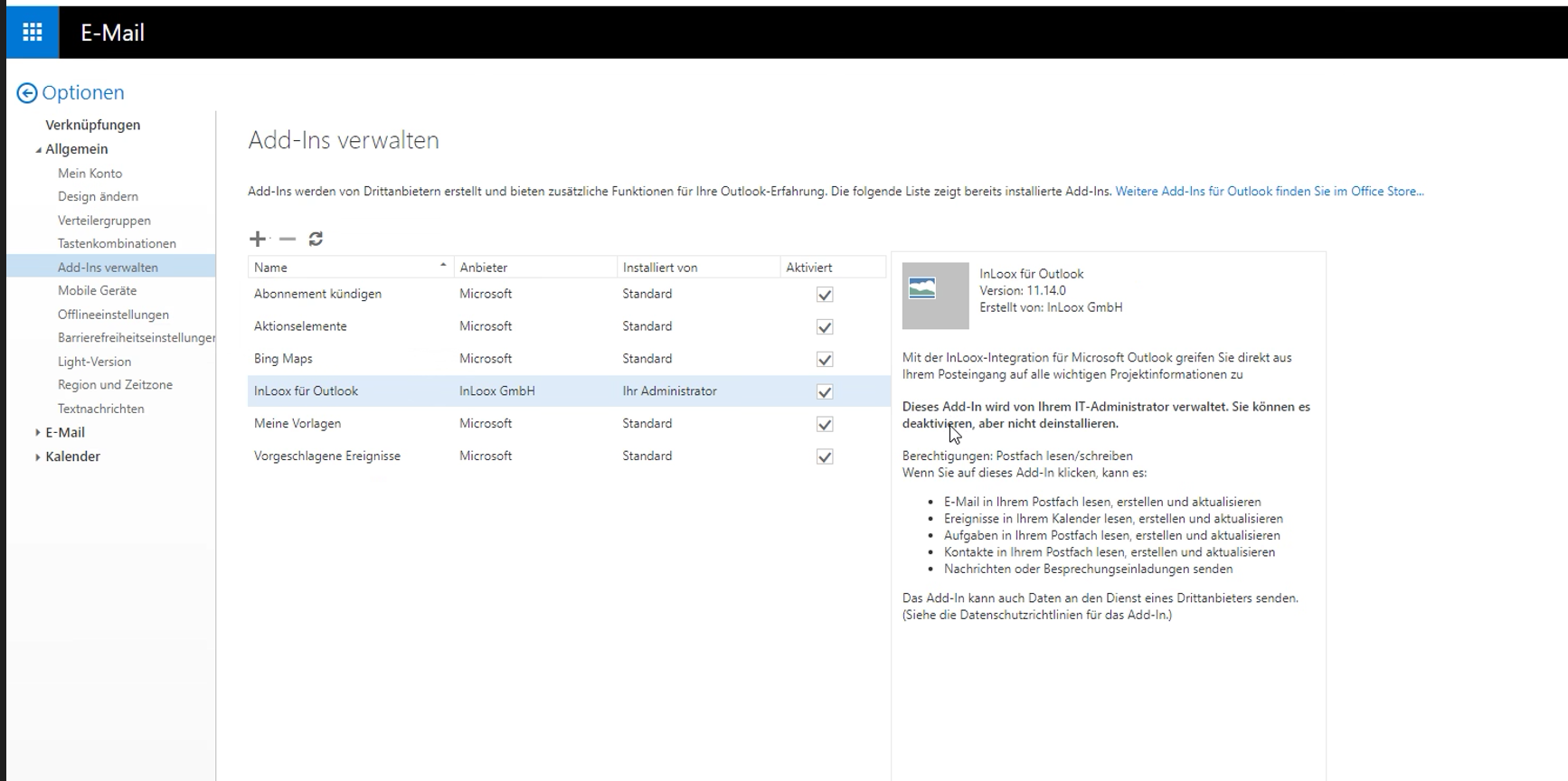
Click Save. If you selected Optional, disabled by default, users must activate the add-in themselves by navigating to Options within Microsoft Outlook and enabling the checkbox for the InLoox for Outlook add-in under Manage add-ins.
-
-
Restart Microsoft Outlook and verify that the InLoox for Outlook add-in is displayed in the Home tab for the users. Deployment on all devices should be available immediately.